Best Free Video Editor for Mac in 2026: Top Choices Compared
Find the best free video editor for Mac in 2026 with native Apple Silicon support, 4K export, and features for both beginners and pros.

This native support ensures smooth performance on MacBooks and desktops without additional cost or setup.
For users requiring advanced color grading or 8K editing, Meanwhile,
It clarifies real system requirements, export limits, and user suitability for Mac users in 2026. The step-by-step evaluation helps avoid common pitfalls and guides decision-making tailored to individual Mac setups and editing goals.
The figures below come from eTinySoft, Movavi, Aiarty (full list at the end), as of November 2026.
How we chose the best free video editors for Mac
Selecting the best free video editors for Mac in 2026 required a clear focus on which tools offer genuine value without hidden drawbacks. Essential criteria included the availability of a free version that runs seamlessly on macOS with Apple Silicon chips like M3 and M4, export capabilities at 4K resolution or higher, and minimal to no watermarks on final videos. This ensures users can deliver professional-looking projects without unexpected branding or quality limits.
Performance on current hardware was a key factor. Editors had to support a range of Mac devices from entry-level to high-end. For instance, DaVinci Resolve demands at least 16GB of RAM for smooth 4K editing, catering to professionals, while System requirements directly impact usability and editing speed, which is critical for a satisfying workflow.
Feature sets also shaped the rankings. Tools offering AI-powered functions, such as CapCut’s automatic captions and trending social media effects, were included for creators focused on quick, modern content. However, CapCut’s reliance on an internet connection and privacy considerations are drawbacks. Shotcut, with wide codec support but requiring Rosetta 2 on Apple Silicon, adds another dimension but may challenge some users due to its interface.
Each video editor was assessed by matching these criteria to user needs, balancing strengths like native optimization or advanced color grading against limitations like hardware demands or export restrictions.
Overall, the selected editors reflect a balance between accessibility for beginners and depth for professionals, always anchored by clear, verifiable system and export capabilities for 2026 Macs. A detailed comparison of these factors informed this careful selection.
What is the best free video editor for MacBook
For MacBook users in 2026, the default choice for video editing is iMovie. It comes pre-installed on all new Macs and is optimized natively for Apple Silicon chips including M3 and M4. This ensures smooth performance while exporting 4K videos without any watermarks, making it ideal for users looking for a straightforward, reliable editor with no additional setup.
DaVinci Resolve’s free version suits advanced users who need professional features such as 8K editing and advanced color grading. However, it requires at least 16GB of RAM for smooth 4K editing, so it fits best on MacBooks with higher RAM configurations. It imposes no export limits or watermarks, making it a powerful option for those comfortable with a steeper learning curve.
CapCut targets social media creators who want trendy effects and AI-powered auto-captioning. It supports multiple languages and allows direct export to social platforms. However, some features require an internet connection, and privacy concerns arise due to its Chinese ownership. CapCut offers a free version with an optional $7.99/month Pro subscription for additional features.
OpenShot is an open-source alternative offering unlimited layers and 3D animations. It appeals to users who prioritize flexibility and customization but may face occasional instability and slower performance with large files. This editor is best suited for those willing to tolerate occasional glitches in exchange for a fully free and open platform.
What's the best free video editor for Mac with no watermark
Pre-installed on new Macs and optimized for Apple Silicon chips including M3 and M4, iMovie supports 4K exports with no watermark. It suits casual to intermediate users who want a reliable, no-fuss editor tailored to Mac hardware. Its limitation lies in the feature depth, which may not satisfy advanced editors.
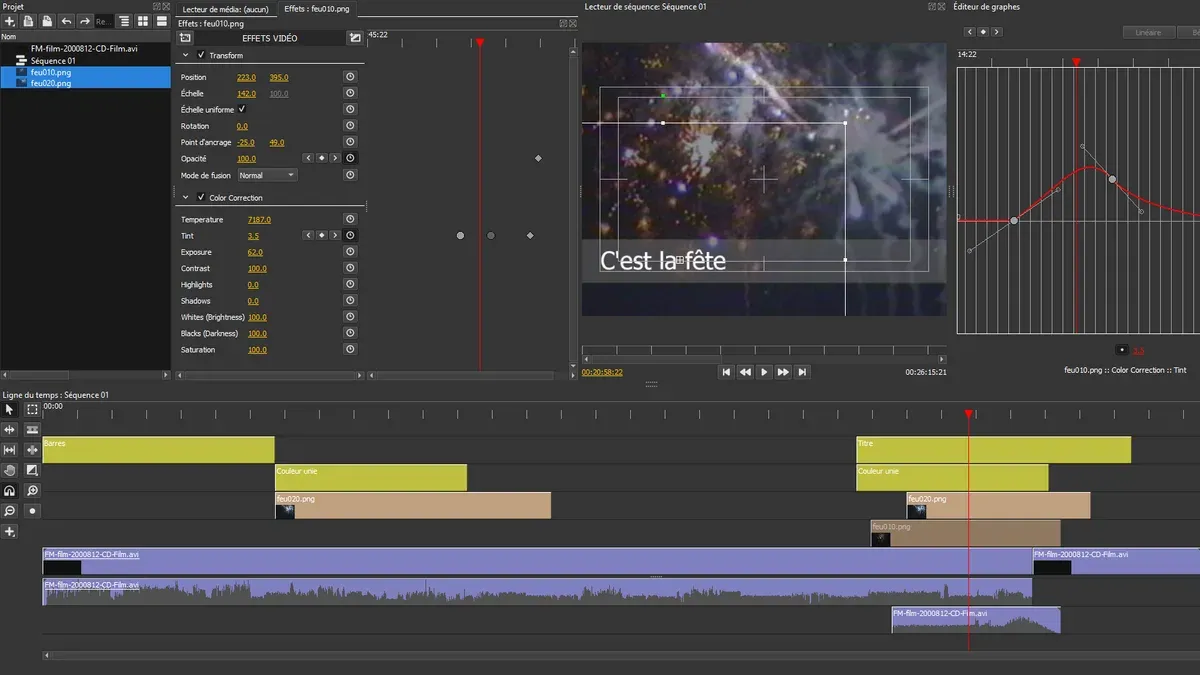
DaVinci Resolve's free version also exports without watermarks and supports up to 8K resolution, appealing to users needing professional color grading and advanced editing tools. However, it requires at least 16GB of RAM to handle smooth 4K editing, which may be a barrier on lower-end Macs. This software fits users with powerful hardware and professional ambitions.
CapCut for Mac exports videos without a watermark in its free version, making it attractive for social media creators seeking trendy effects and AI-powered auto-captions. Some advanced features, however, require a $7.99/month Pro subscription, and certain functions need an internet connection. Privacy concerns tied to its Chinese ownership are also a consideration.
Lightworks free version comes with a 720p export resolution limit and risks watermarking when using some advanced features. This restricts its use if higher resolution output is needed. It suits beginners who prioritize learning editing basics over resolution quality.
Movavi Video Editor offers a free trial for 7 days, but once expired, exports carry a watermark, which makes it unsuitable for long-term free use without purchase. It is best viewed as a temporary option for evaluating features rather than a permanent free editor.
Which video editor is best for Mac with limited hardware
Mac users with limited hardware need an editor that balances performance and features without overloading the system. iMovie, pre-installed on new Macs, is optimized natively for Apple Silicon chips like M3 and M4. This ensures smooth video editing and 4K exports without watermarks, making it ideal for users who want hassle-free editing on lower-spec machines. Its strength lies in seamless integration and efficiency, though it offers fewer advanced features compared to some competitors.
Users with less than 16GB RAM will experience slowdowns and lag, as the software is resource-intensive. Therefore, while excellent for high-end hardware, it is not suited for Macs with limited memory.
However, it needs Rosetta 2 translation on Apple Silicon Macs, which reduces speed and responsiveness. Its unintuitive interface adds to the challenge, making it better suited for users willing to compromise on native performance and ease of use.
OpenShot is a free, open-source editor known for unlimited layers and 3D animations. Despite these features, it can lag with large files and is sometimes unstable, which can interrupt workflow on lower-spec Macs. Users should weigh these drawbacks carefully before adoption.
What’s the best free video editing software for Mac for social media creators
It provides AI-powered auto-captions in multiple languages, background removal without needing a green screen, and direct export options to popular social platforms. This makes it ideal for creators prioritizing quick social media-ready content. However, CapCut depends on an internet connection for some features and raises privacy concerns due to its Chinese ownership.
Movavi Video Editor offers AI tools such as automatic subtitle generation and background removal, which are valuable for social creators aiming for polished videos. Yet, these features are limited to a 7-day trial, after which exports carry a watermark. This constrains long-term free use but allows a brief period to evaluate its AI capabilities.
It lacks AI enhancements and direct social media export templates, making it better suited for users who want reliable, straightforward editing without advanced social media automation.
DaVinci Resolve delivers professional color grading and supports 8K editing without export limits or watermarks. While it includes AI-powered features, it does not offer built-in social media templates or direct platform exports. Its 16GB RAM recommendation for smooth 4K editing also means it suits creators with powerful Macs focusing on high-end production rather than quick social media output.
What’s the best free video editor for MacBook Pro and Mac Mini
iMovie comes pre-installed on new Macs, including MacBook Pro and Mac Mini models with Apple Silicon M3 or M4 chips. It delivers smooth 4K video export without watermarks thanks to native Apple Silicon optimization. This makes iMovie ideal for users seeking a stable, no-cost solution that leverages their Mac’s hardware efficiently. However, it lacks advanced professional features found in other editors.
DaVinci Resolve targets MacBook Pro users who require professional-grade tools such as 8K editing and sophisticated color grading. Its free version places no export limits or watermarks, but it demands at least 16GB of RAM to ensure fluid 4K editing performance, which is typical in higher-end MacBook Pro configurations. Users with less RAM or Mac Mini models without this capacity may experience sluggishness.
Lightworks offers a free version with a notable export resolution limit of 720p. This constraint can frustrate power users working on MacBook Pro or Mac Mini who expect full HD or higher outputs. While it provides basic editing features, the need for a paid upgrade to unlock professional export quality and advanced tools limits its appeal for serious projects on these machines.
Final Cut Pro is a one-time purchase priced at $299.99, optimized for Apple Silicon chips found in both MacBook Pro and Mac Mini. It includes features such as the Magnetic Timeline, ProRes codec support, proxy workflows, and multicam editing. This software suits professionals requiring comprehensive editing capabilities within the Apple ecosystem. The cost is the main barrier compared to free alternatives.
What this article does not cover and who should look elsewhere
This article focuses on free video editors for Mac users in 2026 but does not cover paid-only editors in depth. One notable exception is Final Cut Pro, a professional-grade option costing $299.99 as a one-time purchase. It is optimized for Apple Silicon and offers advanced features like the Magnetic Timeline, ProRes codec support, proxy workflows, and multicam editing. Final Cut Pro suits professionals who require industry-standard tools and extensive plugin support but is not free and thus outside the primary scope here.
Beginners or casual editors should note that iMovie, while pre-installed and optimized for Apple Silicon, has clear limitations. It does not support multicam editing, plugin extensions, or advanced motion tracking. Its effects library is modest, focusing on straightforward editing tasks. Users expecting extensive effects or advanced animation capabilities may find iMovie insufficient and should consider more feature-rich paid options.
Free versions of other editors also generally lack some advanced capabilities. For instance, multicam editing and advanced motion tracking often require paid software. Users with complex projects demanding these features or extensive plugin ecosystems will need to look beyond free editors. This article also does not address Windows or cross-platform editors except where directly relevant to Mac users, keeping the focus tightly on Mac-native options.
In summary, this guide is best for those seeking zero-cost editors with solid core features on Mac hardware. Professionals, advanced hobbyists, and users with very specific needs should consider investing in paid software to access the full suite of advanced editing tools and support.
Common pitfalls and what breaks when choosing a free Mac video editor
DaVinci Resolve demands at least 16GB of RAM for smooth 4K editing. Macs with less memory experience sharp performance drops, including lag and slow rendering. This makes it unsuitable for users on lower-spec machines despite its professional-grade color grading and 8K support.
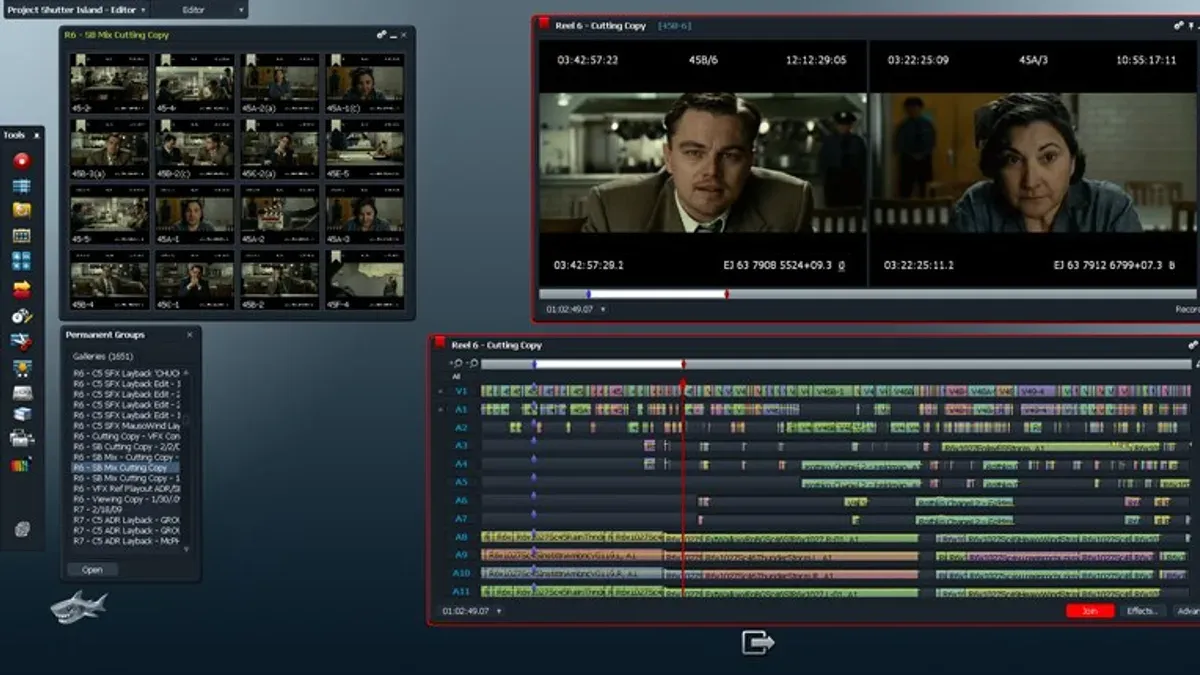
Lightworks limits exports to 720p in its free version, which can frustrate users expecting HD output. This export ceiling restricts video quality, making Lightworks a poor fit for projects requiring full HD or higher resolution without upgrading.
Movavi Video Editor’s free trial ends with watermarked exports, which disrupts professional presentation and sharing. Users looking for truly free, watermark-free editing must either purchase the full version or choose another editor. Its trial nature is a key drawback despite an intuitive interface.
CapCut offers trendy social media effects and AI-powered auto-captions but requires an internet connection for some features to work. Additionally, its Chinese ownership raises privacy concerns, making it less suitable for users prioritizing data security or offline workflows.
iMovie, while optimized for Apple Silicon and watermark-free, lacks advanced features like multi-cam editing and motion tracking. This limits its appeal to users needing complex effects or plugin extensions, positioning it best for beginners or simple editing tasks.
Frequently asked questions
What is the best free video editor for MacBook Air?
The best free video editor for MacBook Air is iMovie, as it is pre-installed and optimized for Apple Silicon chips found in current MacBook Air models. It offers smooth 4K video export with no watermark and runs efficiently on the Air's hardware without requiring extra RAM or storage beyond the system’s defaults.
Which free video editor for Mac supports 4K export without watermark?
iMovie supports 4K export without any watermark on Mac devices. This capability is included by default on new Macs in 2026, making it a reliable choice for users needing high-resolution output without branding.
Can I use the same free video editor on Mac and Windows?
DaVinci Resolve offers versions for both Mac and Windows, enabling users to work across platforms with the same software. However, features and performance may differ due to hardware capabilities and operating system constraints, so checking system requirements for each platform is advisable.
Limitations of This Guide and When to Choose Paid Software
This article focuses solely on free or freemium video editing software available for Mac in 2026, excluding fully paid professional tools except for brief mentions. Users requiring advanced capabilities such as multi-camera editing, extensive plugin support, or enterprise-grade color grading should look to paid software options. These applications often provide dedicated technical support and broader hardware compatibility, which free editors may lack.
The next practical step involves assessing the Mac’s hardware specifications and typical editing tasks before selecting a video editor. For example, confirm whether the Mac has at least 16GB of RAM when considering DaVinci Resolve for 4K or higher projects. Matching the software’s system demands and export features to the user’s workflow will minimize performance issues and avoid hidden limitations, ensuring a smoother editing experience.
Pages this guide relies on
- Mac Video Editor Free Comparison 2026 — 8 Best Free Editors Tested — eTinySoft
- 12 Best Free Video Editing Software for Mac [Free Download] — Movavi
- 8 Best Mac Video Editors (2026): Free & Paid Software — Aiarty
- Top 10 Best Free Video Editing Software for Mac Users [2026 Update] — Wondershare Filmora
See also: Fix QuickTime Not Recording Audio on Mac: Step-by-Step Solutions · How to Convert Video to GIF on Mac: A Step-by-Step Guide · How to Convert YouTube Videos to MP3 Legally on Mac · How to Install and Customize Cursor Editor on Mac