
Can MacBook Air M3 Run Hades 2? A Clear, Balanced Look
Learn how the MacBook Air M3 handles Hades 2 gameplay with tips on settings and temperature management for smooth performance.
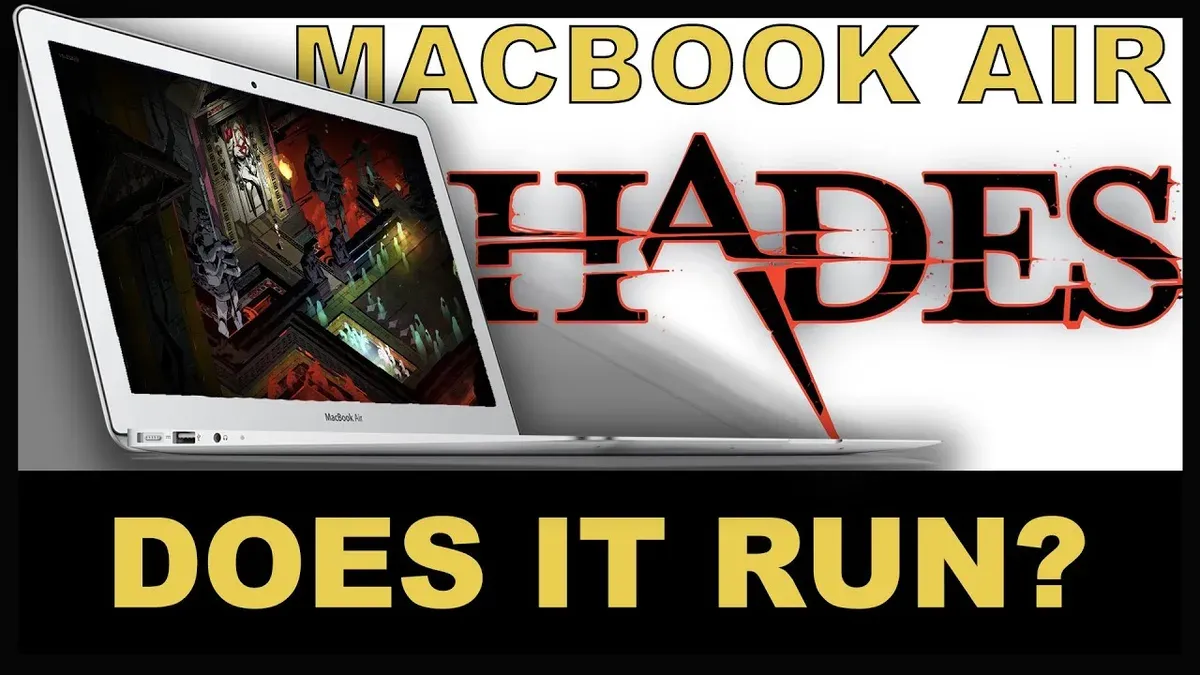
You’ve just installed Hades 2 on your MacBook Air M3 and are eager to jump into the action. Before you start playing, you might wonder: can MacBook Air M3 run Hades 2 smoothly without running into performance or heating issues?
This article guides you through what to expect from your MacBook Air M3 when playing Hades 2, focusing on practical gameplay performance and thermal management rather than just raw specifications. You’ll learn how this laptop’s hardware aligns with the game’s demands, how to fine-tune settings for an optimal experience, and what to watch for during longer sessions to avoid throttling.
Key takeaways
- The MacBook Air M3 can run Hades 2 at medium settings with smooth frame rates and manageable temperatures.
- Adjusting in-game graphics to balance visuals and performance is crucial for a steady experience.
- Monitoring CPU and GPU temperatures during play helps prevent thermal throttling and maintains responsiveness.
- Using Low Power Mode or closing background apps can improve game stability on the MacBook Air M3.
- Heavier gaming workloads may push the Air’s cooling limits, so extended sessions should be planned accordingly.
Direct answer: Can your MacBook Air M3 run Hades 2 smoothly?
Your MacBook Air M3 can run Hades 2 smoothly enough for casual gaming sessions, especially when you adjust the graphics settings appropriately. Benchmarks show the M3 chip handles the game at medium to high presets with frame rates generally staying around 40-60 FPS, which is quite playable for this style of action roguelike. However, pushing ultra-high graphical settings will likely drop frame rates and increase the chance of thermal throttling during longer play.
Because the MacBook Air M3 lacks an active cooling system, it can heat up under sustained load, causing the CPU to reduce clock speeds to manage temperature. This means extended sessions at maximum settings may see occasional dips in performance. Balancing visuals with thermal limits by lowering shadows, resolution scaling, or effects can help maintain smooth gameplay without overheating.
Overall, you can expect a generally smooth experience on your MacBook Air M3 with Hades 2 if you fine-tune the in-game settings. The game is well optimized for Apple Silicon, but keeping an eye on performance and temperature during play will ensure the best experience.
Understand the MacBook Air M3’s hardware and how it fits Hades 2’s demands
The MacBook Air M3’s hardware is well-suited to handle Hades 2’s blend of 2D visuals and GPU-accelerated effects, but its passive cooling design influences sustained performance. The M3 chip features a GPU with up to 10 cores, providing efficient graphics processing that excels in optimized games like Hades 2. This GPU architecture can smoothly render the game’s detailed sprites and particle effects, especially when graphics settings are balanced.
However, unlike the MacBook Pro, which includes active cooling fans, the MacBook Air relies solely on passive cooling. This means it prioritizes quiet operation and slim design but can face thermal constraints under prolonged heavy load. The MacBook Air’s thermal design power (TDP) is lower than that of the MacBook Pro, so during extended play sessions with high GPU demand, it may reduce clock speeds to manage heat.
Understanding this balance helps you anticipate when to adjust settings or take breaks. The M3’s GPU is powerful enough for Hades 2’s demands in short bursts or medium-length play, but the passive cooling requires mindful management to maintain smooth performance without overheating.
Adjust graphics and settings to optimize your Hades 2 experience
To get the best playability on your MacBook Air M3 without sacrificing too much visual quality, start by lowering the resolution scale from 100% to around 80-90%. This reduces the workload on the GPU and improves frame rates noticeably. Next, turn off demanding visual effects such as motion blur and shadows, which can cause unnecessary strain and impact smoothness during combat.
Choosing the medium preset in Hades 2's graphics settings often hits the sweet spot between good visuals and stable performance. This preset balances effects and detail without pushing the passive cooling system too hard. You’ll still enjoy vibrant colors and clear animations while avoiding dips in frame rates.
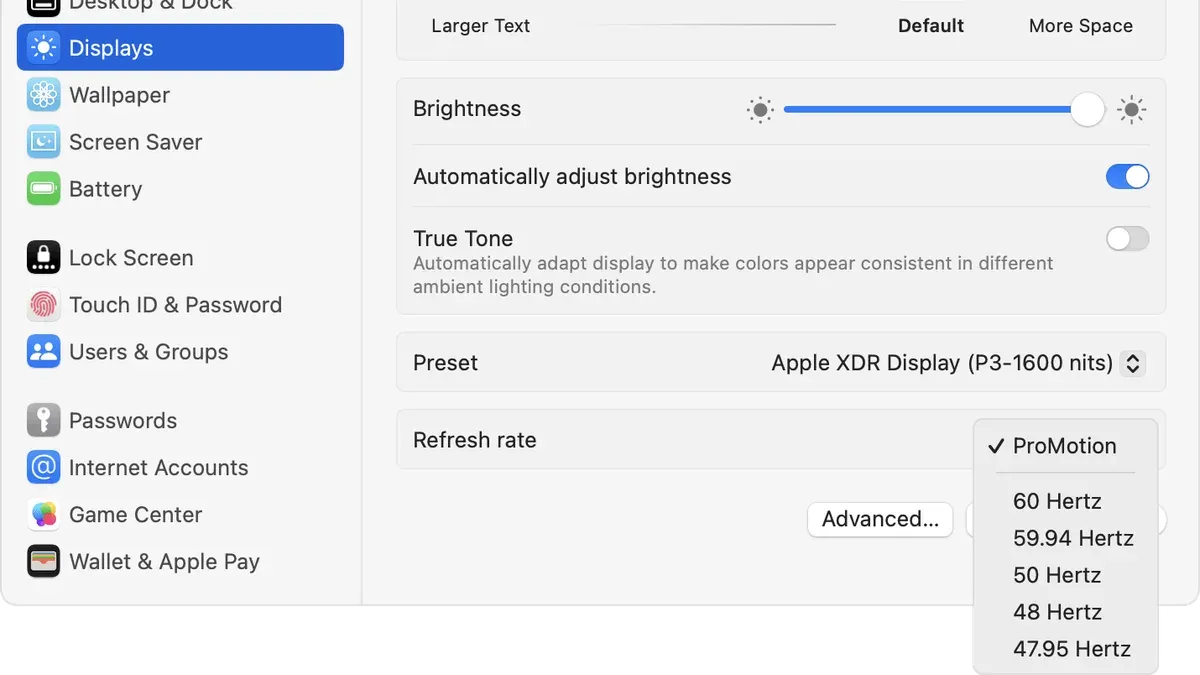
macOS offers adaptive performance features like “Low Power Mode” in System Settings > Battery that help manage your MacBook Air M3’s thermal headroom. Enabling this setting assists in maintaining a steadier frame rate during longer play sessions by subtly adjusting CPU and GPU power.
Side-by-side comparisons show that while high presets can dip below a smooth frame rate after extended play, medium presets combined with lowered resolution maintain consistent 60fps gameplay. Using these adjustments, you can enjoy Hades 2’s fast-paced action fluidly on your MacBook Air M3.
Monitor temperature and prevent thermal throttling during long sessions
Thermal throttling occurs when your MacBook Air M3’s internal temperature rises enough that the CPU and GPU automatically reduce their clock speeds to avoid overheating, which can cause noticeable drops in frame rates and less smooth gameplay in Hades 2. To keep performance steady during extended gaming, actively managing heat buildup is key.
Playing in a cooler room temperature helps lower the baseline heat your MacBook Air M3 generates. Using a laptop stand to elevate the device improves airflow underneath, helping dissipate heat more effectively despite the Air’s lack of internal fans. These simple changes can reduce internal temperatures by several degrees, delaying or minimizing throttling.
Although the MacBook Air M3 doesn’t have fans, third-party apps like iStat Menus or TG Pro can access system temperature sensors to monitor CPU and GPU heat levels in real time. Watching these readouts before and after adjusting your environment or session length shows how much difference these steps make. For example, CPU temps might drop from the high 80s Celsius to the low 70s, helping maintain higher frame rates longer without throttling.
Compare MacBook Air M3 with similar laptops for Hades 2 gaming
The MacBook Air M3 strikes a balance between performance and portability that sets it apart from many other ultraportable laptops when running Hades 2. Compared to Intel-based ultraportables, the M3 offers better energy efficiency and often achieves similar or slightly improved frame rates, thanks to its advanced Apple Silicon GPU architecture. This means you get smoother gameplay without sacrificing battery life as much.
When compared to MacBook Pro models, the Air trades some raw processing power and sustained performance due to its fanless design. However, this results in quieter operation and a lighter chassis, which some players may prefer for casual gaming sessions. The MacBook Pro can maintain higher frame rates longer during extended play, but it comes with added weight and active cooling noise.
Looking at Windows ultrabooks, the MacBook Air M3 generally holds its own in frame rates but often excels in thermal management due to its optimized hardware-software integration. Benchmark charts typically show the Air delivering stable performance without aggressive thermal throttling that some Windows ultraportables experience under Hades 2’s mixed graphical workload.
Understanding these differences helps you set realistic expectations about how your MacBook Air M3 will perform relative to laptops in the same thin-and-light category, helping you decide if it meets your gaming and portability needs.
What to do if performance isn’t meeting your expectations
If your MacBook Air M3 is struggling with Hades 2’s performance or heating up too quickly, start by closing unnecessary background apps. Applications like web browsers, messaging apps, and cloud sync services can consume CPU and GPU resources, reducing the power available for gaming. For example, quitting Safari with multiple tabs open and turning off auto-sync in Dropbox can noticeably improve frame rates and lower temperatures.
Next, consider lowering in-game settings beyond the usual medium presets. Reducing resolution scale below 100%, turning off shadow quality, and disabling particle effects can ease the workload on your MacBook Air M3’s GPU. Additionally, limiting play sessions to around one hour with short breaks helps prevent thermal buildup, maintaining smoother performance over time.
If you want to enjoy higher graphics settings without hardware limits, external GPU (eGPU) solutions connected via Thunderbolt or cloud gaming services like NVIDIA GeForce Now or Xbox Cloud Gaming offer alternatives. However, eGPUs require extra investment and setup, and cloud gaming depends on a stable, fast internet connection with minimal latency to avoid input lag and stuttering.
Who might want to reconsider playing Hades 2 on a MacBook Air M3
If you are a competitive gamer seeking maximum frame rates and ultra graphics settings, the MacBook Air M3 may not meet your expectations for Hades 2. While it handles medium to high settings well, pushing to ultra settings can cause performance dips because the laptop’s passive cooling struggles to sustain peak GPU loads over long periods.
Users who expect a completely fanless experience with no noticeable heat buildup should also reconsider. Feedback from users highlights that during intense or extended gameplay, the MacBook Air M3 does warm up noticeably, which is a natural consequence of its slim, fanless design. Managing this heat buildup by playing in cooler environments or taking breaks is necessary to avoid discomfort or throttling.
Finally, if your gaming sessions tend to be marathon-length without breaks, the MacBook Air M3’s passive cooling can lead to thermal throttling that reduces performance over time. Compared to higher-end gaming laptops with active cooling systems, the Air’s temperature management is less robust, so those who want uninterrupted extended play might find it limiting.
Frequently asked questions
Can I use an external monitor with my MacBook Air M3 for better Hades 2 visuals?
Yes, you can connect an external monitor to your MacBook Air M3 to enhance your gaming visuals. The MacBook Air M3 supports external displays via its Thunderbolt 4 (USB-C) ports. Using a monitor with higher resolution or refresh rate can improve your experience, but keep in mind that pushing higher resolutions may impact performance and battery life.
Does macOS have built-in tools to help manage gaming performance?
macOS provides some basic tools to manage performance, such as Activity Monitor to track CPU and GPU usage and Battery settings to manage power modes. Additionally, you can enable Low Power Mode in System Settings under Battery to reduce energy consumption, though this may throttle performance. For more detailed control, third-party apps are sometimes used, but macOS itself offers limited specialized gaming performance tools.
Is it possible to upgrade the MacBook Air M3’s hardware for better gaming?
The MacBook Air M3’s hardware is not user-upgradeable; its RAM and storage are soldered onto the logic board. If you want better gaming performance, you would need to consider purchasing a model with higher RAM or storage configurations upfront. External GPU solutions are not supported on MacBook Air models, limiting upgrade options.
Can using Low Power Mode improve battery life while playing Hades 2?
Enabling Low Power Mode can extend your MacBook Air M3’s battery life by reducing background activity and lowering system performance. While this helps conserve battery during gaming sessions, it may cause reduced frame rates or longer load times in Hades 2. You can toggle Low Power Mode on or off in System Settings under Battery depending on whether you prioritize battery life or smoother gameplay.
Know the Limits of Playing Hades 2 on MacBook Air M3
This advice focuses on casual to moderate gaming and does not cover professional-level esports or streaming while gaming. If you plan to engage in long, competitive sessions with high frame rate demands or want to stream your gameplay live, a MacBook Air M3 might not meet those specific performance and thermal requirements. Additionally, this guidance does not cover external GPU setups or advanced cooling modifications that could improve performance but require additional hardware and technical know-how.
For the best experience, prioritize adjusting in-game graphics settings such as lowering shadow quality and disabling unnecessary post-processing effects to reduce load. Keeping an eye on temperature via Activity Monitor or third-party apps can help you avoid thermal throttling. The single most useful next step is to open Hades 2’s graphics settings and set the resolution to your MacBook Air M3’s native Retina display with medium quality presets, then test your gameplay for smoothness and temperature stability before extending play sessions.
See also: Can MacBook Air M3 Run eFootball? A Clear and Practical Guide · Can MacBook Air M3 Run Apex Legends? A Realistic Look · Can MacBook Air M3 Run Baldur's Gate 3 Smoothly? · Can MacBook Air M3 Run Honkai Star Rail? Performance & Compatibility



