Understanding and Managing MacBook Pro M1 Pro Fan Noise Effectively
Discover why MacBook Pro M1 Pro fan noise occurs and how to control it to keep your device cool and quiet during intensive tasks.
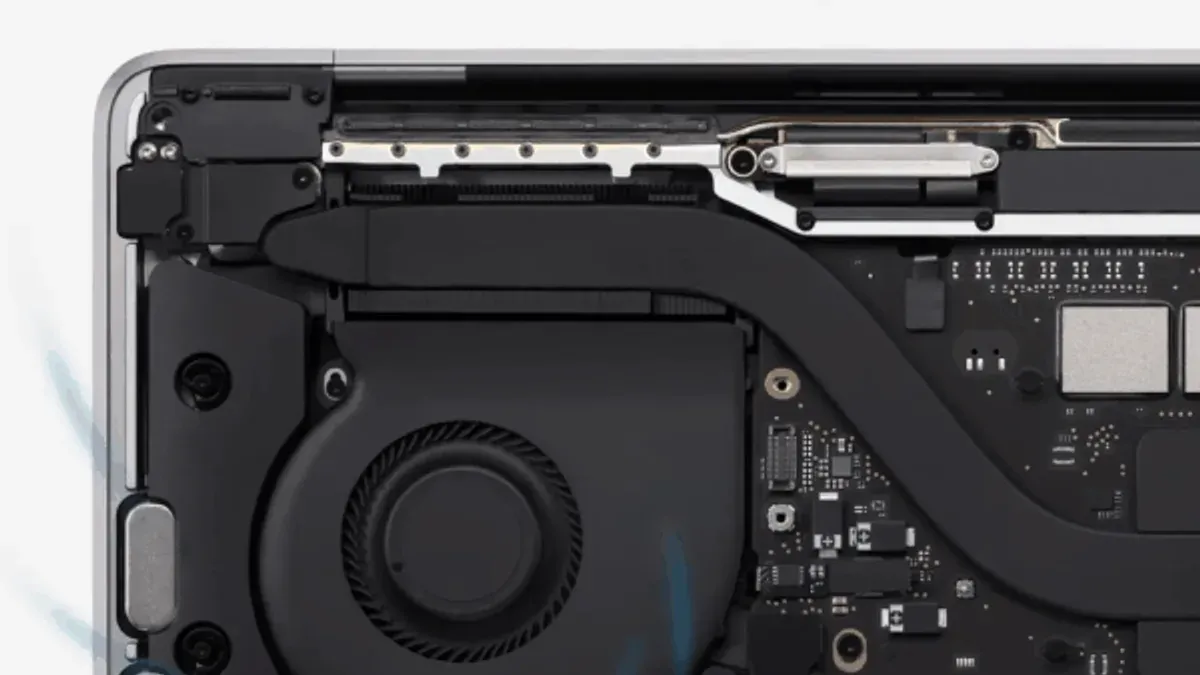
You're working on your MacBook Pro M1 Pro when suddenly the fan noise rises, filling the quiet room with a noticeable hum. This can be distracting and raise concerns about what’s causing the increased fan activity. Understanding why your MacBook Pro M1 Pro fan noise occurs and how to manage it effectively can improve your comfort and device performance.
This article guides you step-by-step through the technical reasons behind fan noise behavior in your MacBook Pro M1 Pro. You’ll learn how to monitor what triggers the fans, adjust settings to reduce noise without compromising performance, and maintain your device to keep cooling optimal. By the end, you’ll have practical strategies to manage fan noise smartly and know when it may signal a problem.
Key takeaways
- Fan noise increases with CPU-intensive tasks like video editing or gaming.
- Use Activity Monitor to identify apps causing high processor usage.
- Enabling Low Power Mode can reduce fan speed and noise during light tasks.
- Keeping vents clean and your MacBook on a hard surface helps efficient cooling.
- Consistent loud fan noise may indicate hardware or software issues needing attention.
Recognize Why Fan Noise Occurs
The MacBook Pro M1 Pro’s fan noise is directly linked to how the device manages heat generated during operation. Unlike previous Intel-based MacBooks, the M1 Pro chip uses a more efficient architecture that typically produces less heat due to its optimized 5-nanometer fabrication process and integrated components. For instance, Intel processors often have a Thermal Design Power (TDP) around 45W or higher, whereas the M1 Pro’s TDP is generally lower, reflecting improved energy efficiency.
The fan’s main role is to maintain the internal temperature by ramping up when the system experiences heavy workloads like video editing or 3D rendering. At idle, fans may spin at around 1200 to 1500 RPM, producing minimal noise around 20-25 decibels, roughly equivalent to a quiet room. When under load, RPMs can increase to 4000 or more, raising noise levels to 35-45 decibels, similar to a normal conversation.
Some fan noise is normal and actually indicates that your MacBook Pro is actively cooling itself to prevent overheating and maintain peak performance. For example, if you’re exporting a large video file, hearing the fan ramp up shows the system is working as designed to keep components safe. Understanding this balance helps you recognize when the fan noise is a healthy response rather than a problem.
Check Your MacBook’s Activity to Identify Noise Triggers
To understand what causes your MacBook Pro M1 Pro’s fan noise spikes, start by opening Activity Monitor. You can find it in Applications > Utilities or by searching with Spotlight. Once open, click the CPU tab to see which apps and processes use the most processing power. If you notice an app consistently using a high percentage of CPU, such as above 50%, it’s likely a major contributor to fan noise.
Keep an eye out for background processes or apps that might be running unexpectedly. Sometimes software bugs or updates cause processes to get stuck, pushing your CPU or GPU usage up and triggering louder fans. For example, a video editing app might cause high CPU usage while rendering, which you can verify by matching fan noise spikes with the app's active state.
To get a clearer picture, you can use third-party apps like iStat Menus or Macs Fan Control to monitor fan speeds alongside system activity. Imagine you see CPU usage jump to 80% while fans ramp up to 6000 RPM during a gaming session. This direct correlation helps confirm the noise origins and lets you decide whether to pause or adjust the task to reduce heat and noise.
Adjust Settings to Reduce Fan Noise Without Sacrificing Performance
One effective step is enabling Low Power Mode. You can turn this on by going to System Settings > Battery > Low Power Mode. This mode reduces the processor's peak performance slightly, which decreases heat production and consequently lowers fan activity. For example, when Low Power Mode is enabled during typical browsing and light editing, you might notice the fans remain quieter, and battery life extends moderately, without a noticeable drop in responsiveness.
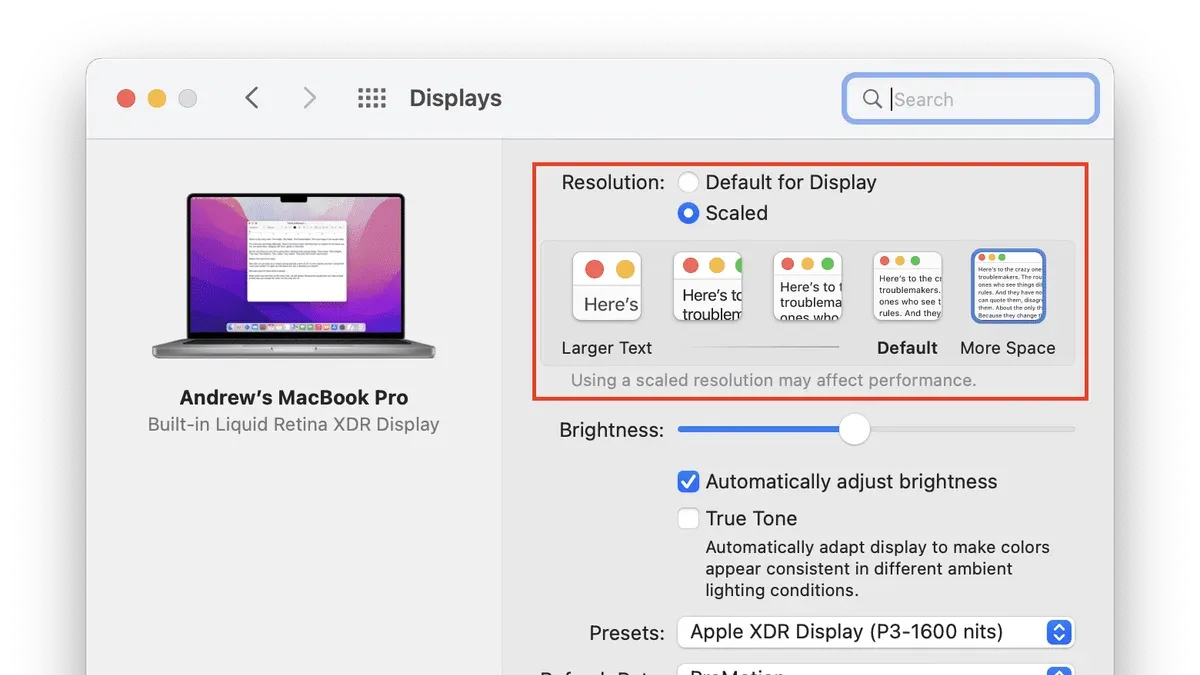
Another simple adjustment is closing unnecessary applications and browser tabs. Running multiple apps and many open tabs increases CPU load, causing the fans to spin faster. For instance, shutting down background apps like video editors or multiple Chrome tabs can reduce CPU usage and fan noise, making the device feel cooler and quieter.
Using third-party fan control software can give you manual control over fan speeds. While this lets you set lower fan thresholds, it carries risks such as overheating if fans run too slowly during demanding tasks. Therefore, it’s safer to rely on macOS’s built-in thermal management unless you monitor temperatures closely. If you choose software control, always test carefully and avoid disabling fans entirely.
Keep Your MacBook Physically Optimized for Cooling
Maintaining your MacBook Pro M1 Pro’s physical condition plays a crucial role in controlling fan noise. Dust and debris can accumulate in the cooling vents over time, restricting airflow and causing the fans to work harder. Cleaning these vents carefully with compressed air or a soft brush can lower internal temperatures noticeably. For example, users have observed temperature drops of several degrees Celsius after routine vent cleaning, which translates to quieter fan operation.
Where you place your MacBook also affects cooling efficiency. Using your device on a flat, hard surface like a desk allows air to circulate underneath, while soft surfaces such as beds or laps can block air intake and increase fan activity. Ambient temperature and airflow in the room are equally important; a cooler room with good ventilation helps the MacBook maintain optimal temperatures. In warmer or confined spaces, the fans will run more frequently and loudly to compensate.
Consider using a cooling pad or a laptop stand designed to enhance airflow around your MacBook. These accessories elevate the device, improving ventilation and reducing heat buildup. For instance, a stand with built-in fans can lower surface temperatures and fan noise, especially during intensive tasks. By combining regular cleaning, proper placement, and thoughtful accessories, you can keep your MacBook’s cooling system running smoothly and quietly.
Understand When Fan Noise May Indicate a Problem
While your MacBook Pro M1 Pro’s fan noise is usually a normal response to workload and heat, persistent or unusual sounds can signal issues. If you notice the fans running at high speeds constantly—well above typical thresholds of around 4,000 to 6,000 RPM even during light tasks—or hear rattling, grinding, or irregular noises, these are red flags. Overheating warnings or unexpected shutdowns coupled with fan noise also point toward potential hardware or software faults.
To investigate, run Apple Diagnostics by restarting your Mac and holding the D key until the diagnostic screen appears; this can reveal hardware problems like sensor failures affecting fan control. Booting into Safe Mode (holding Shift on startup) helps isolate software conflicts that may cause excessive fan activity. For example, a user might find that after a recent update, fan speeds spike abnormally during idle, and diagnostics report a faulty temperature sensor.
If diagnostics highlight issues or unusual fan behavior persists despite troubleshooting, contacting Apple Support or visiting an authorized service provider is advisable. Timely professional inspection can prevent damage and ensure your MacBook’s cooling system operates reliably.
Avoid Common Mistakes That Can Worsen Fan Noise
One frequent mistake is using non-Apple charging accessories. These can supply inconsistent power, causing your MacBook Pro M1 Pro to work harder and generate more heat, which in turn makes fans run louder. Additionally, placing your MacBook on soft surfaces like beds or couches can block its vents, restricting airflow. Imagine working on a thick blanket that covers the bottom vents—this traps heat and forces the fans to spin faster to cool the system.
Disabling the system's fan control is another risky move. The MacBook’s fan management is calibrated to balance cooling with noise; overriding it can cause overheating or hardware strain. Running intensive applications continuously without breaks can also increase fan noise unnecessarily, since the system has no chance to cool down.
Lastly, many users try to reset the System Management Controller (SMC) to fix fan issues, a method relevant to Intel Macs but not applicable to M1 Pro models. Apple’s official guidance clarifies that power management and thermal controls on M1 Pro Macs are integrated differently, so following outdated advice can lead to confusion or ineffective troubleshooting.
Monitor Fan Noise Trends Over Time for Better Management
Tracking your MacBook Pro M1 Pro’s fan speeds and temperatures over time helps you notice patterns and detect anomalies early. Reliable apps like Macs Fan Control or iStat Menus allow you to log fan activity continuously, providing visual graphs that display trends clearly. For example, you might see a gradual increase in average fan speed during heavy multitasking sessions or after installing new software.
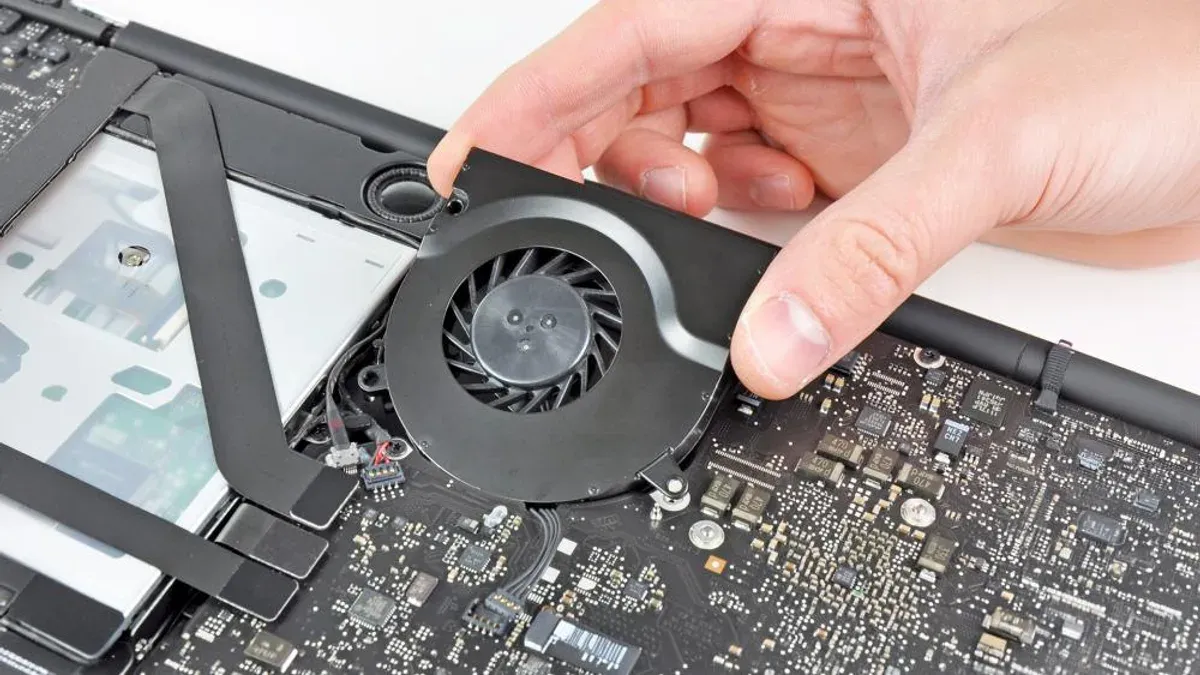
Interpreting these trends lets you make informed decisions about when to adjust your workload or schedule maintenance. If you observe that fan speeds spike unexpectedly during light use, it could be a sign to check for background processes or cooling issues. Conversely, a steady decrease in fan activity after updating macOS or resetting the System Management Controller (SMC) often indicates improved thermal efficiency.
Set up alert notifications within these monitoring apps to warn you of unusual fan behavior, such as sustained high speeds or rapid fluctuations. For instance, receiving an alert when fan speed exceeds 5,000 RPM during minimal activity enables you to investigate promptly. This proactive approach ensures your MacBook runs comfortably and maintains optimal performance over time.
Frequently asked questions
Is it normal for my MacBook Pro M1 Pro fan to run loudly during heavy tasks?
Yes, it is normal for the fan to become louder when your MacBook Pro M1 Pro is handling demanding tasks like video editing, gaming, or running multiple applications simultaneously. The increased workload causes the processor to generate more heat, prompting the fans to ramp up to keep the device cool. This response helps maintain optimal performance and protect internal components.
Can software updates affect fan noise on the MacBook Pro M1 Pro?
Software updates can influence fan behavior since they often include system optimizations and bug fixes that impact how the hardware manages power and thermal conditions. Occasionally, an update may temporarily increase fan activity as the system reindexes files or performs background tasks. If you notice persistent or unusual fan noise after an update, checking for subsequent patches or resetting system management settings can help.
How can I safely monitor the fan speed and temperature on my MacBook?
You can monitor fan speed and temperature safely using trusted third-party apps like iStat Menus or Macs Fan Control, which provide real-time data without risking system stability. Avoid downloading software from unverified sources, and always follow the app’s instructions for installation and use. These tools help you understand when your fans are working hard and can guide you in managing your MacBook’s thermal performance.
What should I do if the fan noise seems excessive and persistent?
If fan noise remains high even during light tasks, start by restarting your MacBook and checking the Activity Monitor for any processes using excessive CPU resources. Ensure your macOS is updated and consider resetting the System Management Controller (SMC) if applicable. Persistent loud noise might indicate dust buildup or hardware issues, so cleaning vents or consulting Apple Support may be necessary if the problem continues.
Know the Limits of This Advice
This advice is tailored for typical MacBook Pro M1 Pro users and may not cover extreme usage scenarios such as sustained high-performance computing tasks like prolonged video rendering or gaming. It also does not address hardware defects or internal damage that can cause abnormal fan noise. If you experience persistent, unusually loud fan sounds despite following these steps, or if your MacBook shows signs of overheating or system instability, it is best to consult Apple Support or an authorized service provider for a thorough hardware inspection.
The single most useful next step is to regularly check your Activity Monitor under Applications > Utilities > Activity Monitor, focusing on the CPU tab to identify processes that spike your processor usage unexpectedly. Quitting or managing these processes can prevent unnecessary fan activation and keep your MacBook running quietly without compromising performance.
See also: How to Fix MacBook Pro M1 Pro Speaker Crackling: A Step-by-Step Guide · Master Split Screen on MacBook Pro M1 Pro with macOS Ventura · How to Connect External Monitors to MacBook Pro M1 Pro · How to Update macOS on Your MacBook Pro M1 Pro