
Master Safari Highlights for Smarter Research and Reading
Discover how to use Highlights in Safari to capture and organize important web content for efficient research and reading.
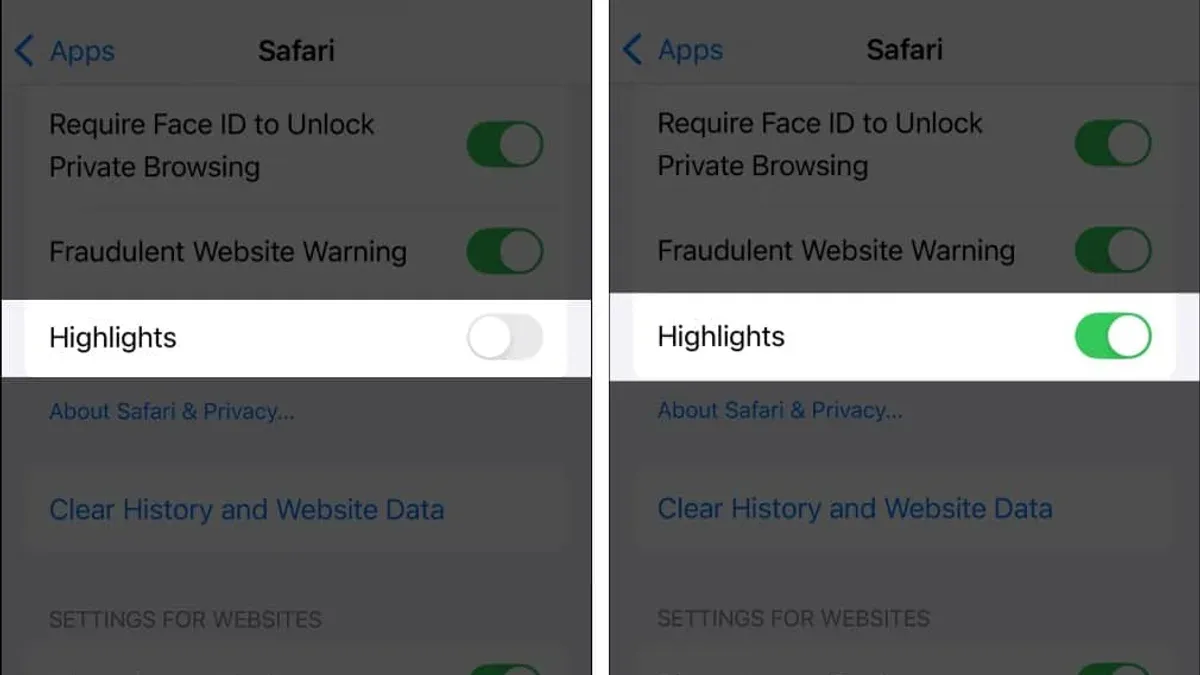
Safari's Highlights feature provides a practical way to capture and organize important web content directly within the browser. It is especially useful for students, researchers, and professionals who need to collect and revisit specific excerpts across their Apple devices.
What Are Highlights in Safari and Why Use Them?
Highlights in Safari are text selections from webpages saved for later reference. Unlike bookmarks, which save page URLs, or Notes that hold broader ideas, Highlights capture exact passages within Safari. This enables users to quickly locate, review, and organize meaningful content without leaving the browser.
Here is a comparison to clarify their roles:
| Feature | Highlight | Bookmark | Note |
|---|---|---|---|
| Content saved | Selected text excerpt | Page URL | Freeform text |
| Purpose | Capture key details | Quick access to pages | Extended thoughts or annotations |
| Integration | Within Safari sidebar and Notes app | Safari bookmarks menu | Apple Notes app or third-party apps |
| Research use | Supports precise content retrieval | General page reference | Detailed commentary or synthesis |
For research and study workflows, Highlights help users stay organized by preserving exact phrases and facts. This reduces the need to re-read entire pages and enables focused review sessions.
Step-by-Step Guide to Creating and Managing Highlights on Mac and iPhone
Creating Highlights in Safari is straightforward but requires attention to specific steps to ensure syncing and organization work properly.
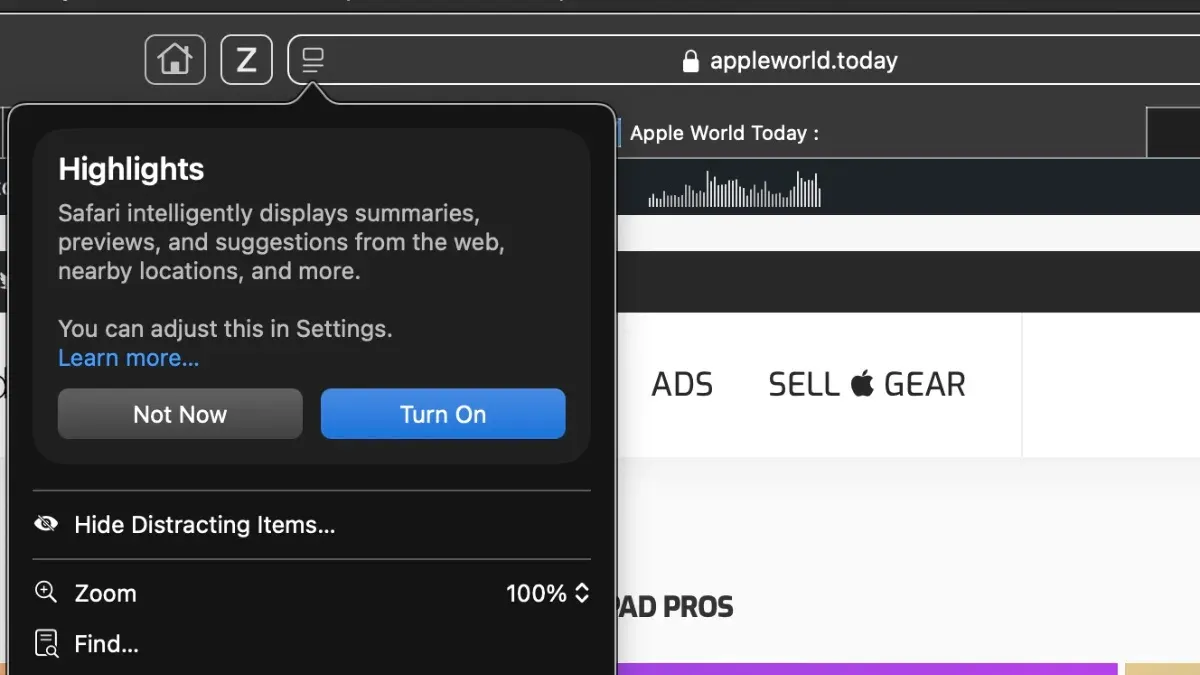
- Select text: Click and drag (Mac) or tap and hold (iPhone) to highlight the desired passage.
- Use the context menu: After selecting, right-click (Mac) or tap the pop-up menu (iPhone) and choose "Highlight." Note that if the "Highlight" option does not appear, ensure your Safari is updated to the latest version and that you are signed into iCloud with Safari syncing enabled.
- Choose color: Safari offers multiple highlight colors to categorize your excerpts. Pick a color to tag the highlight by topic or priority. Keep in mind that color choices help visual organization but do not support custom naming or tagging within Safari itself.
- Access Highlights: On Mac, open the Safari sidebar by clicking the sidebar icon or pressing Command+Shift+L, then select the Highlights tab. On iPhone, tap the Bookmarks icon, then the Highlights tab. Note that the sidebar must be open to view highlights on Mac.
- Edit or delete: In the sidebar or tab, right-click or swipe left on a highlight to edit its color or delete it. Currently, adding tags is limited and may depend on integration with the Notes app.
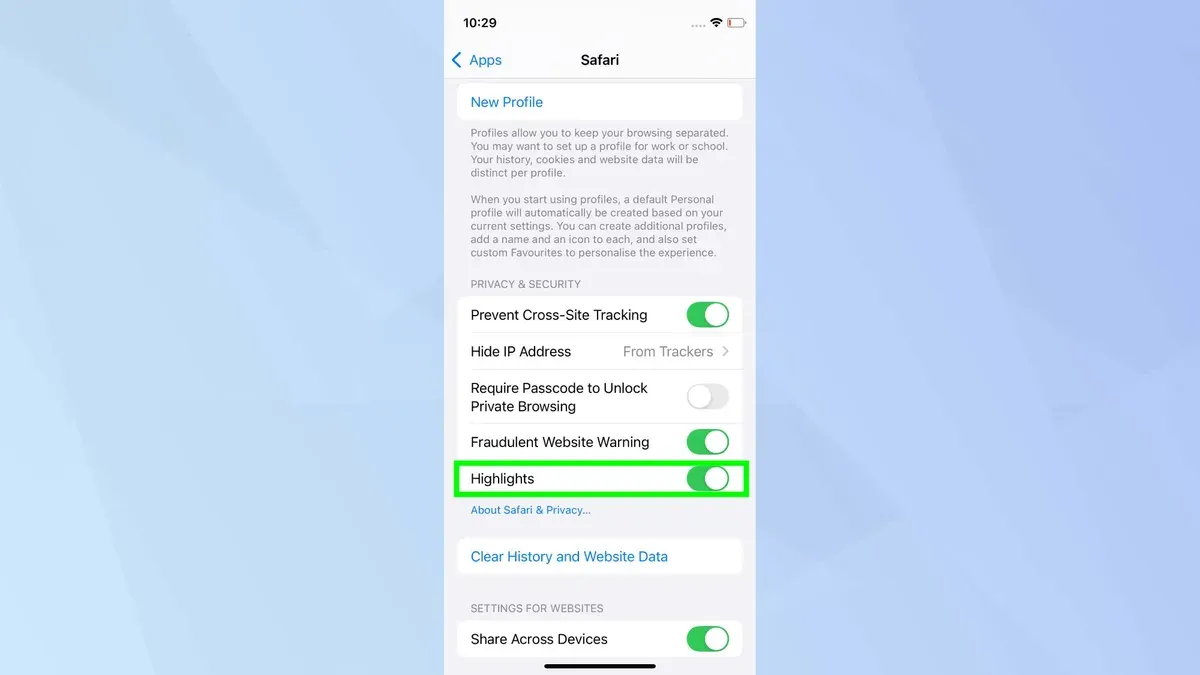
- Sync across devices: Highlights sync automatically between devices signed into the same iCloud account with Safari enabled. To confirm syncing, check that Safari is toggled on in iCloud settings (Settings > [your name] > iCloud > Safari on iPhone; System Preferences > Apple ID > iCloud on Mac).
For example, a student researching climate change can highlight key quotes from different sources and organize them by color: blue for statistics, yellow for definitions, and pink for expert opinions. This visual system speeds review and citation, but users should regularly verify that syncing is active to prevent loss of highlights.
Integrating Safari Highlights with Your Workflow: Exporting and Using Highlights Outside Safari
Highlights can be exported or shared to extend their usefulness beyond Safari, though options are somewhat limited.
- Export to Apple Notes: Select a highlight, then choose "Share" and send it to Notes. This creates a linked excerpt with the source URL, allowing further annotation and organization within the Notes app.
- Use third-party apps: Share highlights via the iOS Share Sheet to compatible research or citation management apps that accept text input. Note that bulk exporting multiple highlights at once is not supported natively.
- Citation and referencing: Use exported highlights as quotes or evidence in papers. The automatic link back to the original page aids source verification but requires manual management of citations.
A practical workflow might involve highlighting important passages while reading, exporting them to Notes organized by topic, and referencing those notes when drafting a research paper. This helps avoid losing key information scattered across tabs or devices.
Tips and Best Practices for Effective Highlighting in Safari
- When to highlight vs. bookmark: Use bookmarks for pages you want to revisit in full. Use highlights for pinpointing vital details within those pages.
- Color coding: Establish a consistent color scheme to categorize highlights by theme, urgency, or project. For example, green for definitions, red for critical arguments. Remember that Safari does not support custom tags, so color coding is the primary organizational tool.
- Review and prune: Schedule regular sessions to review your highlights, delete outdated ones, and consolidate related excerpts. This keeps your library manageable and prevents clutter.
- Combine with Reader Mode: Use Reader Mode to remove distractions, then highlight clean, formatted text. This improves focus and accuracy, especially on content-heavy pages.
Organized highlighting can improve retention and speed information retrieval, particularly when preparing for exams or writing reports.
Limitations and What Safari Highlights Cannot Do
Safari Highlights are designed for simple text annotation and have some constraints:
- No advanced annotation options such as drawing, handwritten notes, or audio comments.
- Export formats are limited mainly to text shared via the Share Sheet; bulk export is not supported.
- Highlights lack project management features found in dedicated research apps, such as tagging, full-text search, or integration with citation databases.
- The feature works best for users fully embedded in the Apple ecosystem, relying on iCloud syncing. Without iCloud, highlights will not sync across devices.
| Feature | Safari Highlights | Specialized Research Tools |
|---|---|---|
| Annotation types | Text highlights only | Text, drawings, audio, video |
| Export options | Manual share of individual highlights | Bulk export in multiple formats |
| Organization | Color coding, basic tags (limited) | Tags, folders, search, cross-references |
| Collaboration | Minimal sharing; no live collaboration | Multi-user collaboration and comments |
Frequently asked questions
Can I highlight PDFs and other file types in Safari or just webpages?
Safari Highlights currently support text on webpages but do not support direct highlighting inside PDFs or other file formats within the browser.
Do Safari Highlights sync automatically across all my Apple devices?
Yes, as long as you are signed into the same iCloud account with Safari syncing enabled in your device settings, Highlights sync automatically between Mac, iPhone, and iPad.
How do I find all my Highlights in one place within Safari?
On Mac, open the Safari sidebar (Command+Shift+L) and select the Highlights tab. On iPhone, tap the Bookmarks icon, then the Highlights tab to view and manage your saved highlights.
Can I share my Highlights with others or collaborate on them?
You can share individual highlights via the Share Sheet, but Safari does not support live collaboration or shared highlight collections.



