Can iMac M4 Run eFootball? A Straightforward Compatibility Guide
Learn whether the iMac M4 can run eFootball and explore workarounds like virtualization, emulation, and cloud gaming for better performance.

You recently got or are thinking about getting an iMac M4, and now you're wondering if it can run eFootball smoothly. You might have asked yourself, "can iMac M4 run eFootball" before making your decision to download or buy the game.
This article breaks down the technical realities of running eFootball on the iMac M4’s unique architecture and software environment. It explains the challenges you’ll face, practical workarounds like virtualization or emulation, and what kind of performance you can realistically expect. You’ll also learn when cloud gaming might be a better fit and how to optimize your system to improve gameplay.
Key takeaways
- The iMac M4’s ARM-based architecture is not natively compatible with eFootball’s usual PC builds.
- Running eFootball often requires virtualization or emulation, which can reduce performance.
- Expect lower frame rates and possible input lag compared to native gaming PCs.
- Cloud gaming services offer a smoother alternative if local performance is insufficient.
- Optimizing background processes and using Ethernet instead of Wi-Fi can improve your gaming experience.
Get a Quick Answer: Can Your iMac M4 Run eFootball?
You cannot run eFootball natively on your iMac M4 because the game does not support macOS as a platform. eFootball’s official system requirements specify Windows or compatible consoles, and there is no macOS version available. Since the iMac M4 runs on Apple’s custom architecture and macOS, the game will not launch or perform properly without additional software.
To play eFootball on your iMac M4, you must rely on workarounds such as virtualization, emulation, or cloud gaming services. These methods introduce variability in performance and responsiveness because they add layers between the game and your hardware. Even then, the experience may be limited by the iMac M4’s GPU and CPU capabilities, which are designed more for general productivity than intensive gaming.
In summary, while your iMac M4 cannot run eFootball directly, you can explore indirect methods with the understanding that performance and playability might not match native Windows or console setups.
Understand the iMac M4’s Architecture and What It Means for Gaming
The iMac M4 cannot run eFootball natively because the M4 chip uses an ARM-based architecture, which differs fundamentally from the x86 processors found in most Windows PCs that eFootball targets. This architectural difference means that software compiled for x86 CPUs will not execute directly on the M4 without a translation or emulation layer. Additionally, eFootball’s official releases support Windows and certain gaming consoles, but there is no dedicated macOS version designed for Apple Silicon.
macOS, running on the M4 chip, does not natively support many Windows games due to differences in system calls and graphics APIs. While macOS supports Metal for graphics, eFootball is built to use DirectX, which is native to Windows environments. To bridge this gap, users must rely on translation layers such as Rosetta 2 or virtualization software, which translate or emulate the Windows environment but often reduce performance and increase complexity.
In summary, the M4’s ARM architecture and macOS environment create a technical barrier to running eFootball directly. Understanding this helps set realistic expectations and guides you toward practical workarounds if you want to play the game on your iMac M4.
Explore Workarounds: Running eFootball via Virtualization or Emulation
You can run eFootball on your iMac M4 by using virtualization or emulation software, but this approach comes with notable trade-offs. Virtualization tools like Parallels Desktop or UTM allow you to install a Windows ARM environment where you can run the Windows version of eFootball. However, this introduces overhead that impacts game performance, often resulting in lower frame rates and reduced graphical fidelity compared to native systems.
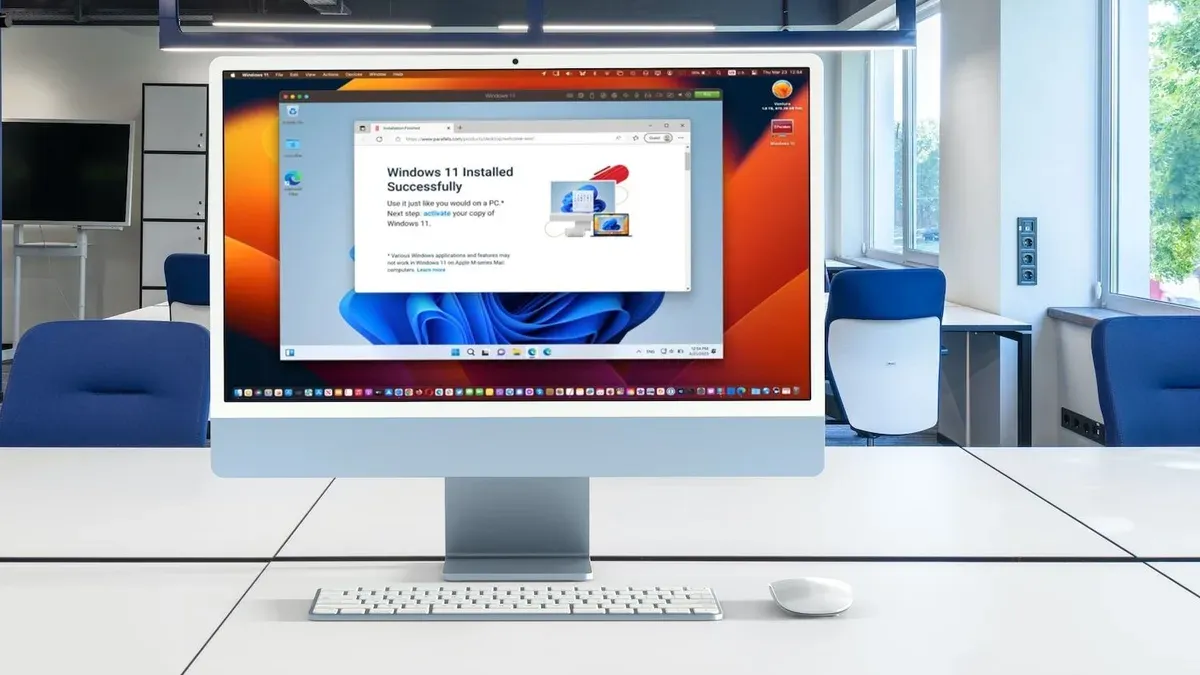
Performance benchmarks show that running eFootball through Windows virtualization on ARM Macs generally leads to modest gameplay smoothness, with occasional stutters especially during intense graphics scenes. The iMac M4’s integrated graphics and virtualization layers limit the ability to fully leverage hardware acceleration, which is critical for gaming.
As an alternative, cloud gaming services such as NVIDIA GeForce Now or Xbox Cloud Gaming can stream eFootball to your Mac. These services bypass local hardware limits, delivering higher-quality graphics and smoother play depending on your internet speed and latency. While cloud gaming avoids setup complexity and performance bottlenecks, it relies on a stable, fast connection and may introduce input delay that affects gameplay responsiveness.
In summary, virtualization offers a way to run eFootball directly on your iMac M4 but with performance compromises, whereas cloud gaming provides better graphics and responsiveness at the cost of internet dependency.
Check Your Expectations: Performance Benchmarks and Limitations
Running eFootball on an iMac M4 via virtualization or emulation generally results in lower frame rates and reduced graphical fidelity compared to native PC gaming. Users testing similar Apple Silicon Macs report achieving frame rates around 30 to 45 FPS on low to medium settings, whereas native Windows PCs often deliver 60 FPS or higher at medium to high settings. This difference stems from the overhead introduced by virtualization layers and the need to downscale textures or disable advanced effects to maintain playability.
Input lag is another key limitation you should anticipate. Virtualized environments typically introduce noticeable delays between your controller or keyboard inputs and on-screen responses, which can impact timing-sensitive gameplay like passing or shooting in eFootball. This lag varies but is often perceptible enough to affect competitive play, making precise control more challenging than on native platforms.
Balancing visual quality against smoothness is a common trade-off. Lowering graphics settings such as shadows, anti-aliasing, and resolution scaling can help improve frame rates and reduce stutter, but it will also make the game look less polished. Preparing to adjust these settings according to your tolerance for visual compromises will help you find the best experience on your iMac M4.
Decide If Cloud Gaming Is the Best Option for You
Cloud gaming can be a highly effective solution if your iMac M4 struggles with running eFootball locally. This approach streams the game from powerful remote servers, bypassing your iMac’s hardware limitations entirely. You don’t need to worry about the ARM architecture or macOS compatibility because the game runs elsewhere while you receive the video and send your inputs over the internet.
However, cloud gaming requires a stable and fast internet connection. Most services recommend at least 15 Mbps download speed for smooth 720p gaming, with lower latency—ideally under 40 milliseconds—to minimize input lag and improve responsiveness. If your connection fluctuates or has higher latency, gameplay may suffer from delays or reduced quality.
Popular platforms supporting eFootball include NVIDIA GeForce NOW, Xbox Cloud Gaming (part of Xbox Game Pass Ultimate), and Google Stadia. These services have apps or browser support on macOS, making it relatively easy to get started. Before committing, check if your internet setup meets the requirements and consider trial periods to assess how well cloud gaming fits your needs.
Prepare Your iMac M4 for Gaming: Optimization Tips
To get the best out of eFootball on your iMac M4, optimizing both the virtualization environment and macOS settings is essential. Start by configuring your virtualization software—whether Parallels Desktop or VMware Fusion—to allocate at least 4 CPU cores and 8 GB of RAM to the virtual machine running Windows. This balance helps maintain smoother gameplay without starving your macOS host of resources.
Within macOS, close unnecessary background applications via Activity Monitor (found in Applications > Utilities) to free up CPU and memory. Enable “Low Power Mode” only if you notice excessive heat, as it can reduce performance; otherwise, keep it off for maximum power. Also, turn on “Prevent App Nap” for your virtualization app by selecting it in Finder, choosing Get Info, and checking that option to avoid pauses when the app is in the background.
Inside the virtual Windows environment or cloud gaming client, lower eFootball’s graphics settings—reduce resolution to 720p and disable advanced effects like shadows and anti-aliasing. These adjustments significantly reduce processing demands and input lag. Users often report that these combined tweaks can noticeably smooth gameplay, even if frame rates remain below native performance levels.
Recognize When This Approach Isn’t Right for You
If you need a gaming experience with minimal input lag and high frame rates, running eFootball on an iMac M4 using virtualization or cloud gaming may not meet your expectations. Virtualized setups typically introduce input lag that can exceed 100 milliseconds, which is noticeable in competitive play where quick reactions matter. Cloud gaming, while smoother, requires a stable internet connection with speeds generally above 15 Mbps and low latency under 30 milliseconds; without this, gameplay can suffer from delays and buffering.
Additionally, if you prefer native applications for straightforward installation and use, relying on workarounds like emulation or streaming adds complexity and potential frustration. These methods often involve configuring virtualization software, adjusting resource allocation, or managing connection issues, which may not align with your desire for a seamless, plug-and-play experience.
Consider your priorities carefully: if competitive responsiveness, easy setup, or unreliable internet are concerns, pursuing eFootball on an iMac M4 through these approaches might lead to disappointment rather than enjoyment.
Frequently asked questions
Can I install eFootball directly on my iMac M4 without extra software?
No, eFootball does not have a native version compatible with the iMac M4’s operating system and architecture. To run it, you will need virtualization or emulation software that allows the game to operate in a Windows or compatible environment on your iMac. Installing it directly without these tools is currently not feasible.
Will virtualization software impact my iMac M4’s performance severely?
Using virtualization software can affect your iMac M4’s performance because it requires allocating system resources to run another operating system simultaneously. Expect some reduction in graphics performance and responsiveness compared to native gaming. However, optimizing the virtual machine settings, such as assigning more CPU cores and RAM, can help mitigate these impacts.
Are there cloud gaming services that reliably stream eFootball to Macs?
Yes, certain cloud gaming platforms support streaming eFootball to Mac devices, including the iMac M4. These services handle all the processing on their servers, so your iMac only needs a stable internet connection and compatible streaming app or browser. This option can bypass hardware limitations, but latency and internet speed will influence your experience.
What settings should I adjust for better eFootball gameplay on my iMac M4?
Focus on lowering in-game graphics settings like resolution, texture quality, and shadow effects to reduce system load. Additionally, disable background apps and set your Mac’s Energy Saver preferences to prevent automatic sleep or power saving during gameplay. Adjusting the virtual machine’s resource allocation, such as increasing RAM and enabling hardware acceleration if available, also improves performance.
Know When This Approach Isn’t Right for You
This advice does not cover installing Windows via Boot Camp, as it is unsupported on Apple Silicon Macs like the iMac M4. If you rely heavily on native Windows applications or games that require direct Windows installation, this guide won’t address those needs. Additionally, users seeking flawless, high-end gaming performance should consider dedicated gaming PCs or consoles, since the iMac M4’s architecture and graphics capabilities impose inherent limitations. If you are unfamiliar with virtualization or emulation and prefer a plug-and-play experience, these workarounds might prove frustrating or inefficient.
The single most useful next step is to try cloud gaming services compatible with your iMac M4, such as NVIDIA GeForce NOW or Xbox Cloud Gaming. These platforms stream eFootball to your device without demanding local hardware resources, offering a practical way to enjoy the game with minimal setup. Before signing up, ensure your internet connection consistently supports low latency and high bandwidth to optimize gameplay quality and responsiveness.
See also: Can iMac M4 Run Civilization VI? A Straightforward Answer · Can Your iMac M4 Run Cities Skylines 2? A Clear and Practical Answer · Can iMac M4 Run The Sims 4? A Clear and Practical Answer · Can Your iMac M4 Run Terraria? A Practical Performance Breakdown