How to Change Your AOL Mail Password Across All Devices
Step-by-step guide on how to change your AOL Mail password across devices to maintain account security and prevent unauthorized use.
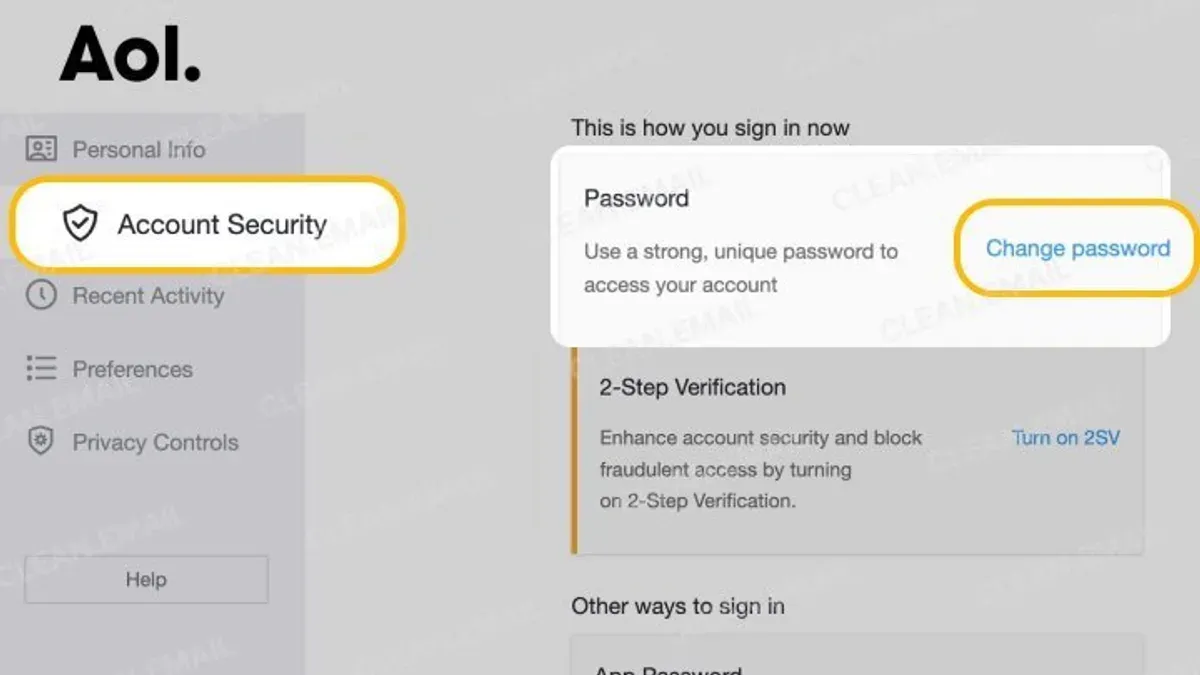
This article explains how to change AOL Mail password across various devices, providing clear, step-by-step instructions tailored to each platform. Understanding how to change AOL Mail password ensures secure access and prevents unauthorized use, especially when devices differ in interface and settings.
The process involves accessing account security settings through the AOL website or device-specific mail apps, followed by updating the password on each device. It also covers what to prepare before starting the change, such as knowing the current password and having access to recovery options. Additionally, common troubleshooting tips address issues like sync failures or error messages during password updates.
Alongside practical steps, the article highlights security considerations to maintain account safety during and after the password change process.
Before you start: what is needed to change an AOL Mail password
Changing an AOL Mail password requires preparation to ensure a smooth process across devices. The first necessity is having access to the current AOL Mail login credentials or the recovery options linked to the account. Without these, password changes cannot be verified or completed.
A stable internet connection is essential on the device used for the password change. Unstable or intermittent connectivity frequently causes errors during the process, leading to failed updates or incomplete account synchronization.
Device-specific considerations include knowing the operating system and device type—whether it is an iPhone, iPad, Android phone, Mac, or laptop—as steps and settings vary. Confirming compatibility and available app versions beforehand can prevent confusion during the change.
Having a recovery phone number or email address linked to the AOL account is critical. These recovery options enable verifying identity and resetting the password if access to the current password is lost. Many failed attempts to change passwords stem from missing or outdated recovery information.
- Gather the current AOL Mail username and password. Successful entry should allow access to the AOL Mail inbox or account homepage.
- Verify that the device has a reliable internet connection by opening a webpage or app that requires online access.
- Confirm device type and operating system version to follow appropriate password change instructions later.
- Check that recovery phone numbers or alternate email addresses are up to date in the account settings. This typically appears under "Account Security" or "Recovery Info" sections.
Tip: Updating recovery information before attempting a password change reduces the risk of being locked out of the account due to verification failures.
How to change AOL Mail password on iPhone and iPad
- Open the Safari browser on the iPhone or iPad and go to the AOL website at https://login.aol.com.
- Sign in to the AOL account using the current username and password; the account dashboard should appear after successful login.
- Tap the profile icon or account name located at the top-right corner to access the account settings menu.
- Select "Account Security" from the list of options; this will open the security settings page.
- Find and tap on the "Change password" link or button; a prompt requesting the current password will be displayed.
- Enter the current password, then input the new password twice as prompted to confirm it.
- Tap "Continue" or "Save" to finalize the password change; a confirmation message should appear indicating the password has been updated.
- Close Safari and open the iOS Mail app to update the password saved for the AOL account.
- In Mail, if a login error appears, go to Settings > Passwords & Accounts (or Mail > Accounts on newer iOS versions), select the AOL account, and update the password field with the new password.
- Return to the Mail app and refresh the inbox; emails should now synchronize without login errors.
Tip: Changing the password directly through the Safari browser ensures the new credentials are properly registered before updating the Mail app settings.
How to change AOL Mail password on Android phones
Android users can update their AOL Mail password through the AOL app or a web browser, each method offering a slightly different experience. Both approaches require navigating to account settings to initiate the password change.
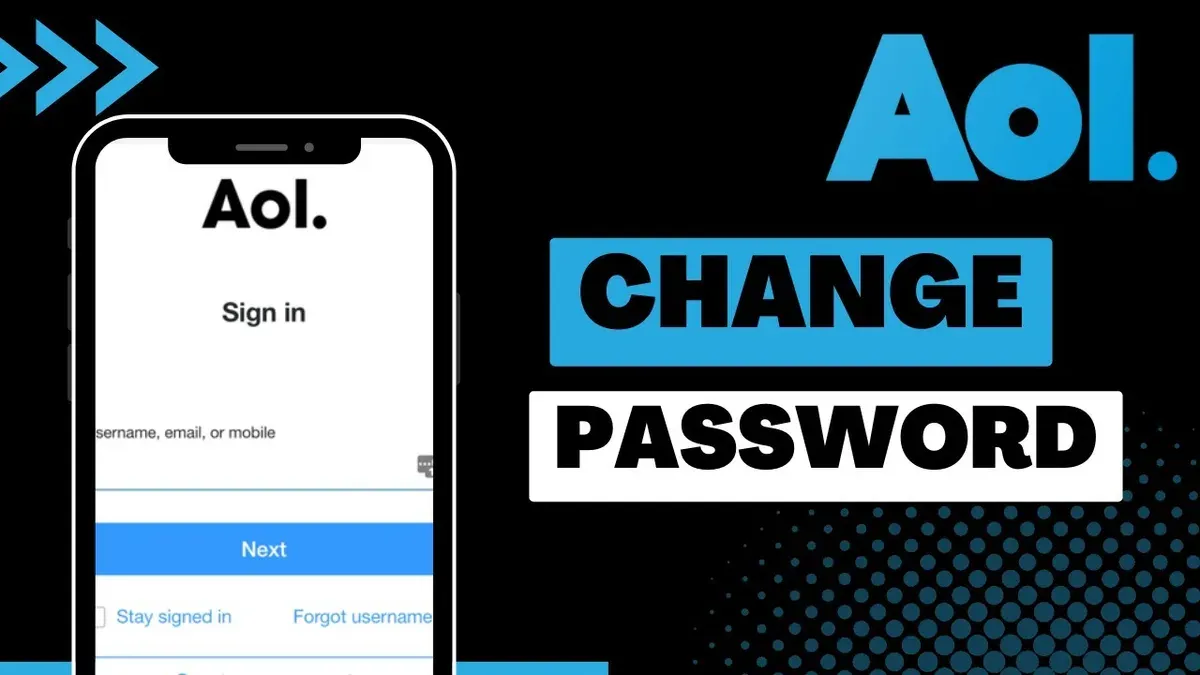
- Open the AOL app on the Android device. Tap the profile icon in the top-left corner to access the menu.
- Select Account Info, which opens the account management page.
- Tap Manage Account Security or Account Security, then choose Change Password. A password change screen should appear.
- Enter the current password, then type the new password twice to confirm. Submit the change by tapping Save or Update Password. A confirmation message indicates success.
- If using a browser, open Chrome or another browser and go to https://login.aol.com/account/security. Sign in if prompted, then follow steps 3 and 4 as above.
- After changing the password, update saved credentials in mail apps such as Gmail. Open the Gmail app, go to Settings > Accounts > select the AOL account > Account settings. Update the password field with the new one.
- Sync the account manually if necessary by pulling down in the inbox view or using the menu's sync option. This ensures no authentication errors appear.
Compared to the browser method, the AOL app offers a more streamlined navigation experience but may lag behind in real-time updates. The browser method provides direct access to the full range of account security options but requires more manual steps. Both methods require updating third-party mail apps separately to maintain seamless access.
Tip: After changing the password, restarting the device can help mail apps recognize the new credentials and prevent login issues.
How to change AOL Mail password on Mac and laptops
Changing the AOL Mail password on a Mac or laptop involves updating the password through the AOL website and then syncing that change in desktop mail clients to avoid authentication errors.
- Open a web browser and navigate to https://login.aol.com/. Log in with the current AOL username and password. Upon successful login, access the account security page by clicking the profile icon in the top right corner and selecting Account Security. You should see options related to password management.
- Click Change password. Enter the current password, then type the new password twice for confirmation. A successful update will be confirmed by a message indicating the password has been changed.
- Next, update the password in desktop mail clients such as Apple Mail or Microsoft Outlook. For Apple Mail, open the app, go to Mail > Preferences > Accounts, select the AOL account, and update the password field under the Server Settings tab. The mail client should then connect without error.
- In Microsoft Outlook, open Tools > Accounts (or File > Account Settings), select the AOL account, and update the password in the Change Account window. Save changes and test account settings to confirm successful login.
- Clear any cached or saved passwords in the keychain or password manager on the device to prevent repeated login prompts or failures. On a Mac, this can be done via the Keychain Access app by searching for AOL entries and deleting outdated passwords.
Tip: After changing the password, sending and receiving a test email confirms that the mail client is properly syncing with AOL servers.
How to reset AOL Mail password if forgotten
When an AOL Mail password is forgotten, the account holder can regain access by following the secure password reset process provided by AOL. This involves verifying identity and setting a new password to protect account security.
- Navigate to the AOL Mail login page and click the Forgot password? link below the password field. This opens the password recovery page.
- Enter the AOL email address or username associated with the account, then click Continue. The system will present verification options based on the recovery information on file.
- Select a verification method from the available options: receiving a verification code via the registered phone number, receiving a reset link in the recovery email address, or answering security questions previously set up. Choose the most accessible and secure option.
- Complete the verification step by entering the code received or correctly answering the security questions. If the verification is successful, the system will prompt for a new password.
- Create a new password that meets AOL’s security requirements, typically including a mix of uppercase, lowercase letters, numbers, and special characters, and confirm the new password by entering it again.
- Submit the new password. A confirmation message will indicate the password has been reset successfully.
Security tip: Always verify the URL is the official AOL site before entering any personal information to avoid phishing attempts. Avoid clicking password reset links from suspicious emails.
Users commonly face issues such as outdated recovery information leading to verification failure, which can delay password resets. Maintaining up-to-date recovery options improves the likelihood of a smooth reset process.
Troubleshooting common issues when changing AOL Mail password
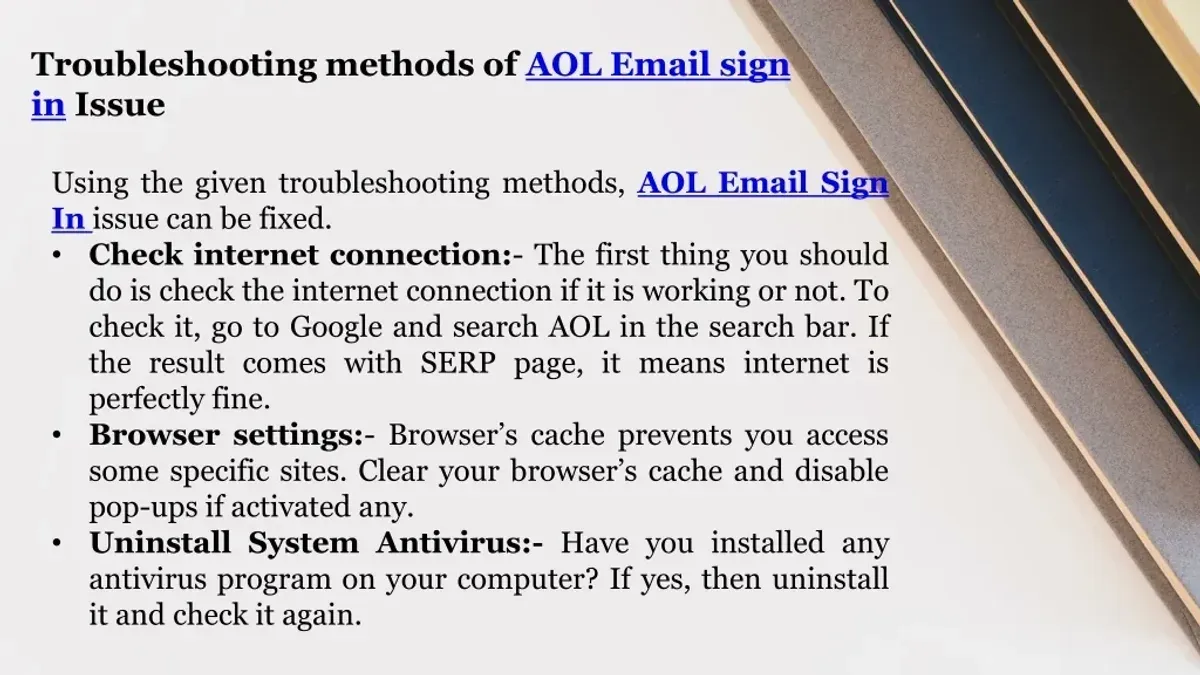
Users may encounter several issues when changing their AOL Mail password, including forgotten recovery information, account lockouts, sync errors, and delayed updates. Addressing these problems promptly helps maintain uninterrupted access to the account.
Dealing with forgotten recovery information
If recovery email or phone details are outdated or forgotten, AOL may display an error such as "We couldn't verify your identity." To resolve this, access the AOL account security page and update recovery options when logged in. If locked out, contacting AOL customer support for alternative verification methods may be necessary.
Handling account lockouts after multiple failed attempts
Repeated incorrect password entries can trigger a temporary account lockout with messages like "Your account has been locked for security reasons." Wait at least 12 hours before attempting to log in again. During this period, verify account activity through the AOL sign-in helper or reset the password if possible.
Fixing sync errors on mail apps after password update
After changing the password, mail apps might show errors such as "Authentication failed" or fail to retrieve new messages. To fix this, manually update the password in the app’s account settings under the relevant section (e.g., Settings > Accounts > AOL). Restarting the app or device can also help reestablish the connection.
What to do if password change does not reflect immediately
Sometimes, changes take time to propagate across all AOL services, leading to inconsistent login behavior. If the new password is not recognized immediately, wait a few minutes and retry. Clearing browser cache or switching to a different browser can assist in bypassing cached login data.
- Confirm recovery email and phone number are current in account settings. Success: Recovery options appear correctly under "Account Security."
- If locked out, wait 12 hours before retrying login. Success: Able to enter password without lockout message.
- Update password in mail app settings after change. Success: App authenticates and syncs emails without error.
- Clear browser cache or try a different browser if login fails post-change. Success: New password accepted and mailbox loads normally.
Security considerations when changing AOL Mail password
Choosing a strong, unique password is essential to protect an AOL Mail account from unauthorized access. Passwords should be at least 12 characters long and include a combination of uppercase letters, lowercase letters, numbers, and special characters. Avoid common words, easily guessable information, or reusing passwords from other accounts, as password reuse significantly increases the risk of account breaches.
Enabling two-factor authentication (2FA) adds an extra layer of security by requiring a secondary verification step, such as a code sent via SMS or generated by an authenticator app. Accounts with 2FA enabled are much less likely to be compromised even if the password is exposed.
Users should remain vigilant against phishing attempts that impersonate AOL communications. Suspicious emails or links requesting password changes or personal information may lead to credential theft. Always verify the sender's email address and avoid clicking on links within unsolicited messages.
- Choose a new password that meets complexity requirements and is unique; after submission, the account will confirm the password update.
- Enable two-factor authentication by navigating to Account Security settings, selecting "Turn on two-step verification," and completing the setup; a confirmation message will indicate activation.
- Verify that no other accounts use the same password to reduce the risk of cross-account breaches.
- Be cautious of emails claiming to be from AOL asking for password information; instead, access account settings directly through the official AOL website.
Tip: Regularly reviewing account security settings and updating passwords periodically can help maintain long-term account safety.
Further reading
Frequently asked questions
How to change aol email password on iphone?
To change the AOL email password on an iPhone, open a web browser and visit the AOL account security page by signing into the AOL website. From there, navigate to the password change section under account settings. After updating the password, update the AOL account password in the iPhone's Mail app by going to Settings > Mail > Accounts > the AOL account > Account > Password.
How to change aol com password?
Changing the AOL.com password requires signing into the AOL account on a web browser. Access the Account Security page, select the option to change the password, enter the current password, and then set a new strong password. Remember to save changes and update the password on all devices where the AOL email is accessed.
How to change aol email password on iphone 16?
On iPhone 16, the process to change the AOL email password is the same as on other iPhones. First, change the password via the AOL website's account security settings. Then update the password in the iPhone’s settings by navigating to Settings > Mail > Accounts > AOL, and entering the new password under Account settings.
How to change aol email password on mac?
To change the AOL email password on a Mac, use a web browser to sign into the AOL account and modify the password through the Account Security page. After changing the password online, update it in the Mac Mail app by opening Mail > Preferences > Accounts, selecting the AOL account, and updating the password field.
How to change aol email password on android phone?
Changing the AOL email password on an Android phone involves first updating the password on the AOL website. Once done, open the device’s Email app or Gmail app, go to the AOL account settings, and update the password in the account’s sync or server settings to ensure continued access.
What this guide does not cover
This guide focuses on changing or resetting an AOL Mail password under normal circumstances. It does not cover recovering accounts that have been hacked, permanently locked, or otherwise compromised. Users facing such issues should contact AOL support directly for specialized assistance, as account recovery often requires identity verification and may involve additional security steps beyond password reset.
The most effective next step after changing a password is to update the password information on all devices and applications where the AOL Mail account is accessed. This prevents authentication errors and ensures uninterrupted mail access across smartphones, tablets, desktop clients, and web browsers. Checking saved passwords in device settings or mail app configurations can help avoid common problems related to outdated credentials.