How to Change the Default Font and Font Size in Notes App
Discover how to customize the default font and size in Notes app across Apple, Samsung, and Windows platforms for a better note-taking experience.
You've opened your Notes app to jot down ideas, only to find the default font or size doesn't suit your style or reading comfort. Changing these settings can make your notes easier to read and give you a more personalized writing experience.
This article explains how to change the default font in Notes app, focusing on Apple Notes, and also covers how font customization works in other popular note-taking apps like Samsung Notes and Windows Notepad. You will get step-by-step guidance on what is possible within each app and learn how device or system settings can influence your note fonts.
Key takeaways
- Apple Notes does not support changing the default font globally but allows font and size changes within individual notes.
- Windows Notepad and Notepad++ provide options to set default fonts and sizes through their settings menus.
- Samsung Notes offers font style and size customization within the app, with some preset fonts available.
- System accessibility or display settings can affect font appearance across note apps on your device.
- Understanding app-specific limitations helps you set realistic expectations when customizing fonts in notes.
Before you start: What you need to know about fonts in Notes apps
When customizing fonts in Notes apps, it's important to understand each app's capabilities and limitations. Apple Notes does not support changing the default font system-wide on any device, including iPhone, iPad, or Mac. Instead, it offers basic formatting options such as bold, italic, underline, and a limited choice of text styles within individual notes.
In contrast, Samsung Notes on Android devices allows more flexibility, including setting a default font style and size for new notes. Desktop apps like Notepad and Notepad++ on Windows provide options to change the default font and size, with Notepad++ offering extensive customization through its settings menu.
Font style and font size are distinct settings. While some apps may let you adjust font size globally or per note, changing the font style (typeface) may be restricted or limited to specific options. Recognizing this distinction helps set realistic expectations about what you can achieve.
| App/Platform | Change Default Font Style | Change Default Font Size | Device Requirements |
|---|---|---|---|
| Apple Notes | No (limited styles within notes) | No (adjustable per note via text styles) | iPhone, iPad, Mac with latest app version |
| Samsung Notes | Yes (default font style configurable) | Yes (default font size configurable) | Samsung Android devices with updated app |
| Notepad (Windows) | Yes (default font and size through Format > Font) | Yes (default font size included) | Windows PC |
| Notepad++ (Windows) | Yes (extensive font customization in Preferences) | Yes | Windows PC |
- Confirm your device and app version supports font customization features by checking the app’s About or Settings section. You should see the latest version number or update option if needed.
- Identify whether you want to change the font style (such as switching from San Francisco to Helvetica) or just the font size (e.g., from 12 pt to 14 pt). This will guide your next steps.
- Be prepared that Apple Notes limits font changes to within-note formatting and does not apply system-wide default changes, unlike Samsung Notes or Windows apps.
Change the font style and size within a note on Apple Notes
While Apple Notes does not allow you to set a permanent default font for all notes, you can manually adjust the font style and size within individual notes. This customization is done through the formatting toolbar available on iPhone, iPad, and Mac. By selecting text and applying different styles or sizes, you can personalize the appearance of your notes on the fly.
- Open the Notes app and select or create a note where you want to change the font style or size.
- Highlight the text you want to format by tapping and dragging on iPhone or iPad, or clicking and dragging on Mac. When the text is selected, the formatting toolbar will appear.
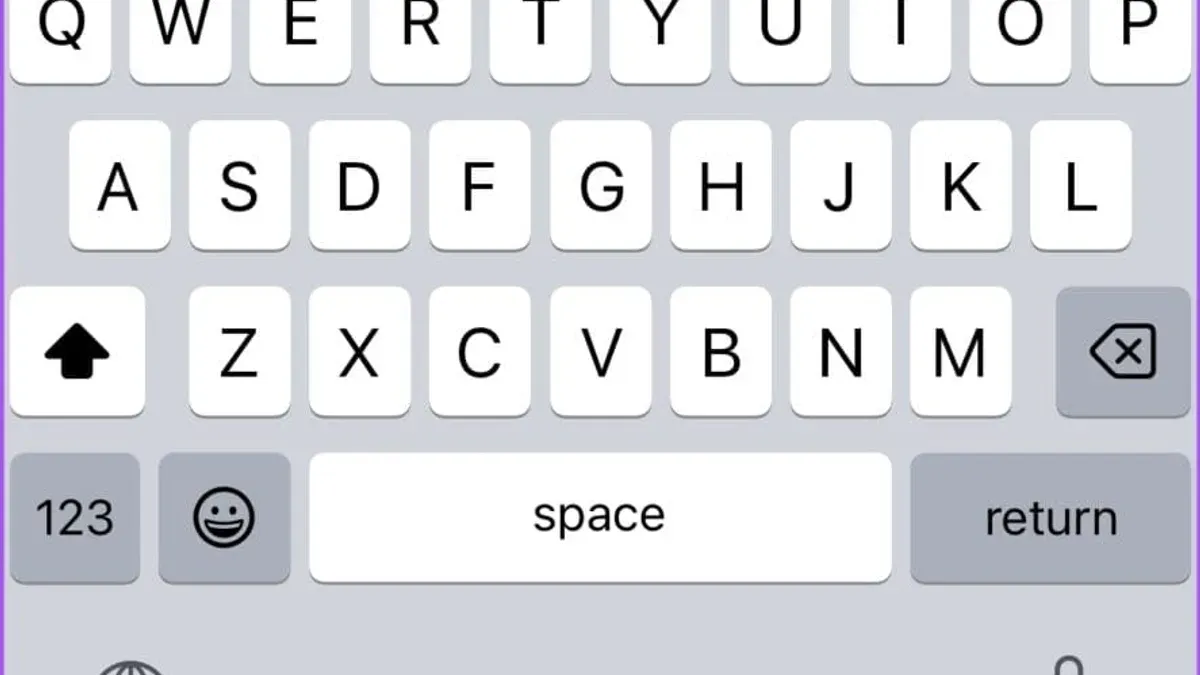
- On iPhone or iPad, tap the Aa icon in the toolbar above the keyboard. On Mac, click the Format menu in the top menu bar and choose Font or use the Text style options.
- Choose a text style such as Title, Heading, or Body to change the font appearance quickly. These styles adjust the size and weight of the text to fit common note-taking needs.
- For more granular control, tap or click on Font Size within the formatting options and select a size that suits your preferences. You can also change the font face by selecting from the available fonts, though options are limited compared to other apps.
- After applying your changes, the selected text will display the new style or size immediately. Repeat these steps as needed for different sections within the note.
Keep in mind that these changes apply only to the selected text within a single note. Apple Notes does not currently provide a way to permanently change the default font or size for all notes, so you’ll need to adjust formatting each time you want a different look.
Change default font settings in Notepad and Notepad++ on Windows
Windows Notepad and Notepad++ allow you to customize the default font and size to improve readability and personalize your note-taking experience. While Notepad offers a basic font selection that applies globally to all new documents, Notepad++ provides more advanced options including font type, size, and style for different programming languages and text types.
Set Default Font in Notepad
- Open Notepad by searching for it in the Start menu or running notepad.exe. You will see a blank text editor window.
- Click Format in the top menu bar, then select Font... from the dropdown. This opens the Font dialog box.
- In the Font dialog, choose your preferred font from the list (for example, Consolas or Lucida Console), select the desired font style and size. You can see a preview in the lower box.
- Click OK to apply the changes. This sets the font for the current and all future Notepad sessions until you change it again.
Note that Notepad's font settings apply globally but only affect text display, not document encoding or formatting beyond font appearance.
Set Default Font in Notepad++
- Launch Notepad++ from your Start menu or desktop shortcut.
- Go to the Settings menu and select Style Configurator.... This opens a window dedicated to font and color customization.
- In the Style Configurator, under Language, select Global Styles, then choose Default Style in the Style box.
- On the right side, adjust the font name, size, and style to your preference. For example, you might pick Courier New at 12 pt for clarity.
- Click Save & Close to apply the changes. These settings will affect all new files and sessions in Notepad++.
Notepad++ supports more granular font customization, including different fonts for various programming languages or syntaxes. This makes it a better choice if you want detailed control over your workspace appearance.
Change the font in Samsung Notes app
Samsung Notes allows you to customize the font style and size within individual notes, but it does not provide a global setting to change the default font for all notes. You can adjust these settings while editing a note, giving you flexibility per note, but you will need to repeat the process for each new note if you want consistent styling.

- Open the Samsung Notes app on your Android device and select an existing note or create a new one. You should see the note editing interface.
- Tap the text input area to bring up the keyboard and editing toolbar. Above the keyboard, look for the formatting options toolbar.
- Tap the Font icon, usually represented by a capital “A” or a font name, to open font style options. A menu or dropdown will appear showing available font styles.
- Select your desired font style from the list. The text in your note will immediately update to reflect the new font style you chose.
- To change the font size, tap the Font size option next to the font style selector or within the same toolbar. You can choose from predefined sizes or use a slider where available.
- Adjust the size until the text appears as you want. The note content will resize accordingly in real time.
- When finished, tap outside the toolbar to close it and continue editing or save your note. Your font changes will be saved within this note but will not apply automatically to others.
Note that Samsung Notes’ font options may vary slightly depending on your device model and app version. Also, some fonts may not support all languages or special characters. Because there is no global default font setting, applying consistent fonts across many notes requires repeating these steps. This approach gives flexibility but requires manual setup per note.
Set default font and size using device accessibility or system settings
While many Notes apps limit direct default font customization, you can influence font size and readability across apps by adjusting your device’s accessibility or system settings. These changes apply to text display system-wide, including within Notes apps, without altering font style but often improving legibility.
Adjust font size on iOS and macOS
On Apple devices, you can use the Larger Text feature to increase font size in supported apps like Notes. This doesn’t change the default font but makes the text easier to read. For example, increasing the text size here will make all note content appear larger without manually adjusting each note.
- Open the Settings app on your iPhone or iPad.
- Tap Accessibility, then select Display & Text Size.
- Tap Larger Text and toggle on Larger Accessibility Sizes.
- Use the slider at the bottom to increase the text size; you will see a preview of the change.
- Open the Notes app to see the increased font size applied to your notes.
On macOS, go to System Preferences > Accessibility > Display, then adjust the Cursor Size and enable Increase Contrast or Reduce Transparency to make text more readable. You can also use System Preferences > Displays > Display to scale resolution, indirectly enlarging text.
Change font size on Windows
Windows allows you to adjust text size system-wide, which affects apps such as Notepad. This does not change the font style but can make the font appear larger or smaller in the app window.
- Open Settings from the Start menu.
- Go to Accessibility and then select Text size.
- Use the slider to adjust the text size, and click Apply.
- Open Notepad to view the updated font size reflecting the system setting.
Remember, these accessibility and system-wide font size changes improve readability without altering the default font face. They are helpful when permanent font style changes aren’t available within the Notes app itself.
Troubleshoot common issues when changing fonts in Notes apps
Many users find that changes to fonts or font sizes do not always behave as expected in various Notes apps. For example, in Apple Notes, font changes within a note are not saved as defaults, which can be confusing. This happens because Apple Notes does not support setting a permanent default font style; instead, it relies on manual formatting for each note or section. To manage this, use the built-in styles like heading or body text consistently, which can help maintain a uniform appearance even if the default cannot be changed.
In Samsung Notes and Notepad++, sometimes font changes may fail to apply or revert unexpectedly. This can occur if the app encounters a temporary glitch or if conflicting settings are in place. For instance, Samsung Notes users might see their font revert after closing and reopening the app. To fix this, save your note after changing fonts and ensure the app has the latest update installed. In Notepad++, if font changes do not persist, check the Style Configurator for proper settings and restart the app to apply changes fully.
Device settings can also override app-specific font preferences. If you notice your font changes in the app are ignored, verify if system accessibility features like larger text or display scaling are enabled, as these can supersede app settings. Temporarily disabling or adjusting these features can help isolate the cause.
When you encounter error messages such as "Font change not supported" or see no effect from adjustments, consider updating the app or your device’s operating system. Developers often release updates to fix bugs and improve customization options. Keeping your software current ensures access to the latest features and stability improvements.
- After changing the font or size in your Notes app, save the note, then close and reopen the app. You should see your changes persist if successful.
- If changes revert, check for any active device accessibility settings like "Larger Text" under Settings > Accessibility, and try toggling them off temporarily to test.
- Visit your app store, search for the Notes app, and confirm it is updated to the newest version. Update if needed, then retry your font changes.
- In Notepad++, open Settings > Style Configurator, select your desired language or global style, adjust the font and size, click Save & Close, and restart the app to confirm changes take effect.
- For Apple Notes, remember font changes apply only within each note. Use the formatting toolbar to apply styles consistently, as there is no global default font setting.
Compare font customization across popular note-taking apps
When choosing a note-taking app based on font customization, understanding each app’s capabilities helps you maintain your preferred style and workflow consistency. Apple Notes allows font changes only within individual notes using the formatting toolbar; it does not support setting a global default font. Samsung Notes offers similar per-note font adjustments without a global default setting. On Windows, Notepad lets you set a default font and size globally through the Format > Font menu, but its options are basic. Notepad++ provides more advanced default font customization via Settings > Style Configurator, allowing you to pick fonts for different code elements and save these as defaults.
Microsoft OneNote stands out by enabling you to set a default font and size for all new notes via File > Options > General > Default font settings. This global default applies across sections and notebooks, promoting uniformity.
| App | Global Default Font Change | Per-Note Font Change | Impact on Workflow |
|---|---|---|---|
| Apple Notes | No | Yes, via formatting toolbar | Inconsistent font styles unless manually set each time |
| Samsung Notes | No | Yes, font style and size per note | Requires repetitive changes, less uniformity |
| Notepad | Yes, simple font and size | No | Consistent font across all notes, limited options |
| Notepad++ | Yes, advanced styling per language element | Yes, can override styles per document | Highly customizable, supports coding workflows |
| Microsoft OneNote | Yes, comprehensive default font settings | Yes, can adjust fonts within notes | Enables consistent, professional notes across notebooks |
Consider your priorities: if you want consistent default fonts without extra steps, Notepad, Notepad++, or OneNote provide global settings. Apple Notes and Samsung Notes require manual font changes per note, which may slow your workflow but allow flexibility. Notepad++ suits users needing granular control, especially for coding, while OneNote offers balance for general note-taking with robust defaults.
Frequently asked questions
How to change the default font in apple notes?
Apple Notes does not allow you to set a default font for all notes. You can change the font style within individual notes by selecting the text and using the formatting toolbar to choose from styles like Title, Heading, or Body. For more consistent font appearance, you can use the system-wide font settings or accessibility options.
How to change default font in notes app?
Most notes apps, including Apple Notes, do not support changing the default font for all notes globally. Instead, you can adjust fonts on a note-by-note basis or use system accessibility settings to influence text appearance across apps. Some third-party notes apps may offer more customization options.
How to change the default font size in apple notes?
Apple Notes does not provide a default font size setting. You can change the font size within a note by selecting text and choosing a different text style, which adjusts size accordingly. Alternatively, adjusting the system’s text size in Settings > Display & Brightness > Text Size will affect Notes and other apps.
How to change default font size in notes app?
Changing the default font size in notes apps depends on the app. Apple Notes lacks a global font size setting, but apps like Samsung Notes allow default size changes in their settings menu. Using device accessibility options to increase text size impacts all supported apps, including notes apps.
How to change default font in notes?
Changing the default font in notes depends on the specific app. For Apple Notes, this is not possible globally, but other apps like Notepad++ on Windows allow you to set default fonts via Preferences. Always check your app’s settings or preferences for font customization options.
What This Advice Does Not Cover
Apple Notes does not currently allow you to change the system-wide default font. You can only adjust font styles and sizes within individual notes or by applying predefined text styles such as Title, Heading, or Body. If you require a consistent font across all notes automatically, third-party note-taking apps with more extensive customization options might be better suited to your needs.
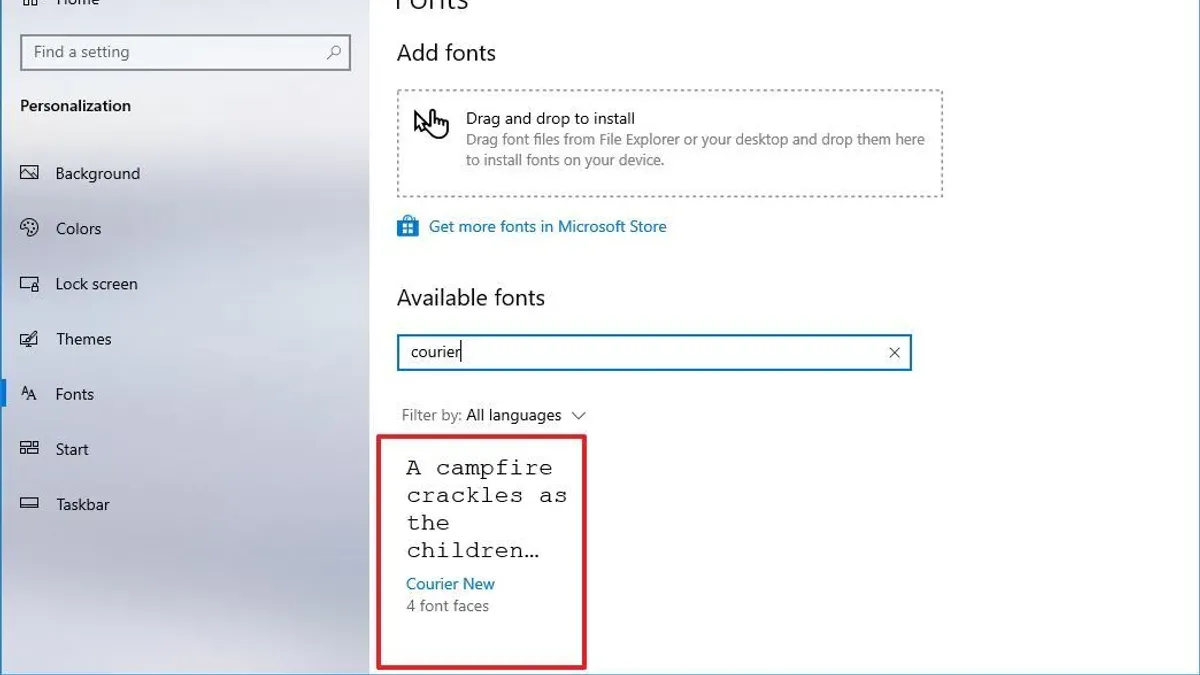
Additionally, this guide does not cover advanced font management tools or font installation procedures on your device. For users aiming to use custom fonts throughout the operating system or across multiple apps, exploring system-level font settings or professional text editors would be necessary.
Next Step: Experiment with Text Styles and Accessibility Settings
To personalize your writing experience most effectively, start by experimenting with the text styles available within each note in Apple Notes, such as Title or Heading, which can give your notes a consistent look without changing the font manually every time. Additionally, check your device's accessibility or system settings to adjust font size and display options globally, which can improve readability across all apps. Combining these approaches offers a balanced and practical way to customize your note-taking without relying on unsupported features.
See also: How to Use Tags in Notes App: Organize Your Notes Efficiently · How to Pin a Note in the Notes App: Step-by-Step Guide · How to Recover Deleted Notes in the Notes App: Step-by-Step Guide · How to Use Math Notes in the Notes App: A Step-by-Step Guide