How to Change What the Power Button Does on Mac
Customize your Mac’s power button function to suit your workflow by adjusting settings and using advanced options safely.
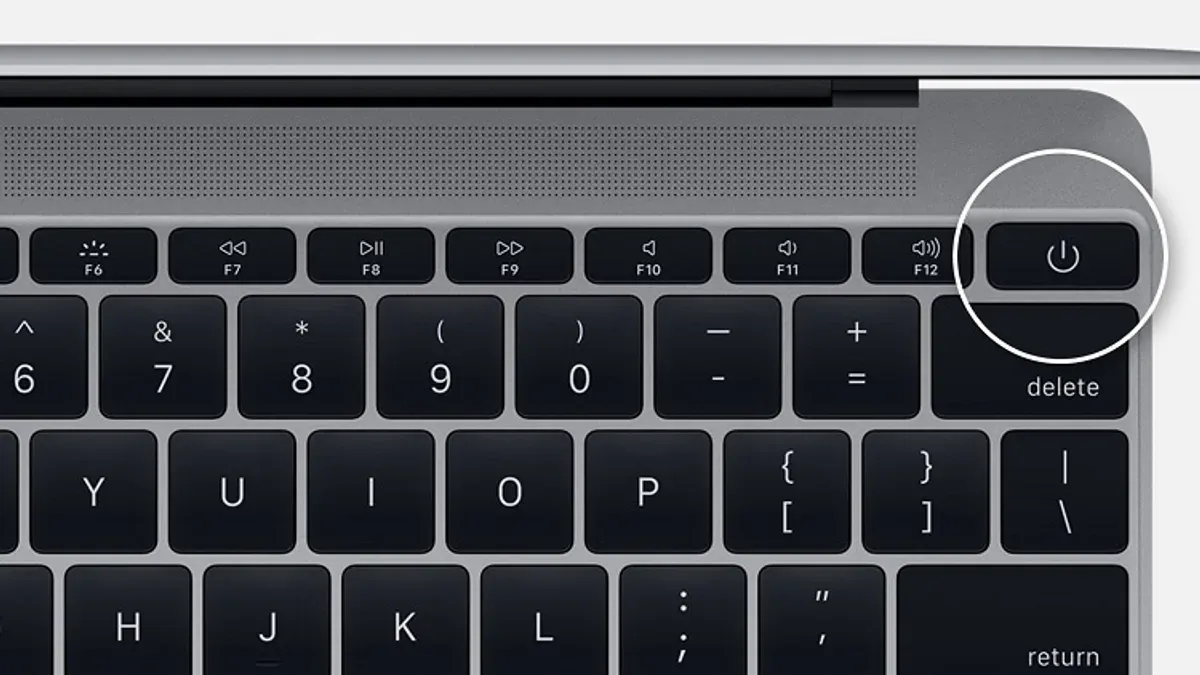
You press the power button on your Mac expecting it to wake the device, but instead, it shuts down or does nothing at all. You realize that the default behavior might not suit your workflow or preferences.
This article explains how to change what the power button does on Mac, guiding you through understanding your device’s hardware variations, modifying settings within System Settings, and exploring advanced options using Terminal commands or third-party tools. By the end, you’ll be able to customize your Mac’s power button function to better match your needs.
Key takeaways
- The power button location varies between Mac models—identify yours first.
- System Settings > Keyboard > Power Button lets you assign basic actions like sleep or shutdown.
- Terminal commands offer deeper customization but require caution.
- Third-party utilities can provide additional options not available by default.
- Always test changes immediately to ensure they work as expected.
Before you start: what you need to know and prepare
Customizing the power button on your Mac depends heavily on your Mac model and the version of macOS you are running. Different models have power buttons in varied locations: MacBook Air and MacBook Pro laptops typically place it as a Touch ID sensor on the top-right corner of the keyboard, while the Mac mini has a physical button on the back, and the iMac uses a small circular button on the rear left side. Knowing your specific model helps determine what customization options are available.
The macOS version also affects what you can change. For example, macOS Ventura and later offer more flexible system settings for power options, while older versions may limit adjustments to sleep and shutdown behaviors. Below is a summary table outlining general customization availability by macOS version:
| macOS Version | Power Button Customization Features |
|---|---|
| macOS Ventura and later | Allows system preferences changes for sleep, shutdown, and display sleep triggered by power button |
| macOS Monterey and earlier | Limited options; primarily sleep and shutdown with no granular control |
Before proceeding, back up your Mac using Time Machine or another reliable method to safeguard your data. Modifying system behavior can occasionally cause unexpected results, and having a backup ensures you can restore your settings if needed.
- Identify your Mac model: Click the Apple menu > About This Mac. You should see the model name and year here.
- Check your macOS version: In the same 'About This Mac' window, verify the macOS version number.
- Locate your power button physically on your device, noting its type (physical button or Touch ID sensor).
- Create a full backup: Open System Settings > Time Machine, and follow prompts to back up your Mac.
Completing these steps prepares you to safely customize your power button behavior within the scope your hardware and software allow.
Where is the power button on a Mac
The location of the power button on a Mac varies depending on the model you have. On MacBook Air and MacBook Pro models, the power button is typically integrated with the Touch ID sensor, located at the top-right corner of the keyboard. This button is usually a small, square or circular area that may have a fingerprint icon or a subtle power symbol.
For Mac desktop models, the power button placement differs. On an iMac, the power button is found at the back of the computer, near the bottom-right corner when looking from the front. It is a small, circular or oval button that may blend with the casing but can be identified by its position and feel.
On Mac mini models, the power button is located on the back panel, near the corner closest to the ports. It is often a small, round button that protrudes slightly.
Mac Studio models feature the power button on the back as well, close to the upper left corner when facing the back of the device. It is round and slightly recessed.
If you are unsure which button is the power button, look for a button that stands out slightly from the surrounding surface or has a power symbol. Consulting official Apple support images or diagrams can help visually confirm the exact location for your specific model.
How to change what the power button does using System Settings
You can customize your Mac’s power button behavior through System Settings, though options vary by macOS version and Mac model. Typically, these settings are found under Battery or Keyboard preferences.
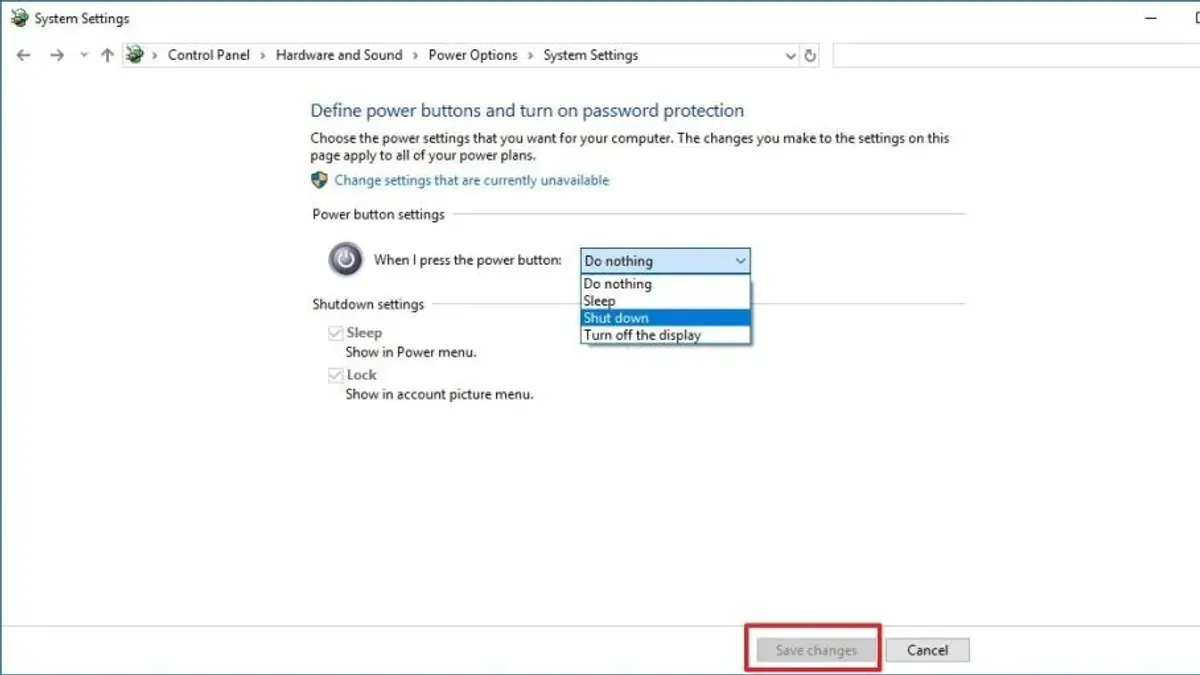
- Open System Settings from the Apple menu. A window with multiple preference categories appears.
- Navigate to Battery. On some macOS versions, this may be labeled Energy Saver. Here, check for options related to power button actions such as putting the display to sleep or initiating sleep mode.
- Alternatively, go to Keyboard settings. Some Macs allow you to assign modifier key behavior when pressing the power button, like holding Control or Option while pressing it to trigger shutdown instead of sleep.
- Look for settings labeled like “Press power button to sleep,” “Show shutdown dialog,” or “Turn display off.” Toggle or select your preferred action.
- Apply or close System Settings to save changes. These take effect immediately without needing a restart.
Note that full customization of the power button’s function is limited by macOS and hardware. For actions beyond the available toggles, you may need to use Terminal commands or third-party tools.
Using keyboard shortcuts with the power button, such as holding Option or Command, can also alter its behavior temporarily without changing system settings.
Using Terminal commands and third-party tools for advanced customization
If you require more control over your Mac’s power button behavior beyond System Settings, Terminal commands and third-party utilities offer additional options. However, these methods carry risks including system instability and potential security issues, so proceed cautiously and ensure you have backups.
Modifying power button actions with Terminal
Terminal allows you to adjust system-level settings that affect power button behavior. For example, the pmset command controls power management settings.
- Open Terminal from Applications > Utilities.
- Enter
pmset -gto view current power management settings; you should see output listing sleep, wake, and power button configurations. - To disable the power button from putting your Mac to sleep, enter
sudo pmset -a powerbutton 0. You will be prompted for your administrator password. - Verify the change by running
pmset -gagain, confirmingpowerbutton 0is set.
Note: Setting powerbutton 0 disables sleep on power button press, while 1 enables it (default behavior). Misuse may affect system responsiveness.
Third-party tools for remapping or intercepting power button presses
Some software utilities can intercept or remap hardware button inputs, including the power button. Popular examples include Karabiner-Elements, which is primarily a keyboard customizer but supports complex input remapping, and BetterTouchTool, which can assign custom actions to various inputs.
These tools provide graphical interfaces to assign scripts or commands when the power button is pressed, allowing actions like launching apps or running scripts instead of default behavior.
Keep in mind these apps require accessibility permissions and may conflict with macOS security features, causing intermittent failures or requiring frequent reauthorization.
Using Terminal or third-party utilities can extend power button customization but entails trade-offs in stability and security. Always document changes and be prepared to revert if issues arise.
Testing your changes and troubleshooting common issues
After customizing your Mac’s power button behavior, testing it ensures your changes work as intended without risking data loss. Start by saving all work and closing applications to avoid interruption during testing.
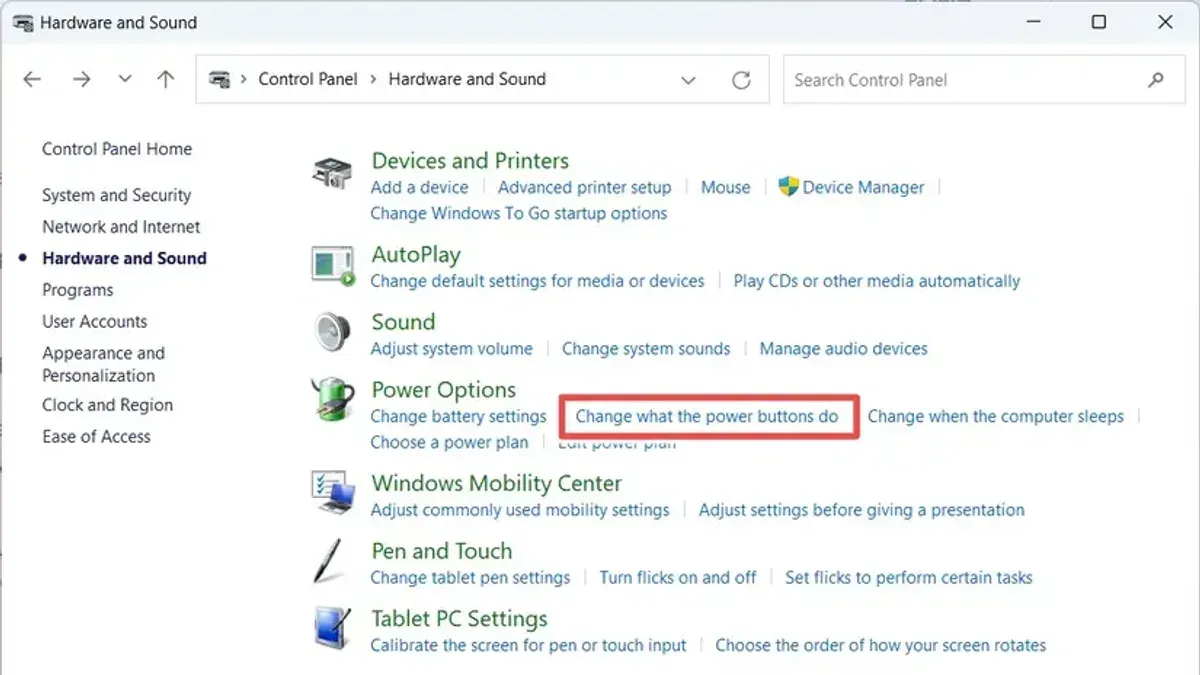
- Press the power button once and observe the response. You should see the new behavior, such as going to sleep or opening a dialog, depending on your setting.
- If nothing happens, check System Settings under Battery or Keyboard to confirm your changes are saved properly.
- Try restarting your Mac and testing again to ensure settings persist across reboots.
- If the Mac shuts down unexpectedly or performs an unintended action, revert to the default settings temporarily to prevent data loss.
- Reset the System Management Controller (SMC) if power button issues persist. For Intel Macs, this involves shutting down, pressing Shift-Control-Option and the power button simultaneously for 10 seconds, then releasing and restarting. On Apple silicon Macs, simply restarting resets power management.
Users often miss the SMC reset step, which can resolve unresponsive power buttons. Applying these steps usually restores expected behavior or clarifies when advanced troubleshooting or professional help is needed.
Frequently asked questions
Where is power button on a mac?
On most Mac desktops, such as the iMac or Mac mini, the power button is located on the back or side of the device. For MacBooks, the power button is often integrated with the Touch ID sensor at the top-right corner of the keyboard or the Touch Bar area, depending on the model. Newer MacBooks with Touch ID have a dedicated key that also functions as the power button.
Can I make the power button put my Mac to sleep instead of shutting down?
Yes, you can customize the power button’s behavior to put your Mac to sleep rather than shutting it down. This is typically done through System Settings under the Energy Saver or Battery section, where you can adjust what pressing the power button does. For more advanced options, Terminal commands or third-party tools may allow further customization.
What happens if I press and hold the power button on my Mac?
Pressing and holding the power button on your Mac forces an immediate shutdown, bypassing any open applications or save prompts. This is useful for unresponsive Macs but should be used cautiously as it can cause data loss. Holding the button for about 5-10 seconds triggers this force shutdown.
Is it possible to disable the power button on a Mac?
Disabling the power button entirely is not supported through standard system settings, as it is a critical hardware control. While some advanced users may attempt workarounds using Terminal or third-party software, these methods are not officially recommended and can risk system stability or hardware functionality.
How do I change the power button behavior on a MacBook with Touch ID?
On a MacBook with Touch ID, you change the power button behavior via System Settings under the Battery or Energy Saver preferences. The Touch ID button doubles as the power button, so any changes to power button functions will apply here. For more specific tasks, Terminal commands or third-party apps may offer additional options, but caution is advised.
Limits of Power Button Customization on Mac
Not all Mac models and macOS versions support extensive customization of the power button's behavior. Some hardware functions, such as forcing a shutdown by holding the power button, are fixed at the firmware level to ensure safety and prevent accidental data loss. Additionally, macOS restricts certain actions for security reasons, which means you cannot fully reassign the power button to any arbitrary function without using third-party tools or Terminal commands that may carry risks.
If your needs go beyond what system preferences and common Terminal tweaks allow, consider consulting Apple Support or using specialized third-party software with caution. Advanced modifications can impact system stability or void warranties.
To move forward effectively, start by exploring the System Settings > Keyboard > Power Button options on your Mac. This is where you can safely adjust default behaviors like sleep, shutdown, or display sleep with minimal risk and immediate effect. Testing changes here first helps you understand what your Mac supports before attempting more complex customization.