How to Prevent Your Mac from Sleeping: Step-by-Step Solutions
Discover practical steps to prevent your Mac from sleeping, ensuring uninterrupted work and downloads by adjusting settings and using Terminal commands.
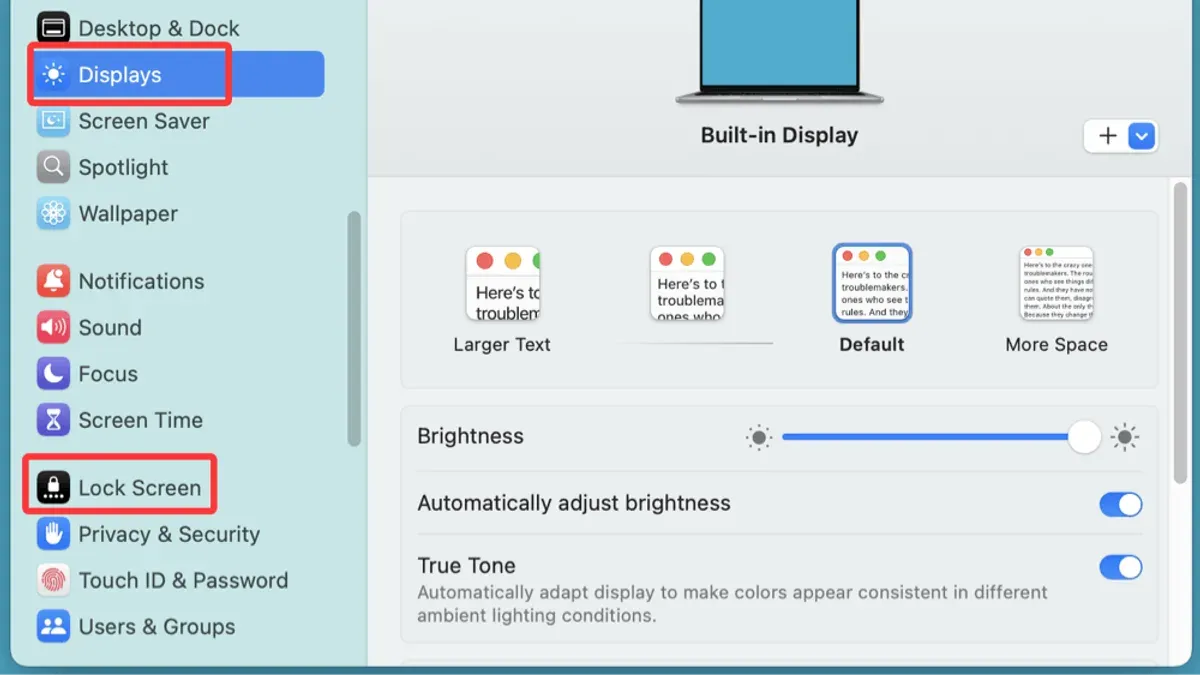
Your Mac or MacBook unexpectedly slipping into sleep mode mid-task can disrupt downloads, presentations, or long work sessions. You might find yourself repeatedly waking the device or adjusting settings without fully understanding the underlying sleep behavior.
This article explains how to prevent Mac from sleeping on Mac by guiding you through practical steps in System Settings and Terminal, discusses battery management, and highlights potential consequences of disabling sleep. You'll also find troubleshooting tips and third-party app options to maintain control over your Mac's sleep behavior.
Key takeaways
- Adjust Energy Saver or Battery settings in System Settings to control sleep timing.
- Use Terminal's 'caffeinate' command to temporarily prevent sleep during specific tasks.
- Consider battery health trade-offs before disabling sleep permanently.
- Third-party apps provide additional flexibility but verify their compatibility and safety.
- Closing the lid usually triggers sleep; external power and peripherals can modify this behavior.
Before you start: What you need to know about Mac sleep
Mac sleep is a built-in feature that helps conserve energy and protect your data by putting your device into a low-power state after a period of inactivity. When your Mac sleeps, it reduces power consumption by turning off the display and pausing most processes, which also enhances security by requiring a password on wake if set.
Adjusting sleep settings requires access to System Settings (formerly System Preferences) and, in some cases, administrator permissions. Without these, you won’t be able to modify energy-saving options or run commands that prevent sleep.
Sleep behavior differs depending on whether your Mac runs on battery power or is connected to a power adapter. macOS often applies more aggressive energy-saving measures on battery to prolong usage time, while allowing more flexibility when plugged in.
Disabling sleep entirely can lead to increased battery drain and may shorten battery lifespan over time. Apple’s official support documents recommend balancing your need to keep the Mac awake with the impact on energy consumption and device longevity.
How do I prevent my MacBook from going to sleep using System Settings
To adjust your MacBook’s sleep behavior, use the built-in System Settings to control when the display turns off and whether the Mac automatically sleeps.
- Click the Apple menu and select System Settings. You will see the main settings window.
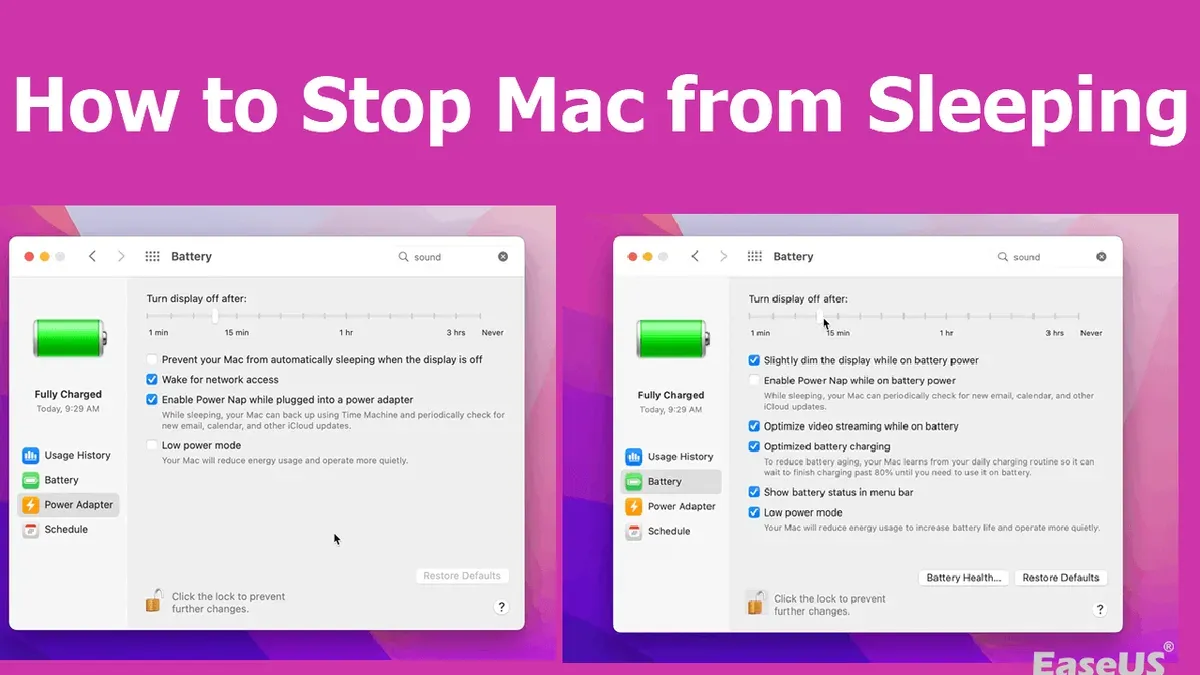
- In the sidebar, scroll down and click Battery if your Mac uses macOS Ventura or later. On older macOS versions, look for Energy Saver.
- Under the Battery section, click Options or Battery tab to access sleep-related controls.
- Find the slider labeled Turn display off on battery when inactive and drag it to Never or the maximum allowed time. This prevents the screen from turning off while on battery.
- Switch to the Power Adapter tab and set the Turn display off slider to Never or a long duration to keep the Mac awake when plugged in.
- Toggle on the option Prevent your Mac from automatically sleeping when the display is off (wording may vary slightly depending on macOS version). This stops the system from sleeping even if the display is off.
- Close System Settings. Changes save automatically, and your Mac should now stay awake based on these preferences.
Note that setting these options to prevent sleep can increase battery drain and reduce hardware lifespan if used continuously. Adjust settings thoughtfully based on your usage.
How to keep macOS from sleeping when closing the lid
By default, macOS puts a MacBook to sleep when you close the lid to conserve power and prevent overheating. However, you can keep your Mac awake with the lid closed by using clamshell mode, which requires external peripherals and power.
To use clamshell mode, connect your MacBook to an external display, keyboard, and mouse or trackpad. Then, plug in the MacBook’s power adapter. Once these are connected, closing the lid will keep the Mac awake and output to the external display.
Some third-party apps, like Amphetamine and InsomniaX, allow you to override the default behavior and prevent sleep with the lid closed without external devices. They provide options to keep your Mac awake for downloads or other tasks but may increase the risk of overheating and drain the battery faster since the Mac’s ventilation is reduced with the lid shut.
Clamshell mode is generally safer because the Mac is powered and connected to external cooling and input devices. Using apps to prevent sleep with the lid closed is more flexible but requires caution to avoid hardware stress.
- Connect your MacBook to an external display, keyboard, and mouse or trackpad. When done, your screen should mirror or extend to the external monitor.
- Plug in your MacBook’s power adapter. Your Mac should recognize the power source.
- Close the MacBook lid gently. The external display should remain active, and your Mac will stay awake.
- If you want to use a third-party app instead, download a trusted app like Amphetamine from the App Store. Open the app and enable "Lid Closed Mode" or equivalent. Your Mac will stay awake when the lid is closed, but monitor your Mac’s temperature and battery life carefully.
How to make your Mac not sleep using Terminal commands
For advanced users, Terminal commands offer precise control over your Mac's sleep behavior, bypassing some graphical interface limitations. The caffeinate command temporarily prevents sleep while active, and pmset adjusts sleep settings persistently.
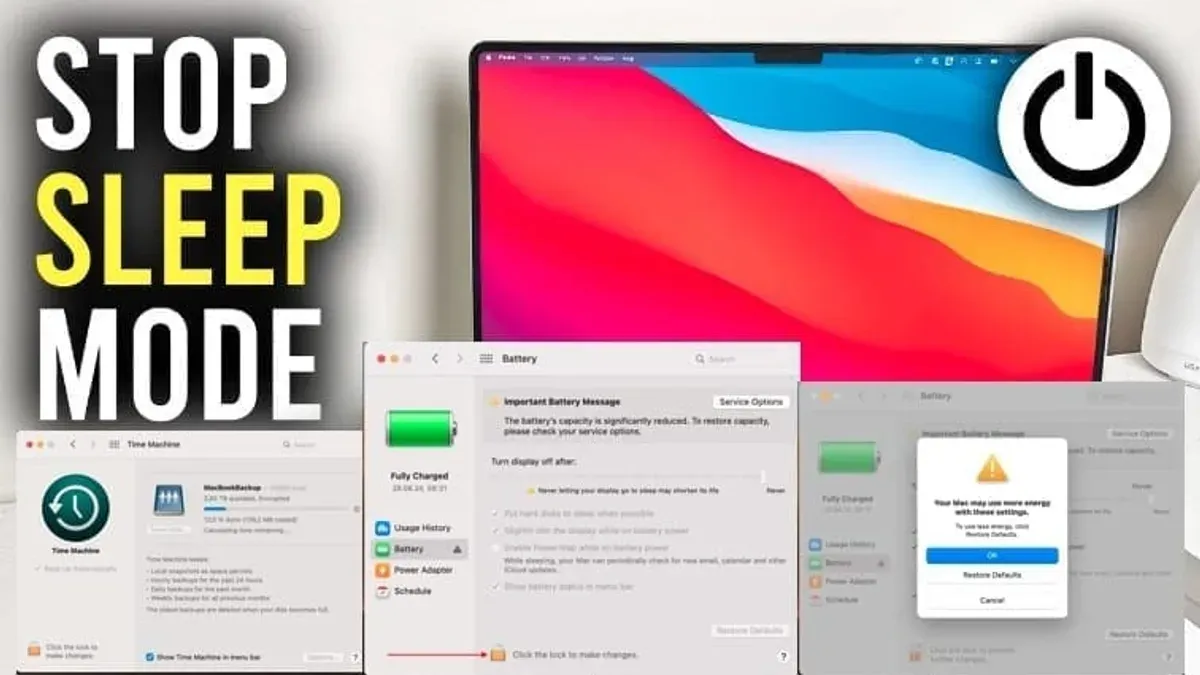
Using the caffeinate command
- Open Terminal from Applications > Utilities.
- Type
caffeinateand press Enter. Your Mac will stay awake as long as this Terminal window remains open and the command is running. - To prevent sleep for a specific duration, use
caffeinate -t 3600to keep your Mac awake for 3600 seconds (1 hour). You should see no immediate output, but sleep will be disabled during this period. - Press Control+C to stop
caffeinateand allow normal sleep behavior to resume.
Using the pmset command
- In Terminal, check current sleep settings with
pmset -g. This lists all power management settings. - To disable system sleep indefinitely, enter
sudo pmset -a disablesleep 1. You will be prompted to enter your administrator password. After this, your Mac will not enter system sleep. - To revert, use
sudo pmset -a disablesleep 0, restoring default sleep behavior.
Warnings: Using caffeinate for long periods can drain battery and impact hardware longevity. Modifying pmset settings requires caution; incorrect parameters can affect system stability. Always test changes and revert if unexpected behavior occurs.
Battery settings that matter for preventing Mac sleep
Several battery-related settings in macOS influence how and when your Mac enters sleep mode. Adjusting these can help you prevent unwanted sleep while balancing battery health.
- Open System Settings and navigate to Battery. You should see detailed options affecting sleep behavior.
- Locate and disable Put hard disks to sleep when possible. This setting spins down disks to save energy but can trigger sleep faster. Disabling it keeps disks active, reducing sleep frequency, though it slightly increases energy use.
- Check the Power Nap option. Enabling Power Nap allows your Mac to perform background tasks while asleep, which may cause occasional wake-ups. Disabling it prevents these background activities but may delay updates and backups.
- Review Low Power Mode. When enabled, it reduces system performance and increases sleep aggressiveness to extend battery life. Disabling Low Power Mode keeps your Mac more awake but may shorten battery runtime.
For example, disabling hard disk sleep and Power Nap can increase battery drain moderately, roughly adding 5-10% extra usage during idle periods. Low Power Mode can extend battery life by slowing processes but may cause your Mac to sleep sooner.
Balancing these settings depends on your priorities: preventing sleep at all costs will increase battery consumption and heat, while prioritizing battery health will allow some sleep. Adjust settings accordingly to fit your usage.
Using third-party apps to stop Mac from sleeping
Third-party apps provide flexible alternatives to macOS system settings for preventing your Mac from sleeping. Popular options include Amphetamine and KeepingYouAwake, which offer more granular control over sleep behavior tailored to specific tasks.
| Feature | Amphetamine | KeepingYouAwake |
|---|---|---|
| Activation modes | Time-based, app-based, USB-connected device triggers | Manual toggle, menu bar control |
| Customizable session duration | Yes, with presets and manual input | Yes, manual only |
| Battery usage monitoring | Yes | No |
| Free and open source | Free on App Store | Open source, free |
These apps let you keep your Mac awake during activities like long downloads, presentations, or video playback without permanently altering system preferences. For example, in Amphetamine, you can create a session triggered by connecting a specific USB device, which automatically prevents sleep until disconnected.
- Download and install Amphetamine or KeepingYouAwake from their official sources.
- Open the app; an icon appears in the menu bar indicating it is ready.
- Click the icon and select "Indefinitely" or set a custom duration to keep your Mac awake.
- Optionally, configure triggers such as specific apps running or devices connected for automatic activation.
- Confirm that the Mac does not enter sleep mode during the active session by observing the display and system responsiveness.
When using third-party apps, be aware that they require appropriate permissions, such as Accessibility access, to function correctly. Also, preventing sleep for extended periods can lead to increased battery usage and potential overheating, especially on MacBooks. Review app permissions in System Settings > Privacy & Security and monitor your Mac’s temperature and battery status to avoid unintended consequences.
User reviews often highlight Amphetamine’s extensive features and reliability, while KeepingYouAwake is praised for its simplicity and lightweight design. Choose the app that best fits your need for control versus ease of use.
Troubleshooting when your Mac keeps going to sleep unexpectedly
If your Mac continues to sleep despite your efforts to prevent it, conflicting settings or profiles may be overriding your preferences. Check for configuration profiles in System Settings under Privacy & Security > Profiles that might enforce sleep policies. Removing or adjusting these profiles can resolve conflicts.
Identifying apps or background processes that trigger sleep can be done via Console logs. Open Console and filter messages by "kernel" or "powerd" to find entries like “PM RESPONSE SLEEP” or sleep assertion releases indicating what initiated sleep. For example, a log line such as powerd: Assertion Released: PreventUserIdleSystemSleep followed by Entering Sleep state points to an app releasing a sleep assertion.
Resetting the System Management Controller (SMC) and Non-Volatile RAM (NVRAM) can help if persistent sleep issues occur. These resets clear low-level system caches and power management data. Many users report improved sleep behavior after these resets, especially when other steps fail.
- Check for configuration profiles in System Settings > Privacy & Security > Profiles. If present, review or remove profiles that enforce sleep policies. Success: You see no conflicting profiles or sleep behavior changes.
- Open Console and filter messages by "powerd" or "kernel". Look for sleep trigger entries such as “PM RESPONSE SLEEP” with process names. Success: You identify an app or process causing sleep.
- Quit or uninstall identified apps and observe sleep behavior. Success: Mac no longer sleeps unexpectedly.
- If issues persist, reset SMC: Shut down your Mac. For Intel Macs, press Shift-Control-Option and power button simultaneously for 10 seconds, then release and power on. For M1 Macs, simply restart. Success: System management functions reset.
- Reset NVRAM: Shut down, then power on and immediately hold Option-Command-P-R for about 20 seconds until Mac restarts. Success: NVRAM reset confirmed by system startup chime or Apple logo reload.
These steps cover common causes and resolutions for unexpected sleep. If problems remain, consider contacting Apple Support or visiting an authorized service provider.
When to avoid preventing your Mac from sleeping
Preventing your Mac from sleeping may seem convenient, but it is not always advisable. Apple explicitly warns that extended periods of constant activity can increase the risk of overheating, which may shorten hardware lifespan. Macs rely on sleep modes to reduce thermal stress and wear on internal components.
Battery health also suffers when your Mac remains awake continuously. Keeping your device in an active state drains the battery faster and can degrade its long-term capacity. Users who prioritize battery longevity should avoid disabling sleep features for extended durations.
Security is another concern. Leaving your Mac awake and unattended increases the risk of unauthorized access, especially if automatic screen locking is not enabled. Sleep mode helps protect your data by locking the screen and requiring authentication upon waking.
In summary, if you value hardware durability, battery health, or security, you should not routinely prevent your Mac from sleeping. These instructions are intended for specific scenarios requiring continuous activity, not for general use.
- How to Schedule Sleep and Wake Times on Your Mac in 2026
- How to Turn On AirDrop for Everyone on Your Mac: A Complete Guide
Frequently asked questions
How to prevent macbook from sleeping?
To prevent your MacBook from sleeping, open System Settings and go to Battery. Select Power Adapter, then set "Turn display off on power adapter when inactive" to Never. Additionally, you can use the Terminal command caffeinate to temporarily keep your Mac awake during specific tasks.
How to stop macbook from sleeping?
Stopping your MacBook from sleeping involves adjusting the Energy Saver or Battery settings. In System Settings, under Battery, set the display sleep timer to Never when plugged in. For more control, third-party apps like Amphetamine can keep your Mac awake as needed.
How to make mac not sleep?
You can make your Mac not sleep by changing settings in System Settings under Battery or Energy Saver, depending on your macOS version. Setting the display sleep slider to Never is key. Using Terminal commands like caffeinate also prevents sleep temporarily without changing system preferences.
How to set mac to not sleep?
In System Settings, navigate to Battery and choose Power Adapter. Move the slider for "Turn display off on power adapter when inactive" to Never. This stops the Mac from sleeping while plugged in. Remember, preventing sleep can increase power consumption and reduce battery lifespan.
How to sleep mac?
To put your Mac to sleep, click the Apple menu and select Sleep. Alternatively, you can press Control + Shift + Power button (or Control + Shift + Eject on older Macs). This immediately puts the Mac into sleep mode, conserving energy.
Limits of preventing Mac sleep and who should consider other options
Preventing your Mac from sleeping can increase power consumption and reduce battery lifespan. This advice is best suited for users who understand these trade-offs and have specific needs for continuous operation, such as during long downloads, presentations, or running servers. Users who prioritize battery health or energy efficiency should avoid disabling sleep or use it sparingly.
If you find that your Mac still goes to sleep unexpectedly despite adjusting settings, consider checking for background apps or system processes that may override sleep preferences. For more advanced control, third-party apps or Terminal commands can help, but these also come with risks and should be used cautiously.
The single most useful next step is to review your Mac’s Energy Saver or Battery settings in System Settings, focusing on options like “Prevent your Mac from automatically sleeping when the display is off” and “Turn display off after” sliders to customize your device’s sleep behavior precisely to your needs.