Clear Safari Browsing History on Mac and iPhone
Learn how to clear browsing history in Safari on Mac and iPhone to protect your privacy and manage your data effectively.
Knowing how to clear browsing history in Safari is essential for Mac and iPhone users who want to protect their privacy or free up space. Safari stores multiple types of data, and understanding what you remove—and what remains—helps you make informed decisions.
Understanding What 'Browsing History' Means in Safari
Safari stores several types of data related to your web activity. Browsing history refers specifically to the list of websites you visited. Safari also keeps cookies, cached files, and other website data that serve different functions.
- Browsing History: URLs and timestamps of websites visited.
- Cookies: Small pieces of data websites store to remember preferences and login status.
- Cache: Saved web page resources like images and scripts for faster loading.
- Website Data: Includes cookies, caches, local storage, and other site-specific files.
With iCloud Sync enabled, Safari history is shared across your Apple devices signed in with the same Apple ID. Clearing history on one device removes it from all synced devices.
Clearing browsing history alone does not erase cookies or cached data. These can still track browsing behavior or keep you logged in on sites.
| Data Type | Storage Location | Effect on Privacy When Cleared |
|---|---|---|
| Browsing History | Safari app + iCloud | Removes visited URLs but not tracking cookies |
| Cookies | Safari app | Removes login sessions and tracking identifiers |
| Cache | Safari app | Clears stored page resources, which may slow loading temporarily |
| Website Data | Safari app | Deletes cookies, cache, and other local data |
How to Clear Browsing History on Safari for macOS Ventura and Later
On Macs running macOS Ventura or later, clearing Safari’s browsing history is straightforward but varies by time range.
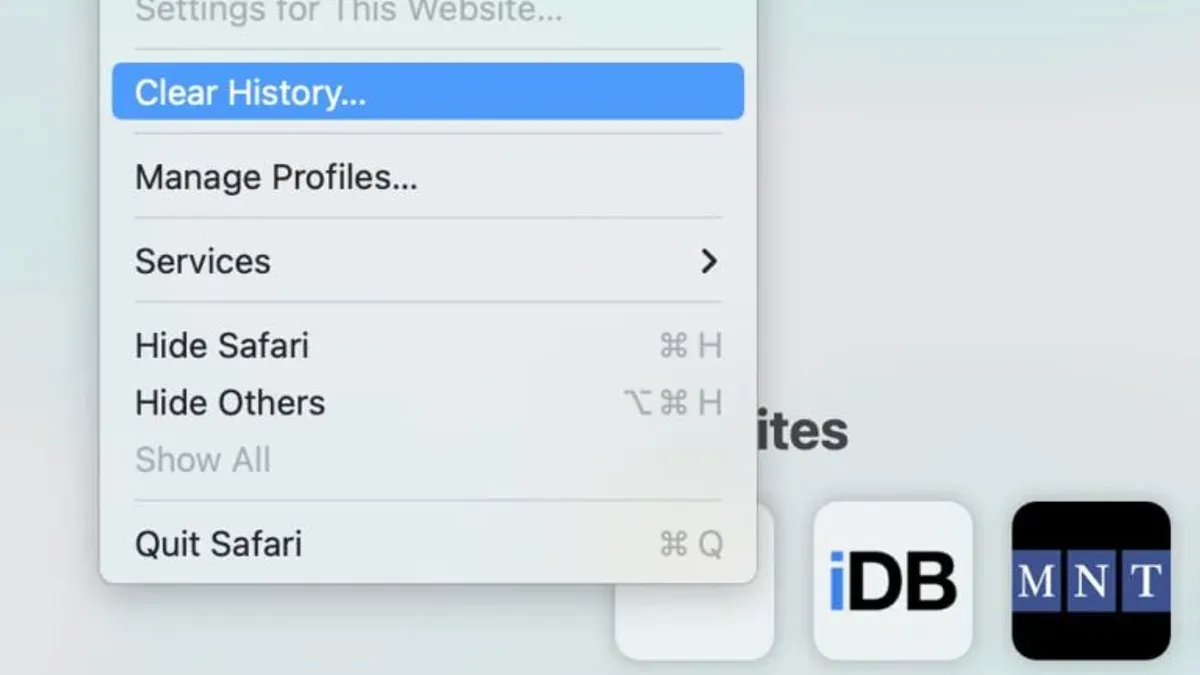
- Open Safari.
- Click History in the top menu bar.
- Select Clear History... at the bottom of the dropdown.
- In the dialog box, choose the time range from the dropdown: last hour, today, or all history. Note that selecting all history clears all browsing records across devices synced via iCloud.
- Click Clear History to confirm.
Keyboard shortcut: Press Command + Y to open History, then proceed as above.
Clearing history removes the record of visited sites across all synced devices via iCloud. However, open tabs, bookmarks, and autofill information remain unchanged. A common oversight is expecting cookies or saved passwords to be deleted; these require separate actions.
How to Clear Safari Browsing History on iPhone and iPad (iOS 2026)
On iOS devices, the process differs slightly from macOS.
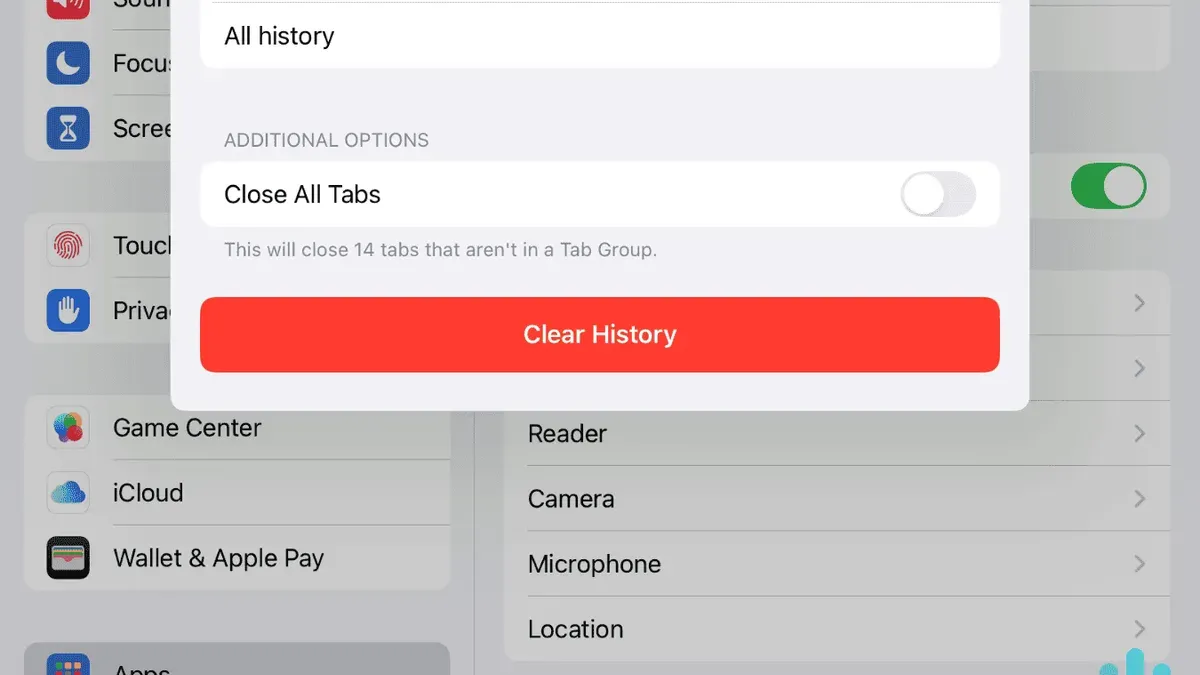
- Open the Settings app.
- Scroll down and tap Safari.
- Tap Clear History and Website Data.
- Confirm by tapping Clear History and Data in the prompt.
This action removes browsing history, cookies, and other browsing data from the device and all devices synced via iCloud.
If you want to clear only website data without deleting history, scroll further down in Safari settings and tap Advanced > Website Data > Remove All Website Data. This distinction is important because clearing history alone does not remove cookies or cached files.
Remember, clearing browsing history and website data affects the browsing experience. For example, clearing cookies may log you out of sites, and clearing cache may slow page loading temporarily.
What Clearing Browsing History Does NOT Remove and Why It Matters
Clearing your browsing history removes the list of visited sites but does not delete cookies, cached files, or saved passwords by default. These remain unless you explicitly clear website data or saved passwords.
- Cookies and Website Data: Persist after history clear; sites can still recognize you between sessions.
- Cache: Stored resources speed up page loading and remain until cleared separately.
- Saved Passwords: Stored in iCloud Keychain and unaffected by clearing history.
This means that some tracking can continue even after you clear history. For example, ad trackers using cookies can still identify your device.
To fully protect privacy, consider clearing website data or using Private Browsing mode, which does not save history, cookies, or cache after the session ends.
Advanced Tips: Managing Privacy Beyond Clearing History
Safari offers several built-in privacy tools beyond clearing history.
- Privacy Report: View how many trackers Safari blocks on websites you visit. This report shows cross-site trackers prevented from profiling you.
- Tracker Blocking: Safari blocks known trackers by default, reducing unwanted data collection.
- Managing Cookies and Site Data: You can manually delete these from Safari > Preferences (Mac) or Settings > Safari (iOS), under Website Data. Note that removing website data may log you out of sites and reset preferences.
- Private Browsing Mode: Opens sessions that do not save history, cookies, or cache after you close them, providing a temporary privacy solution.
Using these features in combination can provide stronger privacy safeguards than clearing history alone.
Important Caveats
This guide covers Safari on macOS Ventura and later, and iOS 2026. It does not address third-party browsers or older Safari versions. If you use iCloud syncing, clearing history on one device deletes it from all connected devices. Clearing history does not guarantee full anonymity or protection against sophisticated tracking techniques such as fingerprinting.
Frequently asked questions
Will clearing my Safari browsing history delete my saved passwords?
No. Saved passwords are stored separately in iCloud Keychain and remain intact unless you delete them manually.
Does clearing browsing history remove all data from my iCloud synced devices?
Yes, clearing history with iCloud Sync enabled removes the browsing history from all devices signed in with the same Apple ID. However, cookies and cached data remain unless cleared separately.
How often should I clear my Safari browsing history for optimal privacy?
It depends on your privacy needs. Regularly clearing history reduces stored browsing records, but managing cookies and using Private Browsing mode offer more continuous privacy protection.
Can I recover my browsing history after clearing it in Safari?
Typically, no. Once cleared, Safari does not provide an option to recover deleted browsing history.