
How to Copy and Paste on MacBook Pro M1 Pro: Master Clipboard Use
Master copying and pasting on MacBook Pro M1 Pro with simple shortcuts and advanced macOS Ventura clipboard features for efficient workflow.
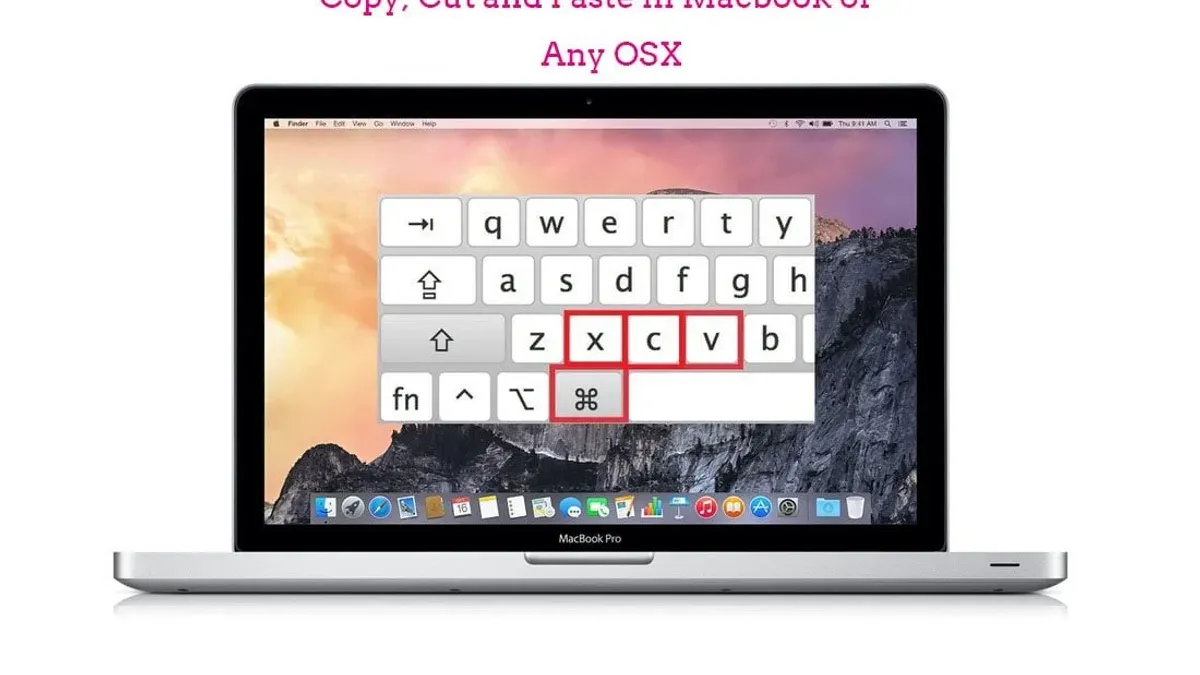
Copying and pasting are fundamental tasks on any computer. Knowing how to copy and paste on a MacBook Pro M1 Pro helps users work efficiently with text, images, and files. This article covers standard methods and explores advanced clipboard features available on macOS Ventura combined with the M1 Pro chip, helping you manage clipboard content effectively across apps.
Understanding Basic Copy and Paste on MacBook Pro M1 Pro
The core copy and paste actions on your MacBook Pro M1 Pro are straightforward. You can copy text, images, or files and then paste them where needed using several methods.
- Keyboard shortcuts: Use
Command + Cto copy,Command + Vto paste, andCommand + Xto cut. These work for text selection in apps like Notes or Safari and for files in Finder. - Edit menu: Every app typically offers Copy, Paste, and Cut options in the Edit menu at the top of the screen, providing an alternative to shortcuts.
- Context menu: Two-finger tap on the trackpad or right-click to bring up context menus with copy and paste commands.
- Cross-app copy-paste: You can copy a URL from Safari and paste it directly into Notes or Messages seamlessly.
Example: To copy a URL from Safari and paste it into Notes:
- Highlight the URL in Safari's address bar.
- Press
Command + Cto copy it. - Open the Notes app.
- Click where you want the URL to appear.
- Press
Command + Vto paste.
Advanced Clipboard Features in macOS Ventura on M1 Pro
macOS Ventura introduces enhanced clipboard capabilities, while the M1 Pro chip improves clipboard responsiveness and multitasking efficiency.
- Clipboard history: macOS Ventura does not natively store multiple clipboard items. However, third-party clipboard managers compatible with the M1 Pro chip let you access a history of copied items for quick reuse. When choosing such apps, verify they support Apple Silicon natively to avoid performance issues.
- Universal Clipboard: This feature allows copying text, images, or files on an iPhone or iPad and pasting them instantly on a MacBook Pro M1 Pro. Both devices must be signed into the same Apple ID, have Bluetooth and Wi-Fi enabled, and be near each other. Note that Universal Clipboard works within a limited time window before the copied content expires.
- M1 Pro hardware benefits: The unified memory architecture of the M1 Pro reduces latency during copy-paste actions compared to Intel-based MacBook models. This improvement is especially noticeable when handling large files or images, but actual speed gains depend on app optimization.
- Clipboard managers: Apps like Paste or CopyClip store multiple clipboard items. You can switch between saved entries using keyboard shortcuts, enabling efficient workflow management. Be aware that some clipboard managers require accessibility permissions under System Settings > Privacy & Security to function properly.
Example workflow: Use the Paste app to hold multiple copied snippets and paste the desired one by opening Paste via a shortcut, selecting the item, and hitting Enter. This is useful when managing text or image snippets for coding or research.
Copy and Paste Tips for Different Content Types
Different content types behave differently when copied and pasted on MacBook Pro M1 Pro. Understanding these nuances helps preserve formatting and optimize your workflow.
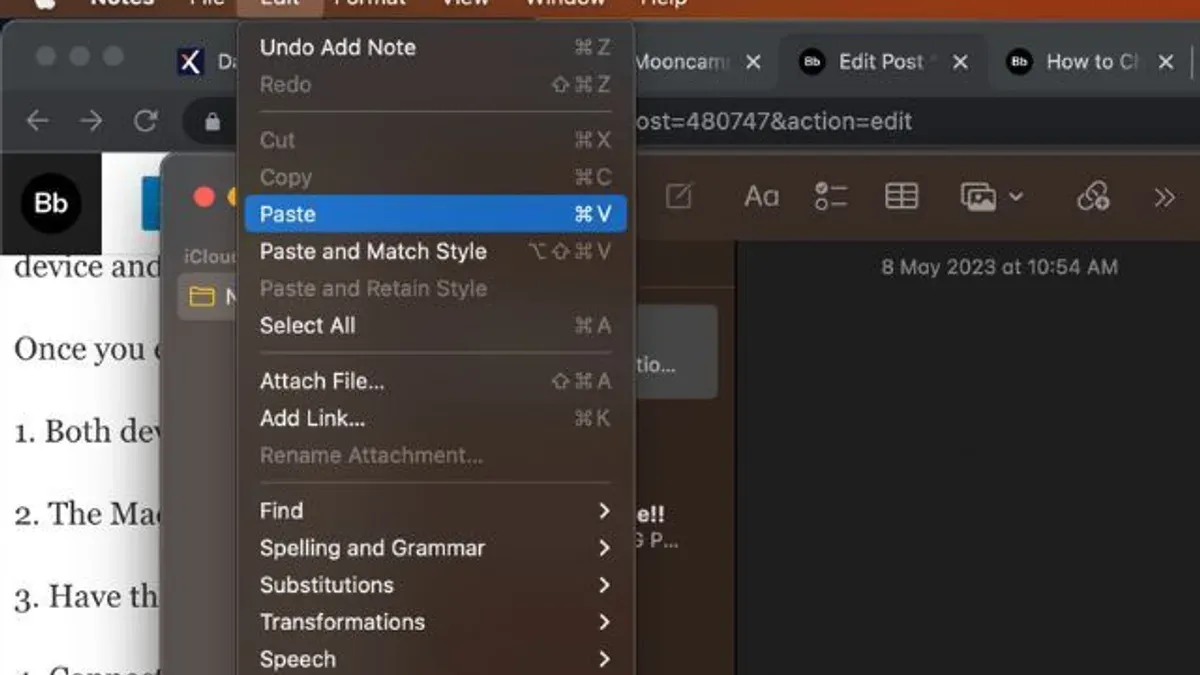
- Plain text vs rich text: Pasting normally preserves formatting (rich text). To paste without formatting, use Paste and Match Style from the Edit menu or press
Option + Shift + Command + V. Note that not all apps support this shortcut uniformly. - Images: Copy images from Safari or the Photos app and paste directly into Pages or Mail. The image maintains quality and can be resized or edited after pasting. However, some apps may convert images to lower resolution when pasting.
- Files: Copy files in Finder using
Command + Cand paste them into another folder or an external drive usingCommand + V. Alternatively, drag and drop files between locations. Drag and drop avoids using the clipboard and can be faster for large files. - Drag and drop: Dragging files, text, or images from one app or folder to another is often faster and avoids placing data on the clipboard, which can be beneficial when working with sensitive data you don't want stored temporarily.
Worked example: To paste plain text without formatting:
- Copy formatted text from a webpage or document.
- In your destination app, go to Edit > Paste and Match Style or press
Option + Shift + Command + V. - The pasted text will match the style of your destination, stripping original fonts or colors.
Troubleshooting Common Copy and Paste Issues on MacBook Pro M1 Pro
Occasionally, copy and paste may not work as expected. These troubleshooting steps can help restore normal function.
- Copy-paste shortcuts not responding: Restart the app or try quitting and reopening it. If that fails, reboot your Mac.
- Reset clipboard: Open Terminal and run
killall pboard. This command restarts the clipboard daemon (pboard) and resolves many clipboard glitches. - App permissions: Some apps require full disk access or clipboard permission under System Settings > Privacy & Security. Verify permissions if copy-paste fails in specific apps. For example, sandboxed apps may restrict clipboard access intentionally.
- App limitations: Some specialized or sandboxed apps may restrict clipboard access, causing interoperability issues. In such cases, consult the app’s documentation for supported clipboard operations.
Step-by-step command to reset clipboard:
- Open Terminal (found in Applications > Utilities).
- Type
killall pboardand pressEnter. - Try copy-paste again; the clipboard should function normally.
Boost Your Productivity: Clipboard Management Workflows on MacBook Pro M1 Pro
Clipboard managers and automation tools can significantly speed up repetitive copy-paste tasks.
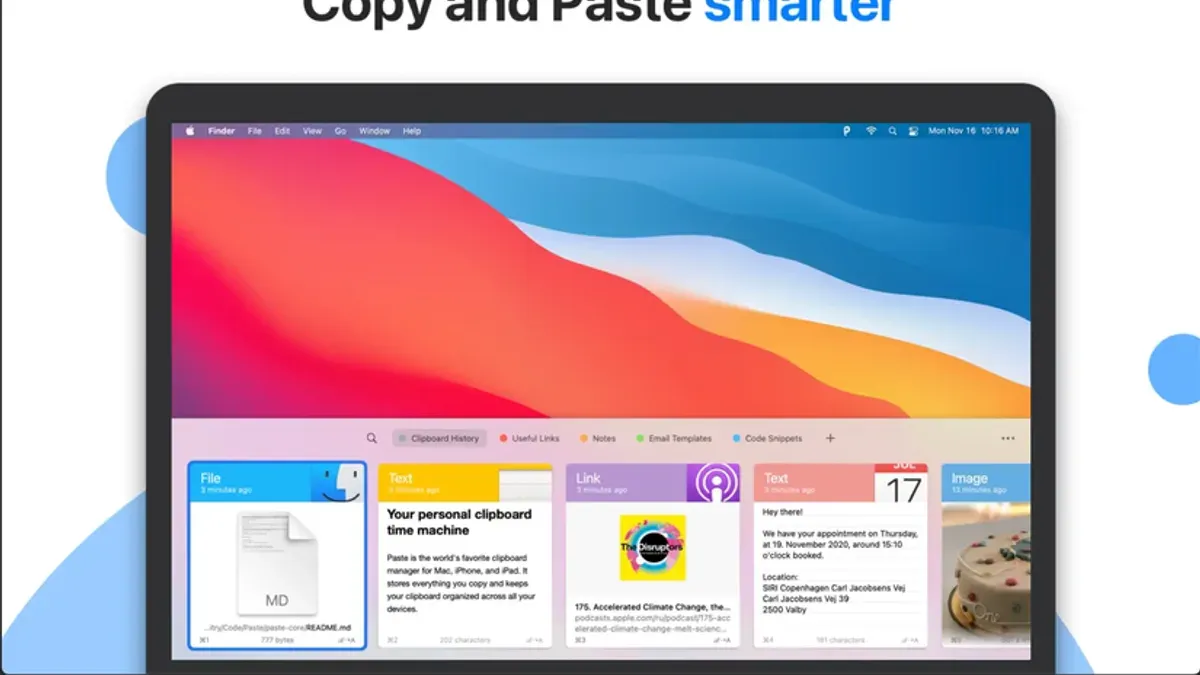
- Recommended apps: Paste, CopyClip, and Alfred Clipboard History are optimized for the M1 Pro architecture and integrate well with macOS Ventura. Check for regular updates to maintain compatibility.
- Keyboard shortcuts: Define custom shortcuts for frequently used snippets via clipboard managers or the macOS Shortcuts app. This customization depends on the app’s features and user preferences.
- Automating tasks: Use the Shortcuts app to automate sequences like copying text, transforming it, and pasting it into another app in one command. Automation complexity varies depending on the workflow.
- Organizing clipboard content: Tag or categorize clipboard items in management apps for easy retrieval during research or programming. This feature requires choosing a clipboard manager that supports metadata.
Example workflow: In Paste, save a series of text snippets. Assign a shortcut to open the Paste menu, select a snippet by typing a keyword, and press Enter to paste it instantly. This reduces manual typing and speeds up your work.
Limitations and Caveats
This article focuses solely on the MacBook Pro M1 Pro running macOS Ventura and later versions. Copy-paste behaviors on older Mac models or earlier macOS versions may differ. Advanced clipboard management tips often require installing third-party apps or using built-in features exclusive to Ventura. Users employing specialized software with unique clipboard implementations may encounter variations not covered here.
Frequently Asked Questions
How do I copy and paste between my iPhone and MacBook Pro M1 Pro?
Enable Universal Clipboard by signing into the same Apple ID on both devices and ensuring Bluetooth and Wi-Fi are active. Copy on your iPhone or iPad, then paste on your MacBook Pro M1 Pro within a short time frame. Both devices must be nearby and unlocked for this to work.
Can I copy and paste multiple items at once on my MacBook Pro?
macOS Ventura does not provide native clipboard history. To copy and paste multiple items, use third-party clipboard managers compatible with M1 Pro that store multiple clipboard entries for easy access. These apps often require additional permissions and may have different user interfaces.
Why does copy and paste sometimes not work on my MacBook Pro M1 Pro?
Clipboard issues can stem from unresponsive apps, permission restrictions, or clipboard daemon errors. Resetting the clipboard process with killall pboard and verifying app permissions usually resolves these problems. If issues persist, check for app updates or system updates.
Are there keyboard shortcuts to paste without formatting on Mac?
Yes. Use Option + Shift + Command + V or select Paste and Match Style from the Edit menu to paste text without its original formatting. Note that some apps may not support this shortcut consistently.



