Mastering Right Click on MacBook Pro M1 Pro
Discover the best ways to right click on MacBook Pro M1 Pro using gestures, corners, and shortcuts in macOS.
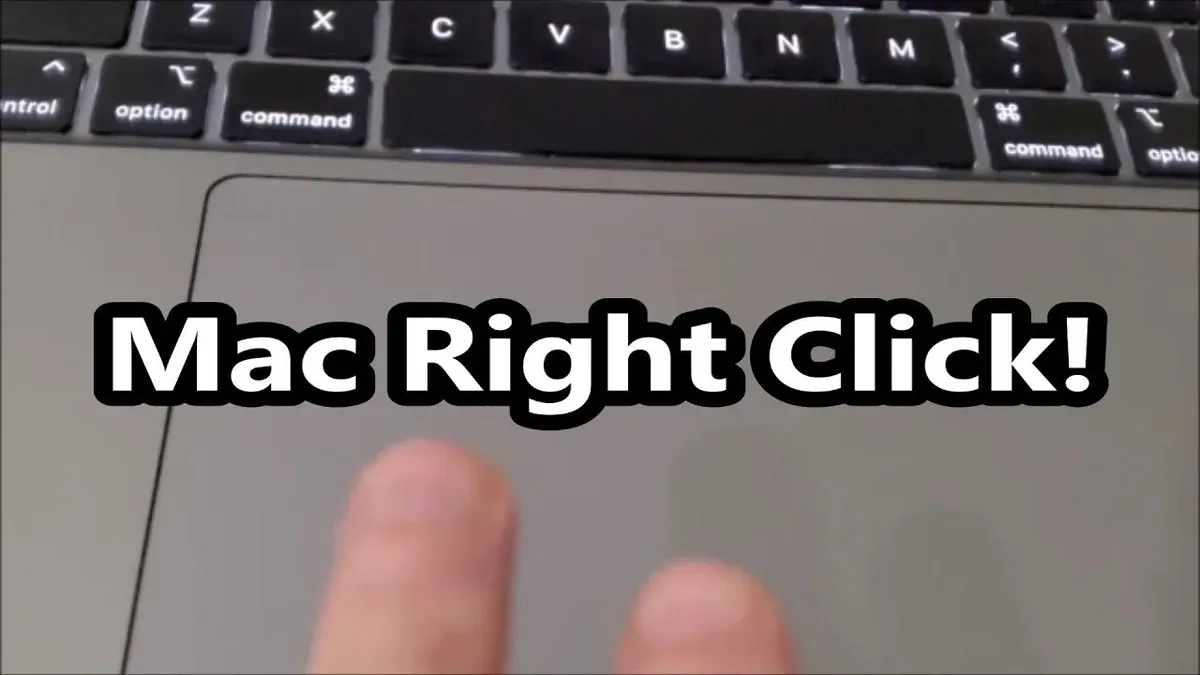
Right-clicking on a MacBook Pro M1 Pro involves understanding the Force Touch trackpad's unique hardware and macOS software features. This guide explains how to right click on a MacBook Pro M1 Pro and outlines the best methods suited for macOS 2026.
Understanding Right-Clicking on MacBook Pro M1 Pro: Why It Differs
The MacBook Pro M1 Pro uses a Force Touch trackpad that provides haptic feedback instead of a physical click. This design allows multiple click options through pressure sensitivity and gestures.
- Force Touch Technology: The trackpad detects pressure levels and simulates clicks with haptic feedback, enabling right-click via gestures without moving parts.
- macOS 2026 Updates: The latest macOS version refines gesture recognition and context menu behavior, improving responsiveness and customization of right-click actions.
- Comparison with Other Devices: Unlike Windows laptops with physical right-click buttons, the MacBook Pro M1 Pro relies on gesture-based inputs. Older Macs had physical clicks but lacked Force Touch’s pressure sensitivity, limiting flexibility.
Three Main Ways to Right Click on MacBook Pro M1 Pro
Here are three primary methods to perform a right-click, each fitting different user preferences.
1. Two-Finger Tap on the Trackpad
Tapping with two fingers simultaneously triggers a right-click. To enable this:
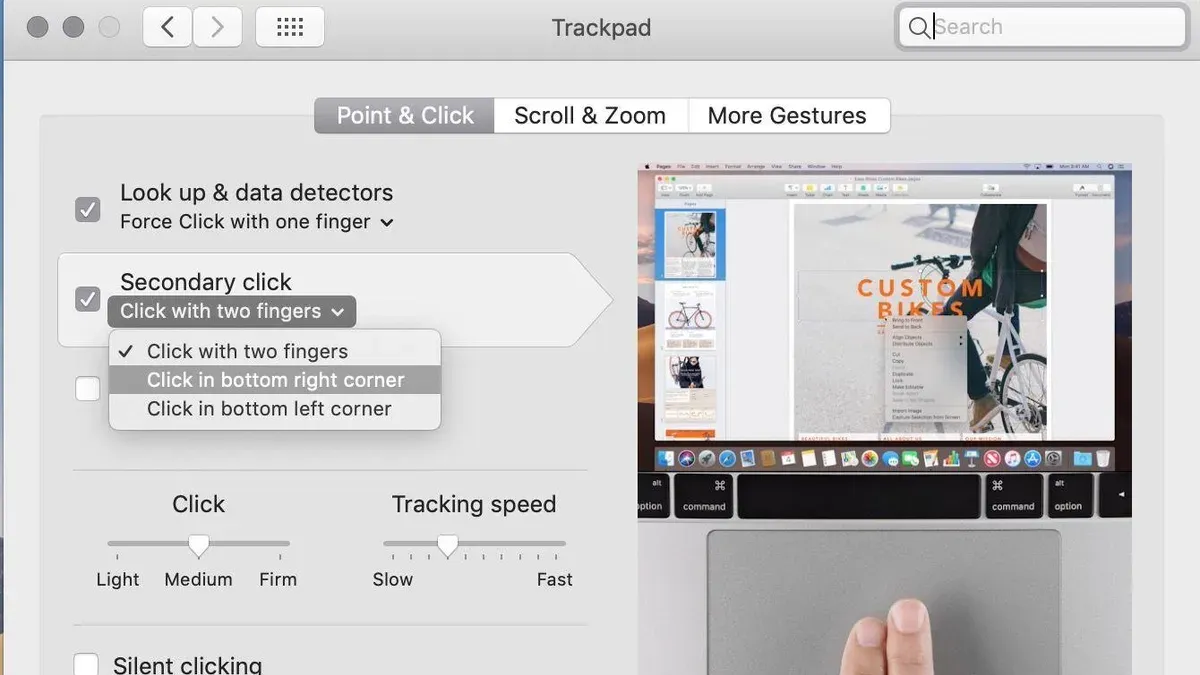
- Open System Preferences and select Trackpad.
- Go to the Point & Click tab.
- Enable Secondary click and select Click or tap with two fingers.
Note: Some users may accidentally trigger right-clicks while scrolling. Adjusting the "Click pressure" setting under System Preferences > Trackpad can reduce this issue.
2. Clicking in the Bottom Corners
You can set the trackpad to register a click in the bottom right or bottom left corner as a right-click:
- Go to System Preferences > Trackpad > Point & Click.
- Enable Secondary click.
- Choose either Click in bottom right corner or Click in bottom left corner.
This option suits users who prefer a physical click area over tapping.
3. External Mouse and Keyboard Shortcuts
- Using an external mouse with a dedicated right-click button works seamlessly with the MacBook Pro M1 Pro.
- The keyboard shortcut
Control + Clicksimulates a right-click anywhere on the trackpad or mouse.
| Method | Ease of Use | Speed | Customization |
|---|---|---|---|
| Two-Finger Tap | High | Fast | Limited to enabling/disabling |
| Bottom Corner Click | Moderate | Medium | Choice of corner |
| Control + Click / External Mouse | Varies by hardware | Fast | High (via mouse settings) |
Advanced Tips: Customizing Right Click Behavior for Productivity
Advanced users can fine-tune right-click behavior to optimize workflows.
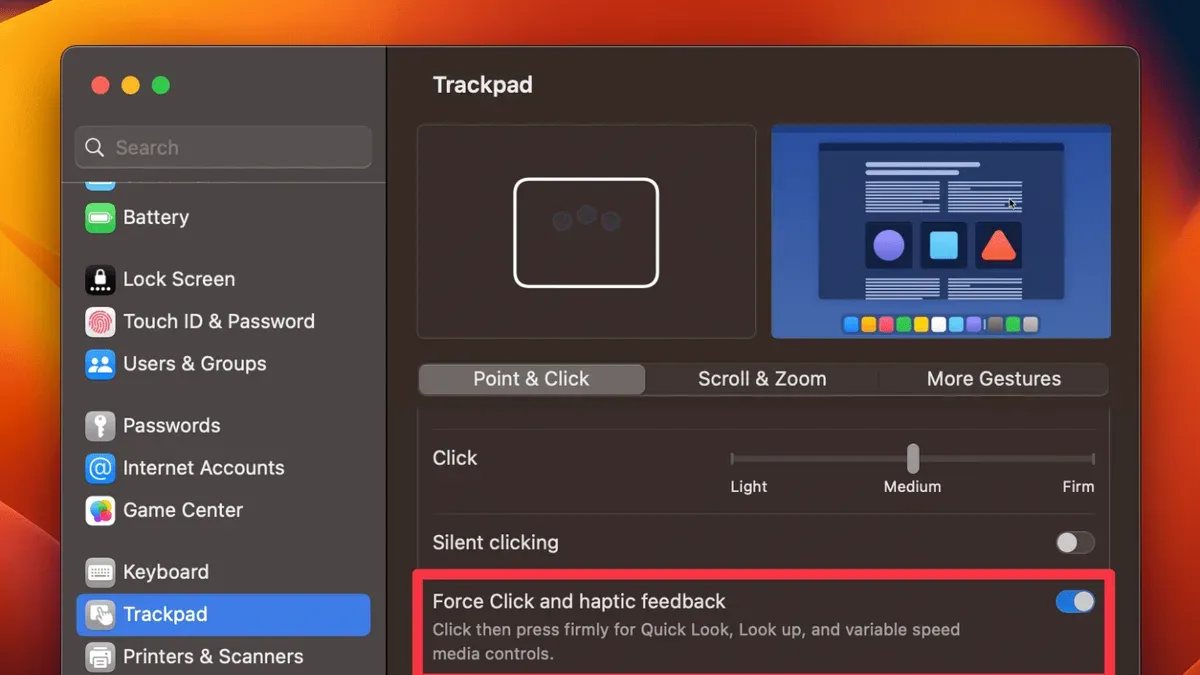
Customizing Trackpad Settings
- Adjust "Click pressure" and "Tracking speed" under System Preferences > Trackpad to balance sensitivity and prevent accidental clicks.
- Under Accessibility > Pointer Control, options like "Ignore built-in trackpad when mouse or wireless trackpad is present" can help when using external devices.
Third-Party Apps and Shortcuts
- Apps such as BetterTouchTool allow remapping gestures, enabling custom right-click actions or multi-finger taps specific to apps.
- macOS Shortcuts can automate context menu commands, reducing repetitive right-click tasks.
Workflow Improvement Examples
- Finder: Customize right-click to open folders in new tabs or trigger Quick Actions.
- Safari: Use right-click to access reading mode options or share links quickly.
- Design Apps: Map right-click to switch tools or toggle palettes for efficient editing.
Troubleshooting Common Right-Click Issues on MacBook Pro M1 Pro
Issues like unresponsive right-clicks or lag can stem from hardware or software causes. Try the following steps:
Diagnosing Hardware vs. Software
- Test right-click functionality across multiple apps to identify if the issue is system-wide or app-specific.
- Use an external mouse to check if the trackpad hardware is the source of the problem.
Resetting Settings and System Controllers
- Toggle right-click settings off and on in System Preferences to reset preferences.
- Reset the SMC:
- Shut down the MacBook.
- Press and hold the power button for 10 seconds.
- Release and turn on the Mac.
- Reset NVRAM:
- Turn off the Mac.
- Turn it on and immediately hold
Option + Command + P + Rfor about 20 seconds.
When to Contact Apple Support
If right-click issues persist after resets and testing with external devices, professional diagnostics or repair by Apple may be necessary.
Why Some Users Prefer Not to Use Right Click on MacBook Pro M1 Pro
Right-clicking may not suit all users or workflows. Consider these points if you rarely use or avoid right-click:
- Keyboard shortcuts and trackpad gestures can often replace right-click functions, speeding navigation.
- Some apps limit right-click menu options, making alternative input methods more efficient.
- Users with motor disabilities may find right-click gestures difficult; macOS provides accessibility options like voice control and assistive devices.
Caveats
This article covers right-click functionality on MacBook Pro M1 Pro models running macOS 2026. Behavior may differ on other MacBook models or macOS versions.
Frequently Asked Questions
Can I customize the right-click area on the MacBook Pro M1 Pro trackpad?
You can enable right-click in either the bottom left or bottom right corner of the trackpad, but system settings do not allow defining a custom area beyond these options.
Why does my two-finger tap sometimes not register as a right-click?
Two-finger tap accuracy depends on finger placement, moisture, and trackpad settings. Adjusting "Click pressure" and ensuring simultaneous finger taps improves reliability.
Is there a way to right-click using the Touch Bar on the MacBook Pro M1 Pro?
The Touch Bar lacks a dedicated right-click button, but third-party apps or macOS Shortcuts can add custom buttons to simulate right-click actions.
What should I do if right-click stops working after a macOS update?
Try toggling right-click settings off and on, resetting SMC and NVRAM, and testing with an external mouse. If issues continue, check for further updates or contact Apple Support.