How to Send SMS from Mac Using Messages: Step-by-Step Guide
Discover how to send SMS from your Mac using the Messages app by enabling Text Message Forwarding and syncing with your iPhone.
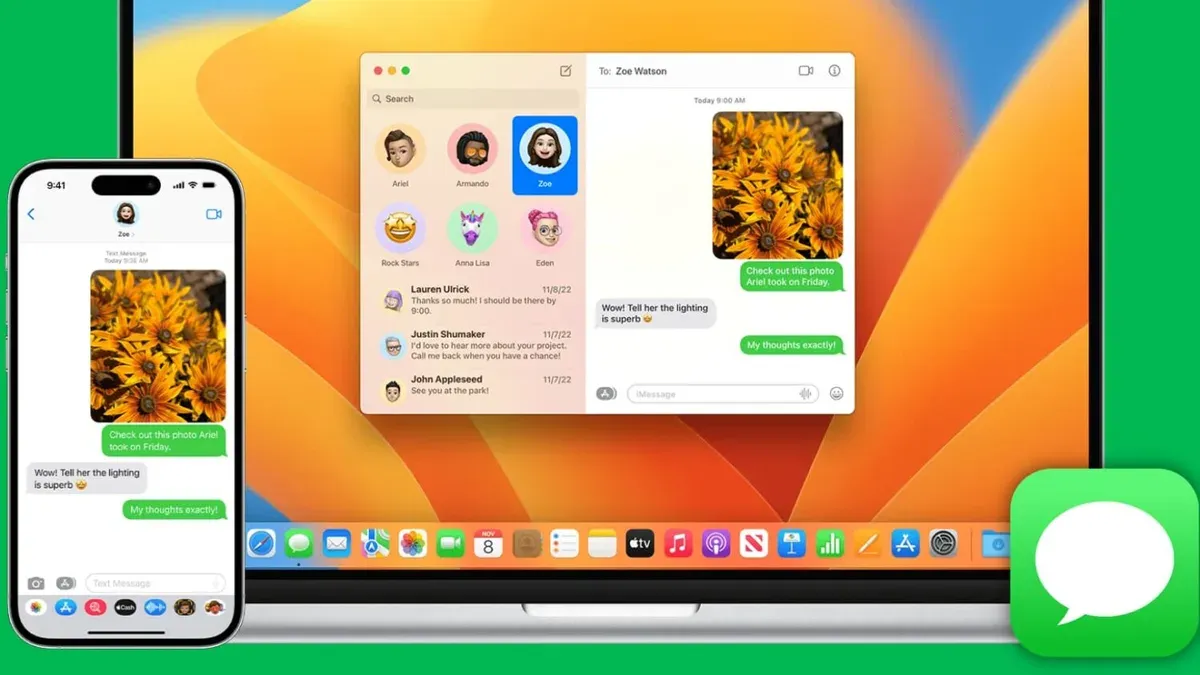
You’re working on your Mac when a text message alert appears on your iPhone. Instead of switching devices, you want to reply directly from your Mac. Understanding how to send SMS from Mac in Messages on Mac lets you handle standard text messages, not just iMessages, from your computer.
This guide walks you through enabling SMS texting on your Mac via your iPhone’s relay feature. You’ll learn how to set up syncing, send and receive SMS seamlessly, and troubleshoot common issues that might disrupt your message flow. By following these steps, you’ll be able to text confidently without picking up your phone.
Key takeaways
- Ensure your iPhone and Mac use the same Apple ID with two-factor authentication enabled.
- Activate Text Message Forwarding on your iPhone to relay SMS to your Mac.
- Use the Messages app on Mac to send SMS by selecting contacts not registered with iMessage.
- Check Wi-Fi, Bluetooth, and network connections if SMS messages don’t sync properly.
- Restart devices and sign out/in of Apple ID to resolve common syncing problems.
Before you start: What you need to send SMS from Mac
To send SMS messages from your Mac using the Messages app, you need to meet certain hardware, software, and account requirements. First, you must have an iPhone that supports cellular SMS texting. This iPhone must be signed into the same Apple ID on both the iPhone and your Mac to enable message syncing and SMS relay.
Your Mac should be running macOS with the Messages app installed and updated to the latest version that supports continuity features. Specifically, your iPhone should be on iOS 8.1 or later, and your Mac should be on OS X Yosemite or later to support Text Message Forwarding, which allows SMS messages to route through your iPhone.
Both devices must have Wi-Fi and Bluetooth enabled, as these are essential for the Continuity features that link your iPhone and Mac. Remember that SMS texting from your Mac uses your iPhone’s cellular service via Text Message Forwarding rather than the Mac’s own connection.
- Check that your iPhone is signed into your Apple ID under Settings > [your name]. You should see the same Apple ID signed in on your Mac under System Settings > Apple ID. When matched, your devices are ready to sync messages.
- Ensure your iPhone is running iOS 8.1 or later by going to Settings > General > About. On your Mac, verify macOS version under System Settings > About This Mac. Updated versions indicate compatibility with SMS relay.
- Turn on Wi-Fi and Bluetooth on both devices. On the iPhone, swipe down to access Control Center and enable Wi-Fi and Bluetooth. On the Mac, click the menu bar icons to turn these on. When active, your devices can communicate for message forwarding.
How to get iPhone messages on Mac
To see your iPhone messages on your Mac, you first need to sign in to the Messages app on your Mac using the same Apple ID you use on your iPhone. This ensures both devices link your conversations correctly. After signing in, enabling iCloud Messages sync on both your iPhone and Mac will keep your entire message history up to date across devices, so new and old messages appear seamlessly.
Next, on your iPhone, you must turn on Text Message Forwarding. This setting lets your iPhone relay SMS messages — which appear as green bubbles — to your Mac. Without this enabled, only iMessages (blue bubbles) show on Mac. Once set up, your Messages app on Mac will display both iMessages and SMS messages, clearly differentiated by bubble color, making it easy to tell which is which.
Here is how to do this step-by-step:
- Open Messages on your Mac and go to Messages > Preferences > iMessage. Sign in using your Apple ID if not already signed in. You should see your Apple ID email and phone number listed once signed in.
- On your iPhone, open Settings > [your name] > iCloud. Scroll to Messages and toggle it on. On your Mac, go to System Settings > Apple ID > iCloud and make sure Messages is enabled here as well. This syncs your message history.
- On your iPhone, open Settings > Messages > Text Message Forwarding. Enable your Mac from the device list. You may be asked for a code shown on your Mac to confirm pairing.
- After setup, open Messages on Mac. You should see your synced message threads, including both blue iMessage bubbles and green SMS bubbles, reflecting your iPhone conversations.
Example screenshots of these settings include the toggle for iCloud Messages in iPhone Settings and the Text Message Forwarding list showing your Mac as an option. On Mac, the Messages app’s preferences panel lists your Apple ID and shows syncing status.
How to send SMS messages on iPhone and have them appear on Mac
To send SMS messages from your iPhone and see them on your Mac, start by using the Messages app on your iPhone as you normally would. When you send a text to a non-Apple device, it is sent as an SMS rather than an iMessage. For these SMS messages to appear on your Mac, Text Message Forwarding must be enabled on your iPhone.
- Open the Messages app on your iPhone and compose a new message to a contact without an Apple device. Send the SMS message.
- On your iPhone, go to Settings > Messages > Text Message Forwarding and ensure your Mac is listed and toggled on. This allows your iPhone to forward SMS texts to your Mac.
- Switch to your Mac and open the Messages app. The SMS you sent from your iPhone will appear in the conversation thread, with a green bubble indicating an SMS instead of iMessage's blue bubble.
- Reply to the SMS directly from your Mac. The reply will send through your iPhone and appear on the recipient’s device as an SMS.
If SMS messages do not appear on your Mac, confirm both devices are signed in with the same Apple ID and connected to Wi-Fi. Also, check that your Mac is enabled in Text Message Forwarding on your iPhone. Sent SMS messages show a green bubble, while iMessages show blue; delivery indicators for SMS are more limited, so if a message isn’t received, it may not show a "Delivered" status on Mac.
How to send SMS directly from your Mac using Messages
- Open the Messages app on your Mac. You should see your existing conversations or the option to start a new one.
- To send an SMS, select a conversation with a contact who does not use iMessage (their message bubbles appear green, not blue). If no conversation exists, click the New Message button and enter the phone number or contact name of someone without iMessage enabled.
- Type your message into the text field at the bottom. When you send it, your Mac will automatically route the SMS through your iPhone’s cellular connection using Text Message Forwarding.
- Confirm the message was sent as SMS by checking that the message bubble is green. This indicates the message went via SMS, not iMessage, which uses blue bubbles.
- For group SMS, include multiple non-iMessage contacts in your new message. Group messages sent this way will also relay through your iPhone, but keep in mind that delivery speed may vary and some group features like read receipts are limited compared to iMessage groups.
Sending SMS through your Mac may be slightly slower than iMessage because it depends on your iPhone’s cellular connection to relay the message. However, this method keeps your conversations unified on your Mac without needing to pick up your iPhone.
How to sync iPhone messages to Mac for seamless texting
To keep your messages consistent across your iPhone and Mac, enabling syncing features correctly is essential. Start by turning on "Messages in iCloud" on both devices; this syncs your full message history, including attachments, ensuring changes on one device reflect on the other. Without this, your Mac will only show messages received or sent since the last sync, which may cause gaps.
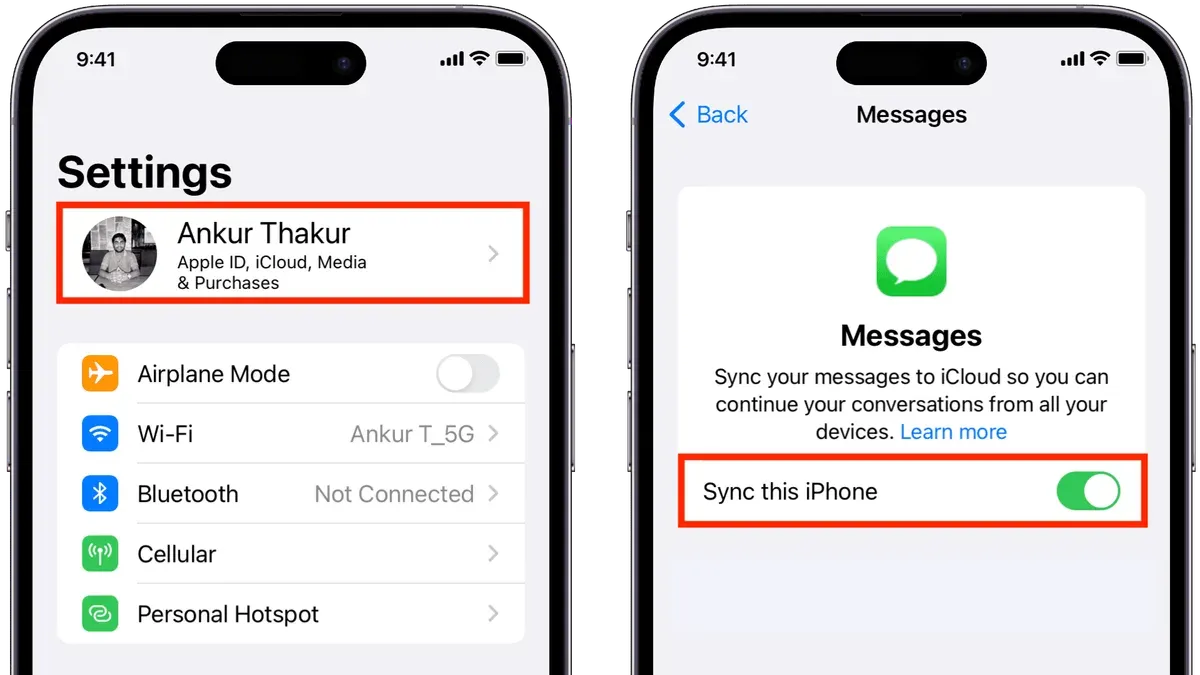
Next, confirm that "Text Message Forwarding" is enabled on your iPhone to allow SMS messages to relay to your Mac. This feature handles SMS syncing specifically because SMS messages use your cellular network and require your iPhone to forward them securely to your Mac. Ensure both devices use the same Apple ID under Settings > [your name] > Apple ID and that both are connected to a stable Wi-Fi network.
Note the difference: with "Messages in iCloud" enabled, iMessages sync completely in real time, while SMS messages depend on your iPhone forwarding them and may have slight delays, especially if the iPhone is offline or experiencing weak connectivity.
- On your iPhone, go to Settings > [your name] > iCloud and toggle on "Messages." You should see your message history start syncing in the background.
- On your Mac, open Messages, go to Messages > Preferences > iMessage, and check "Enable Messages in iCloud." Your Mac will begin downloading synced messages.
- On your iPhone, navigate to Settings > Messages > Text Message Forwarding and enable your Mac. A code may appear on your Mac to verify the device.
- Verify both devices are signed into the same Apple ID and connected to Wi-Fi. After setup, sending or deleting a message on one device should reflect on the other within moments.
- If syncing seems delayed, check that your iPhone is connected to cellular or Wi-Fi, as SMS forwarding relies on your iPhone being reachable. iMessage syncing via iCloud continues even if the iPhone is offline, as it syncs through Apple’s cloud.
| Sync Feature | Enabled | Disabled |
|---|---|---|
| iMessage History Sync | Full, real-time sync including attachments | Limited, only recent messages after last sync |
| SMS Message Sync via Forwarding | Relayed via iPhone, near real-time but depends on iPhone connection | No SMS on Mac; only iMessages appear |
| Message Deletion Sync | Deletes across devices instantly | Deletes remain local to device |
Troubleshooting sending SMS from Mac in Messages
When SMS sending or syncing fails on your Mac, several common issues might be the cause. First, if Text Message Forwarding does not appear or work on your iPhone, ensure both devices are connected to the same Wi-Fi network and signed into the same Apple ID. Sometimes toggling the setting off and back on resolves the issue. If the option still doesn’t show, sign out of iCloud on your iPhone and Mac, then sign back in to refresh syncing permissions.
Apple ID or iCloud syncing conflicts can prevent SMS from relaying. Check that your Apple ID is consistent across devices by going to Settings > [your name] on iPhone and System Settings > Apple ID on Mac. Conflicting or multiple Apple IDs reduce syncing reliability. Restarting both devices often clears temporary glitches and restores proper syncing functionality.
Network and Bluetooth connectivity are crucial. Verify Wi-Fi and Bluetooth are enabled on both devices, as Text Message Forwarding depends on these connections. If SMS messages send as iMessage (blue bubbles) instead of SMS (green bubbles), confirm the recipient is not registered with iMessage or try toggling iMessage off and on in Settings > Messages on iPhone.
If messages fail to send, signing out of Messages on Mac (Messages > Settings > iMessage > Sign Out) and then signing back in can resolve authentication issues. Restart your Mac after these steps to finalize changes. These troubleshooting actions typically fix the majority of SMS sending problems encountered by users.
- Check and toggle Text Message Forwarding on iPhone: You should see your Mac listed and enabled.
- Verify Apple ID is identical on iPhone and Mac: Both devices show the same Apple ID in their respective settings.
- Ensure Wi-Fi and Bluetooth are active on both devices: Mac and iPhone are connected and discoverable.
- Send a test SMS from Mac via Messages: The message appears as a green bubble and is delivered successfully.
- If issues persist, sign out of iMessage on Mac and sign back in: Messages app shows your Apple ID signed in and ready.
- Restart both devices: Messages syncing and SMS sending operate normally after reboot.
Frequently asked questions
How to send as sms on iphone?
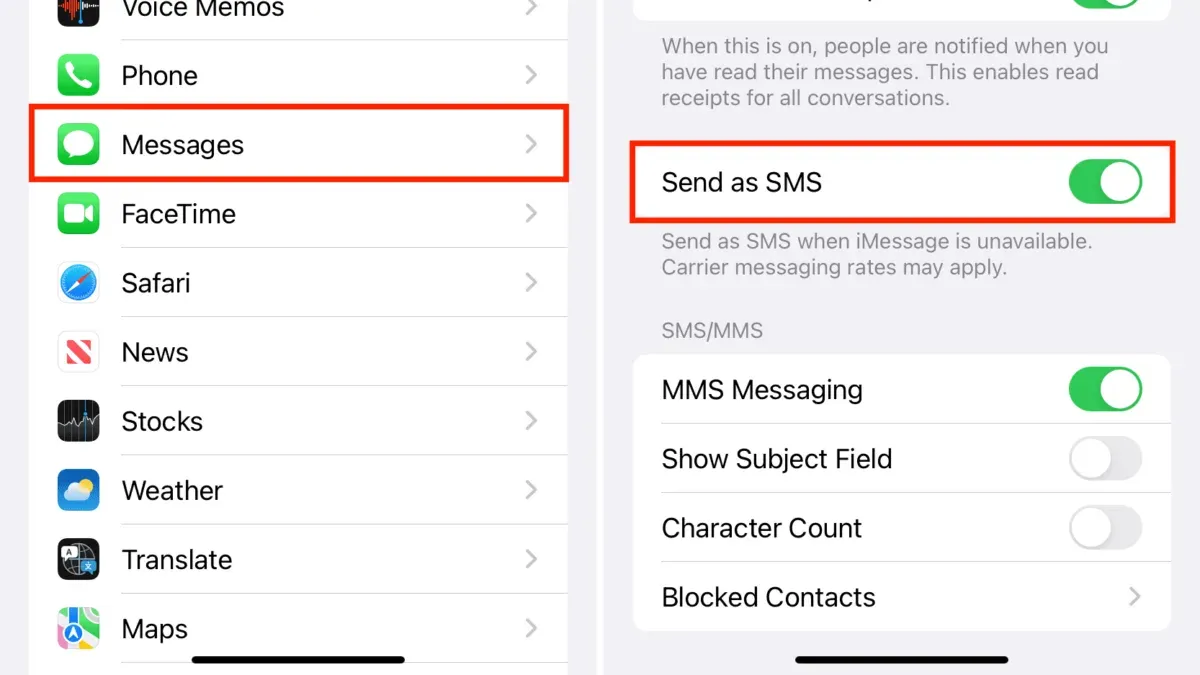
To send a message as SMS on your iPhone, open the Messages app and compose your message. If the recipient does not use iMessage or is offline, your iPhone automatically sends the message as SMS, which appears in a green bubble instead of blue. You can ensure SMS is enabled by going to Settings > Messages and turning on "Send as SMS" for when iMessage is unavailable.
How to sync messages to mac?
To sync messages to your Mac, both your iPhone and Mac must be signed in to the same Apple ID and have Messages in iCloud enabled. On your iPhone, go to Settings > [your name] > iCloud and turn on Messages. On your Mac, open Messages, go to Preferences > iMessage, and check "Enable Messages in iCloud." This keeps your messages up to date across devices.
How to get text messages on macbook?
You get text messages on your MacBook by enabling Text Message Forwarding through your iPhone. On your iPhone, go to Settings > Messages > Text Message Forwarding and toggle on your Mac from the list. This allows SMS and MMS messages to be relayed from your iPhone to your Mac’s Messages app.
How to get texts on mac?
To receive texts on your Mac, ensure your Mac and iPhone share the same Apple ID and that Text Message Forwarding is activated on your iPhone. This feature relays SMS messages from your iPhone to your Mac, making them accessible in the Messages app. Also, confirm that your Mac’s Messages app is signed in with the correct Apple ID under Preferences > iMessage.
How to get text messages on MacBook from iPhone?
Getting text messages on your MacBook from your iPhone requires enabling Text Message Forwarding on the iPhone. Navigate to Settings > Messages > Text Message Forwarding and enable your MacBook from the device list. Make sure both devices are on the same Wi-Fi network and signed into the same Apple ID for smooth syncing of SMS messages.
What This Guide Does Not Cover
This guide does not cover sending SMS from Mac without an iPhone, as SMS relay requires the iPhone's cellular service to send texts. If you do not have an iPhone or your devices are not signed into the same Apple ID using two-factor authentication, full SMS syncing and relay will not function properly. Additionally, devices running outdated versions of iOS or macOS may encounter limitations that this guide does not address.
If you rely on non-Apple devices or want to send SMS without any iPhone involvement, consider third-party messaging apps or services that work independently from the Apple ecosystem. For those with complex setups or persistent syncing issues, contacting Apple Support or visiting an Apple Store can provide personalized assistance beyond the scope of this walkthrough.
The single most useful next step is to double-check that both your iPhone and Mac are signed in to the same Apple ID, have Text Message Forwarding enabled on your iPhone, and that your Mac's Messages app is set to receive SMS. This foundational step ensures your devices are correctly linked and ready for smooth SMS sending and receiving.