How to Turn Off iMessage on Mac in Messages App
Step-by-step guide on how to turn off iMessage on Mac in Messages app to manage message syncing and notifications.
You've noticed that your Mac is receiving iMessages even when you'd prefer it not to. Maybe you want to keep your messages private on your phone or reduce interruptions while working on your Mac. Understanding how to turn off iMessage on Mac in Messages on Mac can help you control where your messages appear and how your devices sync with each other.
This article will guide you step-by-step through the process of disabling iMessage on your Mac. You'll learn not only how to sign out or disable your iMessage account but also how these actions affect your Apple ID and message syncing across your Apple devices. We'll also cover managing notifications and troubleshooting common issues to ensure you make an informed decision about your messaging setup.
Key takeaways
- Signing out of iMessage on Mac stops message syncing but keeps your Apple ID active elsewhere.
- You can disable iMessage without signing out to pause message reception temporarily.
- Adjusting notification settings helps control interruptions without turning off iMessage entirely.
- Changes to iMessage on Mac may affect message delivery on other Apple devices linked to the same Apple ID.
- Common issues include delayed message delivery and syncing confusion, which can be resolved with simple steps.
Before You Start: What You Need to Know
iMessage on your Mac is directly linked to the Apple ID you use across your Apple devices, including your iPhone and iPad. This connection allows messages to sync seamlessly between your devices, so when you send or receive an iMessage on one device, it appears on all others signed in with the same Apple ID.
Turning off iMessage on your Mac will stop messages from appearing there but won’t affect iMessage on your iPhone or iPad unless you also sign out of your Apple ID on those devices. Understanding this separation helps you manage where and how you receive your messages without disrupting your entire messaging setup.
Before you start, ensure you have access to your Mac with the Messages app and be ready to enter your Apple ID password if you decide to sign out of iMessage completely. Also, be aware that turning off iMessage on your Mac may interrupt message continuity and notifications on that device, which means you might miss new messages unless you check your other devices.
For example, when iMessage is turned on across devices, a message sent to your Apple ID flows to your iPhone, iPad, and Mac simultaneously. If you turn off iMessage on your Mac, new messages will no longer appear there, though they will still arrive on your iPhone and iPad.
Sign Out of iMessage in Messages App on Mac
To completely disable iMessage on your Mac, signing out of your Apple ID within the Messages app is the most effective method. This stops all iMessages from arriving on your Mac, although your messages will continue to be delivered to other devices linked to the same account.
- Open the Messages app on your Mac. You will see your message conversations if you are currently signed in.
- From the menu bar at the top of your screen, click Messages and then select Preferences. A window with several tabs will appear.
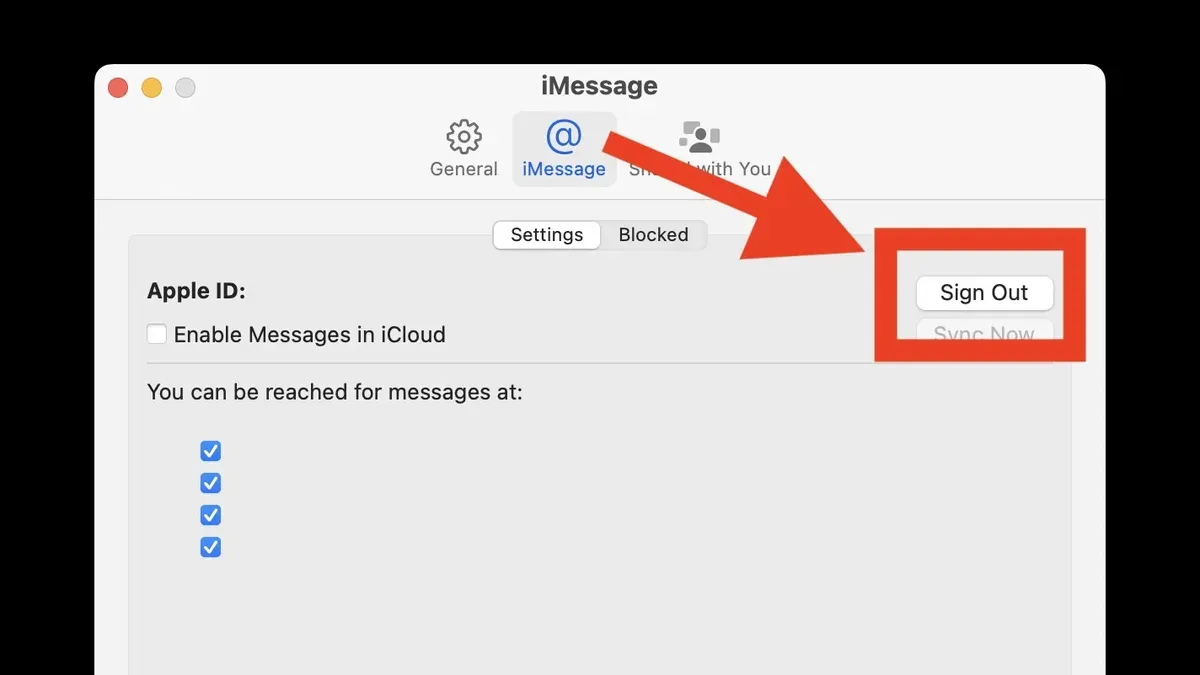
- Click on the iMessage tab within the Preferences window. Here, you will find your Apple ID and account settings related to iMessage.
- Click the Sign Out button below your Apple ID. A confirmation dialog will pop up asking if you want to sign out.
- Confirm the action by clicking Sign Out in the dialog. The Messages app will then disconnect your Mac from iMessage.
After signing out, you will no longer receive new iMessages on your Mac. The conversations in the app will remain until you manually delete them, but no new messages will come through. Meanwhile, other Apple devices using the same Apple ID will continue to send and receive iMessages as usual, keeping your messaging consistent elsewhere.
Disable iMessage Account Without Signing Out
If you want to stop sending and receiving iMessages on your Mac temporarily without fully signing out, you can disable the iMessage account within the Messages app preferences. This method keeps you signed in to your Apple ID, preserving access to other Apple services, but makes your iMessage inactive on that Mac.
- Open the Messages app on your Mac. You should see your conversations and menu bar at the top.
- Go to the menu bar and click Messages > Preferences. A new window will open with several tabs.
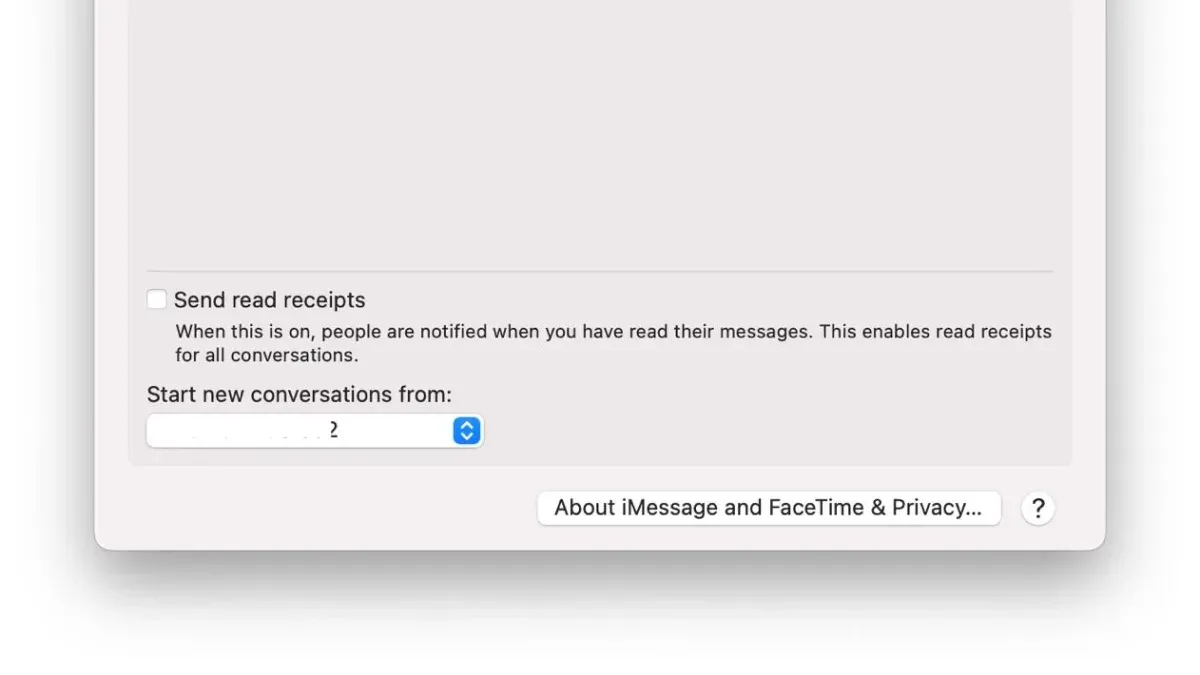
- Select the iMessage tab. Here, your Apple ID and account details are displayed.
- Uncheck the box labeled Enable this account. Once unchecked, your Mac will stop sending and receiving iMessages without signing out.
- Close the Preferences window. You will notice that new iMessages no longer arrive in Messages, but you remain signed in, so other Apple ID features continue uninterrupted.
This option is preferable if you want to pause iMessage activity temporarily without losing your Apple ID sign-in or affecting other linked services on your Mac. For example, if you want to reduce message distractions during focused work but plan to resume iMessage soon, disabling the account is quicker and less disruptive than signing out.
In practice, messages sent to you during this period will not appear on your Mac, but they will still arrive on your other Apple devices where iMessage remains enabled. When you recheck the Enable this account box, iMessage functionality resumes seamlessly.
Turn Off iMessage Notifications on Mac
If you want to keep iMessage active on your Mac but avoid constant message alerts, adjusting notification settings is the way to go. This lets you mute distractions without fully disabling iMessage, so you still receive messages silently.
- Open System Preferences from the Apple menu; a new window should appear.
- Click on Notifications, which displays a list of apps with notification controls.
- Find and select Messages in the left sidebar; the right panel will show its notification options.
- To stop alerts, uncheck Allow Notifications or turn off Banners, Sounds, and any other alert styles you want muted; changes take effect immediately.
Disabling notifications differs from turning off iMessage itself. Muting notifications keeps the messaging service running, so you receive messages silently. Turning off iMessage stops all message syncing and sending on your Mac.
| Setting | Effect | Use Case |
|---|---|---|
| Notifications Off | No alerts or sounds, messages still received silently | When you want to avoid distractions but stay connected |
| iMessage Off (sign out or disable account) | No messages received or sent on Mac | When you want to stop all iMessage activity on this device |
For example, if you work in a quiet environment, muting notifications can help you focus without losing messages. If privacy or message syncing is a concern, turning off iMessage entirely is more appropriate.
Manage Apple ID and iMessage Settings Across Devices
Your Apple ID is the central hub that syncs iMessage across your Mac, iPhone, iPad, and other Apple devices. When you send or receive an iMessage, it routes through Apple’s servers and appears on all devices signed in with the same Apple ID and with iMessage enabled. This means any change you make on one device can affect where messages appear.
To check or adjust iMessage settings on your iPhone or iPad, open Settings, tap Messages, and then tap Send & Receive. Here, you can see which phone numbers and email addresses are linked to iMessage. You can add or remove them to control where your messages are delivered.
Be careful if you turn off iMessage only on your Mac while keeping it active on your iPhone or iPad. Messages will still arrive on those devices but won’t sync to your Mac. This can cause confusion if you expect all messages to show up everywhere.
For multi-device users, the best practice is to manage iMessage settings individually on each device according to your needs. If privacy or message syncing is a concern, consider signing out of iMessage entirely on devices where you do not want messages, rather than relying solely on toggling settings.
Illustrative example: With iMessage enabled on all devices, a message sent to your Apple ID number will appear on Mac, iPhone, and iPad. If you disable iMessage on Mac but keep it on iPhone, messages still arrive on the phone and iPad but not on your Mac, which stops syncing new messages.
Troubleshoot Common Issues When Turning Off iMessage
If the Sign Out button in the Messages app is greyed out or unresponsive, it often means your Mac is waiting for Apple ID authentication. To fix this, go to System Settings > Apple ID, ensure you are signed in, and re-enter your password if prompted. Sometimes, two-factor authentication requests appear; complete these by verifying on your trusted devices to proceed.
If messages still appear after turning off iMessage on your Mac, it may be due to syncing delays or the Messages app caching old data. To resolve this, quit the Messages app and reopen it. If the issue persists, restarting your Mac can clear temporary glitches affecting message syncing.
When problems continue, resetting Messages app preferences can help. Follow these steps:
- Quit the Messages app completely.
You should no longer see the app open in the Dock. - Open Finder, press Command + Shift + G, and enter
~/Library/Preferences/
The Preferences folder will open. - Locate the file named
com.apple.iChat.plistand move it to the Desktop.
This backs up your Messages preferences. - Restart your Mac and open Messages again.
The app will create a new preferences file, potentially fixing issues. - If this resolves the problem, you can delete the backup plist file from the Desktop.
Common error messages like "Unable to Sign Out" or "Verification Failed" usually relate to network connectivity or Apple ID issues. Checking your internet connection and verifying your Apple ID credentials on appleid.apple.com can help. If two-factor authentication prompts seem stuck, ensure your trusted devices are accessible to approve the request.
Frequently asked questions
Will turning off iMessage on my Mac delete my messages?
Turning off iMessage on your Mac does not delete the messages already stored on the device. Your existing conversations remain in the Messages app unless you manually delete them. However, new iMessages will no longer sync or arrive on your Mac once iMessage is turned off.
Can I turn off iMessage on Mac without affecting my iPhone?
Yes, you can disable iMessage on your Mac without impacting your iPhone’s iMessage functionality. Signing out or disabling iMessage on the Mac only stops messages from syncing to that device, while your iPhone continues to send and receive iMessages as usual.
Why do I still get iMessages on Mac after signing out?
If you continue to receive iMessages after signing out, it might be because your Apple ID is still linked in other settings or devices. Check that you have fully signed out of iMessage in the Messages app preferences and also verify that your Mac is not set to forward messages through another linked Apple device. Restarting your Mac after signing out can also help ensure changes take effect.
How do I completely disable iMessage on all my Apple devices?
To fully disable iMessage across all devices, you need to sign out of your Apple ID in the Messages app on each device or turn off iMessage in the device settings. On iPhones and iPads, go to Settings > Messages and toggle off iMessage. On Macs, open Messages, go to Preferences > iMessage, and sign out. This stops message syncing and sending via iMessage entirely.
What This Guide Does Not Cover
This guide focuses on disabling iMessage on your Mac only. It does not cover advanced Apple ID management tasks such as changing your Apple ID password or managing devices linked to your account. Additionally, if you want to disable iMessage on your iPhone or iPad, you will need to follow separate steps specific to those devices. These actions often involve different settings and can affect how messages sync across all your Apple devices.
For users who require comprehensive management of their Apple ID or want to stop iMessage on multiple devices, consider accessing your Apple ID account online or adjusting settings directly on your other devices.
Next Step: Review Your Apple ID Settings
After turning off iMessage on your Mac, the most useful next step is to review your Apple ID settings to understand how messages are managed across your devices. Open System Preferences, then go to Apple ID, and check which devices are signed in and using iMessage. This helps you confirm whether your changes on the Mac have the intended effect and ensures you maintain control over your message syncing and privacy preferences.
See also: How to Record iPhone Screen Using QuickTime Player: Step-by-Step Guide · How to Change Playback Speed in QuickTime Player: A Step-by-Step Guide · How to Screen Record with Internal Audio in QuickTime Player