
How to Export to PDF in Pages: Step-by-Step Guide for Mac and iOS
This guide shows you how to export your Pages documents to PDF on Mac and iOS devices quickly and without losing formatting.
You have just finished editing a document in Pages and need to share it as a PDF. Maybe you're working on a Mac, iPhone, or iPad and want a quick way to convert your Pages file without losing formatting. Understanding how to export to PDF in Pages is essential for smooth sharing and printing.
This article guides you step-by-step through exporting entire Pages documents to PDF on Mac and iOS devices. It also covers exporting specific pages from PDFs, integrating PDFs with design apps like Figma and Photoshop, and troubleshooting common export issues. Whether you want to save a whole document or just a page, you’ll learn practical methods to manage PDFs effectively across your Apple devices.
Key takeaways
- Use File > Export To > PDF on Mac to export a whole document quickly.
- On iPhone and iPad, tap the ••• menu, then Export, and choose PDF.
- Extract specific PDF pages using the Preview app on Mac or Files app on iOS.
- Import PDFs into design apps by exporting pages as images or PDFs for precise editing.
- Check file permissions and app versions if you encounter export issues.
Before you start: What you need to export PDFs from Pages
To export PDFs from Pages smoothly, you need to prepare a few essentials related to your devices and software. First, confirm that your Mac, iPhone, or iPad runs a compatible operating system version. On Mac, macOS Sierra (10.12) or later supports PDF export from Pages. For iOS devices, iOS 11 or later is required. Additionally, ensure that you have the latest version of the Pages app installed. You can check and update Pages via the App Store under the Updates tab.
Next, have a Pages document ready that you want to export. This document can be a new creation or an existing file. Understand that exporting to PDF can apply either to the entire document or to specific pages, depending on your needs. Pages itself exports whole documents to PDF, but if you want to export individual pages or extract pages from PDFs, you will need additional software.
For handling PDF pages beyond simple export, apps like Preview on Mac or third-party design tools such as Figma, Photoshop, and Illustrator offer more advanced PDF editing features. These apps allow you to extract, reorder, or convert specific pages from PDFs. Knowing these prerequisites and tools will prepare you to manage PDFs effectively across your devices.
- Check your device’s OS version: On Mac, go to Apple menu > About This Mac; on iPhone/iPad, go to Settings > General > About. You should see macOS 10.12+ or iOS 11+ respectively.
- Open the App Store and verify your Pages app version. If an update is available, tap Update and wait for it to finish.
- Open the Pages app and locate the document you want to export. Confirm that it opens without errors.
- Review your goals: decide if you want to export the entire document or specific PDF pages later. Remember, Pages exports full documents; for page extraction, prepare to use additional apps.
- Install any additional PDF editing apps you might need, such as Preview (preinstalled on Mac) or design tools like Figma, Photoshop, or Illustrator if you plan to edit or export PDF pages individually.
Export a whole Pages document to PDF on Mac
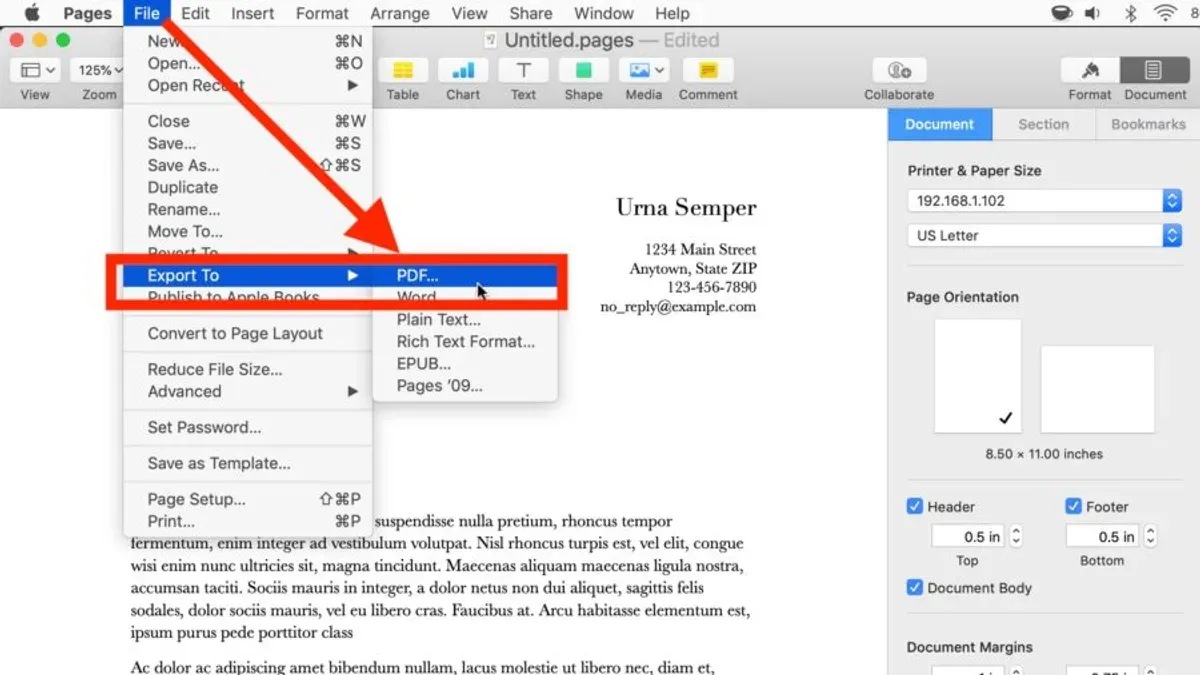
To export your entire Pages document as a PDF on your Mac, start by opening the document in the Pages app. Once your document is ready, you will use the export feature designed specifically for creating PDFs.
- With your document open, click on the File menu in the top menu bar. A dropdown menu will appear.
- Hover over Export To and then select PDF from the submenu. This action opens the PDF export dialog box.
- In the dialog, you will see options for PDF quality. Choose Best if you want the highest resolution suitable for printing, which typically results in a larger file size. Alternatively, select Good or Reduce File Size to create a smaller PDF optimized for sharing or online use.
- Click Next. You will be prompted to choose where to save the PDF file on your Mac. Select your preferred folder or location.
- Enter a file name for your PDF, then click Export. Pages will save the PDF to the selected location.
As an example, a 10-page document exported as Best quality might be several megabytes, whereas selecting Reduce File Size can cut it down significantly, sometimes to a few hundred kilobytes depending on the content. This trade-off between quality and size is important depending on whether you prioritize print clarity or file sharing convenience.
After exporting, locate the PDF file in Finder and open it to verify the content and quality meet your expectations before sharing or archiving.
Export a whole Pages document to PDF on iPhone and iPad
Exporting your entire Pages document as a PDF on your iPhone or iPad is straightforward. You start by opening the document you want to convert in the Pages app. Then, you use the export feature accessible through the More menu to choose PDF as your output format.
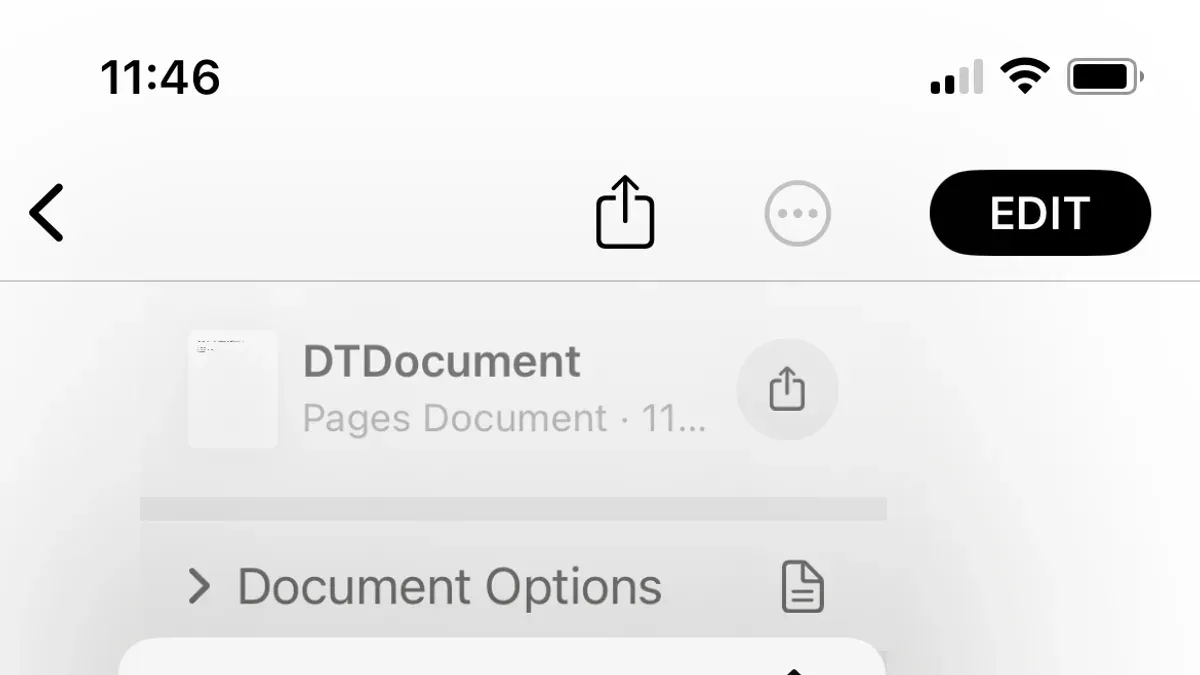
- Open the Pages app and select the document you want to export. You should see your document displayed and ready for editing or sharing.
- Tap the More button, which appears as three dots (…) in the top-right corner of the screen. This opens additional options related to your document.
- From the menu that appears, tap Export. You will see a list of formats you can export to.
- Select PDF as the export format. This setting prepares your document to be saved or shared as a PDF file.
- Choose how you want to share or save the PDF. Common options include saving to the Files app, sending via Mail, sharing through Messages, or opening it in another app. When you pick an option, the system prompts you to complete the action, such as selecting a folder in Files or entering an email recipient.
These steps produce a high-quality PDF version of your entire document, ready for distribution or storage. Using the Files app allows you to keep PDFs organized on your device or in iCloud Drive, while Mail and Messages offer quick sharing with contacts. Remember that the export process preserves the layout and formatting of your Pages document in the PDF.
How to export a page to PDF or export specific pages from a PDF
Pages exports entire documents as PDFs and does not offer a direct option to export individual pages. To extract or export specific pages from a PDF, you will need to use other apps like Preview on Mac or design software such as Illustrator or Photoshop. These tools allow you to select and save particular pages without exporting the entire file again.
Using Preview on Mac to export specific PDF pages
- Open your PDF file in Preview. You should see the thumbnails of all pages on the sidebar.
- Click on the thumbnail of the page you want to export. To select multiple pages, hold the Command key and click additional thumbnails.
- Go to the File menu and choose Export as PDF or Print.
- If you select Print, in the print dialog, choose Selected Pages under the Pages section.
- Click PDF in the lower-left corner of the print dialog and then select Save as PDF.
- Choose a name and location for the new PDF containing only the selected pages, then save.
After completing these steps, you will have a new PDF file with only the pages you selected, without altering the original document.
Using Illustrator to export multiple PDF pages as separate files
- Open Adobe Illustrator and choose Open to load your multi-page PDF.
- In the import dialog, select the pages you want to open. Illustrator opens each page as a separate artboard.
- To export each page separately, go to File > Export > Export As.
- Choose PDF as the format and check Use Artboards to export each artboard as an individual PDF file.
- Specify the range of artboards if you want specific pages only, then export.
This process creates separate PDFs for each selected page, which is useful for designers needing individual page files or assets.
In contrast to Preview’s simpler interface for page extraction, Illustrator offers more control over design elements on each page but requires familiarity with artboards and export settings. By using these apps alongside Pages, you can efficiently manage PDFs at a page level that Pages alone cannot provide.
How to export PDF to Pages on Mac, iPhone, and iPad
Pages does not support opening PDFs as fully editable documents directly. To work with PDF content in Pages, you need to convert the PDF into a compatible format or use workarounds to import parts of it.
One common approach is converting the PDF to a Word or plain text file first. For example, you can use Preview on Mac to export the PDF as a Word document or use an online converter. Once you have the Word file, open it in Pages by choosing File > Open, then select the converted document. You will see the content imported, but note that formatting, fonts, and images might not match the original perfectly.
Alternatively, if you only need certain pages or images from the PDF, you can export those pages as images using Preview. Select the desired PDF page, then choose File > Export, and save as PNG or JPEG. Insert these images into your Pages document via the Insert > Choose menu. This method keeps the visual layout but does not allow text editing.
Third-party apps and OCR (Optical Character Recognition) tools can also help convert scanned or complex PDFs into editable text that Pages can open. These apps vary in accuracy and may require additional steps to clean up the imported content.
- Convert your PDF to Word using Preview or an online converter. After conversion, open Pages, then select File > Open and choose the Word file. You should see your document content appear in Pages, ready for editing.
- If you want to import specific PDF pages as images, open the PDF in Preview, select a page, then go to File > Export. Choose PNG or JPEG format, save the image, then open Pages and use Insert > Choose to add the image to your document.
- Use OCR software if your PDF contains scanned text. Run the PDF through the OCR tool to extract editable text, save it as a document, then open it in Pages. Review the imported text for errors or formatting issues.
Keep in mind that converting PDFs to editable formats can result in some fidelity loss, especially with complex layouts, fonts, or graphics. You may need to adjust formatting manually after import.
How to export PDF pages in design apps: Figma, Photoshop, and Illustrator
Exporting PDF pages or artboards from popular design apps involves specific steps to maintain quality and control file size. Here’s how to do it in Figma, Photoshop, and Illustrator.
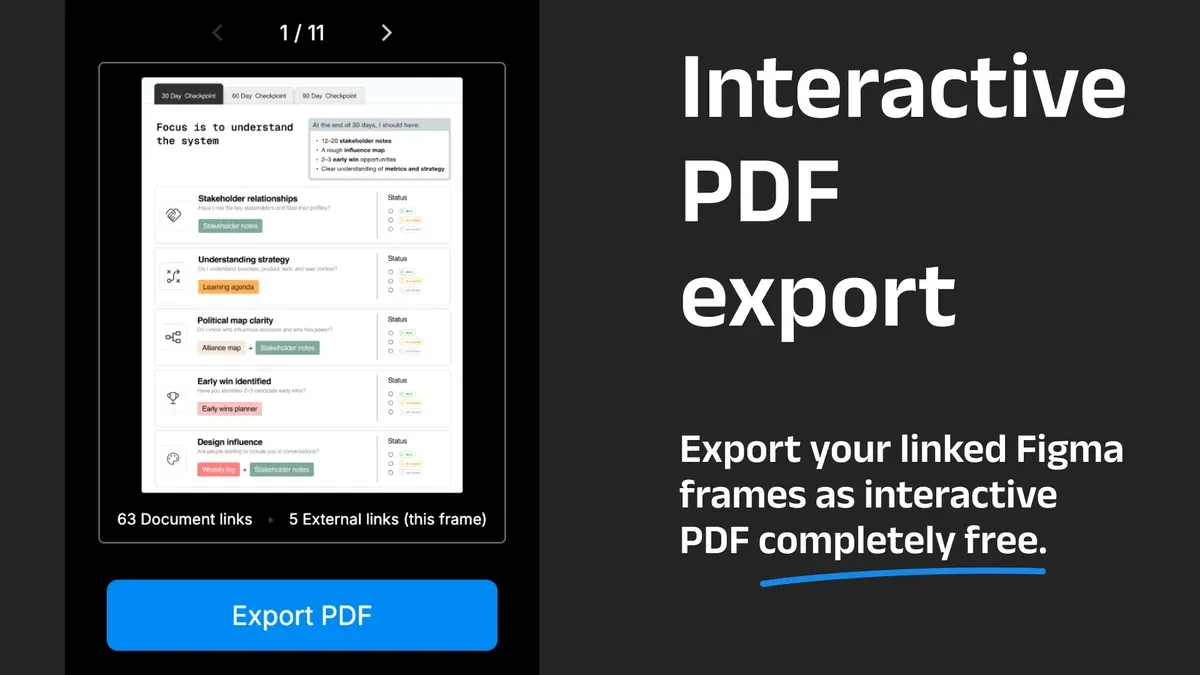
Figma
- Select the frames or artboards you want to export. Selected frames will highlight with a blue outline.
- In the right-hand panel, scroll to the Export section and click the “+” button to add an export setting.
- Choose PDF or image format (PNG/JPEG) from the dropdown menu depending on your needs.
- Click the “Export” button. You’ll see separate PDF files for each frame if multiple are selected.
Tip: Exporting as PDF keeps vector quality, while exporting as PNG or JPEG creates raster images useful for web previews.
Photoshop
- Open your PDF file via File > Open. In the import dialog, select the specific pages you want to open as individual documents or layers.
- Edit pages as needed, then go to File > Export > Export As.
- Choose your export format: PNG, JPEG, or PDF. For multi-page PDFs, save each page individually.
- Click Export All. You will get separate files corresponding to each layer or page exported.
Tip: Use "Export As" rather than "Save As" for better control over resolution and file size.
Illustrator
- Open your multi-page PDF in Illustrator. Each page appears as an artboard.
- Go to File > Save As or File > Export > Export As.
- Select PDF as the format and ensure the “Use Artboards” box is checked.
- Choose "Range" to specify which artboards (pages) to export individually.
- Click Save or Export. Illustrator generates separate PDF files for each artboard selected.
Tip: Exporting by artboards preserves vector quality. To reduce file size, adjust PDF compression settings in the Save Adobe PDF dialog.
Troubleshooting common issues when exporting PDFs from Pages
If you find the export button greyed out or the export process fails, first check that your document is fully saved and not locked. Sometimes Pages shows an error like "Cannot complete export" if the file is open elsewhere or has unsaved changes. Closing other apps using the file and saving your document again often resolves this. Restarting Pages or your device can also clear temporary glitches causing export failures.
Missing fonts or formatting changes in the exported PDF usually occur when Pages substitutes fonts that aren’t installed on your device. If you see warnings about missing fonts during export or notice text looks different in the PDF, ensure all fonts used are installed and active. Embedding fonts is automatic in Pages, but custom or third-party fonts must be available on your device. Replacing missing fonts with standard system fonts before exporting can prevent layout shifts.
To reduce the PDF file size without sacrificing quality, use Preview on Mac after exporting. Open the PDF, choose File > Export, and select the “Reduce File Size” Quartz Filter. For example, a 25 MB PDF can shrink to around 5 MB with minimal quality loss. Be cautious: heavy compression may blur images or degrade text sharpness, so compare before and after files to ensure legibility.
If Pages exports blank or corrupted PDFs, it may be due to complex elements like embedded videos or large image files. Try exporting in smaller sections or duplicating your document and removing problematic content. Saving the document as a Word file and exporting to PDF from another app like Microsoft Word or Preview can be a useful workaround. Also, updating Pages to the latest version can fix bugs related to export issues.
Frequently asked questions
Can you export a pdf to pages?
Pages does not directly import PDF files for editing as native documents. However, you can open a PDF in Preview or another app and copy the text or images, then paste them into Pages. For full editable content, converting the PDF to a Word or Pages format using third-party tools before importing is necessary.
How to export individual pages from pdf?
To export individual pages from a PDF, use Preview on Mac by opening the PDF, selecting the desired pages in the sidebar, then choosing File > Export as PDF or Print and selecting the chosen pages. On iOS, apps like Files or third-party PDF editors allow you to extract and save specific pages as new PDF files.
How to export pdf pages in figma?
In Figma, you can import a PDF as individual frames by dragging it in or using the import function. To export specific pages, select the frames representing those pages, then go to File > Export, choose PDF format, and export only the selected frames.
How to export pdf pages in photoshop?
Photoshop opens PDFs as separate image layers or pages. When opening a PDF, you can select which pages to import. To export specific pages as PDFs, open the page, then use File > Save As and select PDF, repeating for each desired page.
How to export separate pdf pages in illustrator?
In Illustrator, open the PDF and select the page you want to export. Then go to File > Save As or Export > Export As, choose PDF format, and save only the selected page. Repeat this for each page you want to export separately.
What This Guide Does Not Cover
Pages does not support importing PDFs as editable documents directly; converting PDFs into editable Pages files requires additional software or conversion steps outside of Pages itself. Exporting individual PDF pages cannot be done within Pages — for that, you will need to use other apps like Preview on Mac or dedicated PDF management tools. Additionally, when converting PDFs between Pages and other formats, especially those with complex layouts or graphics, some quality or formatting may be lost. If your work depends heavily on preserving intricate designs, consider using specialized PDF or design software for those tasks.
The most useful next step is to familiarize yourself with Preview on your Mac or a trusted third-party PDF app on your iPhone or iPad. Knowing how to extract, rearrange, or combine PDF pages there complements your export workflow from Pages and ensures smoother handling of PDFs across your devices and apps.
See also: How to Change Page Margins in Pages on Mac, iPad, and iPhone · How to Add Page Numbers in Pages: Step-by-Step for Mac, iPad, and iPhone · How to Add a Table of Contents in Pages: A Complete Step-by-Step Guide



