How to Add a Table of Contents in Pages: A Complete Step-by-Step Guide
Discover how to add and customize a table of contents in Pages to improve document navigation on Mac and iPad.
You're working on a detailed report or a lengthy document in Apple Pages, and you realize navigating through it could be much easier with a table of contents. Adding one manually might seem daunting, especially if you've only used word processors like Microsoft Word or Google Docs before.
This guide covers how to add a table of contents in Pages, walking you through each step on both Mac and iPad. You'll learn how to create, customize, and update your table of contents efficiently, understand how it differs from other apps, and avoid common pitfalls that can cause frustration.
Key takeaways
- Use paragraph styles like Heading 1, Heading 2, and Heading 3 to enable Pages to generate a table of contents automatically.
- On Mac, insert a table of contents by choosing Insert > Table of Contents, then select the style that fits your document.
- On iPad, add a table of contents through the Document Setup options, ensuring your headings are formatted correctly.
- Regularly update the table of contents after editing by clicking the update button or tapping refresh to keep page numbers accurate.
- Pages’ table of contents differs from Word’s by relying heavily on paragraph styles and does not support manual entry, so correct style usage is essential.
Before you start: What you need to add a table of contents in Pages
To create a functional table of contents (TOC) in Apple Pages, your document must be organized using paragraph styles like Heading 1, Heading 2, and so on. Pages uses these styles to identify text for the TOC, so applying them consistently is essential. Without these styles, the table of contents cannot generate automatically and will require manual entries, which lack dynamic updating.
Understand that Pages offers two main types of tables of contents: manual and automatic. A manual TOC requires you to type or paste entries yourself, often used for simple or short documents. An automatic TOC, on the other hand, pulls headings from your styled text and updates as you edit your document. For most professional uses, automatic TOCs save time and reduce errors.
Also, know which device you will be using to create and manage your TOC. The Pages interface on Mac differs slightly from the iPad version, especially in where menus and styling options are found. Being aware of your device ensures you follow correct steps and access the right tools. For example, Mac users find paragraph styles in the right sidebar under the Format pane, while iPad users tap the paintbrush icon to adjust styles.
Before inserting a TOC, review your document structure to confirm it has clear, hierarchical headings. Well-structured documents help the TOC reflect your content accurately and make navigation easier for readers. If your document currently lacks heading styles, apply them now through the Styles menu—look for the dropdown showing “Body” or “Heading 1” near the text formatting tools.
- Open your document in Pages on your chosen device (Mac or iPad).
- Select a heading in your text, then open the Styles menu (on Mac, this is in the right sidebar under Format > Style; on iPad, tap the paintbrush icon and then Text > Styles).
- Apply appropriate heading styles such as Heading 1 for main titles, Heading 2 for subheadings, and so on. You should see the selected text format update accordingly.
- Repeat this process throughout your document for all headings you want included in the TOC.
- Confirm your document is organized with these headings before proceeding to add the table of contents.
By preparing your document with consistent paragraph styles and knowing your device’s interface, you set a solid foundation for creating and maintaining an effective table of contents in Pages.
How to create a table of contents in Pages on Mac
- Open your Pages document and click where you want to insert the table of contents. You should see a blinking cursor indicating the insertion point.
- Go to the menu bar at the top and select Insert > Table of Contents. A submenu will appear offering two options: Document and Section. Choose Document to include headings from the entire document or Section to restrict it to the current section.
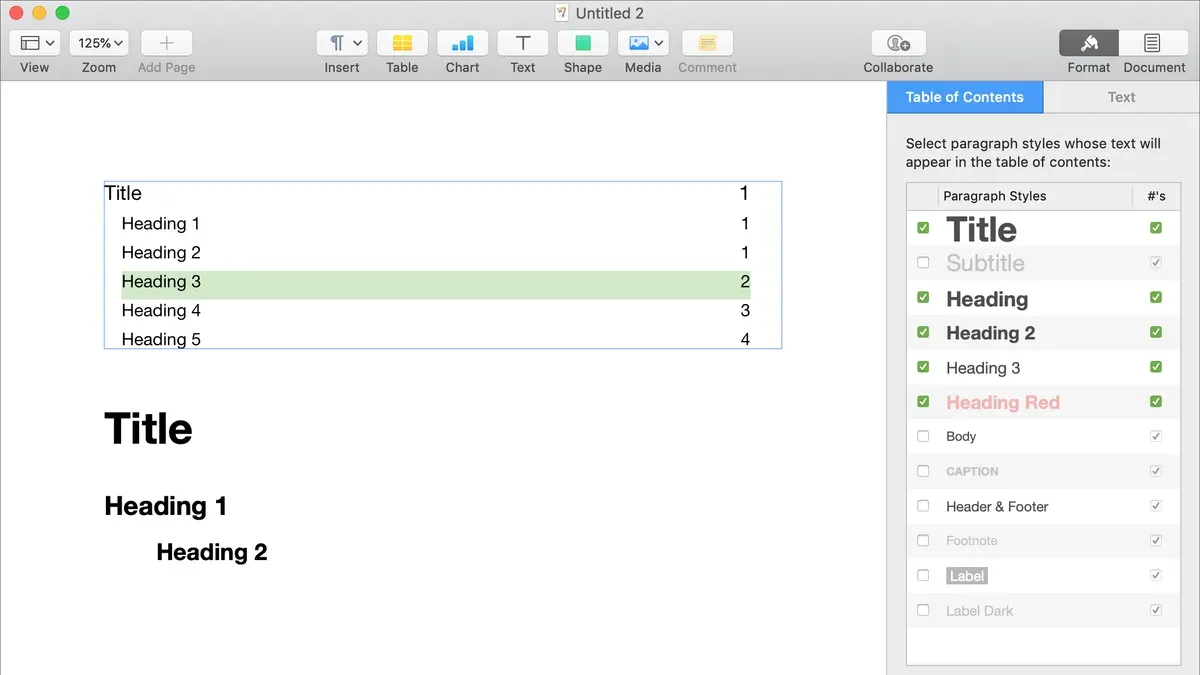
- Once inserted, the table of contents will appear with default formatting. To customize it, click on the table of contents to reveal the formatting pane on the right side of the window.
- In the formatting pane, under the Table of Contents tab, select which paragraph styles (such as Heading 1, Heading 2) to include by checking the boxes next to each style. This controls which headings appear in your TOC.
- Adjust the font, size, color, and indentation of the table of contents entries using the style options in the formatting pane to match your document’s design.
- After creating the TOC, you can edit your document headings as needed. The table of contents updates automatically to reflect changes in headings, page numbers, or section breaks, so you do not have to reinsert it.
For visual reference, you can find the Insert menu just beside the Apple logo at the top left, and the TOC customization pane appears on the right side after clicking the inserted TOC. Sample documents typically show the TOC adjusting dynamically when headings are added or removed.
How to create a table of contents in Pages on iPad
To add a table of contents in the Pages app on your iPad, start by opening the document where you want to insert the TOC. Unlike the Mac version, the iPad interface offers a more streamlined and touch-friendly set of options, meaning some customization features found on Mac are limited or absent here.
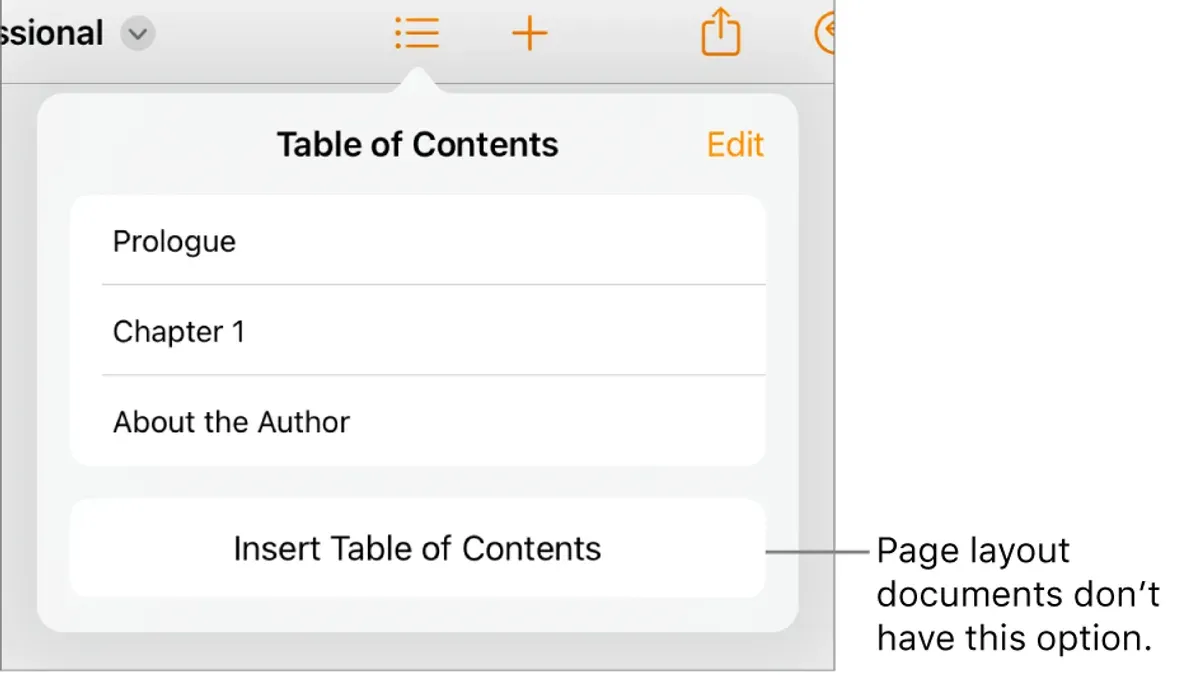
- Open your document in the Pages app on your iPad. You should see the toolbar at the top of the screen, which contains key editing tools.
- Tap the + (Add) button in the toolbar to open the insert menu. This menu lets you add various elements such as tables, shapes, and text boxes.
- Scroll through the insert options and select Table of Contents. After tapping it, a table of contents box will appear in your document, usually positioned where your cursor was placed.
- The TOC will automatically gather headers formatted with paragraph styles like Heading 1 or Heading 2. If you haven’t applied these styles, the TOC will stay empty until you do.
- To update the TOC after editing headings, tap the table of contents box to select it, then tap the refresh icon that appears. This action updates the TOC to reflect any new or changed headings.
Keep in mind that customization options such as changing fonts or adjusting levels of headings shown are more limited on iPad compared to the Mac. The TOC insertion and updates rely heavily on your consistent use of paragraph styles.
The interface uses touch controls, so expect to tap and hold or drag to reposition the TOC box, but detailed formatting adjustments require using the Mac version or exporting your document.
How to add pages to table of contents in Pages documents
When you add new pages or sections to your Pages document, it's essential to make sure their headings are formatted correctly using the paragraph styles that your table of contents (TOC) relies on. Pages automatically detects these styled headings and includes them in the TOC without manual additions.
If you notice that new headings or pages aren't showing up in your TOC immediately, you might need to refresh it. This can happen if the TOC doesn’t update dynamically right away after your edits.
- Open your document and add a new page with headings formatted using the same paragraph styles as the existing TOC entries.
- Scroll to your table of contents section. If the new headings aren’t visible in the TOC, click on the TOC box to select it.
- Look for a refresh or update icon near the TOC area—often a circular arrow—and click it. Your TOC should now include the new headings and page numbers.
- If no refresh icon appears, try clicking outside the TOC and then back inside, or close and reopen the document to force an update.
- For multi-section documents, confirm that each section’s headings use the consistent paragraph styles. Pages will index all of them together in the TOC, ensuring comprehensive coverage.
For example, if you add a chapter on page 15 titled "New Features" styled as a Heading 2, it will automatically appear in your TOC after refreshing. This keeps your TOC accurate as your document grows.
How to put a table of contents in your document layout effectively
Positioning your table of contents (TOC) at the start of your document or on a dedicated page ensures readers can easily locate the overview of your content. Typically, placing the TOC after a title page or introduction page maintains a professional flow. Avoid scattering the TOC throughout the document, which can confuse readers and reduce usability.
To format your TOC for clarity, adjust fonts to a legible size such as 11 or 12 points, and choose a clean, readable typeface like Helvetica or Times New Roman. Use indentation to distinguish heading levels—set a left indent of 0.2 to 0.5 inches for subheadings. Maintain consistent spacing between entries, ideally 6 to 12 points, to avoid clutter and improve scanning.
In digital documents, enable links within your TOC so clicking an entry jumps to the corresponding section. In Pages, this happens automatically with an automatic TOC, enhancing navigation without extra steps. Manual TOCs lack this interactivity and require manual updates, so reserve them for very simple or static documents.
Comparing layouts, a single-column TOC with clear indentation and dot leaders for page numbers offers a polished appearance. Multi-column TOCs can save space but may reduce readability. Screenshots illustrating these styles typically show a clean hierarchy with consistent font use and spacing, underlining the importance of simplicity and structure in TOC design.
How to add a table of contents in other document types: Word, Docs, and Sheets
While Apple Pages offers a straightforward but somewhat limited approach to tables of contents (TOCs), Word, Google Docs, and Sheets handle them differently, reflecting their distinct focuses. Understanding these differences helps when switching between platforms or collaborating with users on other software.
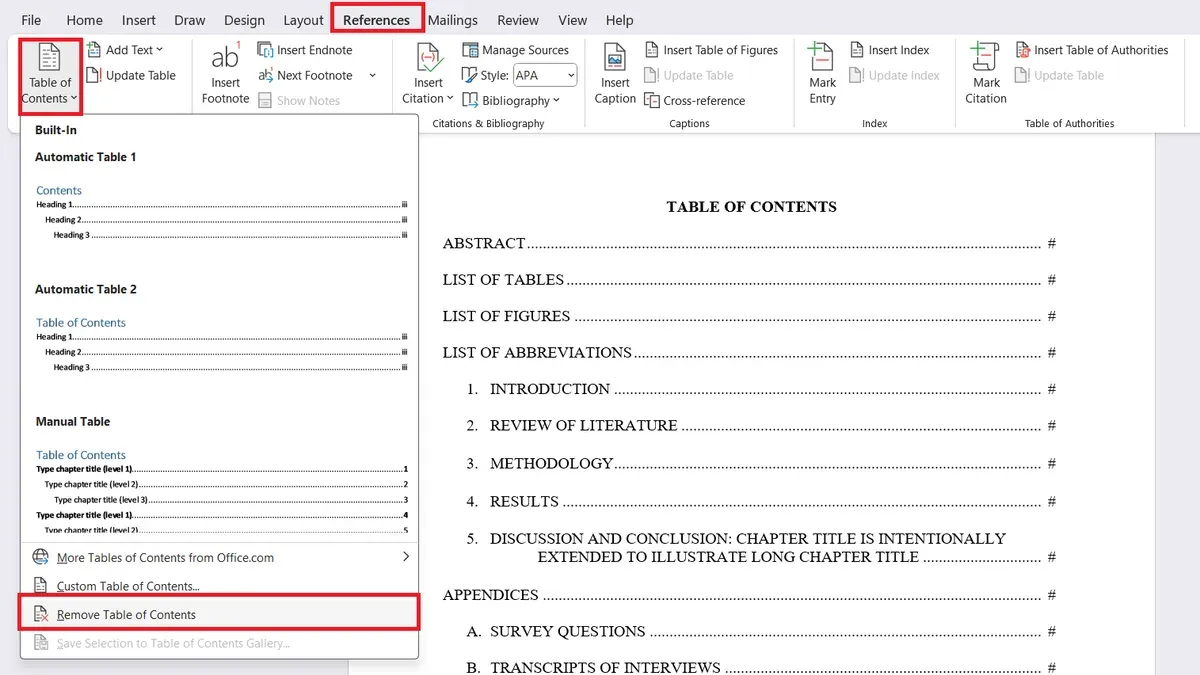
Microsoft Word also relies heavily on heading styles to build a TOC. You insert it via References > Table of Contents, choosing from built-in formats or customizing your own. Word's TOC updates automatically when you right-click and select Update Field, offering more extensive formatting options than Pages.
Google Docs provides a simpler TOC insertion through Insert > Table of contents, with options for plain text or linked page numbers. It updates dynamically but supports fewer customization features compared to Word and Pages.
Google Sheets does not support traditional TOCs since it's a spreadsheet tool. However, you can create a navigation sheet with links to ranges or use named ranges for quick access, serving as a functional alternative.
| Feature | Pages | Word | Google Docs | Google Sheets |
|---|---|---|---|---|
| TOC Insertion | Insert > Table of Contents | References > Table of Contents | Insert > Table of contents | Not supported (use manual links) |
| Relies on Heading Styles | Yes | Yes | Yes | No |
| Automatic Updates | Yes (refresh option) | Yes (Update Field) | Yes (dynamic) | No |
| Customization | Limited | Extensive | Basic | Not applicable |
Troubleshooting common issues when adding a table of contents in Pages
If your table of contents (TOC) is not showing all the headings you expect, the first step is to verify that all headings use the correct paragraph styles. Pages generates the TOC based on these styles, so missing or custom styles can cause omissions. Check the TOC settings by selecting the TOC, then clicking the Format button to confirm which paragraph styles it includes. You should see a list of styles like "Heading 1" or "Heading 2"; make sure they match your document's headings.
If page numbers are missing or incorrect, this often relates to pagination or section breaks. Pages assigns page numbers based on each section’s numbering settings. Go to the Document sidebar, look under Section, and ensure page numbering is continuous and correctly set. If you have inserted section breaks, verify each section's numbering to avoid reset errors.
When your TOC doesn’t update after editing the document, try refreshing it by deleting the existing TOC and inserting a new one via the Insert menu > Table of Contents. Unlike Word, Pages doesn’t always auto-refresh the TOC dynamically. If you see outdated entries, recreating the TOC resolves this.
Formatting glitches or broken links in digital documents can happen if the TOC style clashes with document themes or if links are disrupted by copy-pasting. To fix this, apply consistent paragraph styles and avoid manual edits inside the TOC. If links are broken, removing and reinserting the TOC usually restores proper navigation.
Adding a webpage or external link directly to the TOC isn’t supported in Pages. As a workaround, you can add a hyperlink in the document body near the TOC or create a custom text box with links. Remember, TOCs in Pages only link to document headings, so external links require manual placement.
How to maintain and update your table of contents as your document evolves
Maintaining an accurate table of contents (TOC) in Pages requires disciplined use of paragraph styles as you edit. Consistently applying heading styles to new or moved sections ensures the TOC reflects your document's current structure without manual adjustments. Automatic TOCs save time but rely on this consistency to update correctly.
When you add content or rearrange sections, refresh the TOC to see changes. If the TOC does not update automatically, remove it by selecting it and pressing Delete, then reinsert it via the Insert menu. This resets the TOC to match your latest document layout.
For longer documents with multiple sections or chapters, organize your headings clearly using hierarchical styles (e.g., Heading 1 for chapters, Heading 2 for sub-sections). This structure helps the TOC display a clear outline and improves navigation.
- Apply the correct heading style to any new or edited section title. The TOC will highlight these headings as part of the content structure.
- Click on the existing TOC in your document. If it updates automatically, you will see new entries or page numbers reflect your changes.
- If the TOC does not update, select it and press Delete to remove it from the document.
- Go to the Insert menu, choose Table of Contents, and select the style you want. The TOC reappears with all current headings included.
- Review the TOC for accuracy and ensure all relevant headings are included. If any are missing, check that the corresponding text uses the correct paragraph style.
By regularly following these steps as your document grows or changes, your TOC remains a reliable navigation tool. Discipline in styling ensures the automatic TOC feature works smoothly, saving time and avoiding manual errors.
Frequently asked questions
How to add table of contents docs?
In Google Docs, you add a table of contents by placing the cursor where you want it, then clicking Insert > Table of contents. You can choose between a plain text or a linked table of contents that updates as you edit. Make sure your document uses heading styles for sections to appear automatically.
How to add table of contents word?
To add a table of contents in Microsoft Word, go to the References tab and click Table of Contents. Choose an automatic style, and Word will generate the list based on your document’s heading styles. Update it anytime by right-clicking the table and selecting Update Field.
How to put table of contents?
Putting a table of contents involves first applying heading styles to your document’s section titles. Then, insert the table of contents at the desired spot using your app’s insert menu. The table will reflect those headings and often includes clickable links for easy navigation.
How to add table of contents in Apple Pages?
In Pages, add a table of contents by first applying paragraph styles like Heading 1 or Heading 2 to your section titles. Then, click Insert > Table of Contents and choose either Document or Section. The table will list those styled headings and updates automatically when you refresh it.
How to add pages to table of contents in Word?
Word updates page numbers in the table of contents automatically when you add or delete pages. To ensure pages appear correctly, apply heading styles consistently. After changes, click inside the table and select Update Table > Update page numbers only or Update entire table to refresh.
What This Guide Does Not Cover
This guide does not cover creating tables of contents in non-Apple applications in detail, nor does it address advanced scripting or automation of TOCs in Pages. If your document requires highly customized or non-standard formatting, you might find Pages’ automatic TOC generation limited and need to apply manual workarounds. Additionally, Pages does not support including external web pages or online content directly in the table of contents, as this falls outside its scope.
For the best results, focus on using consistent paragraph styles like Heading 1, Heading 2, and so forth, which Pages relies on to generate and update your TOC accurately. The single most useful next step is to regularly update your table of contents as you revise your document by selecting the TOC, then clicking the Update button or choosing Edit > Update Table of Contents. This ensures your navigation stays current and professional throughout your writing process.
See also: How to Add Text to an Image in Preview: A Clear Step-by-Step Guide · How to Adjust Image Colors in Preview: A Clear Step-by-Step Guide · How to Create Your First Shortcut in the Shortcuts App: A Step-by-Step Guide · How to Open Multiple Work Apps at Once Using the Shortcuts App