Fix the 'Cannot Open the Page' Error in Safari on Mac and iPhone
This guide explains how to fix the cannot open the page error in Safari on Mac and iPhone by checking network, DNS, and system settings.
Seeing the “cannot open the page” error in Safari interrupts browsing. This guide explains causes and how to fix it on Mac or iPhone by checking Safari settings, network conditions, and system issues.
Understanding the 'Cannot Open the Page' Error in Safari
This error occurs when Safari cannot load a website. It often relates to DNS failures, connection timeouts, or SSL certificate problems. Safari shows user-friendly messages reflecting network or server communication failures.
Common error types include:
- DNS errors: Safari cannot resolve the website’s domain name, often showing "Safari can’t find the server".
- Timeouts: The server took too long to respond, resulting in a "The request timed out" alert.
- SSL errors: Problems verifying the website’s security certificate cause Safari to warn about unsafe connections.
The error can originate from your device or the website’s server. Client-side issues include incorrect DNS settings or network blocks, while server-side problems occur if the website is down or misconfigured.
Step 1: Verify Your Network Connection and DNS Settings
First, confirm your internet connection is active and stable.
- On Mac: Click the Wi-Fi icon in the menu bar and ensure connection. Try opening other sites or apps requiring internet.
- On iPhone: Check Wi-Fi or cellular signal in Control Center. Open other apps to test connectivity.
If other browsers like Chrome or Firefox load pages without issues, the problem likely lies with Safari or its DNS settings.
Changing DNS servers to reliable public options can improve domain resolution and fix loading errors. However, note that some networks or VPNs may override manual DNS settings.
- On Mac:
- Open System Settings > Network.
- Select your active connection (Wi-Fi or Ethernet).
- Click Details and then the DNS tab.
- Remove existing DNS servers and add
8.8.8.8and8.8.4.4(Google DNS) or1.1.1.1and1.0.0.1(Cloudflare DNS). - Save changes and test Safari again.
- On iPhone:
- Go to Settings > Wi-Fi.
- Tap the “i” icon next to your network.
- Scroll to Configure DNS and set it to Manual.
- Add the same DNS addresses as above and remove others.
- Reconnect and try loading pages again.
Switching to reliable DNS servers often reduces page load errors, but some networks may block changes or require specific DNS.
Step 2: Clear Safari Cache, Cookies, and Website Data
Corrupted or outdated website data can cause Safari to fail loading pages. Clearing cache and cookies helps resolve this.
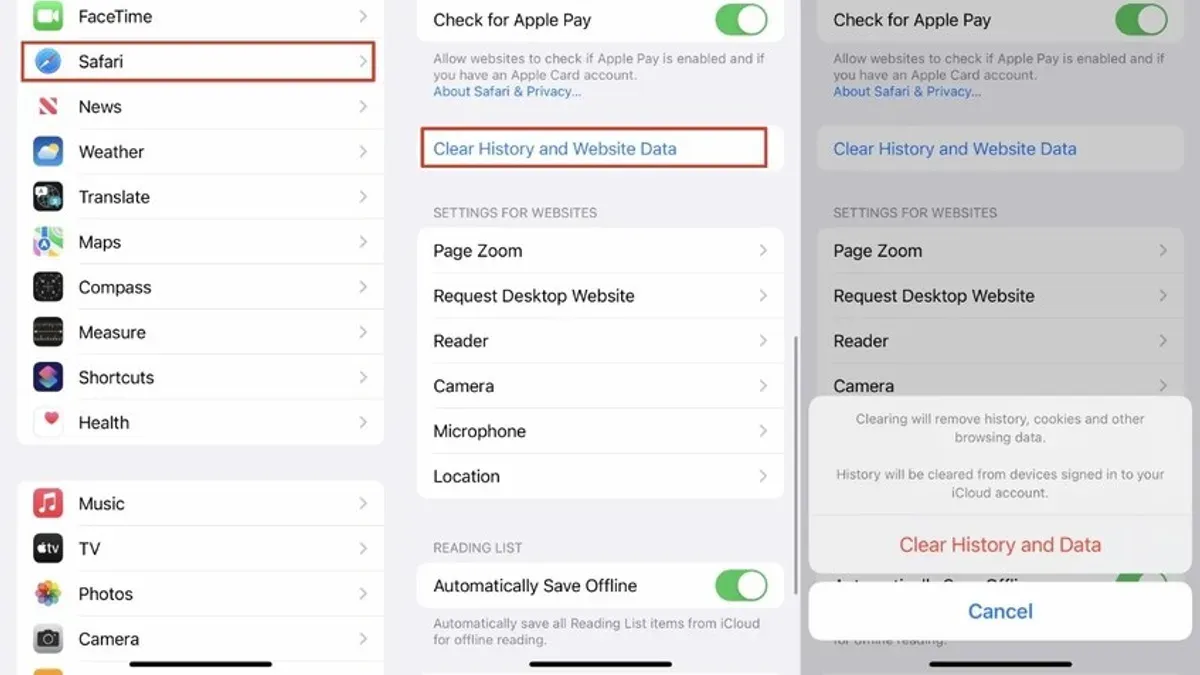
- On Mac: Open Safari, go to Safari > Settings > Privacy > Manage Website Data. Click Remove All to clear stored data.
- On iPhone: Navigate to Settings > Safari > Clear History and Website Data. Confirm to delete cache and cookies.
Clearing website data helps when pages fail due to stale scripts or cookies but does not fix server-related errors.
Note: This removes browsing history and website data but does not delete saved passwords or autofill information stored in iCloud Keychain.
Step 3: Review Safari Settings That Might Block Pages
Safari extensions and privacy features can interfere with page loading.
- Content blockers: Extensions or Safari’s built-in blockers may prevent scripts or resources from loading. Temporarily disable these to test if they cause the error.
- Privacy settings: Safari’s cross-site tracking prevention or cookie blocking might affect some websites. Adjust settings under Privacy & Security if necessary.
- Experimental features: Options enabled in Safari’s Develop menu or experimental settings can cause instability. Reset to defaults to check.
For example, disabling a content blocker extension and reloading the page often resolves loading errors caused by overly restrictive blocking.
Step 4: Inspect System-Level Issues and Software Updates
Outdated operating systems or Safari versions can cause compatibility problems leading to errors.
- Check you are running the latest macOS or iOS version via System Settings > General > Software Update.
- Verify Safari updates if you use a version separate from the OS (mostly on Mac).
- Consider system-wide network restrictions such as VPNs or firewalls that might block Safari’s connection. Temporarily disable these to test.
- Restart your device or network services (Wi-Fi router, cellular connection) to clear transient issues.
Updating software often resolves errors caused by security patches and bug fixes.
When to Contact Website Support or Apple Support
If the error stems from the website’s server, such as persistent DNS failures or SSL certificate problems despite correct local settings, contacting the website’s support is appropriate.
Collect error details by noting exact Safari messages and any diagnostic reports from the Console app on Mac or capturing screenshots on iPhone.
Apple Support intervention is suitable if Safari exhibits errors across multiple sites and browsers after exhausting these steps.
Limitations and Caveats
- This guide does not address website backend failures or bugs requiring developer access.
- Managed devices under corporate policies may restrict access to DNS, Safari settings, or extensions.
- Advanced network environments using proxies, enterprise VPNs, or custom firewalls may require specialized IT support beyond these instructions.
Frequently asked questions
Why does Safari say 'Cannot Open the Page' but other browsers work fine?
Safari may enforce stricter security or DNS settings that cause it to block sites others allow. Differences in cache, extensions, or network configurations can also explain this.
Can changing DNS servers really fix Safari loading errors?
Yes, switching to reliable DNS servers like Google’s or Cloudflare’s can resolve domain lookup failures that cause Safari to display loading errors. However, effectiveness depends on network policies.
Does clearing Safari cache delete my saved passwords?
No. Clearing cache and website data removes temporary files and cookies but does not erase passwords or autofill data saved in iCloud Keychain.
What Safari settings commonly cause pages not to load?
Content blockers, cross-site tracking prevention, and experimental features enabled in Safari’s Develop menu can interfere with page loading.
Related reading
- How to Reopen Closed Tabs in Safari on Mac and iPhoneDiscover easy methods to reopen closed tabs in Safari on Mac and iPhone to quickly recover lost pages and maintain your workflow.
- How to Allow Pop-Ups for One Website in SafariThis guide shows how to allow pop-ups for one website in Safari to balance usability and security effectively.