How to Enable the Develop Menu in Safari
This guide shows how to enable the Develop menu in Safari on macOS to access powerful web development tools.
Enabling the Develop menu in Safari provides access to advanced tools essential for web developers, designers, and power users who need to debug, test, and inspect web content efficiently. This guide explains how to enable it on macOS Safari and outlines its key features.
What Is the Develop Menu in Safari and Why You Might Need It
The Develop menu is a hidden Safari feature that grants access to web development tools such as the Web Inspector, Error Console, User Agent switching, and Experimental Features. It supports debugging code, testing responsive design, and analyzing performance.
Developers and designers use the menu to inspect webpage structure, monitor network requests, and simulate rendering on different devices. Power users benefit by controlling how Safari renders and interacts with web content.
Common tasks include inspecting HTML elements to identify layout issues, switching user agents to test site behavior on various browsers and devices, and troubleshooting JavaScript errors via the console. These tools help ensure websites function correctly and efficiently.
Step-by-Step: How to Enable the Develop Menu on macOS Safari
To enable the Develop menu in Safari on macOS Ventura or later:
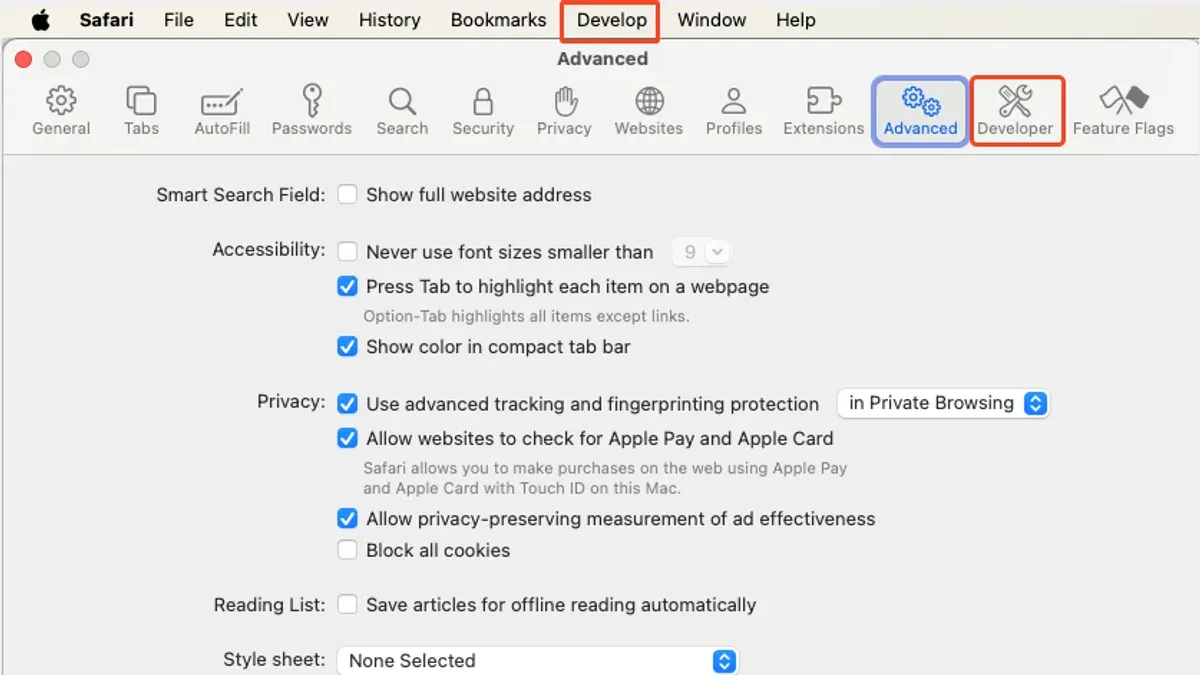
- Open Safari on your Mac.
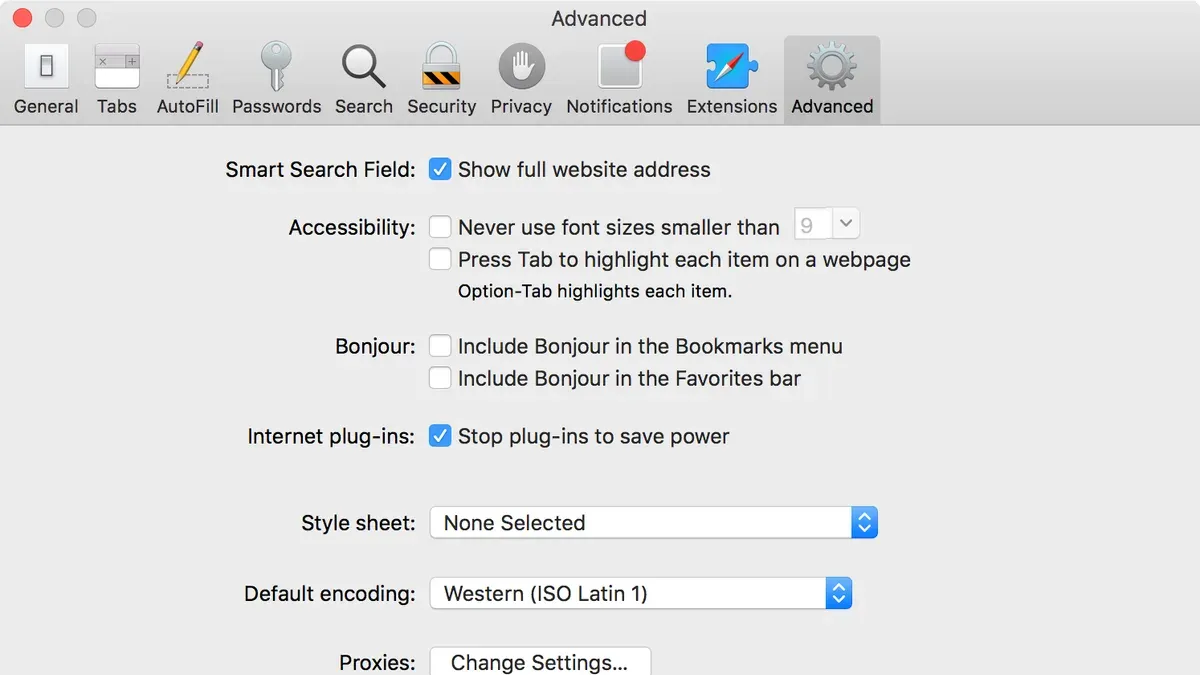
- Click Safari in the menu bar, then select Preferences.
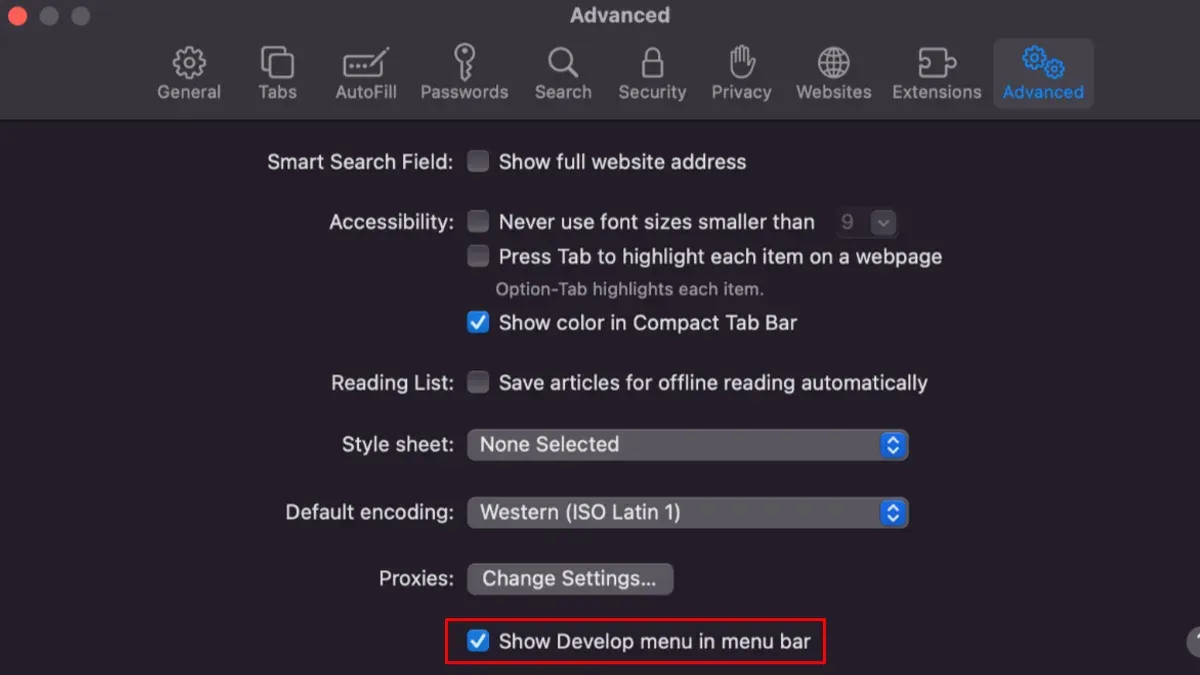
- In the Preferences window, click the Advanced tab.
- At the bottom of the Advanced pane, check the box labeled Show Develop menu in menu bar. This setting is often overlooked but essential to reveal the menu.
- Close Preferences. The Develop menu will now appear between Bookmarks and Window in the menu bar.
Note: The Develop menu is not available on Safari for iPhone or iPad.
Exploring Key Tools Within the Develop Menu
After enabling, the Develop menu provides several essential tools for web inspection and testing.
Using Web Inspector
Web Inspector allows examination of a page’s HTML, CSS, and JavaScript. Right-click any element and select "Inspect Element" or open it from the Develop menu. This opens a pane showing the document structure, applied styles, and running scripts.
Simulating Different User Agents and Devices
The User Agent submenu lets you change Safari’s browser identity string to test website responses across browsers and devices without needing the actual hardware. Be aware that some sites may detect and block certain user agents.
Accessing the JavaScript Console
The Console tab in Web Inspector displays JavaScript errors and logs. It enables debugging by running commands and viewing error messages in real time.
Analyzing Network and Resources
The Network tab lists all network requests, their timing, and status, helping identify slow or failed resources. The Resources tab provides details on cookies, local storage, and cached files.
Worked Example: Inspecting an Element and Debugging a JavaScript Error
- Open any webpage in Safari.
- Right-click a button or image and select Inspect Element.
- The Web Inspector opens with the element highlighted in the Elements panel.
- Switch to the Console tab to check for JavaScript errors related to that element.
- If an error appears, click it to jump to the relevant script in the Debugger.
When Not to Enable the Develop Menu: Considerations and Risks
The Develop menu is designed for users familiar with web development. Casual users may find the options confusing and risk changing settings that affect debugging or page rendering.
Enabling the menu itself does not pose security risks. However, using some tools improperly or inspecting untrusted pages could expose sensitive information. Use these features only if you understand web development concepts.
Enabling the Develop menu does not alter normal browsing behavior unless you actively use its tools.
This guide covers enabling the menu and basic exploration only. For advanced scripting or plugin development, refer to specialized developer documentation.
Important Caveats
- This guide applies to Safari for macOS Ventura and later; the Develop menu is not available on iOS Safari.
- It focuses on enabling the menu and basic tool use, not advanced features.
- Users unfamiliar with web development tools should proceed cautiously to avoid unintended changes.
Frequently Asked Questions
Can I enable the Develop menu on Safari for iPhone or iPad?
No. Safari on iOS does not support the Develop menu. These tools are only available on macOS versions of Safari.
Does enabling the Develop menu affect my regular browsing experience?
No. The Develop menu remains inactive until you use its tools. Enabling it alone does not change how pages load or behave during normal browsing.
What are common troubleshooting steps if the Develop menu doesn’t appear after enabling it?
- Verify you are running Safari on macOS Ventura or later.
- Ensure the Show Develop menu in menu bar box is checked in Safari Preferences > Advanced.
- Restart Safari if the menu does not appear immediately.
- Confirm you are not using Safari on iOS, where the feature is unavailable.
How can I disable the Develop menu if I no longer need it?
Go to Safari Preferences > Advanced and uncheck the Show Develop menu in menu bar option. The Develop menu will then be removed from the menu bar.