Hide Distracting Items on Safari for Focused Browsing
This guide shows how to hide distracting items on a webpage in Safari using built-in tools, extensions, and scripts for better focus.
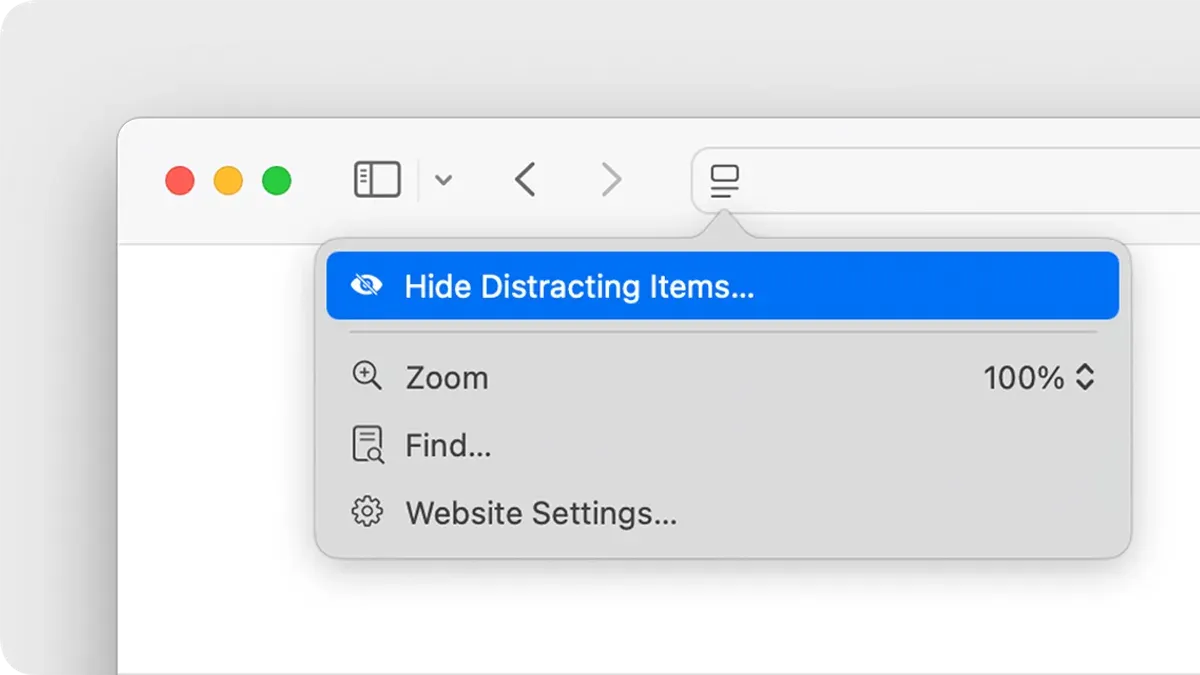
Reducing distractions while browsing is key to staying productive. This guide explains how to hide distracting items on a webpage in Safari using built-in tools, privacy-conscious extensions, and custom user scripts without compromising security or performance.
Understanding Common Distracting Webpage Elements
Webpages often include elements that draw attention away from the main content. These distractions typically include:
- Advertisements and banners
- Pop-up dialogs and subscription prompts
- Sidebars with unrelated content or links
- Auto-playing videos and audio
- Social media widgets and embedded feeds
These elements can reduce focus, increase page load times, and consume more data. For Mac and iPhone users, this can be frustrating, especially when reading long articles or working through research.
Safari offers native features to help with these issues, such as Reader Mode, which simplifies page layouts, and content blockers that reduce unwanted content. Using these tools can lead to a cleaner browsing experience and improved concentration.
Using Safari's Built-In Features to Minimize Distractions
Safari includes several options to help remove or hide distracting content without needing extensions.
Activate Reader Mode
Reader Mode removes ads, sidebars, and other clutter, leaving only the main text and essential images. To enable it:
- Open a compatible webpage in Safari (Reader Mode is available on articles and text-heavy pages).
- Tap the Reader button in the address bar (looks like four horizontal lines) or press Shift+Command+R on Mac.
- The page will reload in a simplified format, removing most distractions.
Note that Reader Mode may not work on all pages, especially those with complex layouts or interactive content. It also disables some page features like comments or embedded media, which can be a trade-off if you need those elements.
Enable Content Blockers
Safari allows users to install content blockers that filter ads and trackers. To enable them:
- On iPhone, go to Settings > Safari > Content Blockers and toggle on desired blockers.
- On Mac, open Safari, then go to Safari > Preferences > Extensions and enable the installed content blockers.
- These blockers automatically hide many ads and trackers on supported sites, but effectiveness varies depending on the extension and site.
Adjust Pop-up and Autoplay Settings
To prevent pop-ups and auto-playing media:
- In Safari Settings, enable “Block Pop-ups” (found under Settings > Safari on iPhone or Safari > Preferences > Websites > Pop-up Windows on Mac).
- Set Autoplay to “Never Auto-Play” under Safari > Preferences > Websites > Auto-Play on Mac, or toggle Auto-Play settings on iPhone.
These settings reduce interruptions and unexpected noise while browsing but may prevent some legitimate media from playing automatically.
Leveraging Privacy-Focused Safari Extensions to Hide Specific Page Elements
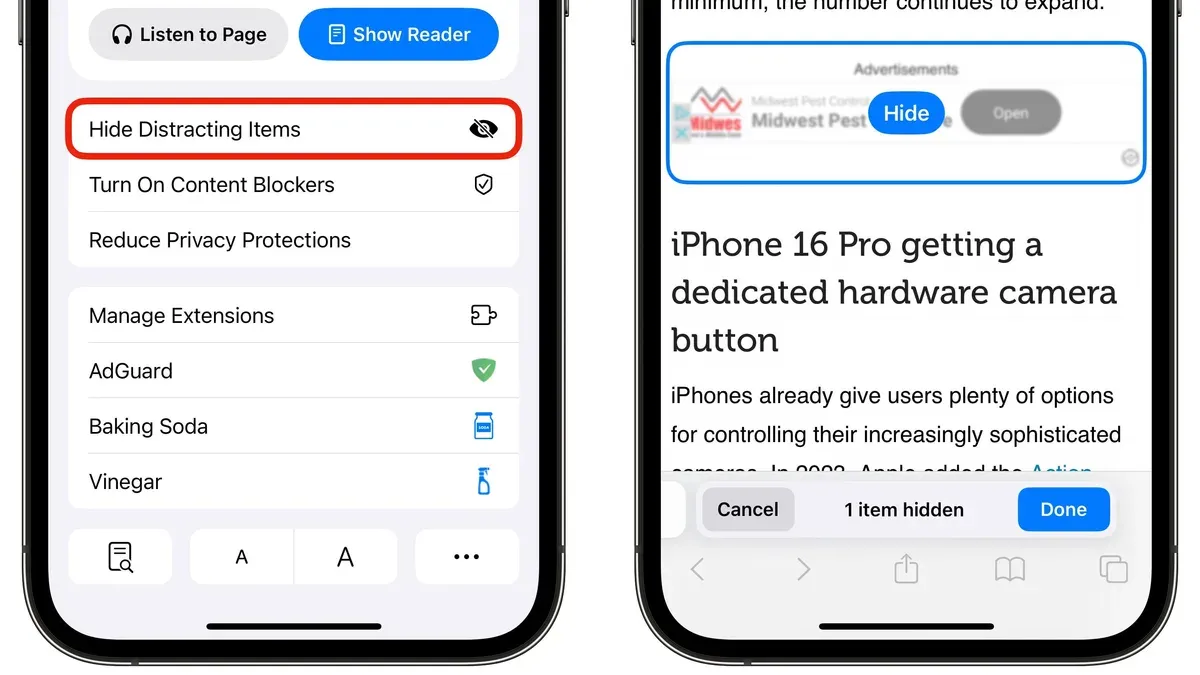
For users wanting more control, Safari supports extensions that selectively hide webpage elements beyond generic ad blocking.
Choosing Privacy-Respecting Extensions
When selecting extensions, consider the following:
- Extensions should not collect or transmit browsing data unnecessarily.
- They must be actively maintained and compatible with the current Safari version to avoid security risks.
- Extensions that allow CSS selector targeting or element hiding provide more precise control.
Popular Extensions for Element Hiding
Extensions such as “Element Hider” or “Custom Style Injector” offer interfaces to hide specific page parts like sidebars, comments, or banners without blocking entire scripts. These work by injecting CSS rules or scripts after page load.
Performance and Impact
Targeted element-hiding extensions generally have a smaller performance impact than full ad blockers because they avoid deep filtering of network requests. However, applying many CSS rules or scripts can still affect page rendering speed, especially on complex sites.
Creating Custom User Scripts for Advanced Element Hiding
Technically inclined users can write custom JavaScript to tailor hiding behavior precisely to their needs.
User Scripts and Injection in Safari
Extensions like Tampermonkey enable injecting user scripts into webpages. These scripts can select and hide elements using JavaScript methods such as document.querySelector or document.querySelectorAll.
Sample Script to Hide Common Distracting Elements
const selectors = ['.sidebar', '#comments', '.banner-ad'];
selectors.forEach(sel => {
  document.querySelectorAll(sel).forEach(el => {
    el.style.display = 'none';
  });
});
This script hides elements with classes or IDs often used for sidebars, comments, or banner ads. Users should inspect the page’s HTML structure using Safari’s Web Inspector (Command+Option+I on Mac) to identify correct selectors for their target sites.
When to Use Custom Scripts
Custom scripts are useful when native features or extensions don’t offer precise control or when a site’s layout is unique. However, they require some technical knowledge and maintenance, as site updates can break the scripts.
Maintaining a Balance: When Hiding Elements Might Backfire
While hiding distracting items can improve focus, consider these limitations:
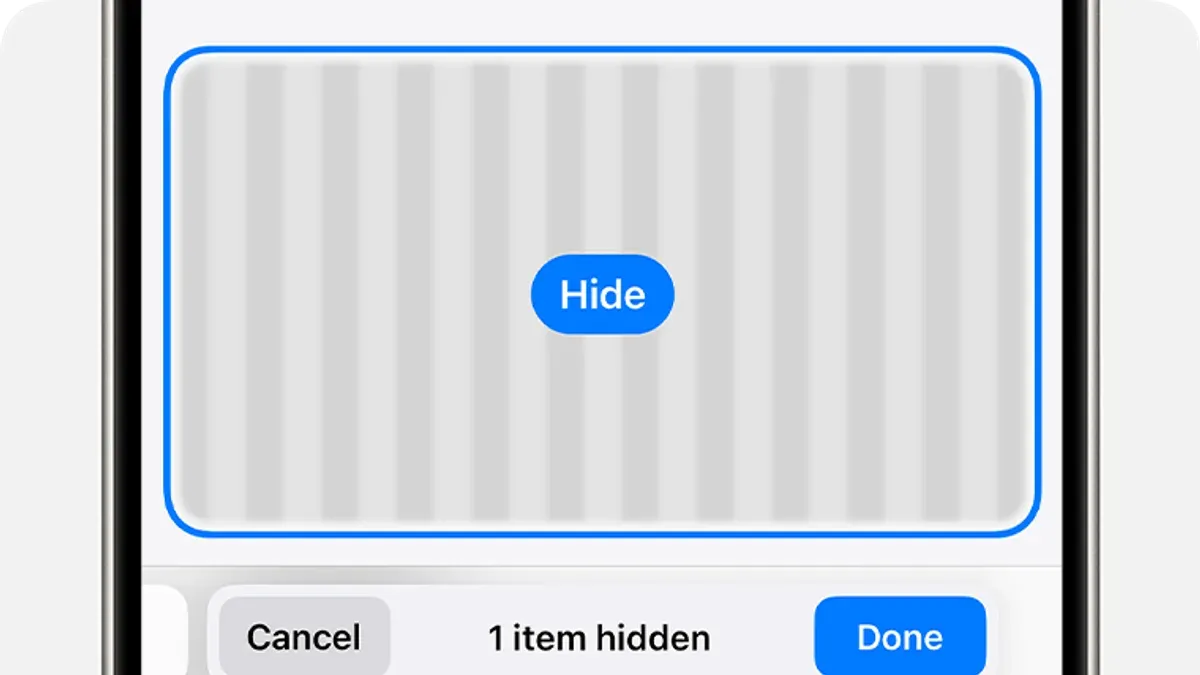
- Some websites rely on certain elements for navigation or functionality. Hiding these can break site features.
- Reader Mode or content blockers may not work perfectly on all sites, especially dynamic or interactive ones.
- Installing third-party extensions or running scripts carries privacy and security risks if the source is untrusted.
Apple’s official Safari documentation recommends carefully selecting extensions and testing changes on important sites to avoid usability issues.
Practical Worked Example: Hiding Sidebars and Comments on a News Site
Here is a step-by-step example using Tampermonkey on Safari for Mac:
- Install Tampermonkey from the Mac App Store.
- Create a new user script and paste the following code:
// ==UserScript==
// @name         Hide Sidebar and Comments
// @match        https://www.example-news-site.com/*
// ==/UserScript==

(function() {
  const selectors = ['.sidebar', '#comments'];
  selectors.forEach(sel => {
    document.querySelectorAll(sel).forEach(el => el.style.display = 'none');
  });
})();- Save and enable the script.
- Visit the site; the sidebar and comments section will be hidden, leaving only the main article content visible.
Customize selectors by inspecting element classes or IDs using Safari’s Web Inspector. Keep in mind that site updates may require script adjustments.
Limitations and Caveats
This article focuses on user-driven hiding of distracting elements. It does not cover full ad-blocking solutions or parental controls, which involve broader content filtering and are outside this scope.
Frequently Asked Questions
Can I hide distracting items on Safari without installing any extensions?
Yes. Safari’s Reader Mode and built-in content blockers can remove many distractions without extra software, though their effectiveness depends on the site.
Will hiding webpage elements affect website functionality or layout?
Potentially. Removing key elements might break navigation or interactive features on some sites, so test changes carefully.
Are there privacy risks associated with using Safari extensions to hide content?
Yes. Only install extensions from trusted developers that respect privacy and avoid unnecessary data collection.
How can I revert changes if an element I hide breaks the page?
Disable the responsible extension or user script, or turn off Reader Mode to restore the original page layout.