
How to Translate a Webpage in Safari: A Guide for Mac & iPhone
Discover how to translate a webpage in Safari on Mac and iPhone using native features and alternatives for accurate translations.
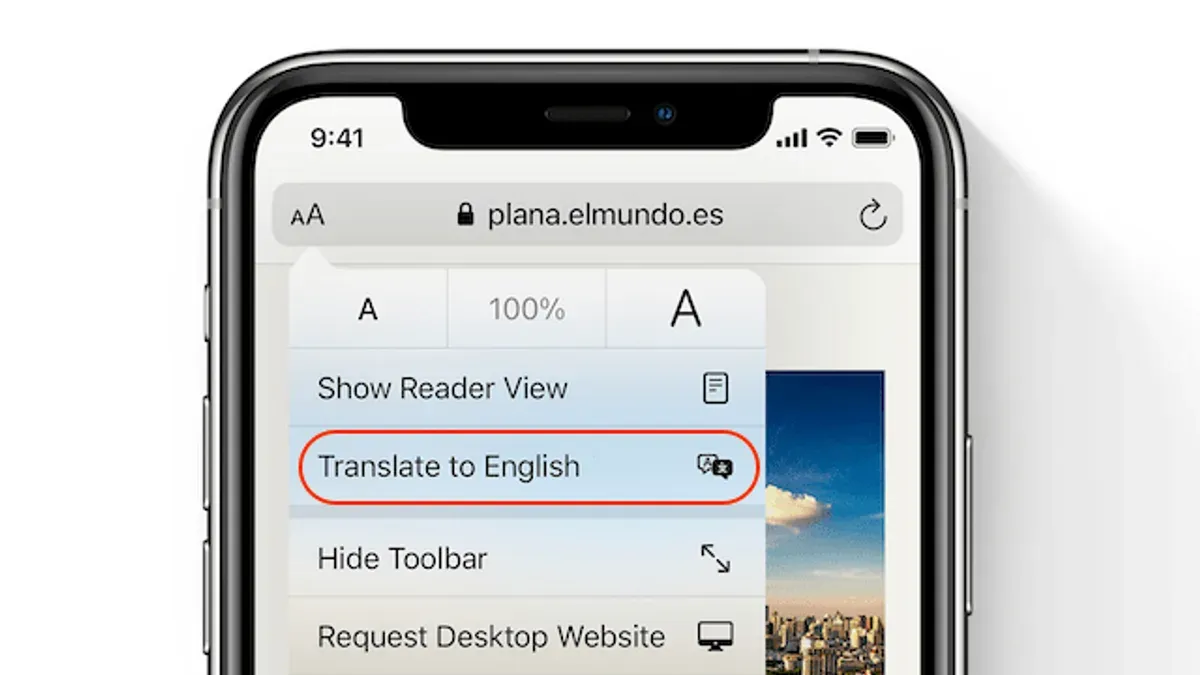
Translating foreign language webpages is essential for Mac and iPhone users. Safari includes a native translation feature that allows users to translate webpages directly within the browser. This article explains how to translate a webpage in Safari, detailing built-in tools, their limitations, and alternative methods for accurate translations.
Understanding Safari’s Native Translation Feature
Safari’s built-in translation tool converts webpages from supported foreign languages into the user’s preferred language without leaving the browser. It is available on both macOS and iOS devices, with some differences in interface and functionality.
Enabling and Using Safari’s Translation
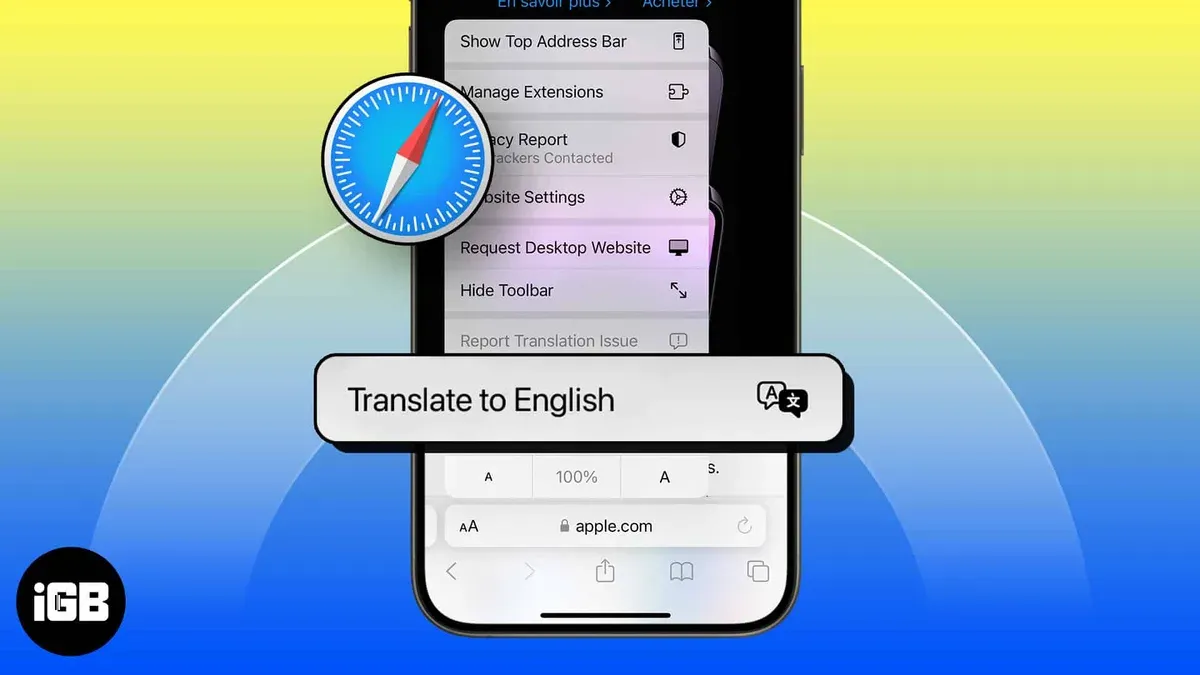
On macOS, when Safari detects a supported foreign language, a translation icon resembling a page with a speech bubble appears on the right side of the address bar. Clicking this icon opens a menu where you can select to translate the webpage into your system language or another preferred language. On iPhone and iPad, the translation option is accessed via the “aA” menu in the address bar; tapping it reveals the "Translate to [Language]" option.
Supported Languages and Automatic Detection
Safari supports translation for a curated set of major global languages, including Spanish, French, German, Chinese (Simplified), Japanese, Korean, Italian, Portuguese, and Russian. Safari automatically detects the page's language and offers translation only if it is supported. If the language is unsupported, the translation icon will not appear.
Differences Between macOS and iOS Translation
| Feature | macOS Safari | iOS Safari |
|---|---|---|
| Translation Button Location | Right side of address bar | Within “aA” menu or address bar |
| Language Switching | Dropdown menu in translation icon | Limited; usually defaults to system language |
| Offline Translation | Not supported | Not supported |
| Automatic Page Reload | Yes, after translation | Yes, after translation |
Step-by-Step Guide to Translating a Webpage in Safari
On macOS Safari
- Open Safari and navigate to a webpage in a supported foreign language.
- Look for the translation icon (a page with a speech bubble) on the right side of the address bar.
- Click the icon to open the translation menu.
- Select the language you want the page translated into; by default, this is your system language.
- Safari reloads the page with translated text.
- To revert to the original language, click the translation icon again and select "View Original".
On Safari for iPhone and iPad
- Open Safari and visit a webpage in a supported foreign language.
- Tap the “aA” icon in the address bar.
- Tap "Translate to [Your Language]" in the menu.
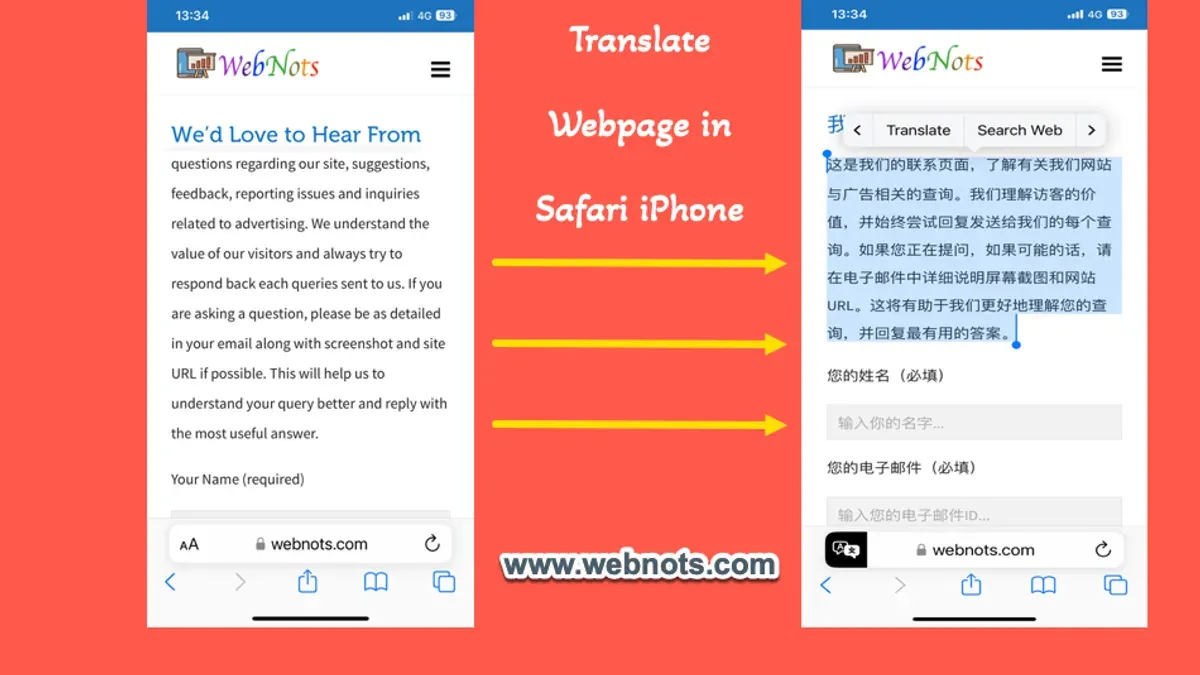
- The page reloads with translated content.
- To switch back, tap the “aA” icon and select "View Original".
When Safari’s Translation Falls Short: Common Issues and Workarounds
Safari’s native translation is convenient but has limitations. Some websites or languages are unsupported. Dynamic content, scripts, and embedded elements can interfere with translation. Alternative solutions can help in these cases.
Limitations of Native Translation
- Supports a limited set of languages, excluding many less-common ones.
- Some websites disable translation or use complex scripts that prevent accurate translation.
- Requires an active internet connection; offline translation is not available.
Using Third-Party Safari Extensions
Third-party extensions can expand translation capabilities. Extensions that connect to services like Google Translate, DeepL, or Microsoft Translator may support more languages and provide context-aware translations. However, these extensions often require sending webpage content to external servers, which may have privacy implications.
Manual Copy-Paste Translation
If native translation or extensions are not suitable, copying text manually into online translators such as Google Translate or DeepL is an option. This method is slower but useful for unsupported content or when precise control is needed.
Privacy and Security Considerations When Translating Webpages in Safari
Privacy is important when using translation tools. Safari’s translation processes text differently compared to many competitors.
On-Device vs Cloud Processing
Safari performs most translation processing on-device where possible, meaning text is processed locally without sending the full page content to external servers. This approach reduces exposure of browsing data.
Risks of Third-Party Extensions
Third-party translation extensions typically send webpage content to external servers for processing, which can expose browsing data. It is important to review privacy policies before installing such extensions.
Best Practices for Secure Translation
- Use Safari’s native translation feature to minimize data exposure.
- Avoid translating sensitive or personal information through third-party tools.
- Keep Safari and any extensions updated to ensure security patches are applied.
Tips for Optimizing Your Translation Experience in Safari
Keep Software Up to Date
Updating to the latest versions of macOS, iOS, and Safari ensures access to the newest translation improvements, language additions, and bug fixes.
Use Reader Mode with Translation
Reader mode removes ads, scripts, and clutter, leaving only the main text. Activating Reader mode before translating can improve translation accuracy, especially on complex sites.
Utilize Keyboard Shortcuts and Gestures
- On macOS, press
Command + Lto focus the address bar quickly. - Use
TabandEnterkeys to navigate to the translation icon and select translation options without a mouse. - On iOS, familiarize yourself with the “aA” menu gestures to toggle translation efficiently.
Limitations to Know
Safari’s native translation supports a limited set of languages and may not work on all webpages, especially those with dynamic content or embedded scripts. For unsupported languages or professional-grade translations, dedicated translation tools may be necessary.
Frequently Asked Questions
Does Safari translate entire webpages or just selected text?
Safari’s native translation feature translates entire webpages. It does not support translating only selected text.
Which languages does Safari support for translation?
Safari supports major global languages such as Spanish, French, German, Chinese (Simplified), Japanese, Korean, Italian, Portuguese, and Russian. The list is curated and does not include all world languages.
Can I translate webpages offline in Safari?
No. Safari’s translation requires an internet connection because language resources are not fully stored on-device.
Are there privacy risks when using Safari’s translation feature?
Safari processes most translation on-device, limiting data sent to external servers and enhancing privacy compared to many third-party tools. Using third-party extensions may expose browsing data externally, so review their privacy policies carefully.



