How to Save a Webpage as PDF in Safari on Mac and iPhone
This guide shows how to save a webpage as PDF in Safari on Mac and iPhone for offline reading, sharing, and archiving.
Saving a webpage as a PDF in Safari is a practical way to keep content for offline reading, sharing, or archiving. This guide covers detailed steps for Mac and iPhone users, plus tips for customizing PDFs and troubleshooting common issues.
Why Save a Webpage as PDF in Safari?
Saving webpages as PDFs allows offline access to content without an internet connection. Many users archive webpages for future reference or legal documentation, preserving the exact state of the page at a certain time. Sharing PDFs provides a clean, formatted version of the webpage that appears consistent across devices. Additionally, saving webpages captures a snapshot of dynamic or frequently changing content, which might otherwise be lost or altered.
For example, researchers often save articles to ensure they have the original source even if the webpage updates. Legal professionals might archive terms or notices as proof. PDFs are widely used because they maintain layout and formatting across platforms.
Step-by-Step Guide to Saving a Webpage as PDF in Safari on Mac
- Open the webpage you want to save in Safari.
- Go to the File menu at the top of the screen.
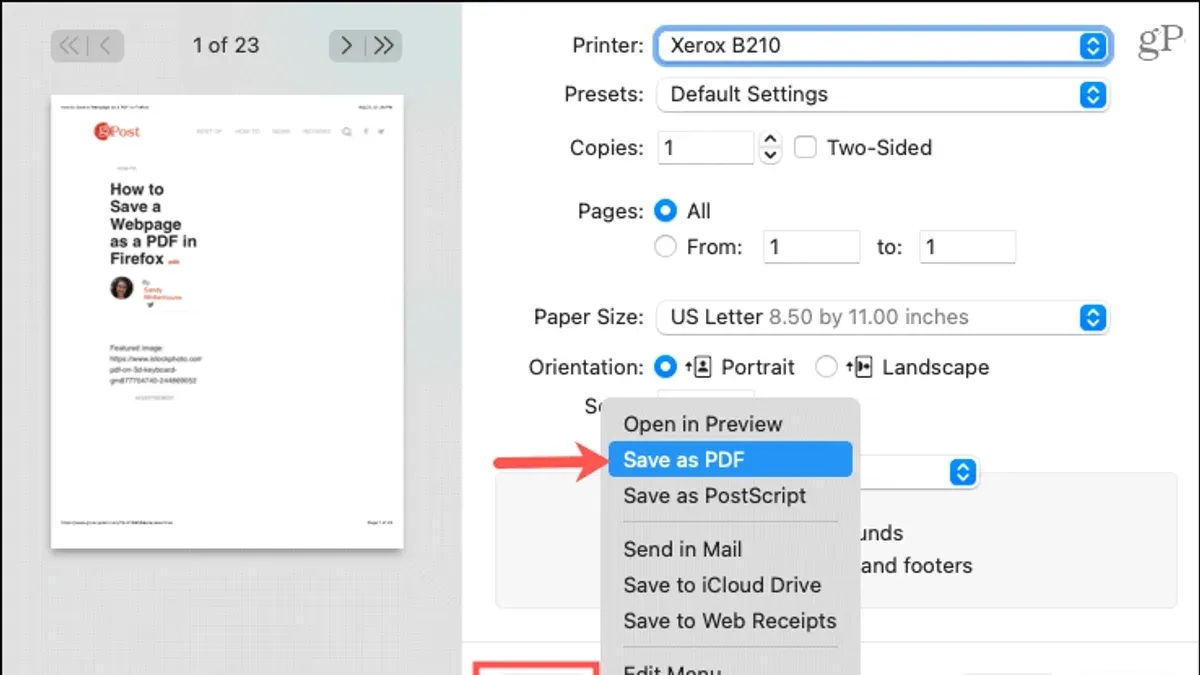
- Select Export as PDF. If this option is not visible, choose Print (or press Command + P), then in the print dialog, click the PDF dropdown in the bottom-left corner and select Save as PDF.
- Choose the destination folder and enter a filename.
- Click Save to export the webpage as a PDF file.
This method works consistently on Safari versions found in macOS 12 Monterey and later. It preserves the page’s layout and images, offering a faithful digital copy. Note that some complex webpage elements, like interactive scripts or lazy-loaded images, may not appear correctly unless Reader Mode is enabled.
How to Save a Webpage as PDF in Safari on iPhone and iPad
- Open the Safari app and navigate to the webpage.
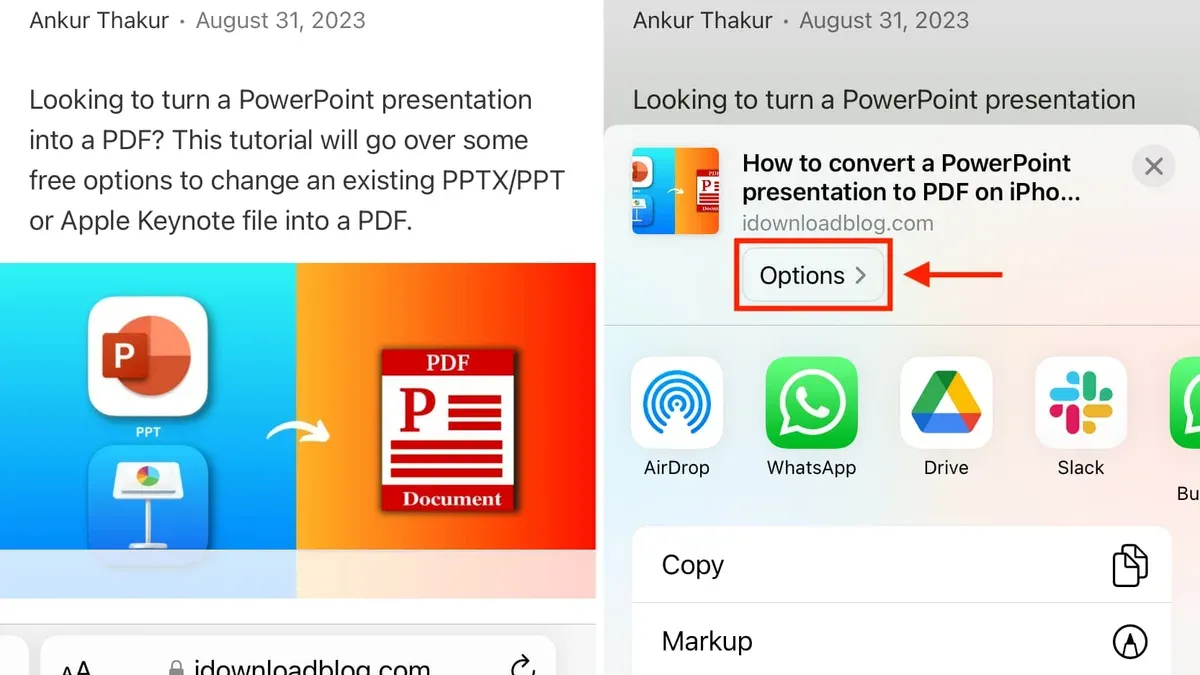
- Tap the Share button (the square with an upward arrow).
- Scroll the share options and tap Print.
- In the print preview, perform a pinch-out gesture (spread two fingers) on the preview image to open the page as a PDF.
- Tap the Share button again in this PDF view.
- Select Save to Files to store the PDF locally or choose another sharing option.
This method applies to iOS 15 and newer. On older versions, the interface may differ slightly but the core process remains similar. Users should ensure sufficient storage space when saving PDFs locally.
Customizing Your PDF: Layout, Content, and Annotations
You can improve PDFs for readability and usability beyond basic saving:
- Page orientation and margins: On Mac, before saving, use the print dialog’s Layout and Margins settings to switch between portrait or landscape and adjust spacing. This helps fit wide content better.
- Removing unwanted elements: Use Safari’s Reader Mode before saving to strip ads, pop-ups, and unrelated content. Activate Reader Mode by clicking the icon left of the address bar or pressing Shift + Command + R. Note that Reader Mode is not available on all pages.
- Annotations: After saving, open the PDF in Preview on Mac or the Files app on iOS to add highlights, notes, or drawings. These tools help emphasize important sections.
For example, saving an article in Reader Mode yields a cleaner, text-focused PDF with fewer distractions and often smaller file sizes. However, Reader Mode may omit some images or formatting, so choose based on your needs.
Troubleshooting Common Issues When Saving PDFs in Safari
Common problems include:
- Missing images or formatting errors: These often occur if the page uses complex scripts or lazy-loaded content. Enabling Reader Mode before saving can help mitigate this, but may remove some page elements.
- Safari or system crashes during export: This can happen with very large or media-heavy pages. Closing other apps and ensuring Safari is updated reduces this risk.
- Large file sizes: PDFs with many images can be large. Using Reader Mode or adjusting print quality settings can help reduce size.
- Print option greyed out: This may occur if your Mac has restrictions or if the webpage is a secured login page. Refreshing the page or saving it as a web archive instead can be alternatives.
Addressing these issues often involves enabling Reader Mode, updating Safari, or adjusting your workflow.
Alternatives and Advanced Tips for Saving Webpages as PDFs
Power users seeking more control or automation can consider:
| Method | Details | Use Case |
|---|---|---|
| Third-party Safari extensions | Extensions like PDF Mage or Save as PDF offer one-click saving with customization options. | Enhanced features beyond Safari's defaults. |
| macOS apps | Apps such as PDF Expert or Adobe Acrobat provide advanced editing and batch processing. | Editing, converting, or organizing PDFs. |
| Shortcuts and AppleScript | Automate PDF creation using macOS Shortcuts or AppleScript to save multiple tabs or schedule saves. | Workflow automation and efficiency. |
| Exporting multiple tabs | Use scripts or extensions to save all open Safari tabs as individual PDFs at once. | Research or multitasking scenarios. |
Sample AppleScript can automate saving the front Safari tab as PDF with a custom filename. Shortcuts on iOS can streamline the pinch-out step, but require configuration.
Caveats to Consider
- This guide focuses on Safari on Mac and iOS devices only; other browsers or platforms are not covered.
- Some advanced PDF customization requires third-party apps beyond Safari’s built-in options.
- Dynamic or heavily scripted webpages may not save perfectly due to how Safari renders content during export.
Frequently asked questions
Can I save an entire webpage including all images and links as a PDF in Safari?
Safari’s PDF export generally includes visible images but does not preserve active hyperlinks. For full link retention, third-party tools or extensions are necessary.
How do I save a webpage as PDF on older versions of Safari or macOS?
Older Safari versions support Print > Save as PDF, though interface elements may differ. If Export as PDF is unavailable, use the Print dialog method.
Is it possible to save only the text of a webpage as a PDF without ads or images?
Yes. Enabling Safari’s Reader Mode before exporting produces a text-focused PDF without ads or images, ideal for distraction-free reading.
How can I reduce the file size of a PDF saved from Safari?
Use Reader Mode to strip unnecessary images. Adjust print quality settings on Mac (e.g., grayscale or lower resolution). Third-party compression tools can also reduce file size after saving.