How to Fix Provisioning Profile Errors in Xcode: A Step-by-Step Guide
Discover clear steps to identify and fix provisioning profile errors in Xcode to keep your app development on track without signing interruptions.
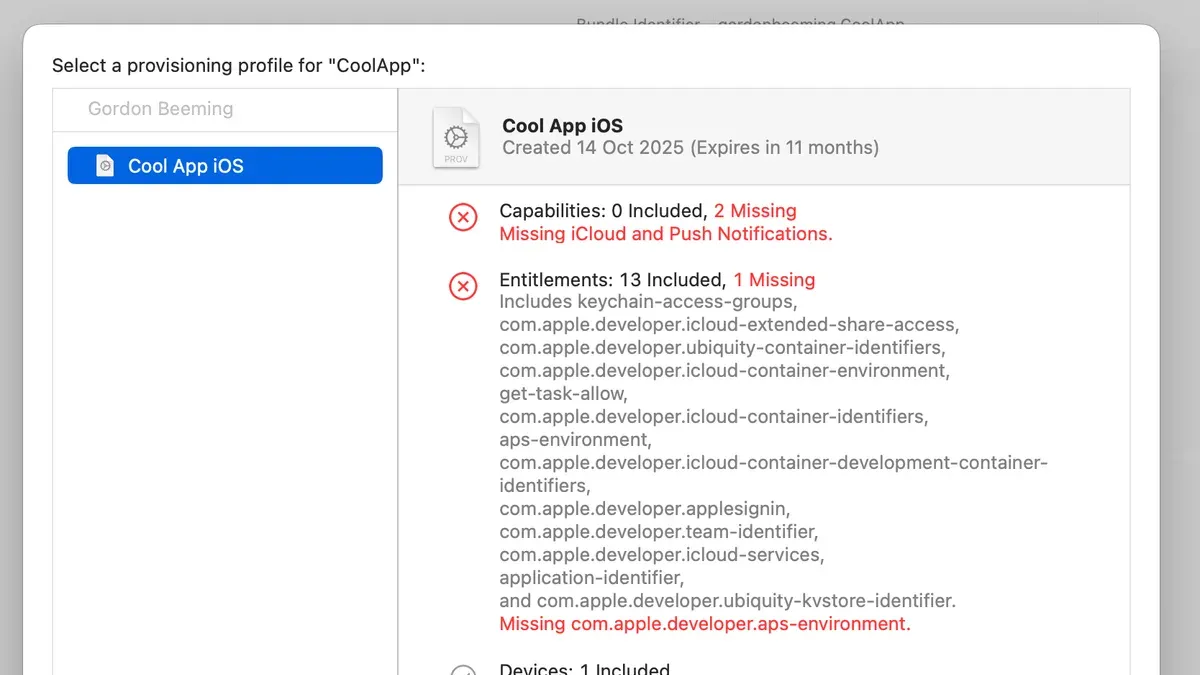
You open your Xcode project, ready to build and run your app, only to be stopped by a provisioning profile error. The message might be vague or specific, but it always causes a pause in your workflow and uncertainty about the next step.
This guide focuses on how to fix provisioning profile error in Xcode by helping you understand the underlying causes rather than guessing fixes. You will be guided through a clear decision-making process to safely and effectively resolve the issue, whether it’s a common mismatch or a more complex manual profile management problem.
Key takeaways
- Identify the exact provisioning profile error message in Xcode’s build log or device console.
- Check for expired or revoked certificates and ensure your profiles are up to date in the Apple Developer portal.
- Use Xcode’s automatic signing for quick fixes but know when to switch to manual profile management.
- Match the provisioning profile’s App ID and certificates with your project settings precisely.
- Recognize when the issue requires deeper troubleshooting or professional assistance to avoid project instability.
Recognize the Provisioning Profile Error in Xcode
Provisioning profile errors in Xcode usually present themselves with clear messages during the build, archive, or deployment phases. Common alerts you might encounter include "No matching provisioning profiles found," "Provisioning profile is invalid," and "Code signing error." These messages often appear in the Issue Navigator pane and detailed in the build log. For example, you might see an error like "Code signing is required for product type 'Application' in SDK 'iOS'" or "Provisioning profile 'XYZ' doesn't include the signing certificate".
To confirm that the provisioning profile is the root cause, check your project and target settings in Xcode. Navigate to the Signing & Capabilities tab of your target, then verify the selected provisioning profile under Provisioning Profile. If it shows "None" or a profile that does not match your selected team or certificate, provisioning profile errors are likely the problem. Additionally, examine the build log by clicking the red error message to see if it references provisioning profiles explicitly.
If you recognize these errors, you can follow these steps to confirm and resolve the issue safely:
- Open your project in Xcode and select your app target.
- Go to Signing & Capabilities and confirm the Team is correctly chosen.
- Check the Provisioning Profile field; if it says "None" or an unexpected profile, click to select the correct one.
- Review the build log for provisioning profile errors by clicking on the error icon in the Issue Navigator.
- Attempt a clean build (Product > Clean Build Folder) and rebuild to see if errors persist.
You know this worked when the build completes without code signing errors, and Xcode no longer shows provisioning profile alerts in the Issue Navigator. If errors remain, the profile may be invalid, expired, or mismatched, requiring further investigation.
Understand the Common Causes of Provisioning Profile Errors
Provisioning profile errors in Xcode often stem from a few common underlying causes. One frequent issue is an expired or revoked provisioning profile. When a profile’s validity period ends or it is manually revoked via the Apple Developer portal, Xcode cannot use it to sign your app. Another typical cause is a mismatch between your app’s bundle identifier and the provisioning profile’s configured identifier. This mismatch prevents proper code signing and triggers errors.
Missing or incorrect certificates associated with the provisioning profile also lead to errors. If the profile references a certificate that no longer exists or is invalid, signing will fail. Additionally, problems with your Apple Developer account permissions—such as lacking team membership or roles—can cause Xcode to reject profiles. Finally, conflicts between manual and automatic code signing settings often confuse Xcode and cause profile errors.
| Cause | Common Xcode Error Messages | Example Scenario |
|---|---|---|
| Expired or revoked profile | "Provisioning profile has expired"; "No valid signing identities" | You haven’t renewed your development profile, so Xcode refuses to sign. |
| Bundle identifier mismatch | "The provisioning profile does not match the bundle identifier" | You changed your app’s bundle ID but didn’t update the profile accordingly. |
| Missing/invalid certificates | "No matching signing certificate found"; "Code signing error" | Your certificate was deleted or expired but the profile still references it. |
| Account permissions/team membership | "You are not a member of the developer team"; "Signing requires a valid team membership" | Your Apple ID isn’t linked to the correct developer team or lacks privileges. |
| Manual vs automatic signing conflict | "Provisioning profile does not match the selected manual signing settings" | You enabled manual signing but didn’t select the correct provisioning profile. |
Fixing an expired or revoked provisioning profile applies when you see expiration errors. To resolve it:
- Log into the Apple Developer portal and check the status of your profiles.
- Renew or create a new provisioning profile matching your app’s bundle ID.
- Download and double-click the new profile to install it in Xcode.
- In Xcode, go to your project target’s Signing & Capabilities tab and select the updated profile.
When Xcode successfully builds and signs your app without errors, the fix worked.
Understanding these causes helps you pinpoint why your provisioning profile error occurs and choose the safest fix without trial and error.
Try Quick and Safe Fixes First
Before moving into complex troubleshooting, start with simple steps that often resolve provisioning profile errors without risk. These actions clear temporary glitches and refresh your project’s signing data safely.
First, restart Xcode and your Mac. This clears cached issues that might cause signing errors. After rebooting, open your project and check if the error persists.
Next, enable Xcode’s automatic signing feature to let Xcode manage provisioning profiles for you. This often fixes mismatches or outdated profiles. To do this:
- Open your project in Xcode and select your target.
- Go to the “Signing & Capabilities” tab.
- Check the box labeled “Automatically manage signing.”
- Select your Apple team from the dropdown menu.
You’ll know this worked if the error disappears during build and the project compiles successfully.
If automatic signing doesn’t resolve the issue, manually download and install the latest provisioning profiles from the Apple Developer portal. After downloading, double-click the profile to install it in Xcode.
Then, clean your build folder by selecting Product > Clean Build Folder (or press Shift + Command + K). This removes old build artifacts that might interfere with code signing.
Finally, verify your Apple ID and team membership status in Xcode preferences. Go to Xcode > Preferences > Accounts, select your Apple ID, and ensure your team is active and has valid membership.
Applying these steps first preserves your project integrity and often resolves common profile errors quickly. If problems persist, more targeted fixes may be needed.
Resolve Profile and Certificate Mismatches
If quick fixes do not resolve your provisioning profile error, deeper mismatches between your app’s bundle identifier, certificates, and provisioning profiles may be the cause. Start by verifying that your app’s Bundle Identifier exactly matches the identifier specified in the provisioning profile. Even a small difference, like an extra character or missing dot, can cause signing failures.
When your bundle identifier has changed, you need to regenerate the provisioning profile with the correct certificates on the Apple Developer portal. Log in, navigate to “Profiles” under “Certificates, Identifiers & Profiles,” and create a new profile linked to your updated bundle ID and valid certificates.
If your certificates have expired or become invalid, revoke them in the Developer portal and create new ones. Then download and install the new certificates on your Mac.
Back in Xcode, go to your project’s Signing & Capabilities tab. Manually select the updated Provisioning Profile and Signing Certificate from the dropdown menus. Also, use the Profiles tab in Xcode’s Preferences to manage and remove outdated profiles that might conflict.
Here is a typical scenario: you change your bundle identifier from com.example.app to com.example.newapp. You then regenerate the provisioning profile to include the new ID. After selecting the new profile and certificate in Xcode, the build output shows "Signing Identity: iPhone Developer: Your Name (TEAMID)" and the error disappears. This confirms the mismatch is resolved.
- Confirm your app’s bundle identifier matches the provisioning profile’s identifier exactly.
- Regenerate a provisioning profile with the correct bundle ID and valid certificates on the Apple Developer portal.
- Revoke and recreate certificates if necessary, then install them on your Mac.
- In Xcode, manually select the new provisioning profile and signing certificate under Signing & Capabilities.
- Use Xcode’s Profiles tab to remove outdated profiles that may cause conflicts.
You’ll know this fix worked when Xcode successfully builds and signs your app without provisioning profile errors, and the build log confirms the correct signing identity is in use. Avoid skipping any step, as mismatches usually cause recurring errors and build failures.
Fix Advanced Issues with Manual Profile Management
When automatic signing does not suit your project—such as when managing multiple developer teams or requiring precise control over provisioning profiles—you need to handle profiles manually. This approach lets you import specific provisioning profiles and assign them directly in Xcode, avoiding conflicts that automatic signing might overlook.
- Locate and Import Profiles: Download the correct provisioning profile from the Apple Developer portal. In Xcode, open Preferences > Accounts, select your team, and click Download Manual Profiles to import it. Alternatively, drag the
.mobileprovisionfile onto Xcode’s icon. - Assign Profiles and Teams: In your project target’s Signing & Capabilities tab, uncheck Automatically manage signing. Select the appropriate team from the dropdown, then pick the imported provisioning profile manually. This is crucial when multiple teams or profiles exist to avoid mismatches.
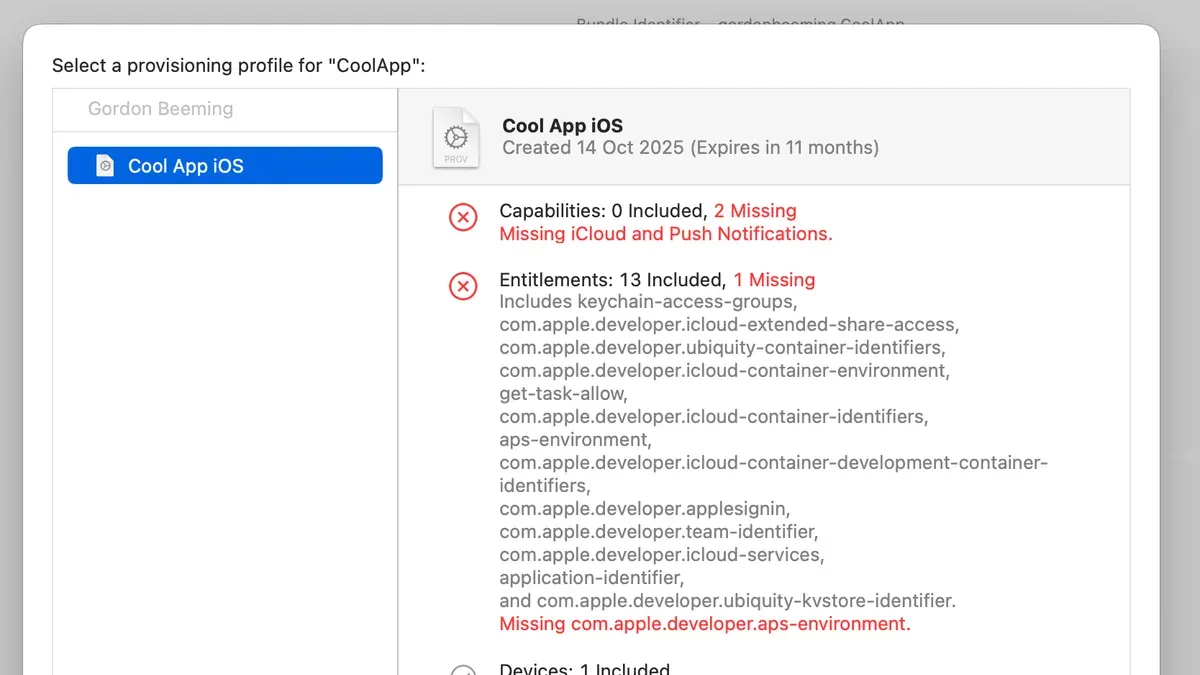
- Understand Entitlements: Ensure your provisioning profile’s entitlements—like push notifications or App Groups—match those declared in your Xcode project. Discrepancies trigger signing errors. You can inspect entitlements by opening the
.mobileprovisionfile in a text editor or using command-line tools. - Use Command-Line Tools to Diagnose: Run
security cms -D -i ~/path/to/profile.mobileprovisionto decode the profile and verify settings. Useprofiles list(macOS only) to see installed profiles. These tools help reveal mismatches or expired profiles not obvious in Xcode. - Backup and Restore Profiles and Certificates: Export your provisioning profiles and certificates regularly by copying them from
~/Library/MobileDevice/Provisioning Profiles/and using Keychain Access to export certificates. This safeguards your setup against accidental deletion or machine changes.
You know manual profile management fixed your issue when Xcode successfully signs your app without errors, and your build or archive completes. If errors persist, double-check team selection, profile validity, and entitlement alignment. Manual management requires care but offers precision when automatic signing falls short.
Know When to Seek Professional Help
If you have carefully followed all troubleshooting steps but provisioning profile errors persist, it may indicate deeper issues beyond your control. Common signs include persistent errors related to your Apple Developer account, such as permission denials when accessing certificates or profiles, or organizational restrictions that you cannot modify. Incorrect handling of certificates or profiles can lead to app distribution blocks, which are difficult to recover from without expert intervention.
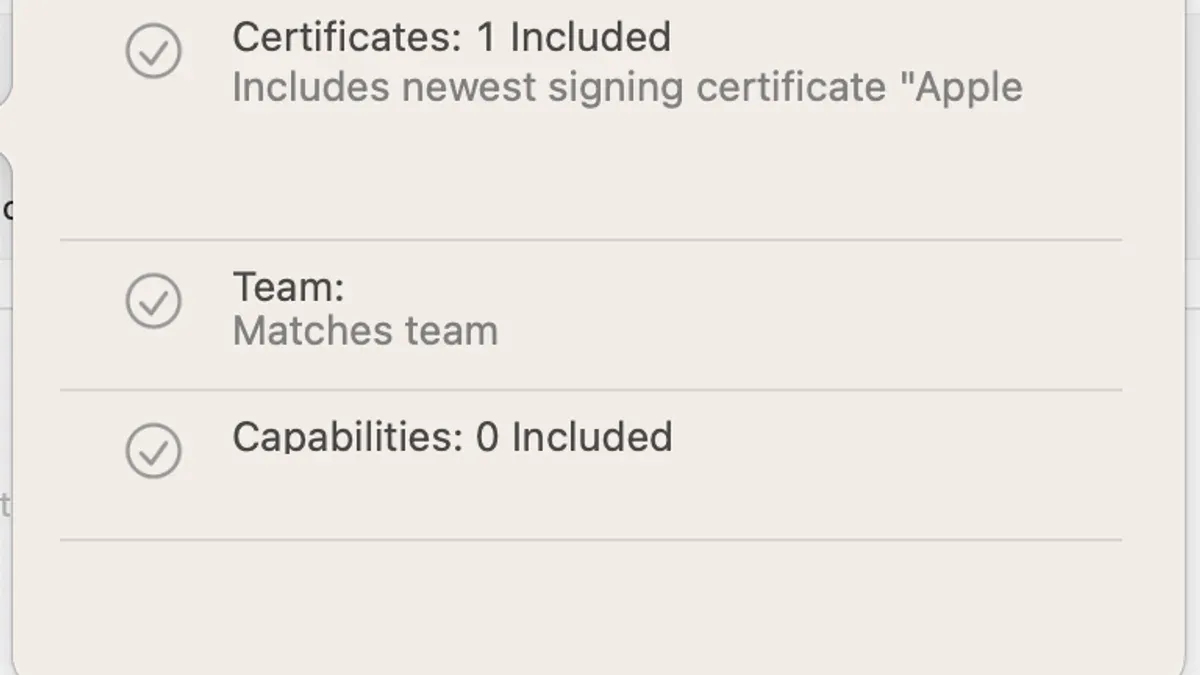
At this stage, seeking qualified support is the safest path. You can contact Apple Developer Technical Support through your developer account portal or find experienced iOS development consultants who specialize in code signing and provisioning. Many developers encounter support cases involving account permission conflicts or expired distribution certificates that require account-level fixes.
Before reaching out, prepare a detailed package of information to speed up resolution:
- Exact error messages and their timestamps from Xcode’s Issue Navigator.
- Your project’s signing & capabilities settings screenshots.
- Provisioning profile and certificate details from the Apple Developer portal.
- Relevant logs from Xcode’s Devices and Simulators window or Console app.
- Steps you have already tried to fix the problem.
Once professional help resolves the issue, you’ll see successful app builds and submissions without profile errors, confirming you’ve restored proper code signing and provisioning alignment.
Frequently asked questions
What is a provisioning profile and why does Xcode need it?
A provisioning profile links your Apple Developer certificate, your app ID, and authorized devices. Xcode needs it to verify that you have permission to install and run your app on a device or submit it to the App Store. Without a valid provisioning profile, Xcode cannot sign your app properly, leading to errors during build or deployment.
How can I check if my provisioning profile is expired or invalid?
You can check your provisioning profiles in Xcode under Preferences > Accounts > Manage Certificates or by visiting your Apple Developer account online. Look for expiration dates or warnings like “Invalid” or “Expired.” Also, expired profiles won’t appear as valid options when selecting a signing identity during project configuration.
What’s the difference between automatic and manual code signing in Xcode?
Automatic signing lets Xcode manage provisioning profiles and certificates for you, simplifying the process but offering less control. Manual signing requires you to create, download, and select provisioning profiles and certificates yourself, which is useful for complex setups or when precise control is needed. Choosing between them depends on your project needs and your comfort managing profiles directly.
Can I fix provisioning profile errors without an Apple Developer account?
Some errors can be addressed locally, like cleaning the build folder or resetting Xcode’s signing settings. However, creating or updating provisioning profiles and certificates always requires an active Apple Developer account. Without it, you cannot generate valid profiles needed to sign and run apps on physical devices or submit to the App Store.
What This Guide Does Not Cover
This guide does not cover enterprise or custom in-house provisioning profiles, which have additional complexities and require organizational permissions and specialized management. If you are working within a large organization with dedicated IT or DevOps teams, or using Apple Developer Enterprise Program features, you should consult your internal resources or Apple’s official documentation tailored to those environments. Additionally, this guide assumes you have access to your Apple Developer account and necessary permissions to create or modify provisioning profiles and certificates.
For those encountering issues related to team roles, automated CI/CD pipeline integrations, or advanced certificate revocation scenarios, seeking assistance from a professional with experience in Apple’s enterprise provisioning is advisable.
Your Next Step
Start by opening Xcode and navigating to Preferences > Accounts. Select your Apple ID, click Manage Certificates, and verify that your development and distribution certificates are valid and correctly installed. This step often reveals expired or missing certificates that cause provisioning profile errors. Fixing certificate issues here typically resolves many common provisioning problems without risking your project’s integrity.
See also: How to Clear DerivedData in Xcode: Step-by-Step Guide · How to Run an App on Your iPhone Using Xcode: Step-by-Step Guide