How to Clear DerivedData in Xcode: Step-by-Step Guide
This guide explains how to clear DerivedData in Xcode to resolve build errors, improve performance, and troubleshoot common issues.
When you build an app in Xcode, you might occasionally notice unexpected build errors or slow compilation times. These issues often stem from outdated or corrupted files stored in DerivedData, a folder where Xcode caches intermediate build information.
This article explains how to clear DerivedData in Xcode, guiding you through multiple methods including using the Organizer, Finder, and command line. You’ll also learn when it’s beneficial to clear DerivedData and how to troubleshoot common problems that can arise during this process.
Key takeaways
- DerivedData stores temporary build files that can cause issues if corrupted or outdated.
- You can delete DerivedData directly from Xcode’s Organizer or manually via Finder for more control.
- The command line offers a quick way to clear DerivedData, especially useful in scripts.
- Clearing DerivedData for specific Xcode versions helps avoid affecting projects built with others.
- Regularly clearing DerivedData can improve build reliability but may increase build time immediately after.
Before you start: What is DerivedData and why clear it?
DerivedData is a cache folder where Xcode stores build products, indexes, and intermediate files generated during the build and indexing processes. It helps speed up subsequent builds by reusing these temporary files. However, over time, this folder can grow significantly, sometimes reaching several hundred megabytes or even gigabytes, depending on your projects.
Clearing DerivedData can resolve common issues such as build failures caused by stale or corrupted cache files, unexpected behavior in the simulator, or indexing problems that prevent code completion and navigation from working correctly. For example, build errors related to conflicting symbols or missing resources often disappear after clearing DerivedData.
Importantly, deleting DerivedData only removes temporary files; it does not affect your source code, project settings, or version control. This makes clearing DerivedData a safe troubleshooting step and a way to free disk space when needed.
Typical DerivedData folder sizes vary, but after clearing, you might see the folder size drop from hundreds of megabytes to just a few megabytes, as Xcode rebuilds only essential files on the next build.
How to delete DerivedData in Xcode using the Organizer
- Open Xcode and go to the Window menu in the menu bar, then select Organizer. You should see the Organizer window appear.
- In the Organizer window, click the Projects tab. Here, a list of your recent projects will be displayed.
- Select the project whose DerivedData you want to clear from the list. On the right side, you will see details including the path to DerivedData and a Delete button.
- Click the Delete button next to the DerivedData path. This prompts Xcode to safely remove the DerivedData folder for that specific project.
- Wait a few moments. For a medium-sized project, clearing DerivedData usually completes within a few seconds to under a minute. Once done, the folder is cleared without affecting your project files.
This method is preferred because Xcode handles the exact DerivedData location internally, reducing the risk of deleting the wrong folder or encountering path errors. It also provides a clear overview of the projects and their DerivedData, making it easy to manage multiple projects from one place.
Using the Organizer is the safest and most straightforward way to clear DerivedData, especially if you want to avoid navigating hidden folders manually or using terminal commands.
How to clear DerivedData in Xcode manually from the Finder
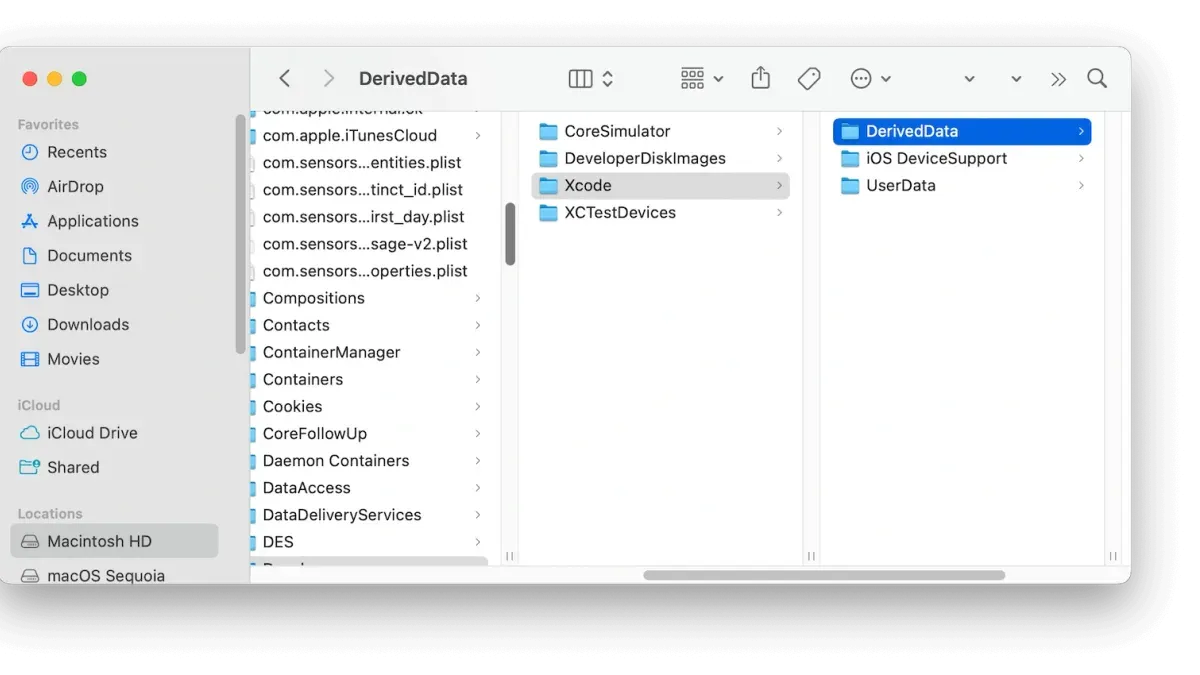
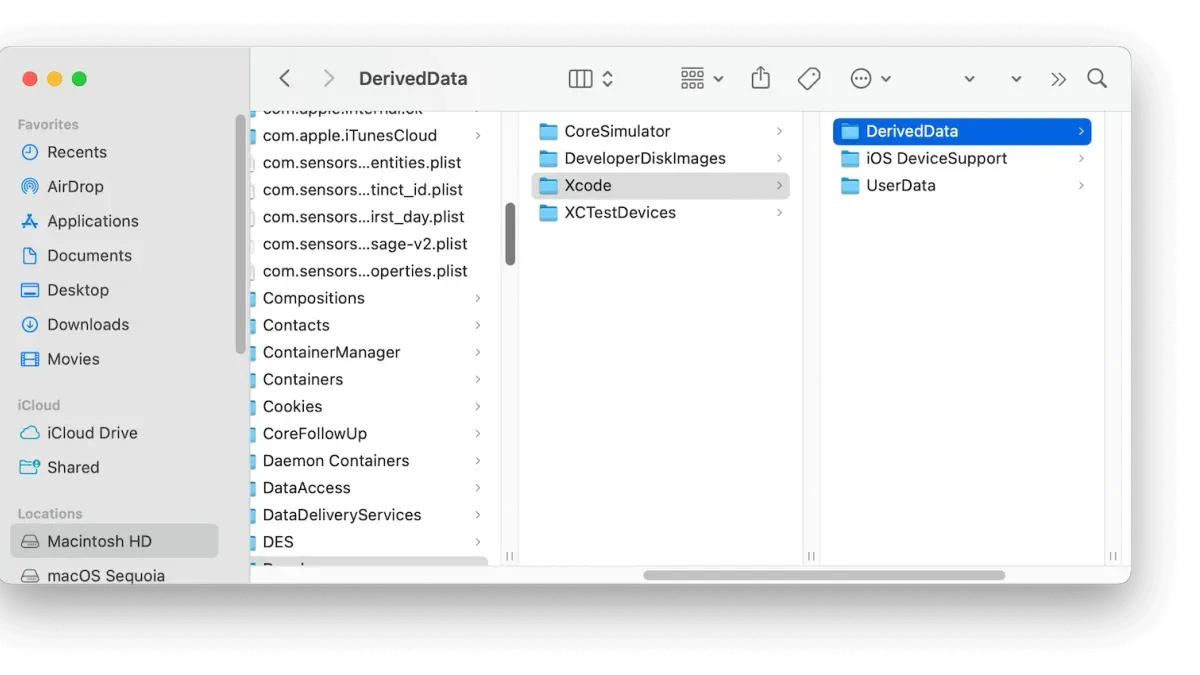
Sometimes you want more control over clearing DerivedData or need to remove multiple project caches at once. You can do this by locating the DerivedData folder directly in your filesystem and deleting its contents. This method requires caution because deleting the wrong folders can cause unexpected issues. Always close Xcode before proceeding to avoid conflicts with open files.
- Find the DerivedData location: Open Xcode, go to Preferences > Locations, and look for the path listed under Derived Data. This shows the folder where Xcode stores DerivedData.
- Open the DerivedData folder in Finder: By default, it is located at
~/Library/Developer/Xcode/DerivedData. You can open this quickly by pressing Command+Shift+G in Finder and entering that path. - Delete the entire DerivedData folder or specific project folders: To clear all cached data, delete the entire DerivedData folder by moving it to Trash. To target a single project, find the folder with the project’s name or identifier and delete only that.
- Confirm deletion and free disk space: Empty your Trash to reclaim disk space. Depending on your projects, DerivedData can consume significant storage.
- Optional Terminal command: You can also open the DerivedData folder using Terminal by running
open ~/Library/Developer/Xcode/DerivedData. This opens the folder in Finder for manual management.
Manual deletion offers precise control but requires care to avoid removing important files. Closing Xcode first ensures that no files are in use during deletion, preventing errors or incomplete cleanups.
How to clear DerivedData in Xcode using the command line
If you prefer a quick, terminal-based approach or want to automate the cleanup of DerivedData, the command line offers powerful options. It's crucial to use these commands carefully, as deleting the wrong files can cause data loss.
- Open Terminal on your Mac. You should start by verifying the path to your DerivedData folder, usually located at ~/Library/Developer/Xcode/DerivedData. Run ls ~/Library/Developer/Xcode/DerivedData to see existing directories; this confirms you’re targeting the right location.
- To delete all DerivedData, enter rm -rf ~/Library/Developer/Xcode/DerivedData/*. This command forcefully removes all subfolders inside DerivedData. After running it, check your disk space with df -h or observe faster build times when you next build your project.
- To delete DerivedData for a specific project, identify the folder name from the previous ls output (it typically starts with your project name). Then run rm -rf ~/Library/Developer/Xcode/DerivedData/YourProjectName-*, replacing YourProjectName with the exact prefix. This avoids removing unrelated data.
- For repeated use, consider creating a shell script or alias that runs these commands safely, prompting you before deletion. This helps maintain control while saving time.
- Always double-check the commands and paths before executing them. Mistyping rm -rf can delete critical files irreversibly.
Example terminal output after deleting all DerivedData might show the prompt returning quickly, and subsequent builds completing faster due to a clean build environment. Disk space freed can be verified using df -h, reflecting the cleared cache size.
How to clear DerivedData in Xcode for specific versions like Xcode 16 or 26
The fundamental approaches to clearing DerivedData remain consistent across recent Xcode versions, including Xcode 16 and 26. Whether you use the Organizer, Finder, or command line, the core locations and methods have not drastically changed. However, subtle UI updates and path adjustments may appear in newer releases.
For example, Xcode 26 introduced a slightly refined Organizer interface where the DerivedData management is more streamlined, but you will still find the option under the same "Projects" tab. The DerivedData folder path remains within your user Library under ~/Library/Developer/Xcode/DerivedData, unchanged over these versions.
Here is a quick comparison table of DerivedData folder locations and UI notes:
| Xcode Version | DerivedData Location | UI Notes |
|---|---|---|
| Xcode 16 | ~/Library/Developer/Xcode/DerivedData | Organizer "Projects" tab accessible via Window menu |
| Xcode 26 | ~/Library/Developer/Xcode/DerivedData | Organizer "Projects" tab has updated layout, same menu path |
To clear DerivedData effectively for these versions:
- Open Xcode and go to the Window menu, then select Organizer.
- Click the Projects tab and select your project; you should see the DerivedData folder listed with a Delete button.
- Click Delete to clear the DerivedData for that project; confirmation ensures the cache is removed.
- If you prefer manual deletion, open Finder and navigate to ~/Library/Developer/Xcode/DerivedData; delete the folders related to your projects.
- For command line, use
rm -rf ~/Library/Developer/Xcode/DerivedData/*cautiously to clear all DerivedData.
Always review the official Xcode release notes for any version-specific changes or quirks related to DerivedData management. The concept and impact of clearing DerivedData remain stable, so these methods apply confidently across recent Xcode releases.
Troubleshooting common issues when clearing DerivedData
After clearing DerivedData, you might notice that Xcode rebuilds take significantly longer. This happens because Xcode must re-index and recompile all files from scratch. Typically, the first build after clearing DerivedData can take several minutes longer, but subsequent builds should return to normal speeds. If build times remain slow, consider cleaning the build folder by selecting Product > Clean Build Folder in Xcode.
If you encounter permission errors when deleting DerivedData folders, such as "Operation not permitted" or "Permission denied," it often means your user account lacks the necessary rights. To fix this, check the folder's permissions by right-clicking the DerivedData folder in Finder, selecting Get Info, and adjusting the permissions under Sharing & Permissions. Alternatively, running the delete command in Terminal with sudo may be necessary, but use this cautiously.
When Xcode is unresponsive or crashes while clearing DerivedData, try quitting Xcode completely before deleting the folders. If Xcode won’t close normally, use Force Quit from the Apple menu or Activity Monitor. Afterward, delete DerivedData manually or via Terminal, then relaunch Xcode.
Avoid clearing DerivedData during critical debugging sessions, as it removes cached symbol and indexing data that can slow down debugging or cause breakpoints to behave unexpectedly. Only clear DerivedData when you have a clear need, such as persistent build errors or disk space concerns.
Frequently asked questions
How to delete derived data in xcode?
To delete DerivedData in Xcode, open Xcode and go to the menu bar. Select Window > Organizer, then click the Projects tab. Find the project whose DerivedData you want to delete, hover over it, and click the Delete button next to Derived Data. Confirm the deletion to clear the cached build files for that project.
How to clear derived data in xcode?
Clearing DerivedData can be done manually or through Xcode’s interface. You can navigate to the DerivedData folder located at ~/Library/Developer/Xcode/DerivedData/ in Finder and delete the folders inside. Alternatively, use the Organizer in Xcode under the Projects tab to remove DerivedData for specific projects, which is safer if you want to avoid deleting all DerivedData.
How to clear derived data in xcode 16?
In Xcode 16, clearing DerivedData remains straightforward. Open Xcode, go to Window > Organizer, then select the Projects tab. Click the Delete button next to the DerivedData section for the desired project. This method ensures you only clear data related to that project without affecting others.
How to clear derived data in xcode 26?
For newer Xcode versions like Xcode 26, the steps to clear DerivedData are consistent with earlier versions. Use the Organizer via Window > Organizer, then Projects tab to delete DerivedData for individual projects. You can also manually delete the folder located in ~/Library/Developer/Xcode/DerivedData/ if you prefer command line or Finder methods.
How to remove derived data in xcode?
You can remove DerivedData through Xcode’s Organizer by selecting Window > Organizer > Projects and deleting the DerivedData for the project. Alternatively, removing the DerivedData folder manually from ~/Library/Developer/Xcode/DerivedData/ deletes all cached build data. Keep in mind that removing DerivedData will force Xcode to rebuild your projects from scratch, which can temporarily increase build times.
What Clearing DerivedData Does Not Cover and When to Take Other Steps
Clearing DerivedData can resolve numerous build inconsistencies and free up disk space, but it does not address all Xcode or project-related issues. Some problems may require you to clean the build folder via Product > Clean Build Folder or to reset simulators through the Devices and Simulators window. Be mindful that clearing DerivedData frequently leads to longer build times initially, as Xcode has to regenerate caches and indexes.

If your project uses complex dependencies or custom build scripts, or if you encounter persistent errors after clearing DerivedData and cleaning the build folder, consider checking your project configuration or consulting specialized debugging resources tailored to your setup.
Next Step: Use the Clean Build Folder Option
After clearing DerivedData, a practical next step is to perform a clean build folder operation. You can do this by selecting Product > Clean Build Folder from Xcode’s menu bar or pressing Shift + Command + K. This step removes all build products and intermediates, ensuring that the next build starts fresh, which often solves lingering compilation or linking errors that clearing DerivedData alone might not fix.
See also: How to Install Xcode Without Using the App Store: Step-by-Step Guide