How to Fix Outlook Not Syncing on Mac: Step-by-Step Solutions
Learn simple, effective steps to fix Outlook not syncing on Mac and restore smooth email and calendar synchronization.
You open Outlook on your Mac, expecting your latest emails and calendar events to be right where you left them. Instead, some messages are missing, or the app seems stuck trying to sync. If you’re wondering how to fix Outlook not syncing on Mac, you’re not alone, and this guide will walk you through straightforward steps to diagnose and solve common syncing issues.
This article covers what you need to check both inside Outlook and within your Mac system settings. It explains common syncing misconceptions and patiently builds your understanding, so you can confidently restore smooth synchronization without getting lost in technical jargon.
Key takeaways
- Verify your Outlook account status under Tools > Accounts to ensure it's active and connected.
- Check Mac system preferences like Network and Date & Time for correct settings that impact syncing.
- Clear Outlook cache via Outlook > Preferences > Accounts > Advanced to resolve corrupted temporary data.
- Rebuild your Outlook profile if syncing errors persist after other steps.
- Address specific error messages by matching them to targeted troubleshooting actions provided in this guide.
Before You Start: What You Need to Fix Outlook Syncing
Before diving into fixing Outlook syncing issues on your Mac, it's important to prepare properly. First, confirm your Mac is connected to a stable internet network. Without a reliable connection, syncing cannot work correctly, and troubleshooting will be ineffective.
Next, know your Outlook account type. Common types include Exchange, IMAP, and POP. Exchange accounts sync emails, calendars, and contacts seamlessly, while IMAP syncs emails but may handle folders differently. POP accounts download emails without syncing changes back to the server, often causing confusion about syncing behavior.
Ensure your Outlook app and macOS are updated to the latest versions. At the time of writing, Outlook for Mac updates are available through Microsoft AutoUpdate, typically version 16.70 or newer, and macOS should be on the latest supported release via System Preferences > Software Update. Updates often fix bugs that affect syncing.
Have your account credentials ready because some steps may require you to re-enter your password or authenticate again. Finally, understand that short sync delays can happen due to server load or network speed; not all delays indicate a problem.
- Check your Mac’s internet connection by opening a website in Safari. If the page loads, your connection works.
- Identify your Outlook account type by going to Outlook > Preferences > Accounts. Look for labels like Exchange, IMAP, or POP next to your account name.
- Update Outlook by opening Microsoft AutoUpdate from the Help menu in Outlook and installing any available updates. You should see a confirmation that Outlook is up to date.
- Update macOS by clicking the Apple menu > System Preferences > Software Update. If an update is available, follow the prompts to install it and confirm your macOS is current.
- Locate and keep your email password and any two-factor authentication methods handy for re-authentication during the troubleshooting process.
Check Outlook Sync Settings and Account Status
To ensure Outlook syncs correctly, start by reviewing your account settings within Outlook Preferences. Open Outlook, then go to the menu and select Outlook > Preferences > Accounts. Here, check for any visible error messages or warning icons next to your accounts, which often indicate issues affecting syncing.
Next, verify that syncing is enabled for the data types you need. Within each account's settings, look for checkboxes related to Mail, Calendar, and Contacts. Make sure these are selected so Outlook can sync these items. If any are unchecked, syncing for that data will not occur.
If you use an Exchange account, check whether Cached Exchange Mode is enabled. This setting improves performance by storing data locally but may delay real-time sync. You can find this option under the account's advanced settings. Enabling it helps offline access, but if you're troubleshooting sync, temporarily disabling it can reveal if it’s causing delays.
To test syncing immediately, manually trigger a send/receive by selecting Tools > Send/Receive or pressing Command + K. A successful sync shows recent emails or calendar updates appearing and no error messages. If syncing fails, an error message or a sync status window will indicate where the problem lies.
Finally, confirm Outlook is not set to offline mode. In the main Outlook window, check the status bar for a Working Offline indicator. If enabled, toggle it off via File > Work Offline. Being offline prevents syncing entirely, so this step is often overlooked but critical.
Resolve Common Mac System Settings Affecting Outlook Sync
- Open System Preferences and go to Date & Time. Ensure Set date and time automatically is checked. An incorrect system clock can cause Outlook to reject syncing requests due to mismatched timestamps.
- Navigate to Battery (or Energy Saver on some Macs) and verify that Low Power Mode is turned off. When enabled, this mode limits background activity, which can delay or prevent Outlook from syncing emails and calendar updates.
- Check your Network settings for any active VPNs or proxies by opening System Preferences and selecting Network. Disable any VPN or proxy temporarily to see if Outlook syncing improves since these can block or slow down secure connections required by Outlook.
- Go to System Preferences > Security & Privacy > Privacy. Select Full Disk Access and confirm that Outlook is listed and checked. Without this permission, Outlook may be restricted from accessing necessary files for syncing.
- Restart your Mac to clear temporary system glitches affecting network connections or app performance. After reboot, retry syncing in Outlook to see if the issue is resolved.
Fix Outlook Search Not Working on Mac
If Outlook search results are incomplete or missing emails, the issue is often related to a corrupted search index. Rebuilding Outlook’s database repairs these indexes and can restore accurate search functionality. Before rebuilding, you might notice that searches return fewer or no results, even though you know emails exist.
- Close Outlook completely to prevent conflicts during rebuilding.
- Open the Microsoft Database Utility by holding the Option key and clicking the Outlook icon in the Dock.
- Select your Outlook identity and click Rebuild. You should see a progress bar indicating the database repair.
- When finished, reopen Outlook and test searching for emails you previously couldn’t find. Improved results indicate success.
- Next, open System Preferences and go to Spotlight > Privacy. Add Outlook to the list to stop indexing, then remove it immediately to trigger reindexing.
- Wait a few minutes, then perform searches again to confirm better coverage.
- Finally, check for Outlook updates via the Help > Check for Updates menu and install any available fixes addressing search bugs.
- After each step, test the search feature to see if results improve, ensuring you identify the action that resolved the problem.
Rebuilding the database refreshes Outlook’s internal catalog, which often fixes sluggish or inaccurate search results. Spotlight reindexing ensures the Mac’s system-wide search includes all Outlook data. Applying updates addresses software bugs that may degrade search performance. Together, these steps help restore reliable Outlook search on your Mac.
Clear Cache and Rebuild Outlook Profile to Fix Sync Issues
If you have tried adjusting settings but Outlook still isn’t syncing properly, clearing the app’s cache and rebuilding your profile can help. Outlook stores temporary files in a cache that can become corrupted, slowing sync or causing failures. Clearing this cache safely removes these files and often improves sync responsiveness.
After clearing the cache, you may also need to create a new Outlook profile. This process resets your account configuration, which can resolve deeper syncing conflicts. However, before proceeding, back up any important local data such as archived emails or custom rules to avoid accidental loss.
- Quit Outlook completely and open Finder.
- Navigate to ~/Library/Group Containers/UBF8T346G9.Office/Outlook/Outlook 15 Profiles/Main Profile/Data/ to find the cache folder.
- Move the contents of the Data folder to the Trash. This clears corrupted cache files. When you reopen Outlook, syncing should be faster as the cache rebuilds.
- If issues persist, open Outlook and go to Tools > Accounts. Note your account details, then quit Outlook.
- Open Finder and navigate to ~/Library/Group Containers/UBF8T346G9.Office/Outlook/. Rename the Outlook 15 Profiles folder to something like Outlook 15 Profiles Backup.
- Reopen Outlook; it will create a new profile. Add your email accounts again in Tools > Accounts.
- Verify your inbox and folders start syncing correctly. Sync speed should improve compared to before clearing the cache.
This profile rebuild should be considered a last resort after simpler fixes fail. It resets many settings, so back up data first and expect to reconfigure some preferences and accounts. Many users find this step resolves stubborn syncing failures when other adjustments do not.
Troubleshoot Specific Syncing Failures and Error Messages
When Outlook is not syncing properly on your Mac, specific error messages often point to the root cause. Common errors include authentication failures like "Incorrect password" or "Unable to verify credentials," server timeouts that say "Connection timed out," and sync conflicts labeled "Item conflicts detected." Understanding these messages helps you take targeted action.
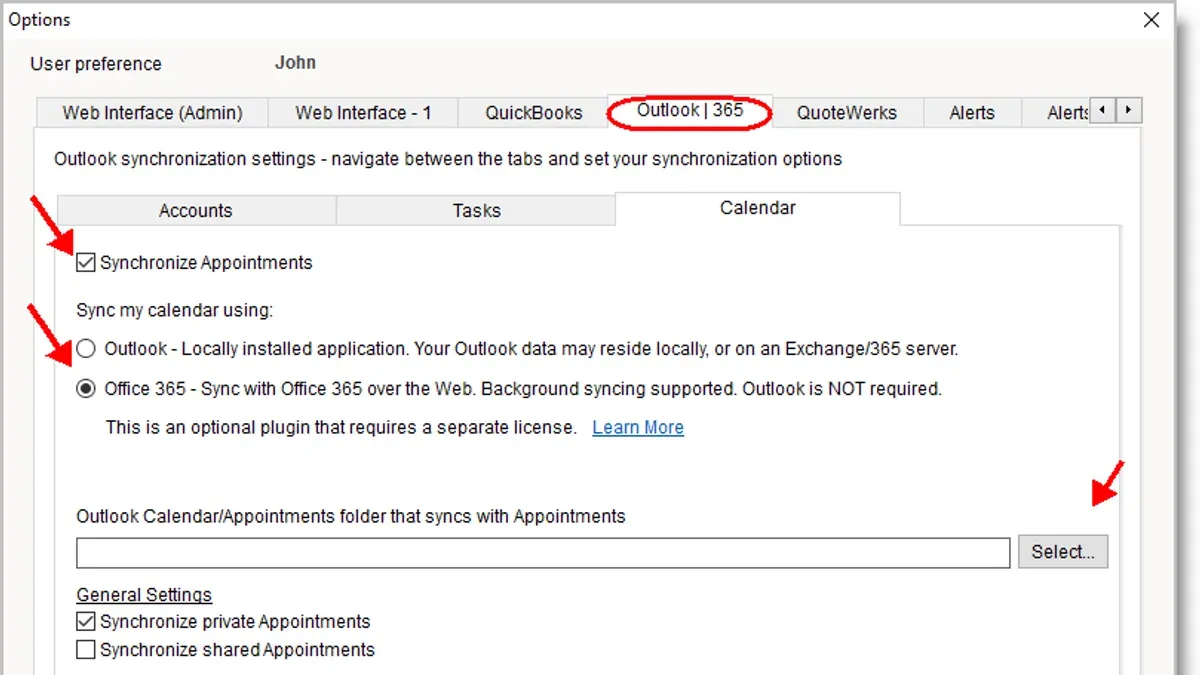
To resolve authentication issues, try resetting your account password through your email provider’s website. If your account uses two-factor authentication, generate and use an app-specific password in Outlook’s account settings. Successful authentication means Outlook connects without error prompts.
Calendar syncing problems often arise from delegate permission settings or calendar subscriptions. Check Outlook’s Calendar Permissions under the Tools > Accounts > Delegates tab to ensure you have appropriate access. Also, verify that subscribed calendars are active and syncing.
Sync conflicts sometimes occur when multiple devices update the same account simultaneously. To avoid this, ensure all devices use the latest Outlook version and consider temporarily disabling sync on other devices while troubleshooting.
- Identify the exact error message displayed during sync attempts.
- For authentication errors, reset your email password on the provider’s site and update Outlook credentials; you should then see a successful sync confirmation.
- If two-factor authentication is enabled, generate an app-specific password and enter it in Outlook’s account settings; Outlook should sync without credential errors afterward.
- Check calendar delegate permissions and confirm calendar subscriptions are active; resolving permission issues will restore calendar syncing.
- Reduce syncing conflicts by updating Outlook on all devices and pausing sync on other devices temporarily; syncing should proceed without conflict warnings.
- If errors persist after these steps, contact your IT support or Microsoft support for further assistance.
Frequently asked questions
How to fix outlook not syncing?
Start by checking your internet connection and ensuring Outlook is online. Then verify your account settings under Tools > Accounts to confirm the server details are correct. If syncing still fails, clear the cache and consider rebuilding your Outlook profile as these steps often resolve hidden issues.
Why won't outlook mail in mac sync?
Outlook mail on Mac may not sync due to incorrect account credentials, outdated app versions, or system settings like disabled Background App Refresh. Also, ensure that your Mac's date and time are set automatically, as discrepancies can block syncing.
How to fix outlook app not syncing?
Check that the Outlook app has the necessary permissions in Mac System Preferences under Security & Privacy, especially Full Disk Access. Update Outlook to the latest version via the Microsoft AutoUpdate tool, then restart the app to refresh connections.
How to fix outlook search not working on mac?
Rebuild the Spotlight index because Outlook search relies on it; go to System Preferences > Spotlight > Privacy, add your Outlook folder, then remove it to trigger reindexing. Also, clear Outlook’s cache and ensure the app is updated to improve search functionality.
Why is my mac outlook not syncing?
Your Mac Outlook might not sync due to conflicts between Outlook settings and Mac system preferences like Low Power Mode being enabled, which restricts background activity. Double-check account status in Outlook and disable any power-saving modes to allow uninterrupted syncing.
What This Advice Does Not Cover
This article does not cover issues caused by server-side outages or account suspensions, which require intervention from your email service provider. If you encounter persistent syncing problems due to Exchange server configurations or use specialized third-party add-ins, you might need support tailored to those setups. Additionally, some syncing delays stem from network latency or high server load, which may resolve on their own without further action on your part.
The single most useful next step is to verify your internet connection and ensure that Outlook has the necessary permissions under System Preferences > Security & Privacy > Privacy > Full Disk Access and Calendars. Missing these permissions is a common reason syncing fails silently. Once granted, restart Outlook and check if syncing improves, as this often resolves subtle permission-related blocks quickly and effectively.
See also: How to Set Out of Office in Outlook on Mac: Step-by-Step Guide · How to Add a Shared Mailbox in Outlook on Mac: Step-by-Step Guide · How to Switch Back to Legacy Outlook in Outlook on Mac: Step-by-Step