
How to Force Quit on MacBook Pro M1 Pro in macOS
This guide teaches how to force quit unresponsive apps on MacBook Pro M1 Pro in macOS safely and effectively.
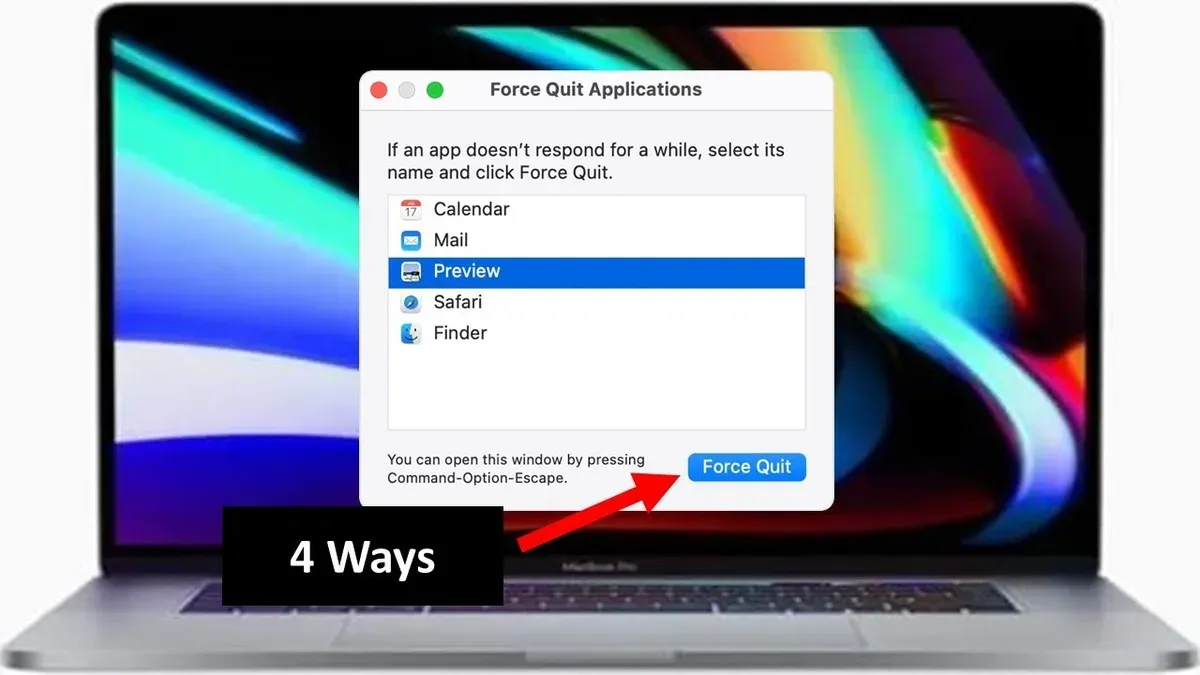
When an app becomes unresponsive on your MacBook Pro M1 Pro, knowing how to force quit safely is essential. This guide explains the process with attention to the M1 Pro chip and macOS 2026 updates to minimize risks and resolve stubborn app freezes.
Understanding Why Apps Freeze on MacBook Pro M1 Pro
App freezes on M1 Pro Macs often result from hardware and software interactions specific to Apple Silicon. Unlike Intel-based Macs, the M1 Pro chip requires apps to be optimized for its architecture. Apps running under Rosetta 2 translation or lacking optimization may hang.
- App compatibility: Older apps or those not updated for Apple Silicon run via Rosetta 2, which can increase freeze risks due to translation overhead.
- macOS 2026 resource management: The system prioritizes power efficiency, sometimes reallocating CPU or memory resources in ways that temporarily reduce app responsiveness.
- Background processes and updates: System tasks like updates or indexing can consume resources, affecting app stability during intensive operations.
macOS 2026 enhances resource handling, but graphic-intensive or legacy apps may still freeze. Recognizing these factors helps determine when force quitting is appropriate.
Multiple Ways to Force Quit on MacBook Pro M1 Pro
Several effective methods exist to force quit unresponsive apps on M1 Pro Macs. Choose based on your situation and preference.
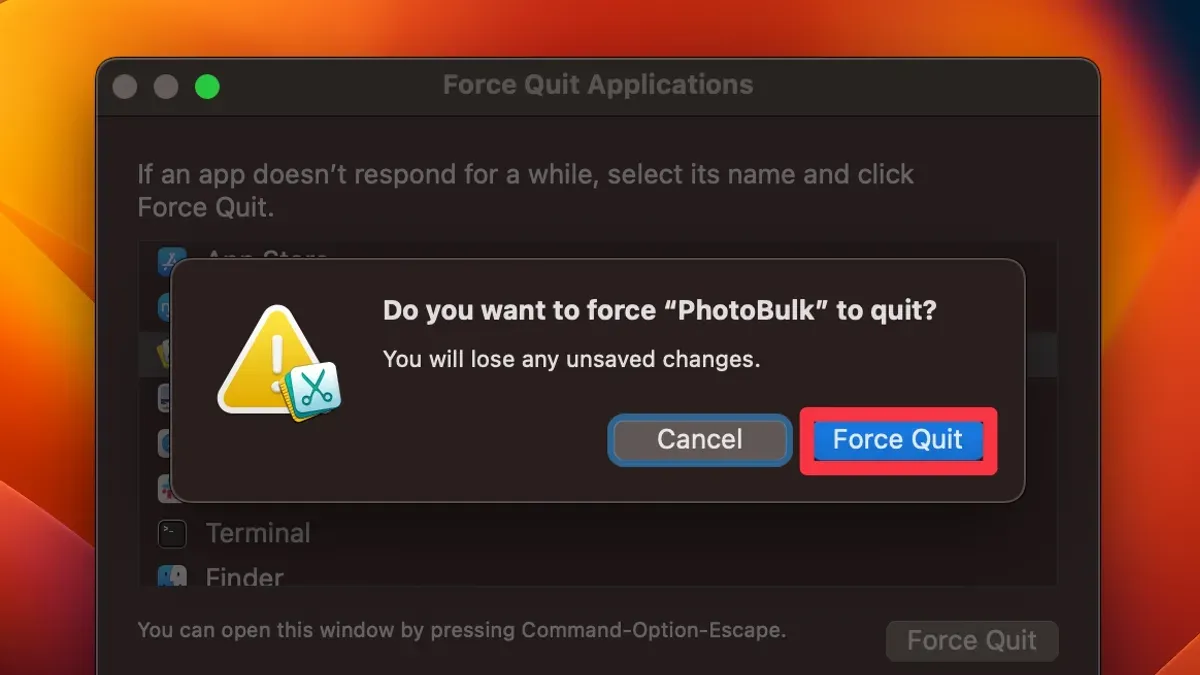
Using the Force Quit Applications Window
- Press Command (⌘) + Option (⌥) + Escape (Esc) simultaneously.
- The "Force Quit Applications" window appears, listing open apps.
- Select the unresponsive app.
- Click "Force Quit." Confirm if prompted.
This is the quickest standard method. Note that sometimes the window may not list background processes, so if the app is unlisted, try Activity Monitor.
Force Quitting via the Dock Icon
- Locate the app icon in the Dock.
- Right-click (or Control-click) the icon.
- Hold the Option (⌥) key; "Quit" changes to "Force Quit."
- Click "Force Quit."
This method works well when the app icon is visible. However, if the app is frozen and the Dock icon is unresponsive, use other methods.
Using Activity Monitor to Quit Processes
- Open "Activity Monitor" from Applications > Utilities.
- In the CPU or Memory tab, locate the problematic app or process. Sometimes apps spawn multiple processes; identify the one using excessive resources.
- Select the process and click the stop icon (a hexagon with an "X") in the toolbar.
- Choose "Force Quit." Confirm if prompted.
Activity Monitor provides detailed resource usage and is useful when apps have multiple subprocesses or when the Force Quit window doesn't list the app.
Terminal Commands for M1 Pro Architecture
Advanced users can use Terminal for precise process control. The M1 Pro uses the standard UNIX process model, so macOS commands apply.
To list processes by name:
ps aux | grep AppNameTo force quit by process ID (PID):
kill -9 PIDOr kill all instances by name:
killall AppNameReplace AppName with the exact process name as shown in Activity Monitor or ps. Use kill -9 only if gentler signals (kill PID) fail, as it forces immediate termination without cleanup.
When Force Quit Isn’t Enough: Advanced Troubleshooting for Persistent App Freezes
If force quitting fails or apps freeze repeatedly, try these steps to isolate issues.
Using Safe Mode on M1 Pro MacBook Pro
- Shut down the Mac.
- Press and hold the power button until "Loading startup options" appears.
- Select your startup disk while holding the Shift key.
- Click "Continue in Safe Mode." This disables third-party extensions and login items.
Safe Mode helps determine if third-party software causes freezes by loading only essential system components.
Performing a System Restart to Clear Temporary States
Unlike Intel Macs, Apple Silicon Macs don’t have a traditional NVRAM or SMC reset. Instead, a full shutdown and restart clears temporary system states:
- Shut down your Mac from the Apple menu.
- Wait at least 30 seconds before powering it back on.
This can resolve transient issues without affecting user data.
Checking for Compatibility Patches or App Updates
Ensure apps are updated for macOS 2026 and Apple Silicon. Developers often release patches improving stability and fixing bugs that cause freezes. Check the Mac App Store or developer websites regularly.
Backing Up Unsaved Work
Before force quitting or restarting, save any unsaved work if possible. If the app is frozen but responsive enough to copy text or export data, do so immediately to prevent data loss.
Preventing App Freezes: Best Practices for MacBook Pro M1 Pro Users
Minimizing app freezes improves productivity and reduces force quit needs.
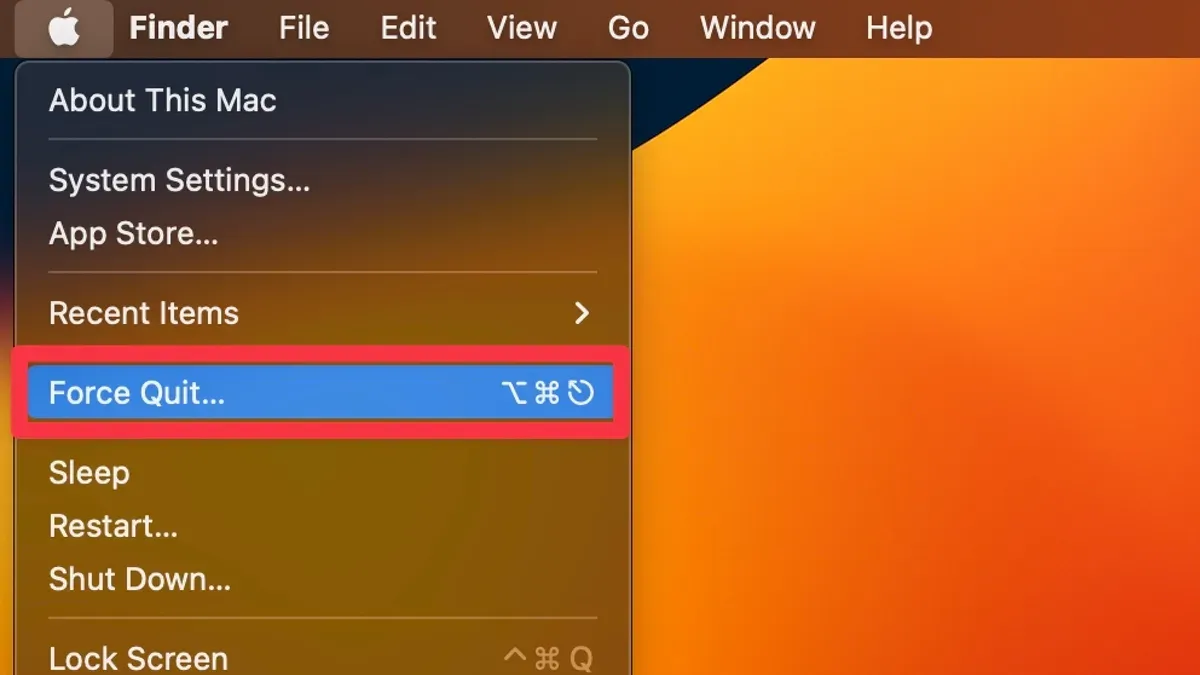
- Keep macOS and apps updated: Updates often include optimizations for the M1 Pro chip and fix known bugs.
- Monitor system resources: Use Activity Monitor to track CPU, memory, and disk usage. Identify resource-heavy apps early.
- Avoid running incompatible Intel-only apps without Rosetta 2: Some Intel apps may cause instability if relying on outdated frameworks.
- Manage startup items and background processes: Disable unnecessary login items to free resources.
These practices reduce freeze frequency and improve system responsiveness.
Limitations and When to Seek Professional Support
This article covers software-based force quit methods and troubleshooting on the MacBook Pro M1 Pro. It does not address hardware defects or force quitting system-critical processes, which can damage macOS. For persistent issues beyond these steps, contact Apple Support or visit an authorized service provider.
Frequently Asked Questions
Can force quitting apps on MacBook Pro M1 Pro cause data loss?
Force quitting immediately terminates an app without saving changes. Unsaved data may be lost, so save work beforehand whenever possible.
How is force quitting different on M1 Pro Macs compared to Intel Macs?
The basic methods are the same, but M1 Pro Macs require attention to app compatibility with Apple Silicon. Some processes may behave differently due to architecture and translation layers like Rosetta 2.
What keyboard shortcut immediately force quits an app on MacBook Pro M1 Pro?
Pressing Command (⌘) + Option (⌥) + Escape (Esc) opens the Force Quit Applications window for manual selection.
Is it safe to use Terminal commands to force quit apps on macOS 2026?
Yes, if used carefully. Avoid killing system-critical processes. Use commands like kill or killall only for known user applications.



