Fix MacBook Pro M1 Pro AirDrop Not Working: A Clear Step-by-Step Guide
Learn how to fix MacBook Pro M1 Pro AirDrop not working with easy troubleshooting steps to restore fast, reliable file sharing.
You’re trying to send files using AirDrop, but your MacBook Pro M1 Pro just won’t connect to nearby devices. This common frustration can interrupt your workflow and leave you wondering what’s going wrong.
This guide addresses the specific challenges of MacBook Pro M1 Pro AirDrop not working by explaining the technology behind AirDrop on your device and walking you through targeted troubleshooting steps. You’ll learn how to check and adjust your network, Bluetooth, privacy, and firewall settings, restart essential system components safely, and avoid common pitfalls that often go unnoticed. By following this clear, step-by-step approach, you’ll gain confidence in diagnosing and fixing AirDrop issues unique to your M1 Pro MacBook.
Key takeaways
- AirDrop relies on both Bluetooth and Wi-Fi; both must be enabled and properly configured.
- macOS privacy settings can block AirDrop if permissions are misconfigured.
- Restarting Bluetooth and network services often resolves temporary glitches without data loss.
- Firewall settings need to allow incoming connections for AirDrop to function correctly.
- Alternative file sharing methods are useful backups when AirDrop is unavailable.
Understand What AirDrop Is and Why It Matters on Your M1 Pro
AirDrop is a peer-to-peer wireless file sharing feature built into macOS that uses both Bluetooth and Wi-Fi to transfer photos, documents, and other files between Apple devices quickly and securely. On your MacBook Pro M1 Pro, AirDrop takes advantage of the advanced hardware and optimized wireless technologies to deliver faster transfer speeds compared to older Intel-based Macs. This speed boost means you can share large files, like high-resolution videos or design projects, in seconds rather than minutes, streamlining your workflow.
For users who rely on seamless collaboration, AirDrop's convenience removes the need for USB drives or complicated network setups. Imagine you're in a meeting and need to instantly send a presentation file to a colleague’s nearby MacBook. With AirDrop, the transfer happens almost instantly without interrupting the flow of your work.
However, when AirDrop malfunctions, it can cause significant frustration and slow down productivity. Interruptions during file sharing can delay projects and force you to resort to less efficient methods. Understanding why AirDrop is critical on your M1 Pro helps you appreciate the value of resolving any connectivity issues promptly and thoroughly.
How AirDrop Works on MacBook Pro M1 Pro: Key Technologies and Settings
AirDrop relies primarily on Bluetooth and Wi-Fi to create a seamless peer-to-peer connection between your MacBook Pro M1 Pro and other Apple devices. Bluetooth is responsible for discovering nearby devices and establishing an initial handshake, while Wi-Fi handles the actual data transfer, often using a direct Wi-Fi connection rather than your home network. This dual-technology approach ensures efficient and secure file sharing.
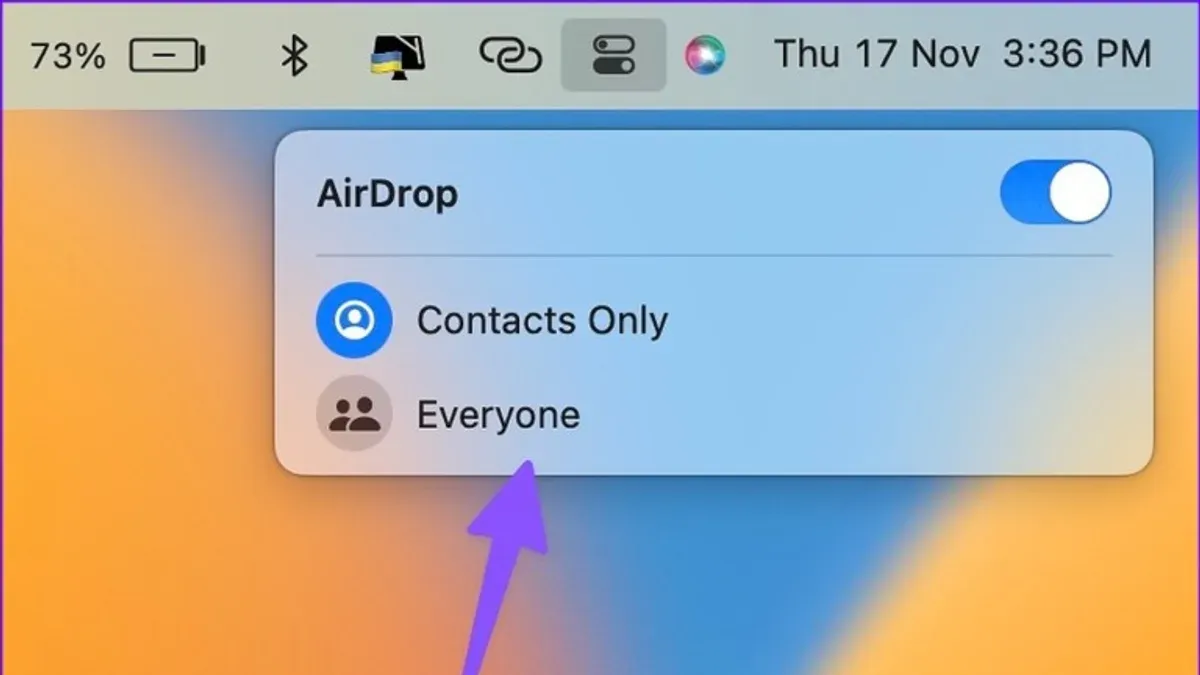
macOS controls AirDrop visibility through the “Allow me to be discovered by” setting found in Finder's AirDrop window or System Settings under Network & Internet > AirDrop. You can choose between “Contacts Only,” “Everyone,” or “No One,” which impacts how your device appears to others. For instance, if set to “Contacts Only,” AirDrop will only show your Mac to devices linked to your Apple ID, which can cause connection issues if contacts are missing or not properly synced.
To check the status of Bluetooth and Wi-Fi on your M1 Pro, use the Terminal commands system_profiler SPBluetoothDataType and networksetup -getairportpower en0. The former lists Bluetooth details including power state and connected devices, and the latter returns whether Wi-Fi is on or off. A common oversight is having Wi-Fi physically enabled but Bluetooth turned off, which prevents AirDrop from initiating device discovery.
For example, if you see Bluetooth powered: No in the Terminal output, AirDrop won’t detect nearby devices even if Wi-Fi is active. Adjusting these settings through System Settings > Bluetooth and Network can restore functionality. Understanding this interplay helps you target the root cause rather than relying on guesswork when AirDrop isn't working as expected.
Check and Adjust Your MacBook’s Network and Bluetooth Settings
To get AirDrop working smoothly on your MacBook Pro M1 Pro, start by making sure both Bluetooth and Wi-Fi are enabled and functioning correctly. Go to the macOS menu bar and click the Bluetooth icon; confirm it says "Bluetooth: On." Similarly, click the Wi-Fi icon to ensure you are connected to a network or at least that Wi-Fi is active. AirDrop uses Bluetooth for device discovery and Wi-Fi for file transfer, so both must be active.
If AirDrop still fails, reset the Bluetooth module safely using Terminal. Open Terminal and enter sudo pkill bluetoothd. This command restarts the Bluetooth daemon without rebooting your Mac, which can resolve hidden issues. After running this, check if AirDrop visibility improves. For example, a user who couldn’t see nearby devices found their Mac visible again after this reset.
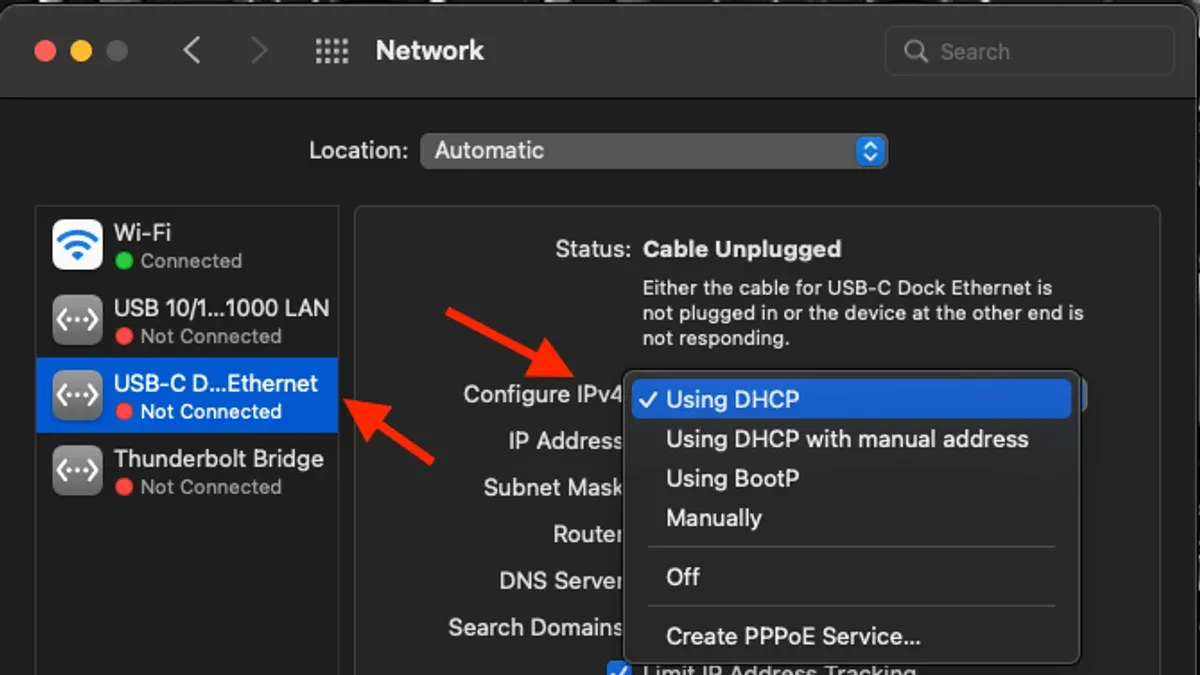
Next, reset Wi-Fi interfaces by turning Wi-Fi off and on via the menu bar or going to System Settings > Network > Wi-Fi. If problems persist, create a new network location: in Network settings, click the Location dropdown, select Edit Locations, then add a new location and reconnect Wi-Fi. This can clear out corrupted network configurations.
Also verify your AirDrop visibility settings: open Finder, click AirDrop in the sidebar, and set "Allow me to be discovered by" to "Everyone" or "Contacts Only" depending on your sharing needs. If set to "No One," your Mac won’t appear to others, leading to connection failures.
Manage macOS Privacy and Firewall Settings Affecting AirDrop
AirDrop can be blocked by macOS system protections if the Firewall or app permissions are too restrictive. To check your Firewall settings, go to System Preferences > Security & Privacy > Firewall, then click "Firewall Options." Here, ensure "Block all incoming connections" is unchecked. Also, confirm that "Automatically allow built-in software to receive incoming connections" is checked. This setting lets AirDrop function smoothly without being blocked.
Sometimes third-party apps with network access can interfere with AirDrop. Review app permissions in System Preferences > Security & Privacy > Privacy > Files and Folders or Accessibility sections, and temporarily disable or adjust permissions for apps you suspect may be causing conflicts.
To isolate if the Firewall is the issue, temporarily turn it off by clicking "Turn Off Firewall" in the Firewall pane. Then try AirDrop again. If transfers succeed with the Firewall disabled, you know the Firewall settings need adjustment. Remember to turn the Firewall back on after testing to maintain security.
For example, if your Firewall is set to block all incoming connections, AirDrop discovery and transfer will fail silently. Turning off that setting or adding AirDrop-related services to allowed apps resolves this without compromising security broadly.
Restart and Reset Key System Components Without Losing Data
Sometimes AirDrop connectivity hiccups stem from temporary glitches in Bluetooth or Wi-Fi services. Before trying complex fixes, safely restarting these services can refresh their state without affecting your files. To restart Bluetooth, open Terminal and enter sudo pkill bluetoothd. This command stops the Bluetooth daemon, which macOS automatically restarts within seconds, restoring Bluetooth functionality quickly. Similarly, to reset your Wi-Fi interface, use sudo ifconfig en0 down followed by sudo ifconfig en0 up if your Wi-Fi uses the en0 interface (commonly the case). This sequence disables and then re-enables Wi-Fi, clearing transient network issues.
For a broader network reset, you can clear caches by removing specific preference files like com.apple.network.identification.plist and com.apple.airport.preferences.plist located in /Library/Preferences/SystemConfiguration/. Deleting these files forces macOS to rebuild network settings fresh on reboot without impacting personal data.
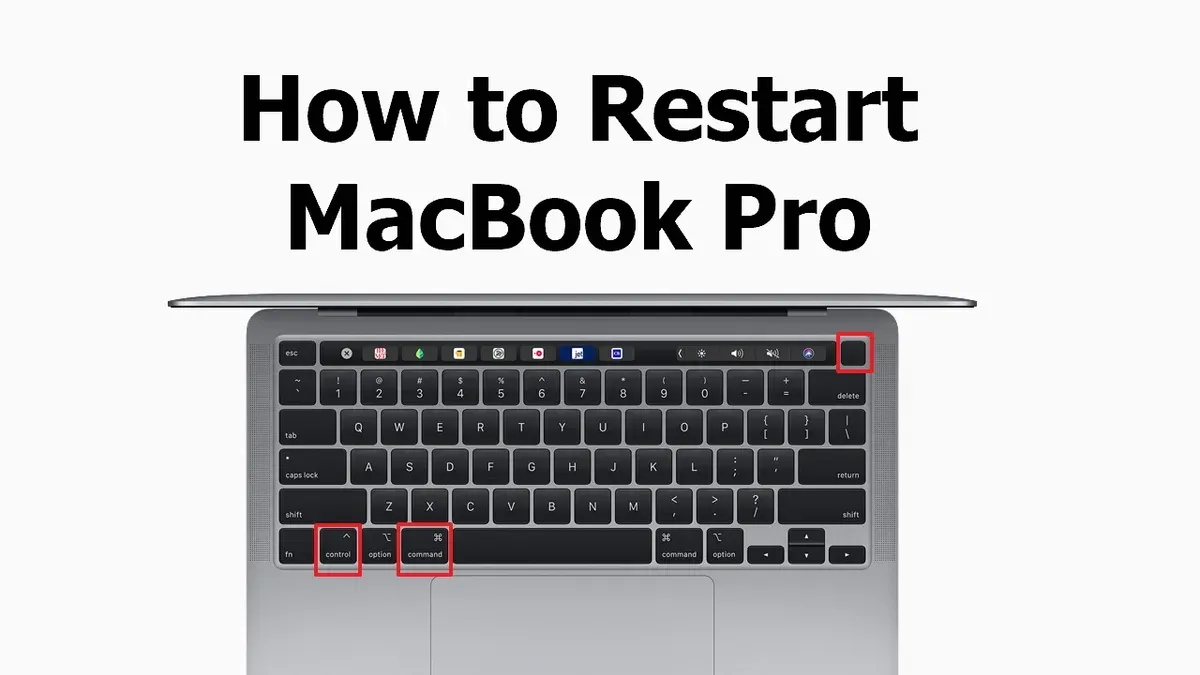
Performing a full system restart is often the simplest way to resolve stubborn AirDrop problems. It reloads all system components and services, allowing AirDrop to reconnect within a minute or so. For example, after a restart, AirDrop visibility and responsiveness typically improve as background services reset, ensuring smoother discovery and transfers. This step is low-risk and recommended when service restarts alone don’t restore AirDrop operation.
Avoid Common Mistakes That Prevent AirDrop from Working
One frequent mistake is overlooking device compatibility and range limitations. AirDrop requires both devices to support the feature and be within roughly 30 feet (10 meters) of each other. For example, trying to AirDrop a file from your MacBook Pro M1 Pro to an older device that doesn’t support AirDrop or is too far away will lead to failed transfers.
Another common issue arises from misconfigured AirDrop receiving settings. The options "Contacts Only" and "Everyone" can affect visibility. If your MacBook is set to "Contacts Only" but the other device isn’t in your contacts, the transfer won’t initiate. Switching temporarily to "Everyone" can help isolate this problem.
Finally, many users neglect the impact of VPNs or third-party security software. Such tools can interfere with Bluetooth and Wi-Fi connections AirDrop depends on. For instance, a VPN running in the background might block local network discovery, preventing your MacBook Pro from detecting nearby devices. Pausing or disabling these services during AirDrop attempts can resolve these hidden barriers.
Use Alternative Methods When AirDrop Is Temporarily Unavailable
If AirDrop isn't cooperating, you still have reliable ways to share files without delay. iCloud Drive and other cloud services like Dropbox or Google Drive offer convenient options. Uploading your file to iCloud Drive is straightforward: open Finder, select iCloud Drive in the sidebar, then drag and drop your file. The recipient can then download it on their device. While cloud transfers depend on internet speed and may be slower than AirDrop’s direct device-to-device transfer, they allow sharing over any distance.
For faster local transfers without internet, setting up a shared folder on your MacBook Pro M1 Pro is effective. Go to System Preferences > Sharing, enable File Sharing, then add a folder and set permissions. On another Mac within the same Wi-Fi network, open Finder, select Go > Connect to Server, and enter your Mac’s local network address (e.g., smb://192.168.1.5). This method typically achieves speeds similar to AirDrop on local networks and works well if both devices are nearby.
When wireless options fail, USB-C cables or external storage like flash drives offer the most direct transfer method. Connecting your MacBook Pro M1 Pro to another device via USB-C supports fast file copying without relying on network settings. For example, you can copy files to a USB-C flash drive by plugging it into the Mac, dragging files to it in Finder, then physically handing it over. This method guarantees file transfer speed and reliability but lacks AirDrop’s wireless convenience.
Frequently asked questions
Why is AirDrop not showing my MacBook Pro M1 Pro as available?
Your MacBook Pro M1 Pro might not appear as available if Bluetooth or Wi-Fi is off, or if AirDrop receiving is set to "Contacts Only" while the other device isn’t in your contacts. Also, ensure that both devices are awake and within about 30 feet (9 meters) of each other. Sometimes, having "Do Not Disturb" enabled can also hide your device from AirDrop.
How do I reset Bluetooth on my MacBook Pro M1 Pro?
To reset Bluetooth, hold down Shift + Option keys and click the Bluetooth icon in the menu bar. From the hidden debug menu, choose "Reset the Bluetooth module." After the reset, restart your Mac to re-establish fresh Bluetooth connections. This process clears cached Bluetooth devices and can resolve hidden connection glitches.
Can firewall settings really block AirDrop connections?
Yes, the macOS firewall can block incoming AirDrop connections if "Block all incoming connections" is enabled under System Preferences > Security & Privacy > Firewall > Firewall Options. Make sure this option is unchecked, or add AirDrop and related services to the allowed list to ensure smooth file transfers. The firewall’s strict settings often block essential network ports used by AirDrop.
What should I do if AirDrop works in one direction but not the other?
This issue often indicates that one device’s AirDrop receiving settings or network conditions are restrictive. Verify that both Macs have AirDrop set to "Everyone" or at least "Contacts Only" with matching contact info. Also, check that neither device has active restrictions like Low Power Mode or network isolation that could affect sending or receiving.
What This Guide Does Not Cover
This guide does not cover hardware repairs; if your MacBook Pro’s Bluetooth or Wi-Fi hardware is faulty, professional service may be required to resolve the issue. Additionally, some corporate or managed devices have restrictions or profiles installed that can disable AirDrop functionality entirely. In such cases, contacting your IT department or system administrator is the best course of action.
For the majority of users, the steps outlined here will help you diagnose and fix common software and settings conflicts affecting AirDrop on the M1 Pro MacBook Pro. If you still experience issues after trying these methods, hardware faults or device management policies might be involved.
The single most useful next step is to reset your MacBook’s Bluetooth module and Wi-Fi interfaces using the Terminal command sudo pkill bluetoothd followed by toggling Wi-Fi off and on again from the menu bar. This action refreshes the core wireless services without deleting your data and often resolves stubborn AirDrop connectivity problems.
See also: How to Fix MacBook Pro M1 Pro USB-C Port Not Working: A Step-by-Step Guide · Fix Your MacBook Pro M1 Pro Microphone Not Working: A Clear Guide · Troubleshoot MacBook Pro M1 Pro Camera Issues Step by Step · How to Update macOS on Your MacBook Pro M1 Pro