
Fixing a Loose Charging Port on Your MacBook Pro M1 Pro: A Step-by-Step Guide
Discover practical steps to diagnose and fix a loose charging port on your MacBook Pro M1 Pro to ensure stable charging and avoid damage.
It can be frustrating when your MacBook Pro M1 Pro’s charging cable doesn’t fit as snugly as it used to, causing intermittent charging or the need to hold the connector in place. You might notice the charger wobbling or disconnecting unexpectedly, which raises concerns about potential damage or the need for costly repairs. This article helps you understand the common reasons behind a MacBook Pro M1 Pro charging port loose feeling and guides you through practical steps to diagnose and address the issue safely.
By examining the charging port design, checking your charger and cable, and learning how to clean and maintain the port properly, you can often resolve or manage the problem without rushing to professional service. You'll also learn when it’s necessary to seek expert repair and how to avoid mistakes that could worsen the situation.
Key takeaways
- A loose charging port often results from debris buildup, wear, or cable issues rather than immediate hardware failure.
- Inspecting and testing your charger and cable first can save unnecessary repair costs.
- Careful cleaning of the charging port with compressed air or a soft brush can improve connection stability.
- Avoid forcing the charger or using excessive pressure, which can damage the port further.
- Seek professional help if the port feels loose despite cleaning or if you notice physical damage.
Recognize What a Loose Charging Port Means for Your MacBook
A loose charging port on your MacBook Pro M1 Pro often shows up as intermittent charging or a noticeable wobble when you plug in your charger. You might find the charger connector feels unstable or falls out easily, and sometimes the MacBook may not charge unless the cable is held at a certain angle. This physical looseness can lead to inconsistent power delivery, causing your MacBook to switch between charging and battery use unexpectedly.
Such instability risks interrupting your work or data transfers and may eventually damage the logic board due to electrical surges or poor connections. Safety concerns also arise, as a loose port can generate heat or sparks if the connection is faulty. It's important to distinguish this from problems caused by a worn or frayed charger cable, which might also cause charging issues but won’t produce a loose fit inside the port.
For example, if your cable fits snugly but the charging connection still cuts out when you move the MacBook or cable slightly, this points to a loose port rather than cable wear. A tight, properly functioning port generally feels firm and holds the charger securely, ensuring smooth, stable charging without interruption. Recognizing these signs helps you understand why addressing a loose port early matters for both performance and safety.
Understand How the MacBook Pro M1 Pro Charging Port Is Designed
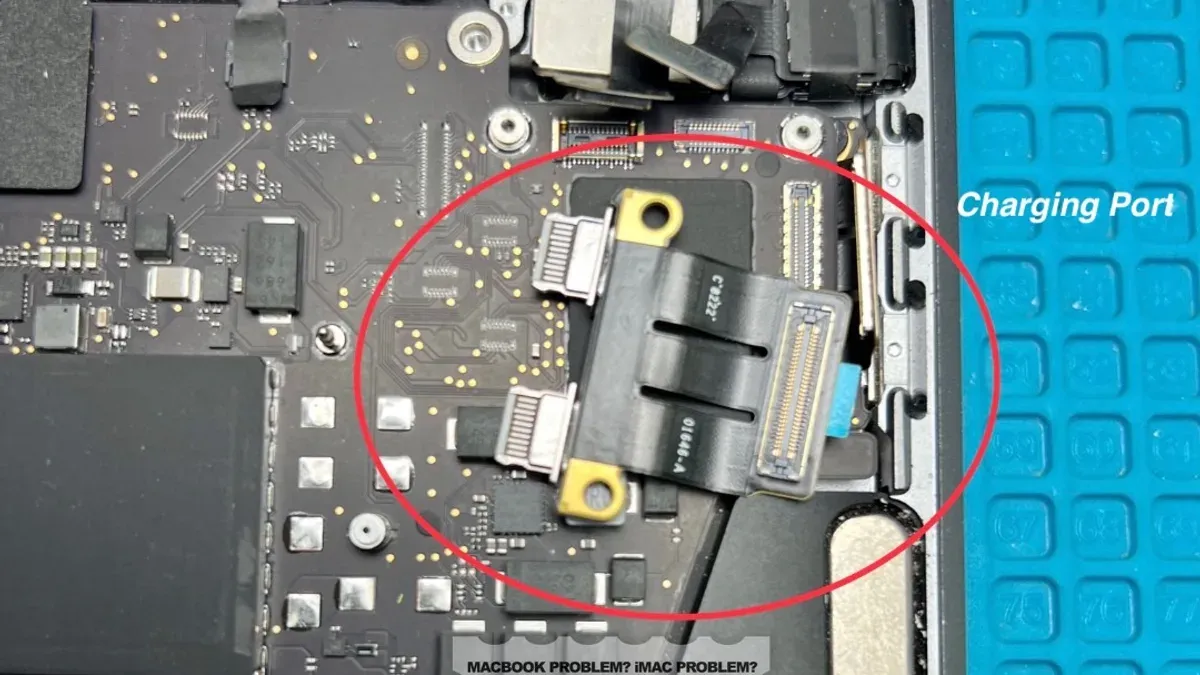
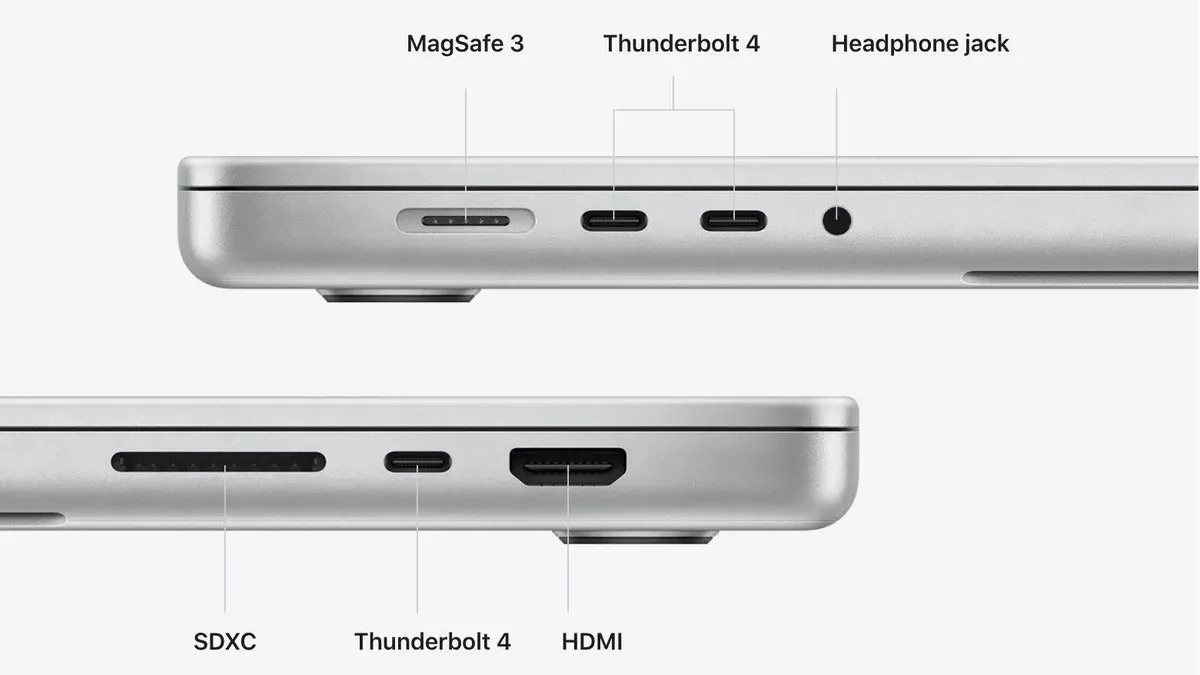
The MacBook Pro M1 Pro uses USB-C ports that are compact but intricate connectors built into the laptop’s aluminum chassis. Inside, each port consists of a metal shell housing multiple tiny pins that interface with the charger’s plug to transfer power and data. These pins connect directly to the logic board through solder joints, which are delicate points where the port physically and electrically joins the internal circuitry.
Mechanical stress mainly occurs where the port meets the logic board solder joints and the metal housing. Everyday use—such as plugging and unplugging the charging cable, or slight sideways wiggling—puts pressure on these connections. Over time, this stress can loosen the port, especially if the cable is frequently pulled at an angle or if debris interferes with the fit.
Imagine inserting your charger and gently twisting it while connected; this motion strains the solder joints and the port’s frame. The charging cable itself also plays a role—the stiffness and thickness of the cable can increase leverage on the port. Understanding this internal structure helps you see why looseness develops and why care during connection is crucial to prevent wear.
Check Your Charger and Cable Before Assuming the Port Is at Fault
Before concluding that your MacBook Pro M1 Pro’s charging port is loose, carefully inspect the charger and USB-C cable you are using. Look for visible signs of wear such as bent connectors, frayed cable insulation, or discoloration near the ends. These issues can cause a loose or unstable connection that mimics port problems.
Next, test your MacBook with an alternate charger and cable, if available. For example, if your current charger feels loose when plugged in, try using a different Apple-certified USB-C charger or a cable known to be in good condition. Pay attention to whether the charging connection feels more secure and if the battery icon shows stable charging. Users often misdiagnose charger or cable wear as a port issue, leading to unnecessary repairs.
Charging cables tend to fail more frequently than the MacBook’s port itself, so isolating the problem is a key step. If the alternate charger and cable create a firm connection without interruption, the original charger or cable is likely the cause of the loose sensation. This simple test can save you time and expense by targeting the right component for replacement or repair.
Safely Clean and Inspect the Charging Port Yourself
Start by powering off your MacBook Pro M1 Pro and unplugging all cables. Use a can of compressed air to gently blow out any dust or lint from the charging port. Hold the can upright and spray in short bursts to avoid moisture buildup inside the port. Avoid inserting metal objects or sharp tools, which can damage the delicate USB-C pins.
Next, use a soft, clean brush—like a small paintbrush or an anti-static brush—to carefully sweep away stubborn debris. Focus on the edges and corners, where dirt often accumulates. During inspection, look for bent or missing pins, corrosion, or discoloration, which indicate more serious internal damage requiring professional attention.
A common scenario is dust buildup causing poor contact, making the port feel loose and charging intermittently. After cleaning, you may notice the charger fits more snugly and charging stabilizes. Apple and repair experts recommend these gentle cleaning methods as a safe first step to address connection issues before considering repairs or replacements.
Avoid Common Mistakes That Can Worsen the Loose Charging Port
Forcing the charger into the port or applying excessive pressure when plugging or unplugging can damage the delicate USB-C connector or the solder joints on the logic board. Picture trying to fit a slightly bent charger cable into the port with extra force; this can worsen looseness and may lead to costly repairs that exceed initial troubleshooting expenses. Experts warn that repeated mechanical stress accelerates wear, often turning a fixable issue into one requiring full port replacement.
Using incompatible chargers or cables—such as non-certified or low-quality third-party accessories—can cause electrical strain or physical damage to the port. These accessories might not fit perfectly, increasing wobble and wear. Over time, this can degrade the port’s integrity, making simple cleaning or minor repairs ineffective.
Attempting DIY disassembly without the right tools or experience risks breaking internal components or voiding your warranty. Unlike external cleaning, opening your MacBook Pro M1 Pro requires specialized screwdrivers and careful handling of fragile parts. An incorrect attempt might lead to complete logic board replacement, significantly raising repair costs compared to professional diagnostics and fixes.
Decide When to Seek Professional Repair or Replacement
If you notice that your MacBook Pro M1 Pro's charging port remains loose despite cleaning and careful cable use, this often points to internal damage or solder joint failure. Signs include intermittent charging even with different cables, visible wobble in the port, or charging stopping altogether. At this stage, professional diagnosis is recommended to avoid worsening the issue.
Typical professional repairs involve replacing the charging port or, in more severe cases, repairing or replacing the logic board where the port is soldered. Port replacement can sometimes cost a few hundred dollars, while logic board repairs or replacements are generally more expensive. Prices vary depending on service providers and warranty status.
Apple warranty or AppleCare+ coverage may cover such repairs if the issue is not due to accidental damage. If your MacBook is out of warranty, third-party repair shops can offer competitive pricing but ensure they use quality parts. For example, a user noticing persistent charging drops after all basic checks might find that a professional port replacement restores stable charging without needing a full logic board replacement, saving significant cost and extending the device’s life.
Maintain Your Charging Port to Prevent Future Looseness
To prolong the lifespan of your MacBook Pro M1 Pro’s charging port, focus on gentle handling when connecting and disconnecting the charger. Always grip the plug firmly and pull it straight out rather than twisting or yanking it at an angle. This reduces mechanical stress on the port’s delicate internal connections and solder points.
Consider using protective accessories like a magnetic USB-C adapter designed for MacBook charging. These adapters can reduce wear by detaching easily when tension is applied, helping prevent port damage. Additionally, cable management tools such as clips or sleeves keep charger cables organized and prevent accidental pulls or bends near the connector.
Regular inspection and cleaning every few months help identify early signs of looseness or debris buildup. For example, a user who routinely cleaned their port with compressed air every three months noticed fewer charging disruptions and no port looseness after a year, compared to peers who skipped maintenance. This proactive care can extend port functionality significantly.
Frequently asked questions
Why does my MacBook Pro M1 Pro charging port feel loose but still charge sometimes?
A loose charging port can still make intermittent contact with the charger pins, allowing power to flow sporadically. This partial connection means your MacBook may charge at times but lose power when the connection shifts. The looseness often results from wear, debris, or slight internal damage that prevents a secure fit.
Can I fix a loose charging port on my MacBook Pro myself without voiding warranty?
You can perform basic checks like cleaning the port with a soft brush or compressed air without voiding your warranty. However, opening the device or attempting internal repairs typically voids the warranty, so it’s best to consult Apple or an authorized service provider if deeper fixes are needed.
What are the risks of continuing to use a MacBook with a loose charging port?
Using a MacBook with a loose charging port risks intermittent charging, which can cause sudden shutdowns or battery issues. It may also lead to internal damage from unstable connections or short circuits. Additionally, forcing the charger in a loose port can worsen the problem over time.
How can I tell if the charging port or the charger cable is causing the problem?
Test your charger and cable with another compatible MacBook or try a different charger on your MacBook. If issues persist only on your MacBook, the port is likely the cause. Inspect the cable end for frays or damage, and check the port for debris or bent pins to help isolate the issue.
Know When to Leave Repairs to Professionals
This guide does not cover internal hardware repairs that require opening the MacBook, which should be performed by certified technicians to avoid voiding warranty or causing further damage. If your charging port feels loose beyond simple cleaning or if your MacBook Pro M1 Pro shows signs of internal damage or connectivity issues that persist despite checking cables and ports, it is best to seek professional assistance. Attempting to repair internal components without proper tools and expertise can lead to more extensive damage or costly repairs.
The most useful step you can take now is to carefully inspect your charger and charging port for debris or wear, and clean the port gently using a soft brush or compressed air. This simple action often restores a secure connection and prevents further loosening. If you still experience issues, keeping detailed notes about when and how the problem occurs will help a technician diagnose the cause efficiently when you do seek professional help.
See also: How to Fix MacBook Pro M1 Pro USB-C Port Not Working: A Step-by-Step Guide · How to Understand and Manage MacBook Pro M1 Pro Battery Swelling Safely · How to Fix MacBook Pro M1 Pro Lagging and Freezing: A Step-by-Step Guide · How to Update macOS on Your MacBook Pro M1 Pro



