How to Use Paragraph Styles in Pages: A Step-by-Step Guide
Master paragraph styles in Pages to quickly format and organize your document with consistent headings, body text, and quotes.
You're working on a document in Pages and want to ensure your headings, body text, and quotes have a consistent look without manually adjusting each paragraph. Understanding how to use paragraph styles in Pages can save you time and help maintain a professional format throughout your document.
This article walks you through creating, applying, and editing paragraph styles step by step. You will also learn the difference between paragraph and character styles and discover practical ways to organize complex documents efficiently.
Key takeaways
- Create a new paragraph style by formatting text and selecting “Create New Paragraph Style” from the Styles pane.
- Apply styles by selecting text and clicking the desired style in the Format sidebar under Paragraph Styles.
- Edit existing styles by updating the style from the current selection to reflect changes across your document.
- Use paragraph styles to structure large documents with consistent headings and subheadings.
- Paragraph styles affect entire paragraphs, while character styles target individual words or phrases.
Before you start: What you need to know about paragraph styles in Pages
Paragraph styles are predefined sets of formatting options that apply to entire paragraphs, including font size, line spacing, alignment, and indentation. Unlike character styles, which affect only selected text within a paragraph, paragraph styles ensure consistent formatting across your document by applying the same look to all text marked with that style. Using paragraph styles saves time because you don’t have to manually format every paragraph, and it guarantees that your headings, body text, and other sections look uniform.
To follow along, you will need Apple Pages installed on a Mac, iPad, or iPhone. It’s best to use the latest stable version of Pages to access all the current features and ensure compatibility. Paragraph styles are especially useful in documents with multiple sections, such as reports, newsletters, or ebooks, where consistent formatting helps organize content and improves readability.
For example, imagine two paragraphs: one manually formatted and another using a paragraph style. If you want to change the font or spacing later, you must adjust each manually formatted paragraph individually, which takes time and risks inconsistency. With paragraph styles, updating the style once automatically changes every paragraph using that style, keeping your document uniform and saving you effort.
Create a new paragraph style in Pages
To create a custom paragraph style, start by formatting a paragraph manually with the exact appearance you want. This includes choosing the font, font size, line spacing, paragraph spacing, alignment, and any other properties that define your style. For example, you might set the font to Helvetica, size 12, with 1.15 line spacing and 8 points after each paragraph to create a clean "Body Text" style.
- Select a paragraph in your document that you want to style or type new text.
- Use the formatting controls in the right sidebar to adjust the font family (e.g., Helvetica), font size (e.g., 12 pt), text color, and paragraph alignment (e.g., left-aligned). When you change these, you should see the paragraph update immediately.
- Next, set the line spacing by clicking the "Layout" tab in the sidebar and adjusting the "Line Spacing" dropdown to your preferred setting, such as 1.15.
- Also in the Layout tab, set the spacing before and after the paragraph. For example, set "After Paragraph" to 8 pt to add space below the paragraph.
- Once your paragraph looks exactly how you want, open the Styles pane by clicking the paintbrush icon on the toolbar.
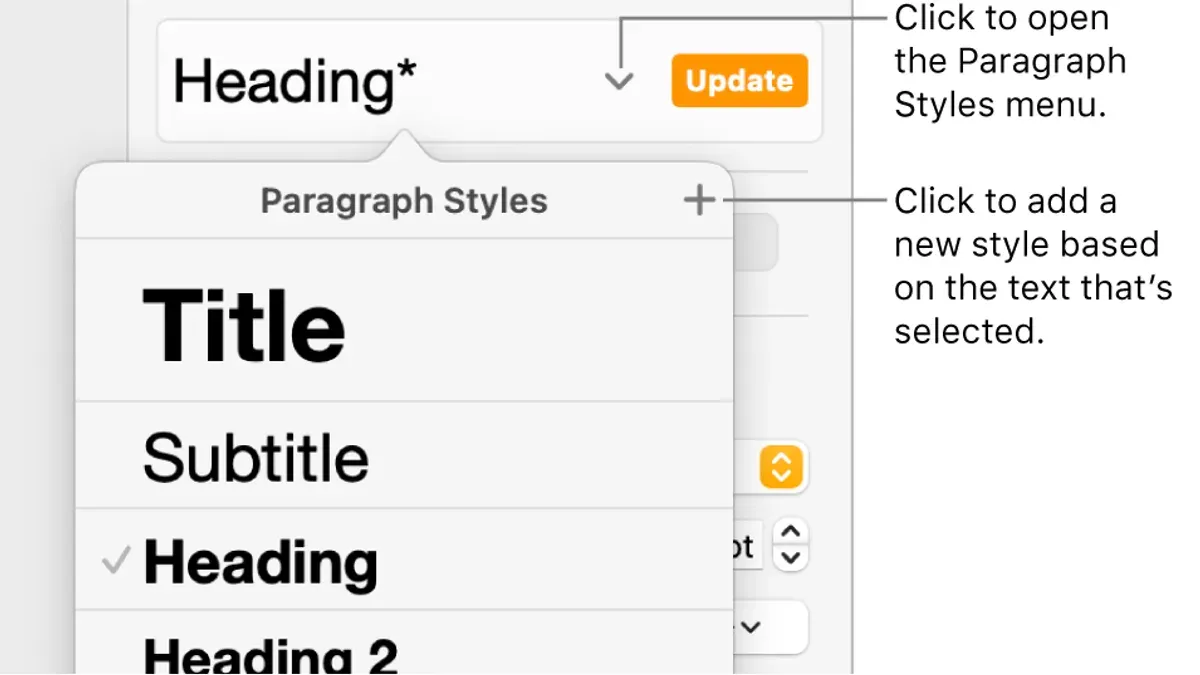
- At the top of the Styles pane, click the dropdown menu showing the current style name, then choose "Create New Paragraph Style".
- In the dialog that appears, enter a clear and descriptive name like "Body Text". Use consistent naming conventions such as "Heading 1," "Body Text," or "Caption" to keep your styles organized.
- Click "OK" to save the new style. The style will now appear in the Styles pane for easy application throughout your document.
For example, after creating a "Body Text" style with Helvetica 12 pt, 1.15 line spacing, left alignment, and 8 pt paragraph spacing, you can apply it to any paragraph with a single click. This method ensures consistency and saves time as you continue editing your document.
Apply paragraph styles to text in your document
To apply a paragraph style to existing or new text in Pages, start by selecting the paragraph or paragraphs you want to format. You can click and drag to highlight several paragraphs or simply place your cursor within a single paragraph for quick application. Once selected, open the Styles pane on the right side of the window, where your saved paragraph styles are displayed.
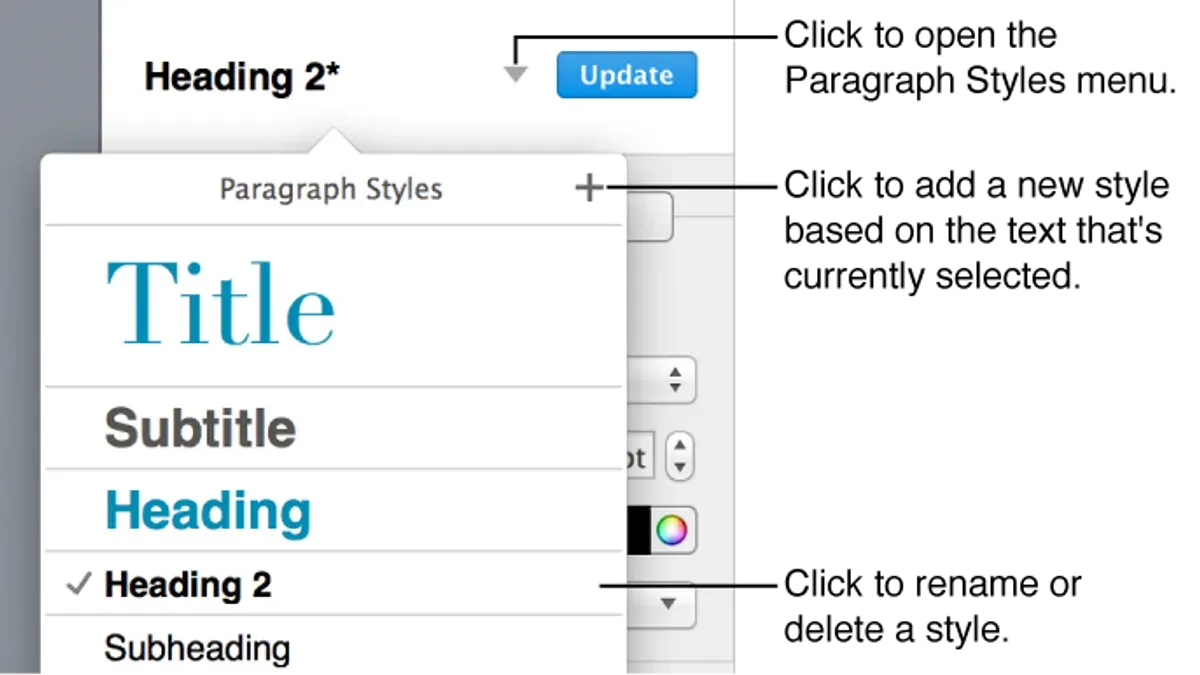
Click the desired paragraph style name in the Styles pane. The formatting of the selected text updates immediately to match the style, replacing any manual formatting such as font size, color, spacing, or alignment. For example, a paragraph you previously formatted manually with a 14-point font and blue color will instantly adopt the style’s settings, such as 12-point font and black color, ensuring consistency and saving time.
For faster application, you can use keyboard shortcuts if you have assigned them to specific styles. Alternatively, right-click the selected paragraph and choose a style from the quick style menu that appears. This allows you to apply styles without opening the sidebar, speeding up your workflow.
Here is a step-by-step process:
- Select the paragraph(s) you want to style. You should see the text highlighted.
- Go to the Styles pane on the right side of Pages.
- Click the paragraph style name you want to apply. The text formatting changes instantly to match the style.
- Optionally, right-click the selected text and pick a style from the quick style menu for faster access.
- If you have keyboard shortcuts assigned, press the shortcut keys to apply the style without navigating menus.
By following these steps, you replace manual formatting with consistent paragraph styles, making your document easier to update and maintain.
Edit and update existing paragraph styles
To modify an existing paragraph style in Pages, you start by selecting any paragraph formatted with the style you want to change. Then open the Styles pane where the current style is highlighted. This lets you access the style’s attributes such as font, size, color, spacing, and alignment.
When you update a style’s settings, every paragraph in your document using that style updates automatically. For example, if you change the font size from 12 pt to 14 pt in the style, all paragraphs with that style will instantly reflect the larger text size, ensuring consistency without manual adjustments.
If you want to revert a style back to its original default settings, Pages allows you to reset it. This can be useful if changes made to a style don’t work as expected or if you want to start fresh without deleting and recreating the style.
- Select a paragraph with the style you want to edit. You will see this style highlighted in the Styles pane on the right.
- Click the arrow next to the style name in the Styles pane, then choose Edit Style. This opens the formatting controls specific to that style.
- Adjust the attributes you want to change, such as font size, font type, line spacing, or indents. For instance, change the font size from 12 pt to 14 pt.
- Click Update or Done to save the changes. All paragraphs using that style will update immediately to the new settings.
- If you need to reset the style to its original format, click the arrow next to the style name again and choose Reset to Default. The style will revert, and all associated paragraphs update accordingly.
Use paragraph styles to organize complex documents
When working with lengthy documents, paragraph styles become essential tools for maintaining structure and clarity. By assigning specific styles to headings, subheadings, body text, quotes, and lists, you create a consistent visual hierarchy that guides readers through your content. For example, use distinct paragraph styles for Heading 1, Heading 2, and Heading 3 to differentiate sections and subsections clearly.
Applying these styles consistently allows Pages to recognize the document's structure, which is vital when generating a Table of Contents. The Table of Contents feature automatically pulls text formatted with heading styles, making navigation easier for both you and your readers. This integration saves time and reduces errors compared to manually creating a contents list.
To maintain style hierarchy and consistency, avoid mixing manual formatting with paragraph styles. Stick to predefined styles for each type of text element and update styles globally when needed. This practice ensures uniform appearance and helps prevent accidental style overrides that can disrupt your document’s flow.
Consider the difference between a document without paragraph styles—where headings look inconsistent and navigation relies on manual scrolling—and one where styles create a clear outline and clickable Table of Contents. The latter improves readability and makes editing or reorganizing large documents more efficient.
- Select a heading or subheading in your document and apply the corresponding paragraph style (e.g., Heading 1 or Heading 2) from the Styles pane. You should see the text change to match the style’s formatting.
- Format body text, quotes, or lists using their respective paragraph styles, ensuring each text type has a unique and consistent appearance.
- Go to the Insert menu, choose Table of Contents, and select either Document or Section. Pages will generate a clickable Table of Contents based on your applied heading styles.
- Review the Table of Contents to confirm it reflects your document structure accurately, with entries linked to the corresponding headings.
- When editing styles later, remember that changes to a paragraph style update all text using it, preserving hierarchy and consistency throughout the document.
Understand the difference between paragraph and character styles in Pages
Paragraph styles in Pages control the formatting of an entire paragraph. This includes settings like text alignment, line spacing, indentation, and paragraph spacing before and after. When you apply a paragraph style, these attributes are consistently applied to every paragraph formatted with that style, ensuring uniform structure throughout your document.
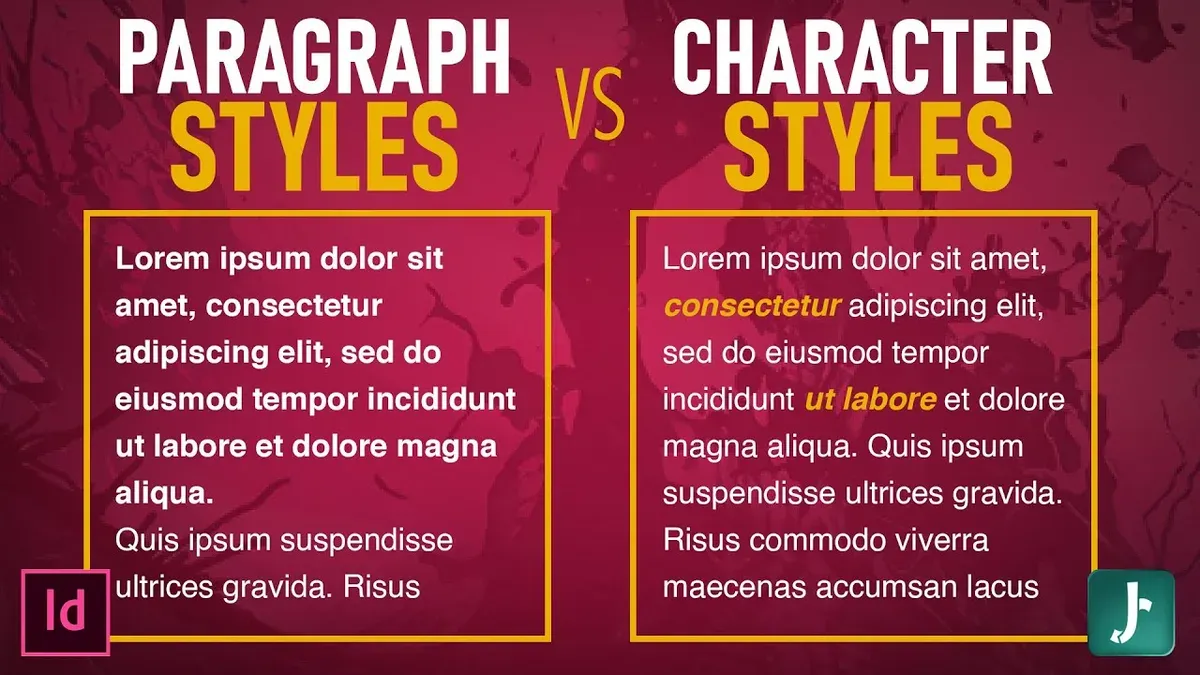
Character styles, on the other hand, affect only selected text within a paragraph. They modify specific text properties such as font type, size, color, bold, italic, underline, or strikethrough without changing the paragraph's overall layout. Character styles are useful for highlighting or differentiating text segments like names, terms, or emphasis while keeping the paragraph’s structural format intact.
Combining paragraph and character styles effectively allows you to maintain consistent document structure while emphasizing text selectively. For example, you might use a "Body Text" paragraph style with 1.15 line spacing and left alignment, then apply a "Highlight" character style to bold and color a word within that paragraph.
Here’s a side-by-side example:
| Paragraph Style (Body Text) | Character Style (Highlight) |
|---|---|
| Alignment: Left Line Spacing: 1.15 Spacing After: 12 pt Font: Helvetica, 12 pt, Regular | Font Weight: Bold Font Color: Blue |
In this example, the paragraph retains its overall formatting, while selected words appear bold and blue. This approach avoids conflicts because paragraph styles set the basic layout, and character styles apply localized text changes.
Troubleshoot common issues with paragraph styles in Pages
Sometimes, paragraph styles in Pages may not apply as expected or formatting appears inconsistent. This often happens when manual overrides conflict with the saved style. To fix this, select the affected paragraph, then click the paintbrush icon to open the Format sidebar. Choose the paragraph style from the Styles menu, and click "Clear Overrides" if available. This removes manual formatting so the style applies cleanly.
If styles seem missing from the Styles pane or don’t update correctly, try resetting the pane. Click the Styles dropdown, then select "Reset Styles" to restore default styles and refresh your custom ones. This helps when styles get corrupted or are not showing up properly.
For issues syncing styles across devices via iCloud, ensure all your devices have the latest Pages version. Sometimes, styles don’t update due to network delays or conflicts. Save your document locally, close Pages on all devices, then reopen the file on each device to force a sync. Also, avoid editing styles simultaneously on multiple devices.
- Select a paragraph with formatting issues. Open the Format sidebar and pick the correct paragraph style from the Styles menu. After clicking "Clear Overrides," the paragraph formatting should match the style exactly.
- If styles are missing or not updating, open the Styles menu and choose "Reset Styles." You should see default and your custom styles reappear and apply correctly.
- To fix syncing problems, save your document locally and close Pages on all devices using it. Reopen the document on one device first, then on others. Styles should now sync and appear consistent.
Frequently asked questions
How to style paragraph in html?
To style a paragraph in HTML, you use the <p> tag combined with CSS for visual formatting. You can add styles directly using the style attribute, for example: <p style="color: blue; font-size: 16px;">Your text</p>. Alternatively, define styles in a separate CSS file or within a <style> block and apply them via class or id selectors to keep your markup clean.
How to make paragraph style in word?
In Microsoft Word, you create a paragraph style by formatting a paragraph with your desired font, size, spacing, and alignment, then clicking the Styles pane on the Home tab. Choose Save Selection as a New Quick Style, give it a name, and save it. This style can then be applied to other paragraphs consistently throughout your document.
How to create a paragraph style?
Creating a paragraph style generally involves setting all the formatting attributes for a paragraph—such as font, size, line spacing, and indentation—and then saving these settings under a style name. In Pages, for example, you format a paragraph, open the Styles sidebar, and click the arrow next to the current style to create and name a new one. This lets you reuse the exact formatting easily.
What are paragraph styles?
Paragraph styles are predefined sets of formatting rules applied to entire paragraphs. They control aspects like font type, size, line spacing, alignment, indentation, and spacing before or after paragraphs. Using paragraph styles ensures consistent formatting across your document and helps you update styles globally with minimal effort.
How to create paragraph style in word?
To create a paragraph style in Word, first format a paragraph with your preferred settings. Then, open the Styles pane on the Home tab, click New Style, select Paragraph as the style type, name your style, and save it. This new style will appear in your Styles gallery for quick application.
What This Guide Does Not Cover
This guide focuses exclusively on using paragraph styles within Apple Pages and does not address advanced style scripting or automation features found in professional desktop publishing software such as Adobe InDesign. If you require complex automation or integration with other design tools, exploring specialized software may be more suitable. Additionally, users working with significantly older versions of Pages might notice some interface differences or missing features compared to the current versions covered here.
To continue building your skills effectively, the single most useful next step is to experiment by creating and applying paragraph styles in a variety of your own documents. Try customizing styles to match specific formatting needs, such as headings, quotes, or body text, and observe how updating a style instantly changes all instances throughout your document. This hands-on approach solidifies understanding and helps you gain confidence in managing your document’s appearance efficiently.
See also: How to Add Headers and Footers in Pages: A Step-by-Step Guide · How to Add Footnotes in Pages: A Step-by-Step Guide · How to Make Two Columns in Pages: A Clear Step-by-Step Guide · How to Add Page Numbers in Pages: Step-by-Step for Mac, iPad, and iPhone