Can MacBook Air M3 Run Dota 2 Smoothly? Real Gaming Insights
Explore how the MacBook Air M3 handles Dota 2 with insights on hardware, thermal design, and gaming performance for smooth gameplay.
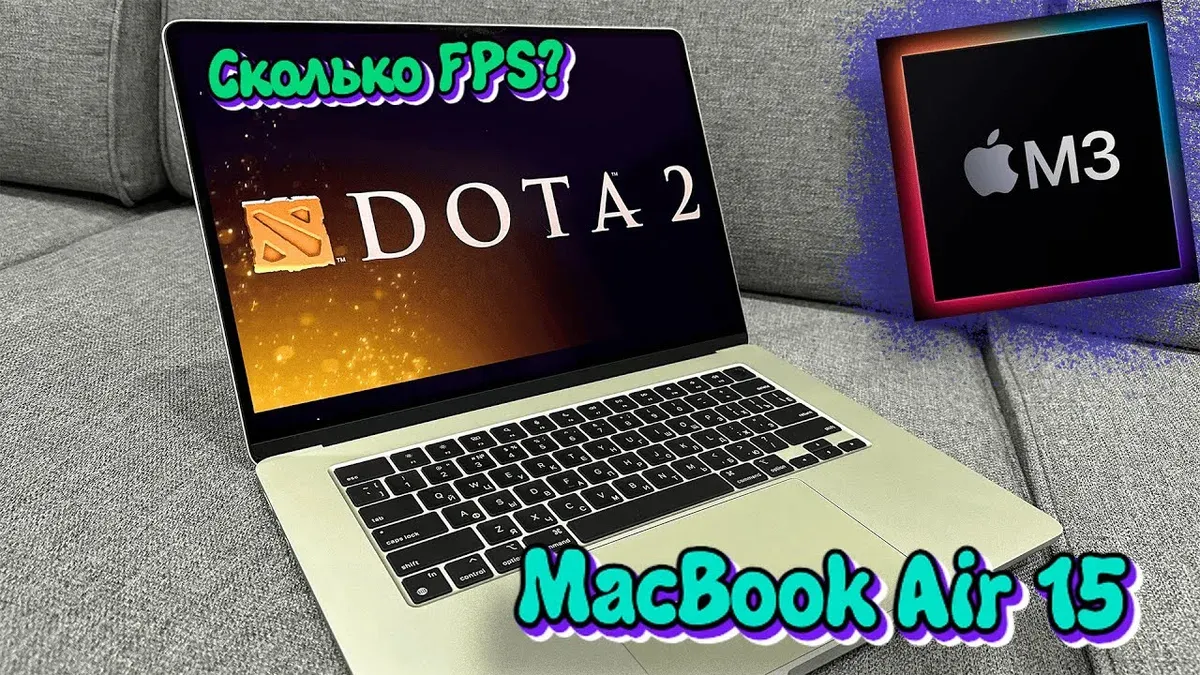
The question "can MacBook Air M3 run Dota 2" often arises among gamers considering this lightweight laptop. Its sleek design emphasizes portability over gaming power. Understanding how this machine handles Dota 2 requires examining hardware capabilities, thermal behavior, and macOS-specific optimizations.
Understanding the MacBook Air M3’s Hardware Capabilities for Gaming
The MacBook Air M3 features Apple’s latest chip architecture with unified memory and a fanless design, both significantly influencing gaming performance.
CPU and GPU Architecture Overview Relevant to Gaming Workloads
The M3 chip combines high-performance CPU cores with an integrated GPU optimized for efficiency. Although it lacks a discrete graphics card, the GPU supports Metal, Apple’s graphics API, which enhances performance compared to older Intel-based Macs. However, GPU performance depends on game optimization and workload complexity.
Unified Memory and Its Effect on Game Data Handling
Unlike traditional systems with separate CPU and GPU memory, the M3’s unified memory allows both processors to access the same pool. This reduces latency and can improve frame rates by speeding up texture and asset loading, benefiting Dota 2’s dynamic environment. However, shared memory bandwidth can become a bottleneck under heavy multitasking.
Thermal Design and Its Implications for Sustained Gaming Sessions
The MacBook Air M3 uses passive cooling, meaning it has no fans. While this ensures silent operation, it can cause thermal throttling during extended gaming sessions. Specifically, macOS dynamically reduces CPU and GPU clock speeds when temperatures exceed certain thresholds (usually around 90°C), which may lead to frame rate drops during long matches.
Dota 2 Performance on MacBook Air M3: Frame Rates, Settings, and Stability
Performance varies based on graphics settings and match intensity.
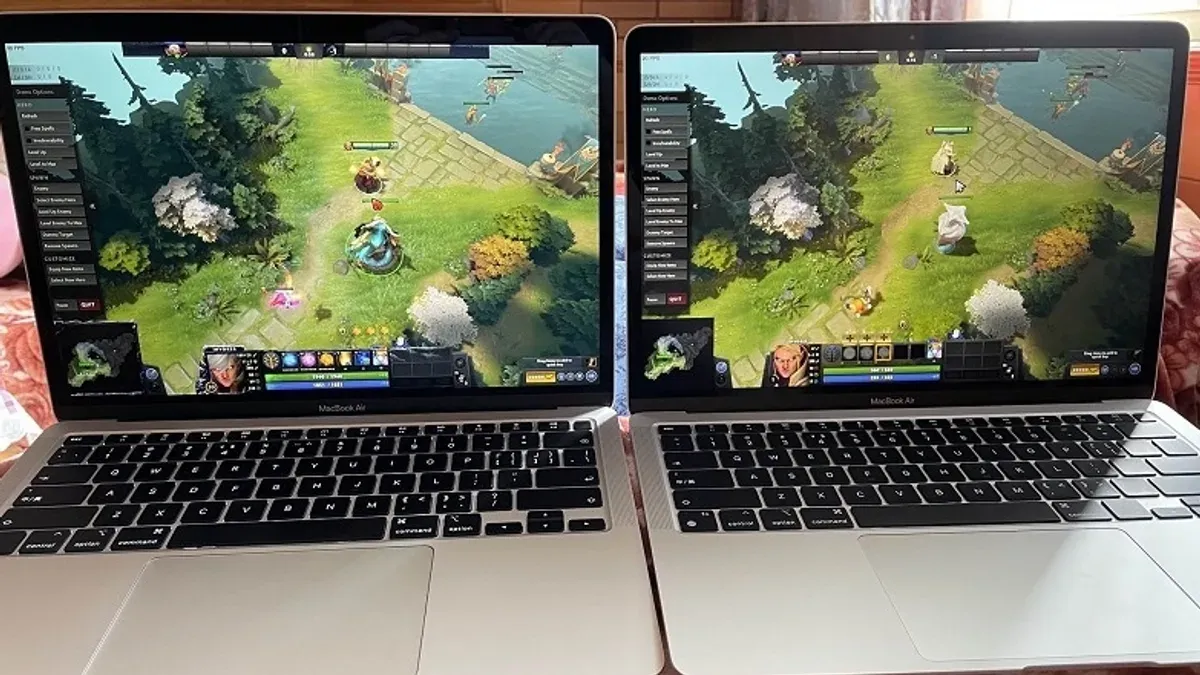
Frame Rate Averages at Different Graphics Settings
On low settings, the MacBook Air M3 typically maintains frame rates above 60 FPS in standard matches. Medium settings usually yield 45–60 FPS, adequate for casual play. High settings push the hardware near its limits, often dropping below 40 FPS during intense team fights due to increased GPU load and thermal throttling.
Load Times and Responsiveness in Matches
Fast SSD storage combined with unified memory results in short load times from launching the game to entering matches. Input latency remains low, suitable for most players except those requiring ultra-competitive precision.
Comparison with Other MacBooks and Windows Laptops with Similar Specs
| Device | GPU Type | Average FPS (Medium Settings) | Fan Cooling |
|---|---|---|---|
| MacBook Air M3 | Integrated M3 GPU | 50–60 FPS | No |
| MacBook Pro 14" (M2 Pro) | Integrated Pro GPU | 60–75 FPS | Yes |
| Windows Laptop (Intel i7 + GTX 1650) | Discrete GTX 1650 GPU | 70–85 FPS | Yes |
Impact of macOS Metal API Optimization on Dota 2
Dota 2 on macOS benefits from Metal API support, which offers improved graphical efficiency over older OpenGL implementations. This results in more stable frame rates and better battery life compared to running the game through non-native APIs or emulation layers. However, Metal optimization depends on game updates and driver support.
Optimizing Dota 2 on MacBook Air M3: Tips for Smooth Gameplay
Adjustments can balance visuals and performance effectively.
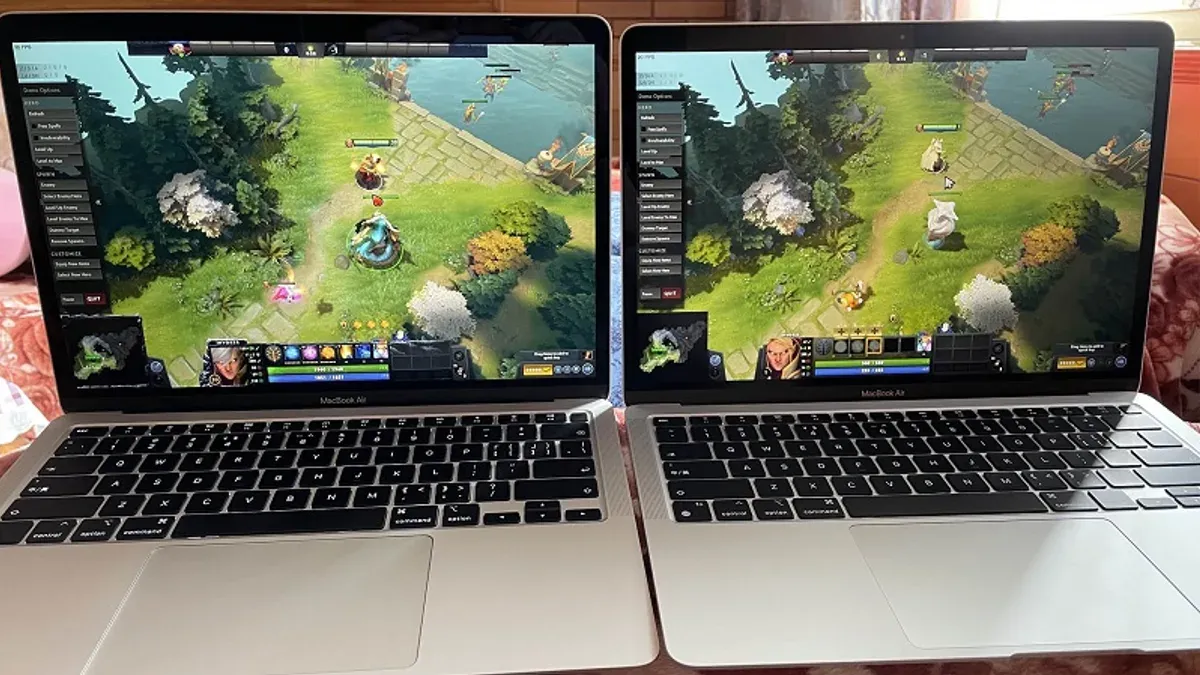
Recommended In-Game Settings for Balance Between Visuals and Performance
- Set graphics quality to Medium or Low to maintain consistent frame rates above 50 FPS.
- Disable or reduce shadow quality to Low, as shadows heavily tax GPU resources.
- Turn off anti-aliasing or set it to the lowest level to reduce GPU load.
- Limit post-processing effects to enhance responsiveness.
macOS System Tweaks and Background Process Management
- Close unnecessary background apps before launching Dota 2 to free system resources.
- Use Activity Monitor to identify and quit high-CPU or memory-consuming processes; note that some system processes cannot be terminated.
- Disable automatic updates and notifications during gameplay via System Preferences to prevent interruptions.
Using External Peripherals or Displays to Improve Gameplay
Connecting an external mouse with higher polling rates improves precision compared to the built-in trackpad. Using an external monitor with a higher refresh rate can provide smoother visuals, but may increase power consumption and heat output, potentially affecting thermal performance.
Battery vs Plugged-In Performance Considerations
When running on battery, macOS reduces CPU and GPU performance to conserve energy, resulting in lower frame rates and shorter play sessions. For consistent performance, keep the MacBook Air plugged in during gaming.
Worked Example: Step-by-Step Optimization Checklist
- Open Activity Monitor and quit all non-essential applications.
- Launch Dota 2 and set graphics to Medium; disable shadows and anti-aliasing.
- Connect the MacBook Air to power and plug in an external mouse if available.
- Disable macOS notifications and automatic updates temporarily via System Preferences.
- Start a practice match and monitor frame rate stability and temperature using Activity Monitor or third-party tools.
- If frame drops occur during team fights, lower graphics settings further or close additional background processes.
Limitations and Who Should Consider Alternative Gaming Solutions
The MacBook Air M3 is not designed as a dedicated gaming machine. Its limitations affect suitability for some Dota 2 players.
Potential Thermal Throttling During Long Competitive Matches
Without active cooling, the device can heat up quickly during extended play. When temperatures rise above macOS thermal thresholds, clock speeds reduce to prevent overheating, causing frame rate drops and stuttering.
Limitations Due to Fanless Design and Passive Cooling
Silent operation comes at the cost of less efficient heat dissipation, which may cause the chassis to become noticeably warm during gameplay, potentially affecting comfort.
Situations Where Higher-End Gaming Hardware Is Recommended
- Competitive players requiring stable 60+ FPS at high settings.
- Users who want to stream or record gameplay simultaneously.
- Gamers playing for several hours without breaks.
Not Covering Mods or Third-Party Software That May Impact Performance
This review focuses solely on the standard, unmodified Dota 2 client running natively on macOS. Performance may vary with mods or emulation layers.
Additional Notes and Caveats
This article does not cover performance on heavily modded versions of Dota 2 or when using Windows emulation software on the MacBook Air M3. Such scenarios may introduce performance penalties or instability.
Frequently Asked Questions
Can I play Dota 2 on MacBook Air M3 without lag?
Yes, with appropriate in-game settings (medium to low) and system optimizations, gameplay is smooth enough for casual and many competitive scenarios.
What graphics settings should I use for the best balance of visuals and performance?
Medium settings with shadows and anti-aliasing disabled provide a good balance, maintaining stable frame rates above 50 FPS in most matches.
Does running Dota 2 drain the MacBook Air M3 battery quickly?
Yes, gaming is power-intensive. Expect significantly reduced battery life compared to light use, so playing plugged in is recommended.
Is an external monitor or controller recommended for better gameplay?
An external mouse is advisable for improved control. Using an external monitor can enhance visuals but may reduce battery life and increase heat.