How to Fix Your MacBook Pro M1 Pro Stuck on Apple Logo: A Step-by-Step Guide
Discover effective steps to troubleshoot and fix your MacBook Pro M1 Pro when it gets stuck on the Apple logo during startup.
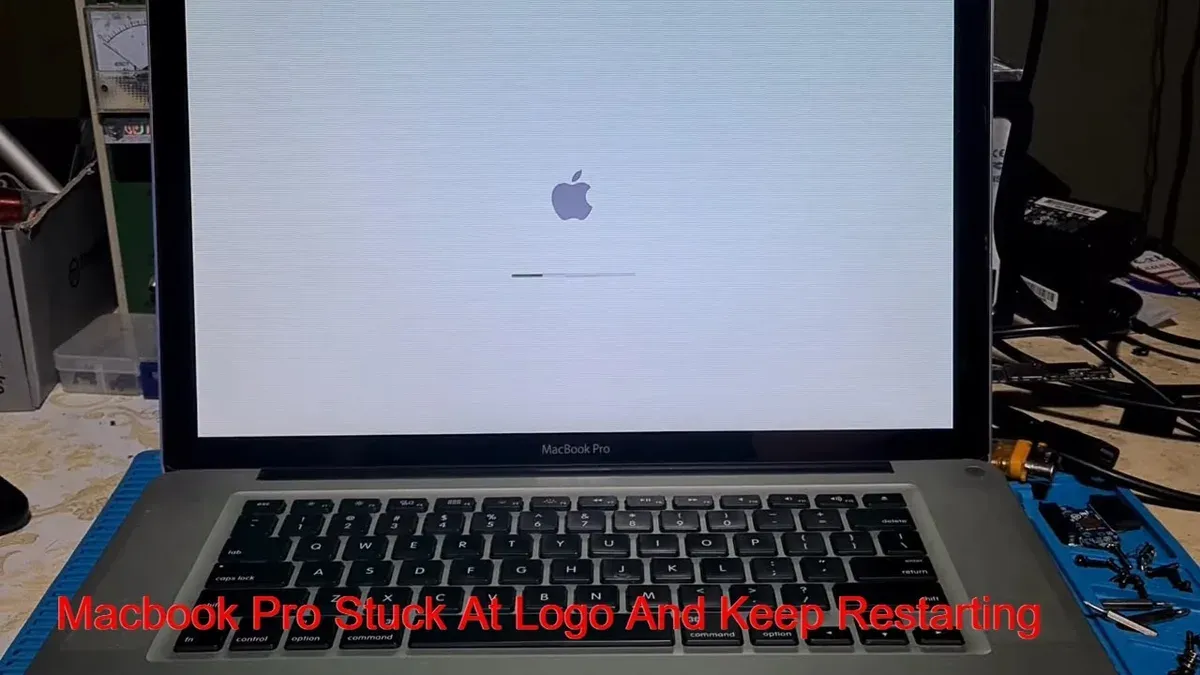
Your MacBook Pro M1 Pro powers on but stalls right at the Apple logo, leaving you unsure what to do next. This common startup hang can feel like a dead end, but understanding the specific causes helps you troubleshoot effectively.
This guide walks you through diagnosing why your MacBook Pro M1 Pro stuck on Apple logo and offers step-by-step actions to safely resolve firmware and system-level hang issues. You will learn how to check for accessory interference, enter Safe Mode on the M1 Pro architecture, reset essential system settings, and use built-in recovery tools without risking your data.
Key takeaways
- Disconnect all external devices to rule out accessory conflicts causing startup hangs.
- Use the proper procedure to enter Safe Mode on an M1 Pro Mac, as it differs from Intel models.
- Reset the NVRAM and SMC-equivalent settings via macOS Recovery to clear firmware glitches.
- Run Disk Utility's First Aid in Recovery Mode to repair potential disk errors.
- Avoid repeated forced shutdowns that may worsen system corruption.
Understand Why Your MacBook Pro Stalls at the Apple Logo
When your MacBook Pro M1 Pro is stuck on the Apple logo, it means the startup process has halted early in the boot sequence. Unlike previous Intel-based Macs, M1 Pro models use a system-on-chip architecture where the secure enclave and system firmware play critical roles before macOS even begins loading. The boot sequence starts with the Boot ROM verifying the integrity of the firmware, followed by loading the recovery OS and then launching macOS.
In a successful boot, each stage completes its verification and hands control smoothly to the next. If the Mac hangs at the Apple logo, it indicates a failure in one of these initial steps—often due to corrupted firmware, conflicting system files, or hardware malfunctions. For example, if the secure enclave cannot authenticate the system firmware, the Mac will not proceed beyond the Apple logo screen.
Think of the startup like a relay race: the first runner (Boot ROM) must pass the baton (system control) to the next runner (recovery OS), and if the baton is dropped due to a fault, the race stops immediately. This early stall is more than a simple freeze; it signals a critical block in verifying or loading essential system components, preventing macOS from starting normally.
Identify External Factors That Can Cause the Startup Hang
External devices and power supply issues can often cause your MacBook Pro M1 Pro to stall on the Apple logo. USB devices, hubs, or adapters connected during startup may interfere with the boot process due to firmware-level checks unique to the M1 Pro architecture. For instance, some non-certified USB-C hubs can introduce signal interruptions or power inconsistencies that prevent startup from completing.
Power delivery is another crucial factor. Using chargers or cables that are not official or Apple-certified can result in insufficient wattage or unstable current flow. The M1 Pro MacBook Pro typically requires chargers rated for at least 67 watts to maintain stable power during boot. If you use a lower-wattage charger or a faulty cable, the system might hang early in the startup sequence.
To isolate these issues, disconnect all accessories including USB devices, external monitors, and hubs. Then, perform a full power cycle: hold the power button until the device shuts down completely, wait a few seconds, and power it on again without any peripherals attached. In many cases, users have resolved startup hangs by removing a problematic third-party USB-C hub that did not deliver stable power, restoring normal boot behavior.
Enter and Use Safe Mode on Your M1 Pro MacBook Pro
Safe Mode on M1 Pro Macs operates differently from Intel-based Macs. Instead of holding the Shift key during startup, you access Safe Mode through the startup options menu, allowing the system to load only essential software and disable problematic login items or corrupted caches.
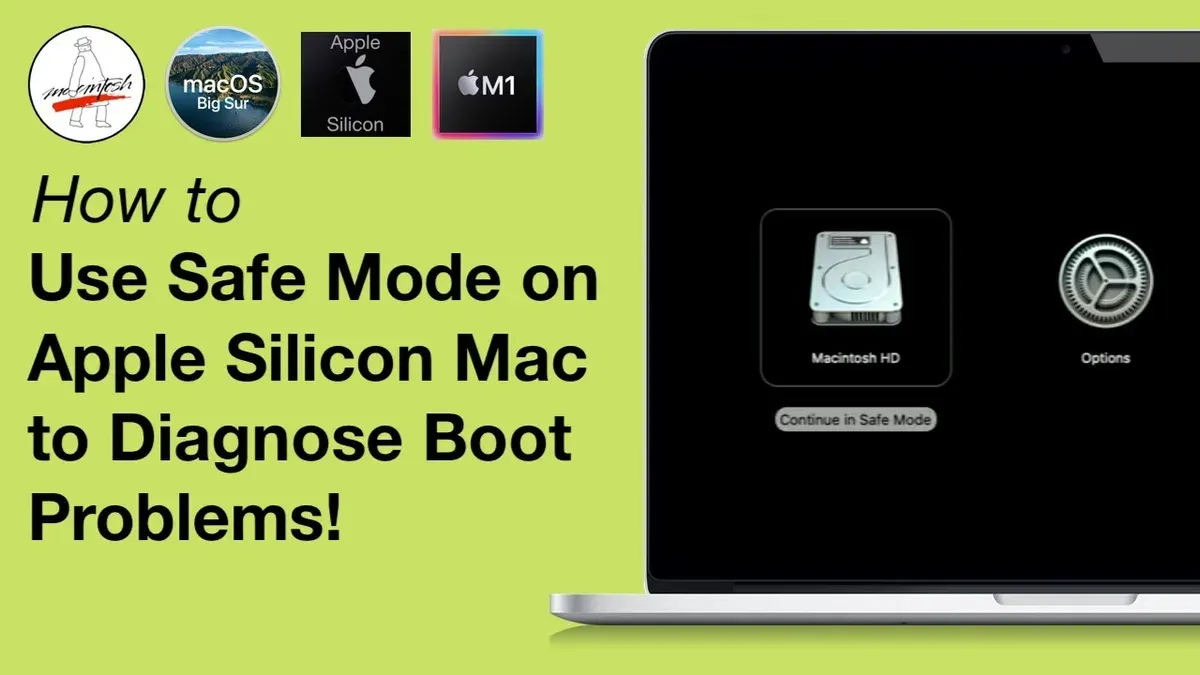
To enter Safe Mode, first shut down your MacBook Pro completely. Then press and hold the power button until you see the startup options window with a gear icon labeled “Options.” Select your startup disk, press and hold the Shift key, then click “Continue in Safe Mode.” This boots your Mac with a minimal set of drivers and system extensions, bypassing third-party login items that may cause hangs.
Under the hood, Safe Mode clears some system caches and disables non-essential startup processes, which helps isolate software conflicts. For example, a user booted in Safe Mode and found the system started normally. Upon inspection, a recently installed login item was identified as the cause. Removing that item fixed the boot hang permanently.
Reset Non-Volatile Memory and System Management on M1 Pro
Unlike Intel-based Macs, the M1 Pro architecture does not support traditional NVRAM or PRAM resets via keyboard shortcuts. These resets historically cleared certain firmware and parameter settings but are replaced in Apple Silicon by a more integrated system management approach. On your M1 Pro, simply shutting down the Mac and waiting for about 30 seconds effectively clears some cached system states, acting as a soft reset for these memory areas.
If this basic step does not resolve the startup hang, you may need to perform a deeper system restore using Apple Configurator 2 on another Mac. This method requires connecting your M1 Pro in DFU (Device Firmware Update) mode to a working Mac with Apple Configurator 2 installed, enabling a firmware reflash and system recovery.
| Reset Method | Intel Macs | M1 Pro Macs | Success Context |
|---|---|---|---|
| NVRAM/PRAM Reset | Command + Option + P + R at startup | Not supported | Clears legacy firmware settings and resolves some boot issues |
| System Management Controller (SMC) Reset | Specific key sequences or power cycle | Not applicable; managed by integrated system | Resolves power and hardware-related anomalies |
| Soft Cache Reset | Not typically used | Shutdown and wait 30 seconds | Clears certain cached parameters affecting boot |
| DFU Restore via Apple Configurator 2 | Not applicable | Connect in DFU mode to alternate Mac | Deepest firmware and system recovery |
Imagine your M1 Pro as a sealed system where traditional manual resets are replaced by automatic management. Waiting after shutdown is like letting the system "forget" temporary glitches. If problems persist, the DFU restore is the closest equivalent to a factory-level reset, but it requires access to another Mac and USB-C cable, so plan accordingly.
Run Disk Utility and macOS Recovery to Repair Your Disk
To address disk or system file corruption that might cause your MacBook Pro M1 Pro to stall on the Apple logo, you need to enter macOS Recovery mode. Shut down your Mac completely, then press and hold the power button until you see "Loading startup options." Select "Options" and click "Continue" to access Recovery.
Once in Recovery, open Disk Utility from the utilities window. Select your startup disk, usually named "Macintosh HD," and click "First Aid." Disk Utility will check the disk’s structure and attempt repairs. If you see a message like "The volume was repaired successfully," this indicates the errors were fixed. However, if you encounter "Disk Repair Failed" or unrecoverable errors, the disk may have deeper issues.
In cases where First Aid cannot resolve the problems, consider reinstalling macOS without erasing your data. Choose "Reinstall macOS" from the Recovery menu and follow the prompts. This process refreshes system files but keeps your documents and settings intact, reducing the risk of data loss while addressing software corruption that blocks startup.
Avoid Common Mistakes That Can Worsen the Situation
Repeatedly forcing your MacBook Pro M1 Pro to shut down by holding the power button can accelerate wear on the SSD. Unlike traditional hard drives, the M1 Pro's SSD uses flash memory cells with a limited number of write cycles. Frequent abrupt shutdowns during boot can cause unnecessary write operations, potentially reducing the lifespan of your drive and increasing the risk of data corruption. Instead, aim to follow controlled shutdown procedures or use recovery options when possible.
Attempting repairs through third-party services or unauthorized technicians often leads to complications on M1 Pro models. Apple's support guidelines emphasize that only certified repairs maintain device integrity and warranty coverage. Unofficial repairs risk damage to the tightly integrated Apple silicon components and the proprietary logic board, which can result in higher repair costs or permanent hardware failure.
Beware of unofficial software tools that claim to fix startup hangs with quick fixes or hacks. These applications may bypass system protections, introduce malware, or cause irreversible data loss. For example, one common misstep is using unauthorized system cleaners or patchers that modify boot files, which can prevent your Mac from starting up altogether. Always rely on macOS Recovery and Apple’s official troubleshooting methods.
When to Seek Professional Help and What to Expect
If your MacBook Pro M1 Pro remains stuck on the Apple logo despite following all troubleshooting steps, hardware issues such as logic board failure might be the cause. Signs include no response to safe mode attempts, unusual sounds, or persistent power issues. At this point, professional diagnostics become necessary to avoid risking data loss or further damage.
Before sending your Mac for service, try to collect system logs via the Console app if your Mac briefly starts up in safe mode or recovery. Save these logs to a USB drive to help technicians quickly identify the root cause. If this isn’t possible, don’t worry—service centers have their own diagnostic tools for in-depth analysis.
Authorized Apple service centers typically perform comprehensive hardware tests and may replace faulty components. Repair success rates for M1 Pro boot issues tend to be high when hardware repair is needed, but turnaround times depend on part availability and workload, often ranging from a few days to a week. For example, a logic board replacement involves data transfer safeguards to protect your files, but always back up data beforehand if possible.
Frequently asked questions
What causes a MacBook Pro M1 Pro to get stuck on the Apple logo?
This issue often stems from firmware or system-level hang-ups specific to the M1 Pro architecture. Common causes include corrupted system files, incomplete macOS updates, or accessory interference during startup. Occasionally, hardware-related problems like a failing SSD or memory issues may also trigger this stall.
Can I fix the startup hang without losing my data?
Yes, many troubleshooting steps such as entering Safe Mode, resetting non-volatile memory, and running Disk Utility in macOS Recovery can resolve the issue without data loss. Avoid force restarts or reinstalling macOS before attempting these safer methods, as they preserve your existing files and settings.
How do I enter safe mode on an M1 Pro MacBook Pro?
To enter Safe Mode, first shut down your Mac completely. Then press and hold the power button until you see the startup options window, select your startup disk, press and hold the Shift key, and click Continue in Safe Mode. This boots the system with minimal drivers, allowing you to isolate software conflicts.
Is it safe to try third-party repair apps for this issue?
Using third-party repair apps carries risks, especially if they are not specifically designed for M1 Pro Macs or lack a solid reputation. Many such apps can exacerbate the problem or cause data loss. It is safer to rely on built-in tools like Disk Utility and official macOS Recovery before considering third-party solutions.
When This Guide Isn’t Enough
This guide focuses on software and basic hardware troubleshooting and does not cover complex hardware repairs that require specialized tools or Apple’s proprietary parts. If your MacBook Pro M1 Pro has suffered physical damage, liquid exposure, or persistent startup issues despite all software-based steps, professional diagnostics and repair from Apple or an authorized service provider are necessary. Attempting to open the device or replace components without proper expertise can void your warranty and cause further damage.
For problems related to internal hardware failures such as logic board issues, battery faults, or screen problems, rely on experts who have access to Apple’s diagnostic resources and genuine replacement parts.
The single most useful next step is to boot into macOS Recovery by holding the power button until you see the startup options window, then selecting Options. From there, running Disk Utility’s First Aid on your startup disk is often the critical action many users overlook — it can identify and repair disk issues that cause the Apple logo hang without risking your data.
See also: How to Understand and Fix MacBook Pro M1 Pro Kernel Panic Issues · How to Update macOS on Your MacBook Pro M1 Pro · How to Restart Your MacBook Pro M1 Pro: Clear Steps & Insights