How to Restart Your MacBook Pro M1 Pro: Clear Steps & Insights
Discover clear steps and insights on how to restart your MacBook Pro M1 Pro to maintain smooth performance and resolve common issues.
Knowing how to restart on MacBook Pro M1 Pro is essential for maintaining smooth performance and resolving common issues. This guide explains when and how to restart, the technical details behind the process, and alternatives to restarting your device.
Why Restarting Your MacBook Pro M1 Pro Matters
Restarting your MacBook Pro with the M1 Pro chip helps keep the system running efficiently. Here are key reasons why a restart is beneficial:
- Clears temporary files and refreshes system memory: Although Apple Silicon manages memory differently than Intel Macs, a restart clears cached data and frees RAM, helping prevent slowdowns. Note that some background processes may restart automatically if set to do so in System Settings > General > Login Items.
- Common scenarios requiring a restart: After installing software updates, when apps behave unexpectedly, or if the system becomes sluggish, restarting resets system states and services.
- Restarting vs shutting down: Restarting keeps the device powered on but refreshes the system, while shutting down fully powers off the machine. Restarting is generally faster and better for system readiness, though shutting down reduces power consumption further and clears all volatile memory.
Restarting helps resolve lingering software conflicts and memory fragmentation, but users should ensure all work is saved beforehand to avoid data loss.
Step-by-Step Guide to Restarting Your MacBook Pro M1 Pro
Restart your device safely to avoid data loss or system issues. On macOS Ventura or later, you have several options:
Standard Restart via Apple Menu
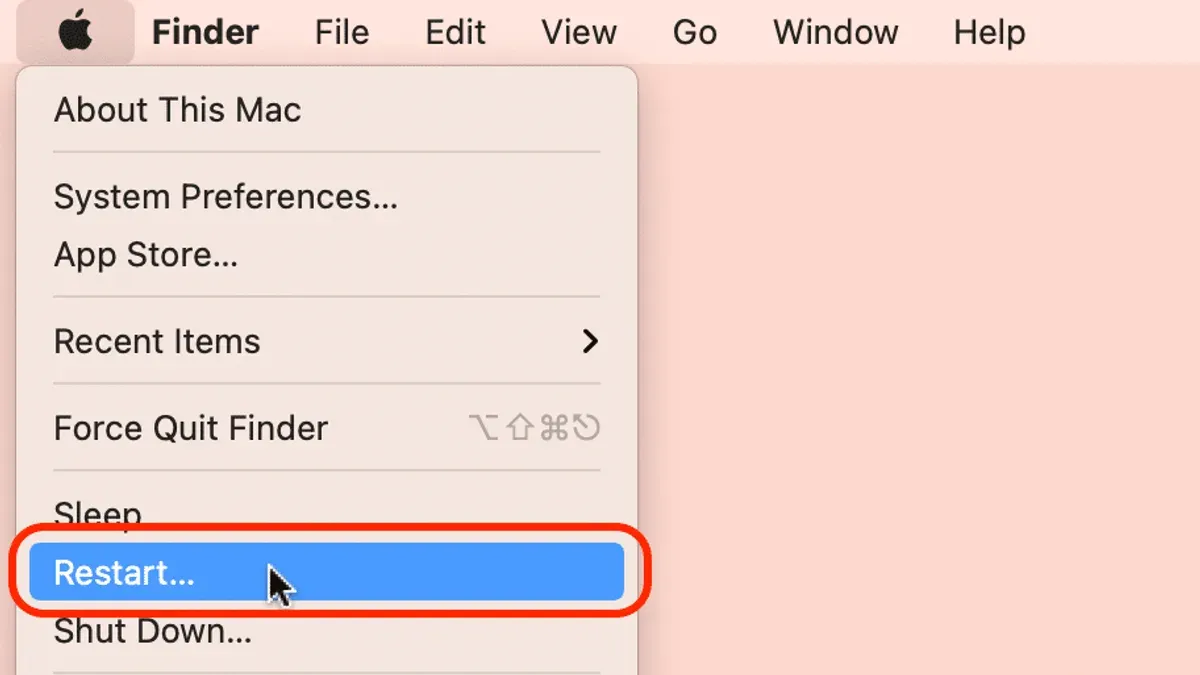
- Click the Apple logo in the top-left corner of your screen.
- Select Restart... from the dropdown menu.
- Confirm by clicking Restart in the pop-up window. Note: If apps have unsaved changes, macOS will prompt you to save before restarting.
Restart Using Keyboard Shortcut
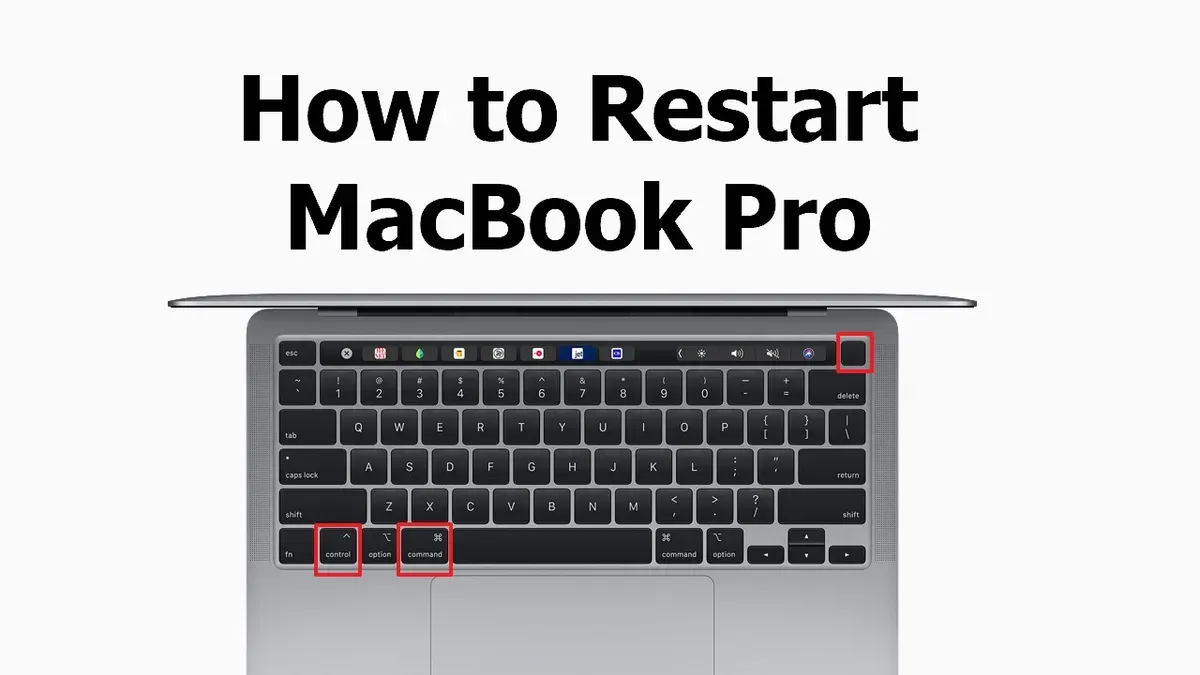
Press Control + Command + Power button simultaneously. This triggers a standard restart without additional prompts, so ensure all work is saved before using this shortcut.
Restart From Terminal
Open the Terminal app and enter the command:
sudo shutdown -r nowEnter your administrator password when prompted. This performs an immediate restart. Use this method primarily if you have remote access or prefer command-line control.
Forced Restart if System Is Unresponsive
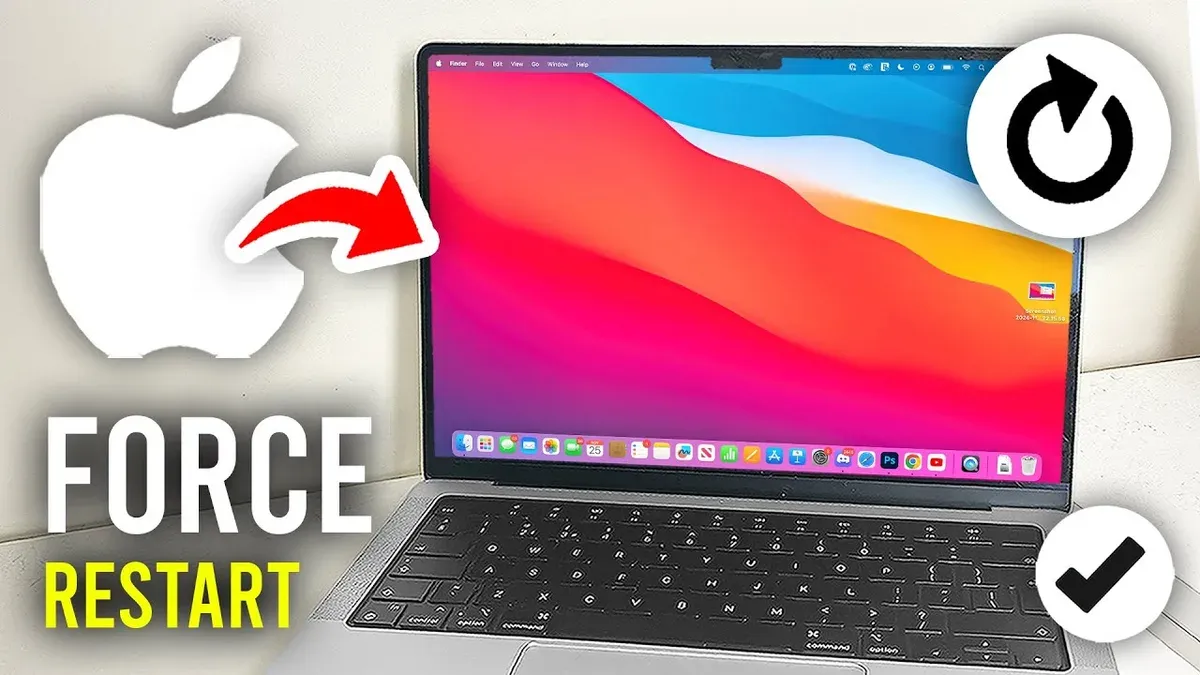
If your MacBook Pro freezes and does not respond, press and hold the power button for about 10 seconds until the device powers off. Wait a few seconds, then press the power button again to turn it back on. This method should be a last resort as it may cause data loss.
| Method | Use Case | Notes |
|---|---|---|
| Apple Menu Restart | Normal daily restart | Safest, prompts to save work |
| Keyboard Shortcut | Quick restart when responsive | No confirmation prompt; save work first |
| Terminal Command | Advanced users or remote access | Requires admin password; immediate restart |
| Forced Restart | System frozen or unresponsive | Last resort; may cause data loss |
Understanding What Happens Behind the Scenes When You Restart
The M1 Pro chip integrates memory and CPU more tightly than Intel Macs. When you restart:
- System state saving and restoration: The chip's firmware coordinates closing processes and flushing caches to storage. Unlike sleep mode, restart clears RAM completely, ensuring a fresh memory state.
- Differences vs Intel-based Macs: Apple Silicon's unified memory architecture means the restart process efficiently resets the entire system state. Intel Macs rely more on separate RAM modules and different firmware handling.
- Impact on running processes and data: Restart terminates all running apps and processes. Unsaved data will be lost if not saved before restarting. System and user caches are cleared, improving performance.
This process ensures the operating system reloads freshly, reducing software conflicts or memory leaks that can accumulate over time.
When Not to Restart and Alternative Solutions
Restarting is not always necessary. Consider these alternatives first:
- Quit or force quit specific apps: If one app misbehaves, try quitting or force quitting it before restarting the entire system. Use Command + Option + Escape to open the Force Quit window.
- Use Sleep mode or log out: Sleep conserves power while keeping your session active. Logging out can resolve user-specific issues without restarting the system.
- Seek professional help: Persistent hardware or software problems may require expert diagnosis rather than repeated restarts.
Apple and experts recommend restarting only when necessary, such as after updates or persistent issues. Frequent unnecessary restarts can disrupt workflow and may cause wear on storage components over time.
What This Guide Does Not Cover
This article focuses solely on restart procedures and their implications. It does not address factory resets, reinstalling macOS, or detailed hardware troubleshooting beyond restarting your MacBook Pro M1 Pro.
Frequently Asked Questions
How long does it take to restart a MacBook Pro M1 Pro?
Typically, a restart takes between 30 seconds to one minute, depending on running processes and whether system updates are installing.
Will restarting delete any of my files or data?
No. Restarting does not delete files. However, unsaved work in open apps may be lost if not saved before restarting.
What is the difference between restarting and shutting down on M1 Pro Macs?
Restarting closes and immediately reloads the operating system, allowing faster system readiness. Shutting down powers off the device completely, saving more power but requiring a longer startup.
Can I restart my MacBook Pro M1 Pro if it’s frozen?
Yes. If unresponsive, use the forced restart method by holding the power button until it turns off, then press again to power up. Use this only if other methods fail.