How to Check Battery Health on MacBook Pro M1 Pro
Discover how to check battery health on your MacBook Pro M1 Pro to maintain performance and know when service or replacement is needed.
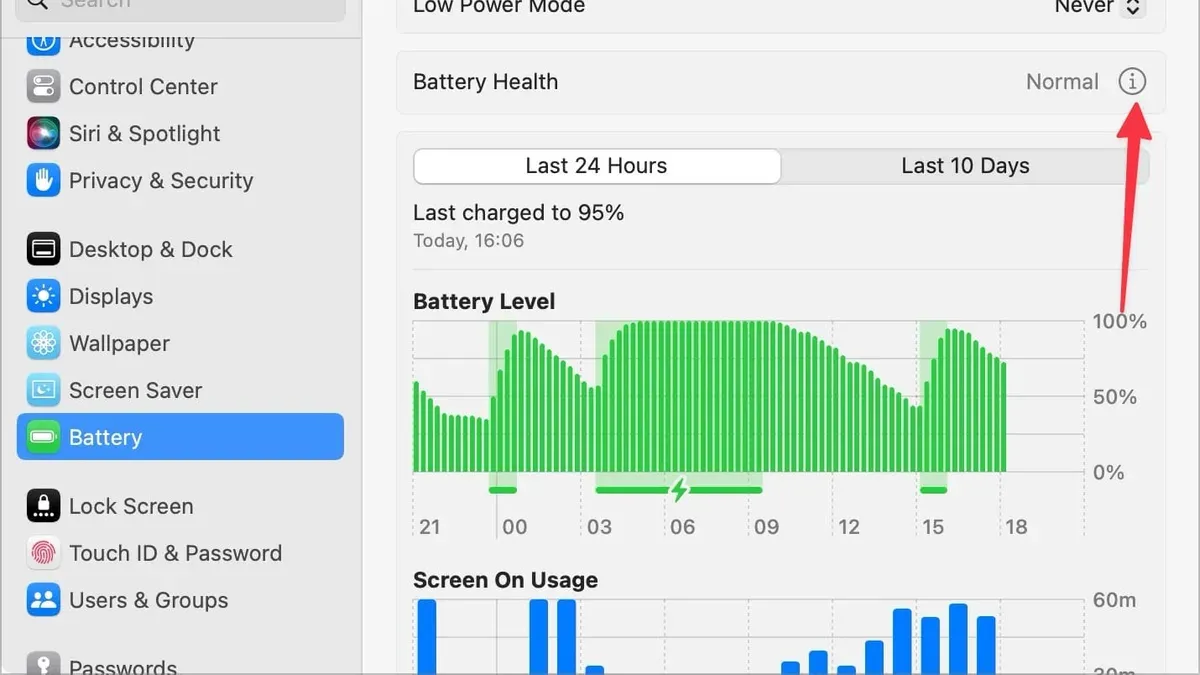
Knowing how to check battery health on MacBook Pro M1 Pro is essential for maintaining device longevity and performance. This guide explains key battery metrics, shows how to access battery information in macOS 2026, and helps interpret data to decide when maintenance or replacement is needed.
Understanding Battery Health Metrics on MacBook Pro M1 Pro
macOS reports several battery health indicators that reflect how your MacBook’s battery is aging and performing. The primary metrics include:
- Maximum Capacity: This percentage compares the current battery charge capacity to when the battery was new. A 100% value means full original capacity; lower percentages indicate wear.
- Cycle Count: Counts the number of full charge and discharge cycles the battery has undergone. MacBook batteries are designed for around 1000 cycles before capacity significantly diminishes.
- Peak Performance Capability: Indicates whether the battery can still deliver optimal power. If performance is degraded, macOS will show a warning.
macOS classifies battery health status as "Normal" or "Service Recommended." "Normal" means the battery functions within expected parameters. "Service Recommended" indicates the battery’s capacity or performance has declined enough to warrant professional inspection or replacement.
These health estimates rely on battery sensors and algorithms; while they are generally reliable, actual physical wear may vary slightly. For detailed info, open About This Mac > System Report > Power to view cycle count and maximum capacity.
Step-by-Step Guide to Checking Battery Health on Your MacBook Pro M1 Pro
Follow these steps on macOS 2026:
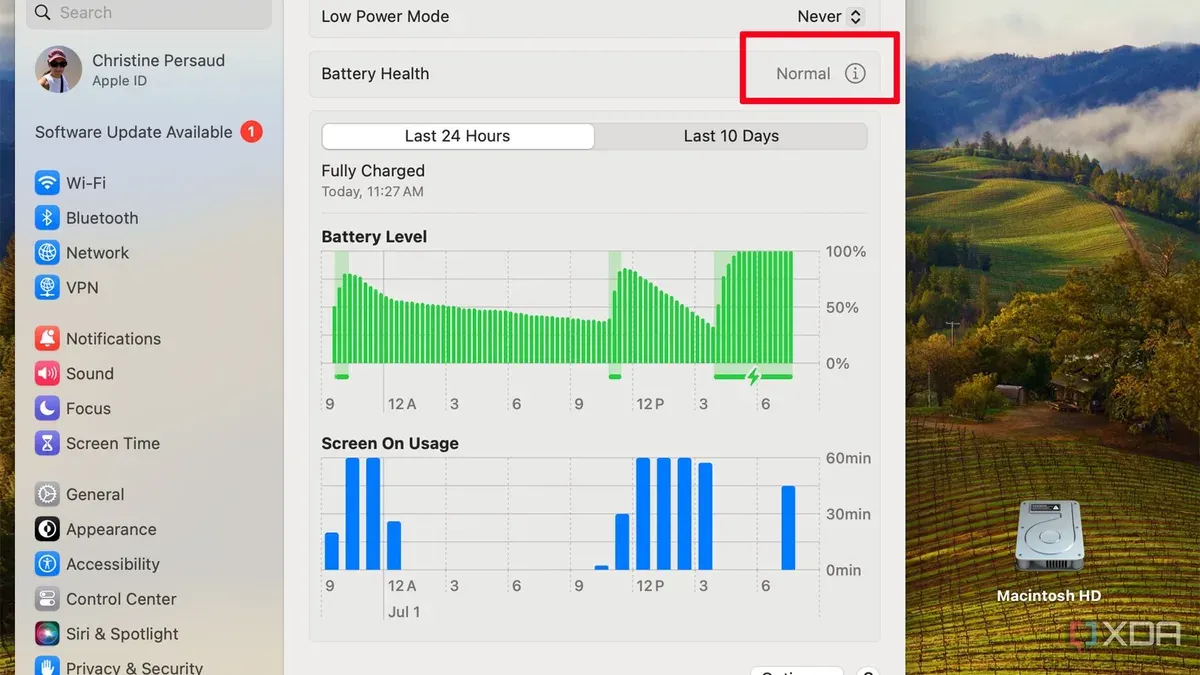
- Open System Preferences from the Apple menu.
- Click Battery.
- In the sidebar, select Battery Health... to see current maximum capacity and health status.
- For more details, open the System Information app (via Spotlight or Utilities).
- Navigate to Power in the sidebar to find cycle count, full charge capacity (mAh), and condition.
- Advanced users can open Terminal and run
system_profiler SPPowerDataTypefor detailed battery data in text form.
Note: The "Battery Health" button in System Preferences is sometimes overlooked, but it provides a quick summary without needing System Information.
What Your Battery Health Data Means for Your MacBook Pro's Performance
Understanding these metrics helps decide how to adjust usage or whether to seek service:
- Maximum Capacity: Above 80% generally means good battery life; below 80% indicates noticeable runtime reduction.
- Cycle Count: Nearing or surpassing 1000 cycles suggests the battery is close to its designed lifespan and may hold less charge.
- macOS Warnings: "Service Recommended" or performance throttling warnings indicate detected battery issues affecting reliability.
For example, a MacBook with 85% maximum capacity and 900 cycles will have reduced battery life but may not require immediate replacement. If cycle count exceeds 1000 and capacity is below 80%, planning for replacement is advisable.
Battery calibration is not required on M1 Pro models, as Apple’s battery management is optimized. However, performing a full charge and discharge cycle occasionally can help macOS better estimate remaining capacity.
Maintaining good charging habits—avoiding extreme temperatures, not frequently letting the battery drain completely, and not keeping it at 100% charge constantly—can help prolong battery health.
| Cycle Count Range | Battery Health Expectation |
|---|---|
| 0–400 | Excellent capacity, near original |
| 400–800 | Minor capacity loss; normal wear |
| 800–1000 | Noticeable capacity decline; monitor closely |
| 1000+ | Battery nearing end of lifespan; replacement advised |
When and How to Get Your MacBook Pro M1 Pro Battery Serviced or Replaced
Battery service decisions depend on multiple factors beyond software warnings:
- Severe battery swelling or physical damage requires immediate service.
- Rapid battery drain and inability to hold charge are practical indicators.
- macOS "Service Recommended" status suggests professional evaluation is needed.
Apple’s official battery service policies cover M1 Pro MacBooks with out-of-warranty replacement options. Battery replacement is performed by authorized technicians to ensure device integrity and safety.
Third-party repair services may offer lower-cost battery replacements but carry risks such as warranty voidance, use of non-genuine parts, or inconsistent quality. Users should weigh these pros and cons carefully.
Apple publicly lists typical battery replacement costs on its website. The process usually takes a few business days when performed by Apple or authorized providers.
Frequently asked questions
How often should I check the battery health on my MacBook Pro M1 Pro?
Checking every few months or when you notice performance issues is sufficient for most users.
Can I improve my MacBook’s battery health through software or settings?
There is no software method to restore lost capacity, but enabling optimized battery charging and managing charging habits can slow degradation.
Is it safe to continue using my MacBook if the battery health shows "Service Recommended"?
Generally, yes, but expect reduced performance and battery life. Professional service is recommended to avoid potential risks.
Does running intensive apps affect battery health readings on M1 Pro MacBooks?
High workloads increase battery usage but do not directly affect health readings. Frequent heavy use may accelerate battery wear over time.
Caveats
This guide does not cover hardware repair procedures. Battery replacement involves risks including chemical hazards and potential damage. Users should not attempt battery replacement themselves and should rely on authorized service providers to protect safety and warranty.