How to Hide Photos in the Photos App: A Step-by-Step Guide
Discover easy steps to hide photos in the Photos app on iPhone and Android to protect your private images from casual viewers.
You’ve just taken a photo that you don’t want others to see when they scroll through your gallery. Maybe it’s a private moment or sensitive information, and you want a straightforward way to keep it out of plain sight. Knowing how to hide photos in Photos app can help you secure these images without deleting them.
This article guides you step-by-step through hiding photos on both iPhone and Android devices. You’ll learn how to use the built-in features of each platform’s Photos app, explore third-party apps for added security, and understand key privacy considerations. By the end, you’ll be able to choose the best method that balances ease, security, and usability for your needs.
Key takeaways
- Use the native hide feature in iOS Photos by selecting photos and tapping Hide from the Share menu.
- On Android, some devices allow hiding photos via the Google Photos app’s Archive or by using built-in file encryption tools.
- Third-party apps offer additional privacy options like PIN or biometric locks for hidden albums.
- Hiding photos in the Photos app does not always encrypt them; consider app locks for stronger privacy.
- Regularly review hidden items and app permissions to maintain security and avoid accidental exposure.
Before you start: What you need to know about hiding photos
When you hide photos on your smartphone, it’s important to understand that hiding is not the same as locking or encrypting. Hiding typically removes photos from your main gallery view and places them in a separate, less visible album or folder. However, these hidden photos are often still accessible within the Photos app or through file explorers unless you use additional security measures.
Both iOS and Android offer native options to hide photos, but the features and privacy levels differ. On iPhone, the Photos app allows you to hide photos and move them to a “Hidden” album, which can be further secured by toggling the “Use Face ID/Touch ID” option in Settings > Photos. Android devices vary widely: some versions of Google Photos include a “Locked Folder” feature that requires biometric authentication, while other Android phones may have manufacturer-specific options or no built-in hiding at all.
Before hiding photos, check your device’s OS version and Photos app capabilities. For example, iOS 14 and later support biometric protection for the Hidden album, and Google Photos’ Locked Folder is available on many recent Android versions but not all. If your device doesn’t support native locking, third-party apps can fill that gap but come with their own privacy considerations.
| Feature | iOS Photos App | Google Photos on Android | Other Android Devices |
|---|---|---|---|
| Hide Photos (Removes from Main Gallery) | Yes (moves to Hidden album) | Yes (moves to Archive or Locked Folder) | Varies; often no native hide feature |
| Biometric Lock on Hidden Photos | Yes (Face ID/Touch ID to access Hidden album) | Yes (Locked Folder requires authentication) | Rare; depends on manufacturer |
| Encryption of Hidden Photos | No (only biometric lock on album) | Yes (Locked Folder encrypts files) | Usually no |
| Hidden Photos Visible in File Managers | Yes (Hidden album accessible in Files app) | No (Locked Folder is private) | Often yes unless encrypted |
To summarize, hiding photos is a useful way to declutter your gallery or prevent casual viewers from seeing sensitive images. However, it should not be relied on as a full security solution unless combined with locking or encryption. Understanding your device’s options will help you decide whether native features suffice or if you need additional apps for stronger privacy.
How to hide photos in the Photos app on iPhone
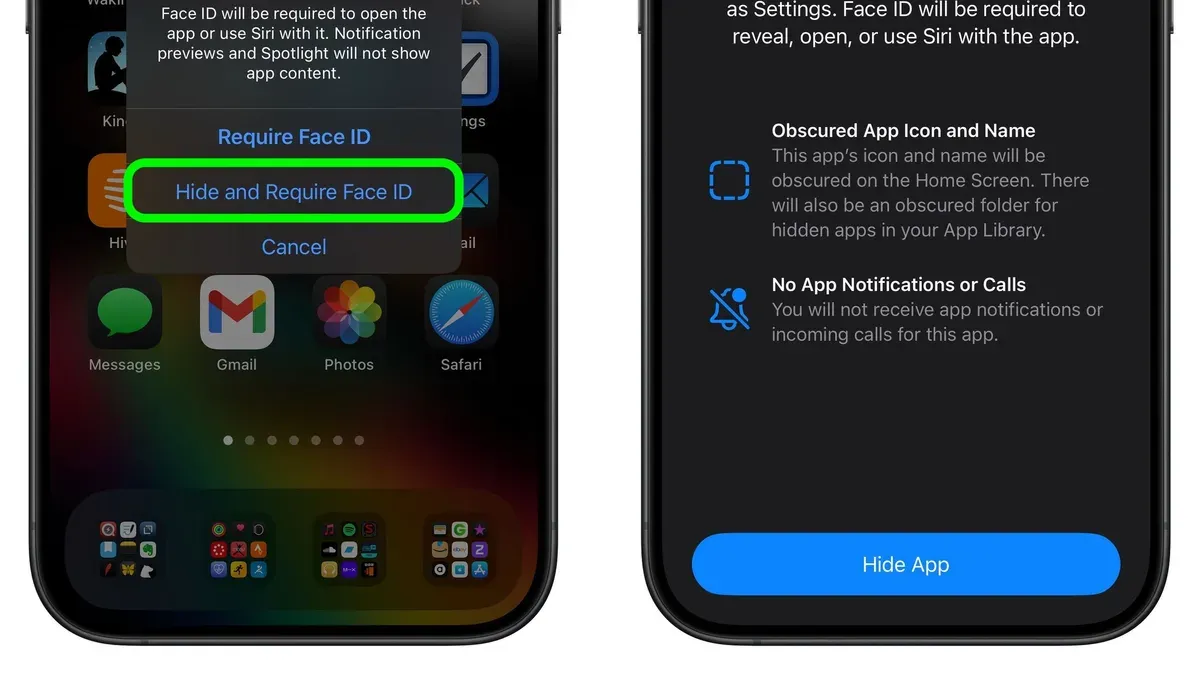
On your iPhone, you can use the built-in Photos app to hide photos easily. This method removes images from your main library and places them into a special Hidden album. However, keep in mind that the Hidden album is visible in the Albums tab unless you choose to hide it, and it does not support password or Face ID protection.
- Open the Photos app and navigate to the photos or videos you want to hide. You can select multiple items by tapping Select in the upper right corner.
- Tap the Share icon (a square with an upward arrow) at the bottom left of the screen. You should see a menu of sharing options.
- Scroll down and tap Hide. A confirmation prompt appears asking if you want to hide the selected photos.
- Tap Hide Photo to confirm. The photos will be removed from your main feed and moved to the Hidden album.
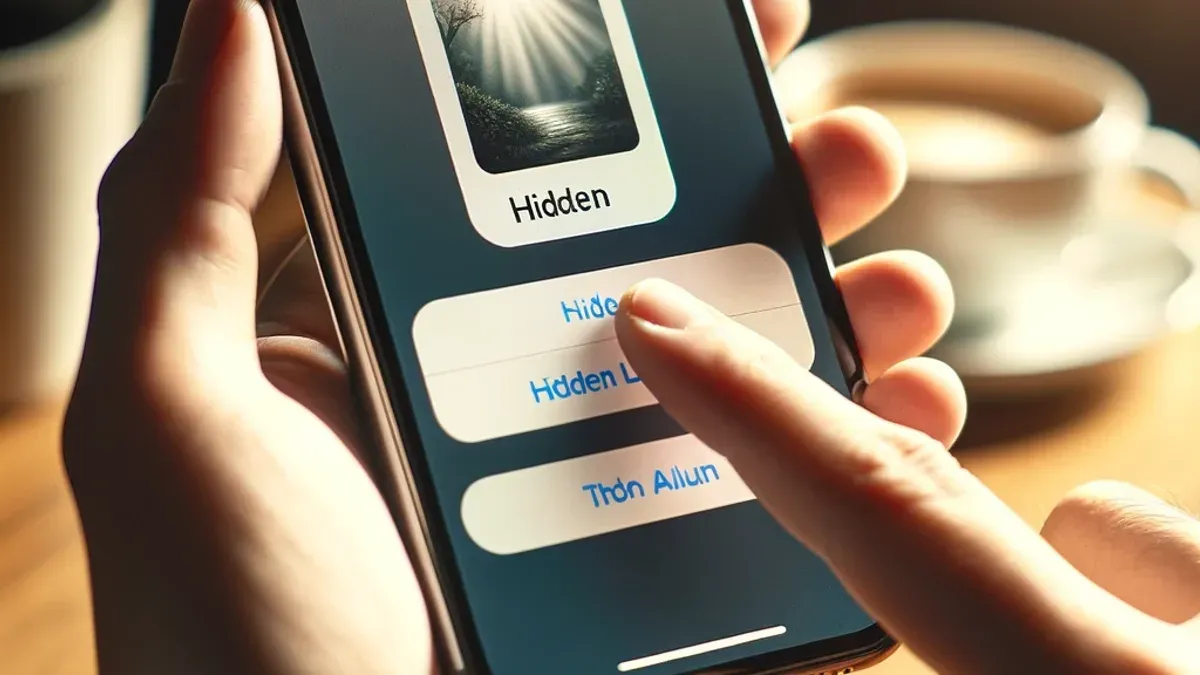
To view your hidden photos, go to the Albums tab, scroll down to the Utilities section, and open the Hidden album. Here, all hidden photos and videos are stored.
If you want to hide the Hidden album itself, go to Settings > Photos and toggle off Hidden Album. This will remove the Hidden album from the Photos app’s Albums tab, but the photos remain hidden and can only be accessed by turning this setting back on.
Note that the Hidden album is not locked with a password or biometric security, so anyone with access to your phone can view it if they know where to look. Some users report that the Hidden album remains visible even when toggled off, depending on iOS versions and device settings, so double-check your privacy preferences.
How to hide photos on Android using the Photos app or built-in tools
Android offers several built-in methods to hide photos, primarily through Google Photos’ Archive feature or device-specific secure folders. Each method has its benefits and limitations, often depending on the device manufacturer and Android version you use.
Using Google Photos’ Archive Feature
Google Photos lets you move photos to an Archive folder, which removes them from the main photo feed without deleting them. To archive a photo, select it, tap the three-dot menu, then choose "Archive." The photo disappears from the main view but remains accessible in the Archive section. This method is straightforward but does not provide password protection, so anyone with access to your Google Photos app can view archived photos.
- Open Google Photos and select the photo(s) you want to hide.
- Tap the three-dot menu icon in the top-right corner.
- Choose "Archive." The photo will be removed from the main feed and appear in the Archive folder, accessible from the app menu.
Using Secure or Privacy Folders on Your Device
Many Android manufacturers, such as Samsung and OnePlus, include a Secure Folder or Privacy Folder, designed for stronger photo privacy. For example, Samsung’s Secure Folder requires a password, PIN, or biometric unlock and creates a separate encrypted space for your private photos. To move photos here, you typically select the photos in the gallery, choose "Move to Secure Folder," then authenticate. OnePlus offers a similar Private Safe feature. These folders keep photos away from the main gallery and add an extra layer of security.
- Open your device’s Gallery app and select the photos you want to hide.
- Tap the menu or three-dot icon and select "Move to Secure Folder" (or "Private Safe" for OnePlus).
- Authenticate using your set PIN, password, or biometrics. The photos will move to the secure space and disappear from the main gallery.
Limitations include variation by device; not all Android phones have secure folder features. Also, photos moved to these folders may not sync with Google Photos unless specifically set. The Archive method syncs across devices but offers less security, while secure folders offer stronger privacy but can be device-specific. Choose based on your need for convenience versus protection.
How to hide photos on iOS with third-party apps
Third-party photo hiding apps on iOS offer stronger security features than the native Photos app, including password protection, encryption, and decoy modes. These apps help keep your photos truly private by requiring a passcode or biometric authentication before granting access. When choosing an app, look for high user ratings, regular updates, and clear privacy policies to avoid apps that may misuse your data.
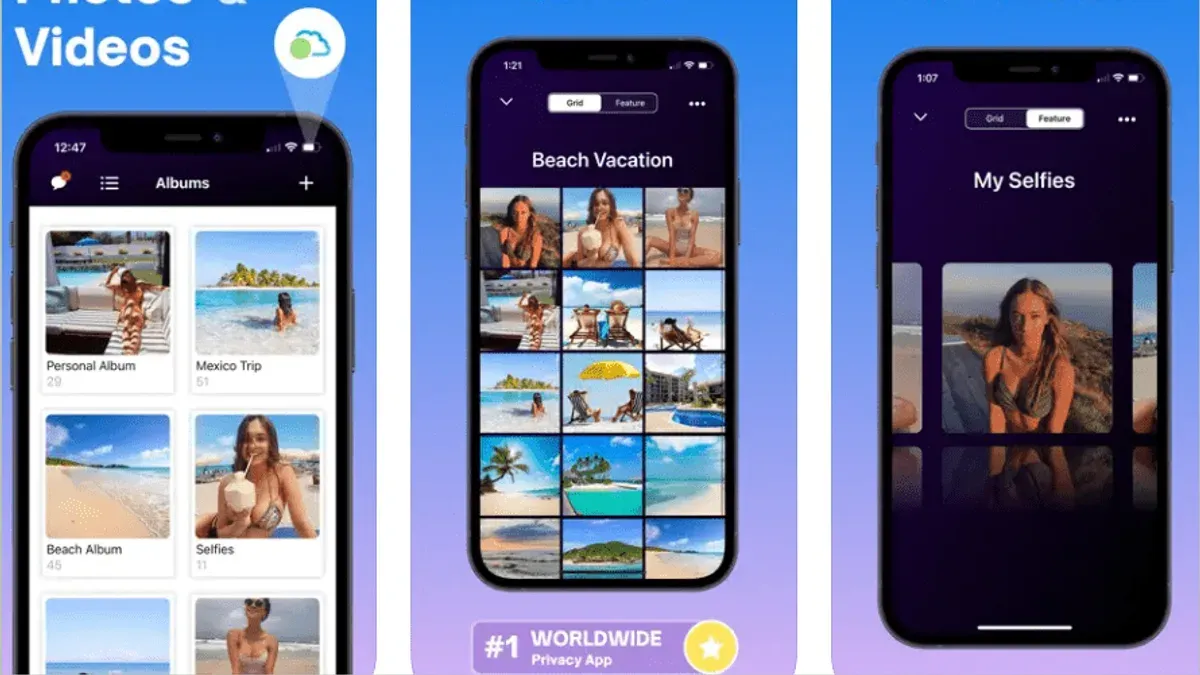
One popular free app with positive reviews is "Private Photo Vault." It uses PIN or Touch ID/Face ID to secure your photos and supports encrypted storage. Note that while the app encrypts content locally, always review its privacy terms and avoid apps that request unnecessary permissions.
- Download and open "Private Photo Vault" from the App Store. You should see a prompt to create a PIN or enable biometric authentication.
- Set up your PIN or biometric settings. Once setup is complete, you will enter the app’s main gallery view.
- Tap the '+' or "Add Photos" button, then select the photos you want to hide from your iPhone’s camera roll. After confirming, these photos will be imported and encrypted inside the app.
- Check that the imported photos appear inside the app. They will no longer be visible in the native Photos app unless you delete the originals there.
- For extra security, enable app lock settings found under "Settings" within the app, such as auto-lock timer and break-in reports if supported.
Keep in mind that using third-party apps means your hidden photos are stored within that app's sandbox. If you delete the app without exporting photos back, you may lose them. Also, consider that app developers may have access to metadata unless end-to-end encryption is guaranteed. Regularly review app updates and permissions to maintain your privacy.
How to hide photos on Android with third-party apps
If the built-in tools on your Android device don’t meet your privacy needs, third-party apps offer robust options for hiding photos securely. Popular free and paid apps like Vaulty, Keepsafe, and Hide Something provide password protection, encryption, and user-friendly interfaces. These apps typically require permissions to access your photos and storage, so reviewing their privacy policies is essential.
Here is a step-by-step example using Keepsafe, a widely trusted app with strong encryption and PIN or fingerprint lock options:
- Download and install Keepsafe Photo Vault from the Google Play Store. When you open it, you’ll be prompted to create a PIN code; this will protect your hidden photos.
- Grant the app permission to access your photos and media files. You should see your photo gallery organized within the app.
- Tap the “+” or “Add” button to import photos you want to hide. Select the images from your gallery and confirm. The selected photos will move into Keepsafe and disappear from your regular gallery app.
- Exit Keepsafe and check your default Photos app to ensure the imported images no longer appear. The photos are now behind Keepsafe’s lock screen.
- To view or manage hidden photos, open Keepsafe and enter your PIN or use your fingerprint. From here, you can add or remove photos as needed.
When choosing an app, consider features like cloud backup options, offline access, and how often the app updates for security patches. Some apps show ads or offer premium tiers for advanced features. Carefully review app permissions and user reviews, focusing on security and reliability. Avoid apps with excessive permissions or poor reputations to keep your privacy intact.
How to hide photos on your phone without using the Photos app
If you prefer not to use the Photos app for hiding pictures, you have other options like file manager apps and cloud storage. These methods let you control photo locations more directly and can add an extra layer of obscurity or privacy beyond the native gallery. However, each approach has trade-offs in convenience and security.
Using file manager apps to hide photos
File managers let you move photos to folders that are hidden from gallery apps by using specific naming conventions. For example, on Android, creating a folder with a dot at the beginning of its name, such as .hiddenphotos, signals the system to treat it as a hidden folder.
- Open your preferred file manager app.
- Create a new folder and name it starting with a dot, for example, .hiddenphotos. When done, the folder should disappear from most gallery apps.
- Move the photos you want to hide into this folder. After moving, confirm these photos no longer appear in your main gallery or Photos app.
Note that this method does not encrypt your photos or require a password. Anyone with file system access can still find and view these files.
Using cloud storage with private folders
Cloud services like Google Drive, Dropbox, or OneDrive let you upload photos to private folders. You can restrict access with account credentials and often enable two-factor authentication for added security.
- Open your cloud storage app and create a new folder with a descriptive name, but avoid naming it "Photos" to reduce visibility.
- Upload the photos you want to hide into this folder.
- Ensure the folder's sharing settings are set to private or restricted to only your account.
- After uploading, delete the local copies on your device to prevent them from showing in the gallery.
This approach provides stronger privacy because your photos are stored outside your device and protected by your cloud account’s security. However, it requires an internet connection to access your photos and depends on the security of your cloud provider.
In summary, using file manager apps offers quick local hiding but less security, while cloud storage offers better protection but may be less convenient and relies on external systems.
Troubleshooting common issues when hiding photos
If hidden photos still appear in albums or show up in search results, it often means the hiding feature isn't fully supported by the app or device. For example, on iPhone, the Hidden album may still show in the Albums tab unless you disable it in Settings > Photos > Hidden Album. Turning this off removes the album from view, confirming the photos are hidden.
After system updates, some users notice the Hidden album reappears even if previously hidden. To fix this on iOS, revisit the Photos settings and toggle the Hidden Album visibility off and back on. On Android, check that secure folders or app permissions remain intact, as updates can reset these settings.
Third-party apps sometimes fail to hide photos properly due to permission issues or app conflicts. Ensure the app has full storage access under your device’s app permissions. If photos still show publicly, try clearing the app cache or reinstalling the app. User feedback suggests that enabling all requested permissions usually resolves this.
Accidentally unhidden photos can be recovered by locating them in the Hidden album or archive. To re-hide, select the photos, tap the share or options menu, and choose Hide or Move to Hidden. Confirm you see the confirmation message, "Photo Hidden." If photos are missing, check recently deleted items, as unhidden photos may move there temporarily.
- Go to Settings > Photos (iPhone) or app settings (Android) and confirm Hidden Album or secure folder visibility is toggled off. You should no longer see the Hidden album in your gallery.
- After an OS update, revisit these settings to reapply your preferences. You should see the Hidden album disappear again.
- For third-party apps, open your device’s Settings > Apps > [App Name] > Permissions and enable storage access. Relaunch the app and check if photos are hidden.
- If photos appear visible after un-hiding, open the Hidden album or archive, select them, and choose Hide. You should see a confirmation message.
- If photos are missing, check the Recently Deleted folder within your Photos app. Recover photos if necessary and then re-hide them.
How to keep your hidden photos truly private: Best practices
Hiding photos is a good first step, but keeping them truly private requires additional measures. Start by enabling a strong device passcode under Settings > Face ID & Passcode or Settings > Security on Android. Add biometric locks like fingerprint or facial recognition for quicker, secure access. These locks help protect your entire device, reducing risks if it’s lost or stolen.
Next, keep your operating system and apps updated regularly. Updates often include patches for security vulnerabilities that could otherwise expose your hidden photos. Check for updates in Settings > General > Software Update on iPhone or Settings > System > Software Update on Android.
Choose third-party apps carefully. Avoid apps with vague or poor privacy policies by reviewing their permissions and user reviews before installing. Apps that encrypt hidden photos and require passwords provide stronger protection than those that don’t.
Finally, back up your hidden photos securely. Use encrypted cloud storage services or locally encrypted backups rather than unprotected options. This ensures you don’t lose your photos and that the backups themselves remain private.
- Set a strong device passcode and enable biometric locks.
Result: You should see the lock screen requiring your code or biometric confirmation. - Check for and install OS and app updates weekly.
Result: Your device shows the latest software version installed. - Review privacy policies before installing photo-hiding apps.
Result: You feel confident the app respects your privacy and uses encryption. - Back up hidden photos using encrypted cloud services or encrypted local storage.
Result: Your photos are safely stored with password or encryption protection.
Device theft and data breaches remain common, so layering these protections reduces the chance your hidden photos will be accessed by others.
Frequently asked questions
How to hide pictures in photos?
To hide pictures in the Photos app on your device, select the photos you want to hide, tap the share or options menu, and choose the "Hide" option. On iPhone, this moves photos to the Hidden album, which you can find under Albums > Utilities. On Android, the method varies by device, but typically you can move photos to a private or locked folder within the Gallery or Photos app.
How to hide photos in iphone?
On an iPhone, open the Photos app and select the photos you want to hide. Tap the share button and then tap "Hide." Confirm by tapping "Hide Photo." These images will then move to the Hidden album found under Albums > Utilities. Remember, the Hidden album is visible unless you hide it in Settings > Photos > Hidden Album.
How to hide photos in apple photos?
In Apple Photos, select the photos, tap the share icon, and choose "Hide." The photos will be moved to the Hidden album, which is not password protected by default. To add extra privacy, you can disable the Hidden album's visibility in Settings > Photos by toggling off "Hidden Album." This way, the album won’t appear in the Photos app.
How to hide photos on phone?
Hiding photos on your phone depends on the operating system. On iPhones, use the built-in Hide feature in the Photos app. On Android phones, you can use native features like Secure Folder on Samsung or move photos to a private album. Alternatively, third-party apps offer password protection and encryption for added security.
How to hide pictures on android?
On Android, you can hide pictures by moving them to a secure folder if your device supports it, like Samsung's Secure Folder. Otherwise, use the Gallery or Google Photos app to archive or move photos to a private album. For stronger protection, third-party apps with password or biometric locks can keep your photos more secure.
Understanding the Limits of Photo Hiding Methods
Hiding photos using the native Photos app on iPhone or Android does not provide encryption or password protection. This means hidden photos may still be accessible if someone knows where to look, such as the Hidden album on iOS or certain folders on Android. Third-party apps offer varying levels of security, so it is essential to carefully review their permissions and privacy policies before trusting them with your private images. Additionally, some Android devices do not support native secure folders, which limits your ability to hide photos without relying on third-party solutions.
To truly secure your private photos, the best next step is to choose a reputable app that offers password protection and encryption, and to regularly update it along with your device’s operating system. Always back up your hidden photos in a secure location, and avoid sharing your device passcode or app passwords with others. Taking these precautions helps ensure your photos remain private beyond simple hiding.
See also: How to Remove Duplicate Photos in Photos App: Step-by-Step Guide · How to Sync Messages on Mac: A Step-by-Step Guide for Apple Users · How to Use Mac Terminal: A Step-by-Step Guide for Beginners