How to Preview Files with Quick Look in Finder
Quick Look in Finder lets you preview files instantly without opening them, saving time and improving file management on your Mac.
Quick Look in Finder offers a fast way to preview files without opening them. This feature helps Mac users manage diverse file types more efficiently by providing instant access to content.
What is Quick Look and Why It Matters in Finder
Quick Look is a built-in macOS tool that allows users to view file contents directly within Finder without launching the associated application. It supports many file types, including documents, images, videos, and PDFs. By previewing files instantly, users save time that would otherwise be spent waiting for full applications to load.
Compared to traditional methods where files are opened fully, Quick Look offers a lightweight alternative that reduces workflow interruptions. For users handling multiple files daily, this means faster decisions about which files to open or discard.
How to Activate Quick Look: Basic and Alternative Methods
There are several ways to trigger Quick Look previews in Finder:
- Spacebar: Select a file and press the Spacebar to open a preview window instantly. Note that if the Spacebar does not open Quick Look, check that Finder is the active application and the file is selected; sometimes focus issues prevent activation.
- Context menu: Right-click a file and choose "Quick Look" from the menu.
- Trackpad gestures: Perform a three-finger tap or a force click on supported trackpads to open Quick Look previews. These gestures require that "Look up & data detectors" be enabled in System Preferences under Trackpad settings.
- Finder Preview pane: Enable the Preview pane by selecting View > Show Preview in Finder’s menu bar or pressing Option-Command-P. This pane displays a live preview on the right side when selecting files but does not support all file types.
Each method offers flexibility depending on user preference and hardware. For example, trackpad gestures provide a tactile approach, while keyboard and menu options are universally accessible. The Preview pane is useful for continuous previewing but can reduce Finder window space.
Advanced Quick Look Tricks for Power Users
Quick Look has features beyond basic previews that power users can leverage for efficiency:
- Multi-file preview: Select multiple files and press Spacebar to open them in a single Quick Look window. Navigate between files using arrow keys or on-screen buttons. Note that very large numbers of files may slow down Quick Look responsiveness.
- Inline text selection: You can highlight and copy text or images directly from Quick Look previews, allowing quick extraction without opening a file fully. However, some file types, such as certain PDFs or protected documents, may restrict text selection.
- Markup tools: For supported files like PDFs and images, Quick Look includes basic annotation options such as drawing, highlighting, or adding text notes. To access these, open the preview and click the Markup icon (a pen tip) in the toolbar. Changes made here save directly to the file.
- Full screen and slideshow: Expand previews to full screen with the full-screen button or press Command-Control-F. When previewing multiple images, start a slideshow using the play button. Slideshow order follows the Finder selection order.
Customizing Quick Look: Plugins and Third-Party Extensions
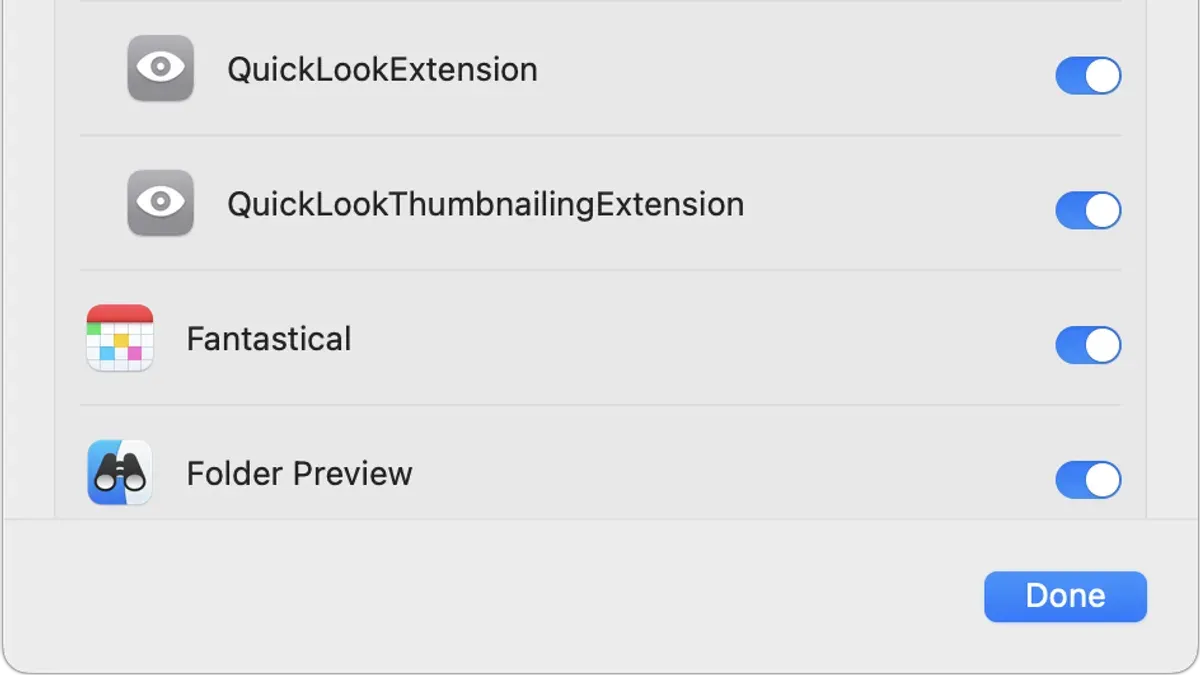
Quick Look functionality can be extended using plugins, which add support for additional file formats or enhance previews. Plugins must be installed in the ~/Library/QuickLook or /Library/QuickLook directories. After installation, run qlmanage -r in Terminal to refresh the Quick Look server cache.
Examples of useful plugins include:
- Code file previewers for formats like JSON, XML, or source code with syntax highlighting.
- 3D model viewers for file types such as OBJ or STL.
- Support for uncommon media files not handled by default Quick Look.
| Plugin Name | Supported File Types |
|---|---|
| QLStephen | Plain text, no extension files |
| QLMarkdown | Markdown files (.md) |
| QL3D | 3D models (OBJ, STL) |
While plugins enhance Quick Look, they can introduce risks such as potential security vulnerabilities or system instability. Only install plugins from trusted sources and keep them updated. Note that plugin compatibility may vary between macOS versions.
Troubleshooting Common Quick Look Issues
If Quick Look does not display previews as expected, consider the following steps:
- Preview not appearing: Ensure the file is supported. Restart Finder by right-clicking the Finder icon in the Dock while holding Option and selecting "Relaunch," or reboot the Mac to clear temporary glitches.
- Reset Quick Look cache: Open Terminal and run the command
qlmanage -rto reset Quick Look. This often resolves preview failures caused by corrupted caches. - File corruption or unsupported formats: Some files may not preview properly due to corruption or lack of Quick Look support.
After running qlmanage -r, Quick Look responsiveness and functionality often improve.
Limitations and Caveats
Quick Look is designed for previewing, not editing or deep file analysis. Users requiring advanced features should open files in dedicated applications.
Some rare or proprietary formats remain unsupported, even with plugins. Preview failures can also occur due to system glitches, which may require cache resets or restarts.
Frequently asked questions
Can Quick Look preview files without opening the associated app?
Yes. Quick Look displays file contents within Finder without launching the full application, enabling faster access.
Which file formats are supported by Quick Look by default?
Common formats like images (JPEG, PNG), PDFs, text files, videos, and Office documents are supported out of the box.
How do I preview multiple files at once using Quick Look?
Select several files in Finder, then press the Spacebar to open a single Quick Look window. Use arrow keys or buttons to navigate between files. Be aware that previewing very large groups of files may slow performance.
Are there any security concerns when using Quick Look with unknown files?
Quick Look is generally safe but opening unknown files can expose you to risks if files contain malicious content. Exercise caution and keep macOS updated to reduce vulnerabilities.
How do I enable trackpad gestures for Quick Look?
Trackpad gestures like three-finger tap or force click require enabling "Look up & data detectors" in System Preferences under Trackpad settings. Without this enabled, the gestures may not trigger Quick Look.
Worked Example: Copying Text from a PDF Preview
- Locate the PDF file in Finder.
- Select the file and press Spacebar to open Quick Look.
- Click and drag to highlight the desired text within the preview.
- Press Command+C to copy the selected text.
- Paste the text where needed without opening a full PDF editor.
This process saves time when extracting information from documents without launching Preview or other apps.