How to Stop Keychain Password Popups in Keychain Access
Discover how to stop keychain password popups in Keychain Access by troubleshooting password mismatches, app permissions, and keychain corruption.
You unlock your Mac only to be greeted repeatedly by Keychain Access password popups. These interruptions can disrupt your workflow and cause frustration, especially when you don't know what's triggering them or how to stop them.
This article guides you through how to stop keychain password popups in Keychain Access by helping you identify the root cause. Instead of applying generic fixes, you'll learn to pinpoint the underlying issue—whether it’s a password mismatch, app permission conflict, or keychain corruption—and choose the right solution to prevent these popups from recurring.
Key takeaways
- Check for password mismatches by verifying your keychain password matches your user account password.
- Identify and manage app permissions that request keychain access to stop unnecessary prompts.
- Repair or reset your keychain if corruption is causing repeated authentication requests.
- Adjust system settings such as iCloud Keychain and login items to reduce popup frequency.
- Use advanced troubleshooting steps only after eliminating common causes.
Before you start: What you need to know and prepare
Keychain Access is your Mac’s secure vault for storing passwords, certificates, and other sensitive information. Password popups occur when an app or system service requests access to an item in your keychain but encounters an issue, such as a password mismatch, an app’s repeated authorization requests, or corruption in the keychain database. A common scenario is when you change your Mac user password but don’t update your keychain password, causing repeated prompts to unlock it.
Before troubleshooting, gather information about any recent changes to your Mac, like password updates, new apps installed, or system upgrades. Having your Mac user password and administrator access ready is essential because some steps require these credentials. Also, backing up your keychain data can help prevent data loss if you need to reset or repair it.
To back up your keychain data, open Keychain Access from Applications > Utilities, select the keychains you want to save (such as "login"), then go to File > Export Items. Choose a safe location and save the file; you will be prompted to create a password to protect this exported data. This backup ensures you can restore your credentials if needed during troubleshooting.
- Open the Keychain Access app from Applications > Utilities. You should see your keychains listed in the sidebar, such as "login" and "System." This confirms the app is ready for use.
- Select the keychain you want to back up, usually "login."
- Click File in the menu bar, then choose Export Items. A dialog box appears asking where to save the backup file.
- Choose a secure location (like your Documents folder) and enter a strong password when prompted to encrypt the exported file. Press Save.
- Verify the exported file is saved correctly by navigating to the location and checking the file's presence.
Check for keychain password mismatches and update credentials
One common cause of recurring Keychain password popups is a mismatch between your login password and the keychain password. When you change your Mac user account password but do not update the keychain password, macOS repeatedly prompts for the old password, leading to frequent interruptions.
To verify if this mismatch is the issue, try opening Keychain Access from Applications > Utilities. If a lock icon appears next to the "login" keychain or you see a prompt asking for a password you no longer remember, your passwords are likely out of sync.
Follow these steps to update or reset your keychain password safely without deleting your saved items:
- Open Keychain Access and select the "login" keychain on the left sidebar; if it shows a locked icon, click it and enter your current login password to unlock it.
- From the menu bar, choose Edit > Change Password for Keychain "login".
- Enter the old keychain password (usually your previous login password) and then enter your current login password twice as the new password.
- Click OK. If the passwords match, the keychain password updates successfully; from now on, popups related to this mismatch should stop.
- If you don't remember the old keychain password, consider creating a new login keychain by choosing Keychain Access > Preferences > Reset My Default Keychain. This creates a fresh keychain synced with your current login password but will require re-entering passwords for apps and services.
Updating the existing keychain password preserves all saved credentials and avoids the hassle of re-authenticating apps. Resetting or creating a new keychain removes the mismatch but means you must re-enter passwords, which can be inconvenient. Understanding this trade-off helps you choose the best solution to stop password popups permanently.
For example, if your login password changed last week but you haven't updated the keychain password, each time an app requests access, macOS will ask for the old password. Updating the keychain password as described ends these repeated prompts.
Manage app permissions and identify which app triggers popups
When you experience frequent Keychain password popups, the root cause is often an app repeatedly requesting access to secured items. To find out which app is triggering these prompts, open Keychain Access from the Utilities folder in Applications. Look for keychain items that show repeated access attempts or warnings. These items usually indicate the app seeking permission.
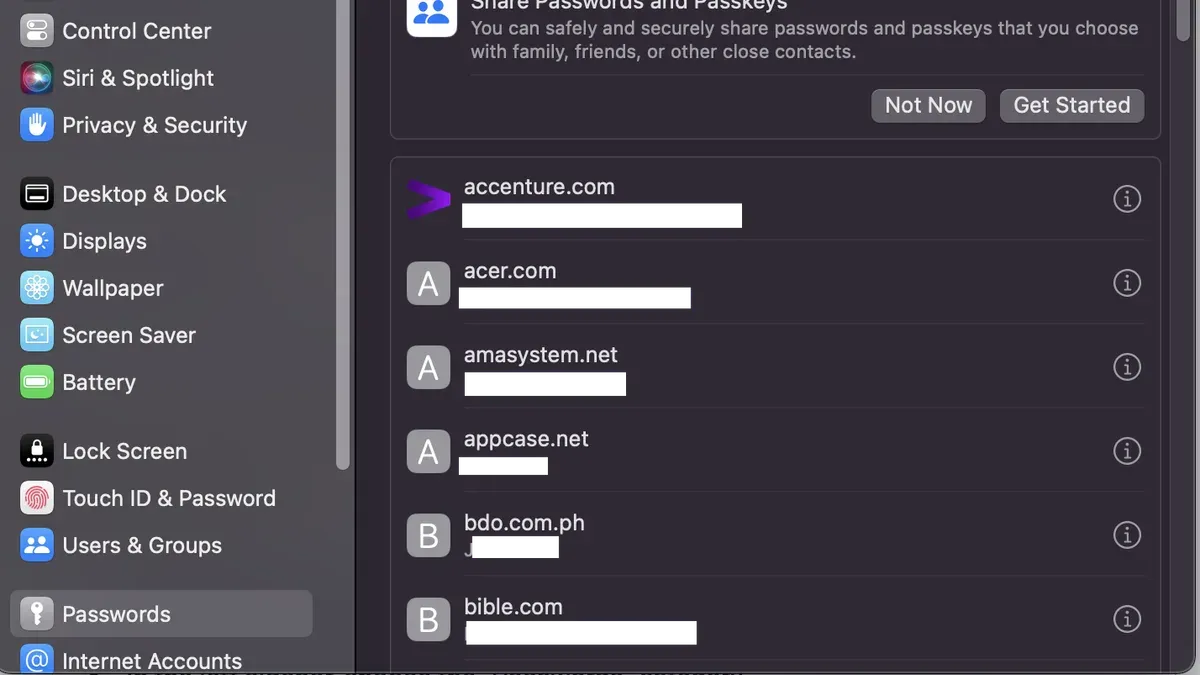
Next, check and adjust app permissions for these keychain items. Right-click the item and select Get Info, then navigate to the Access Control tab. Here, you can view which apps are allowed to access the item and decide to add or remove apps. Granting permanent access to trusted apps stops repeated password requests.
If you want to correlate the timing of popups with app activity, use Activity Monitor to observe running processes or open Console to check system logs for related authentication messages. For example, if a messaging app repeatedly appears in logs when popups occur, adjusting its keychain access can resolve the issue.
- Open Keychain Access and locate the frequently accessed keychain item—this item should have recent activity or error indicators.
- Right-click the item, select Get Info, then click the Access Control tab; review the list of apps allowed to access it.
- Remove any unrecognized or unnecessary apps by selecting them and clicking the minus (–) button to prevent unwanted access requests.
- Add trusted apps by clicking the plus (+) button and selecting the app’s executable, granting it permanent access and reducing popups.
- Use Activity Monitor or Console to observe which app’s activity matches the timing of popups to confirm your changes are effective.
For example, if a backup utility frequently triggers password prompts, adding it to the allowed apps on the corresponding keychain item lets it access credentials silently, stopping popups without compromising security.
Repair or reset the keychain to fix corruption issues
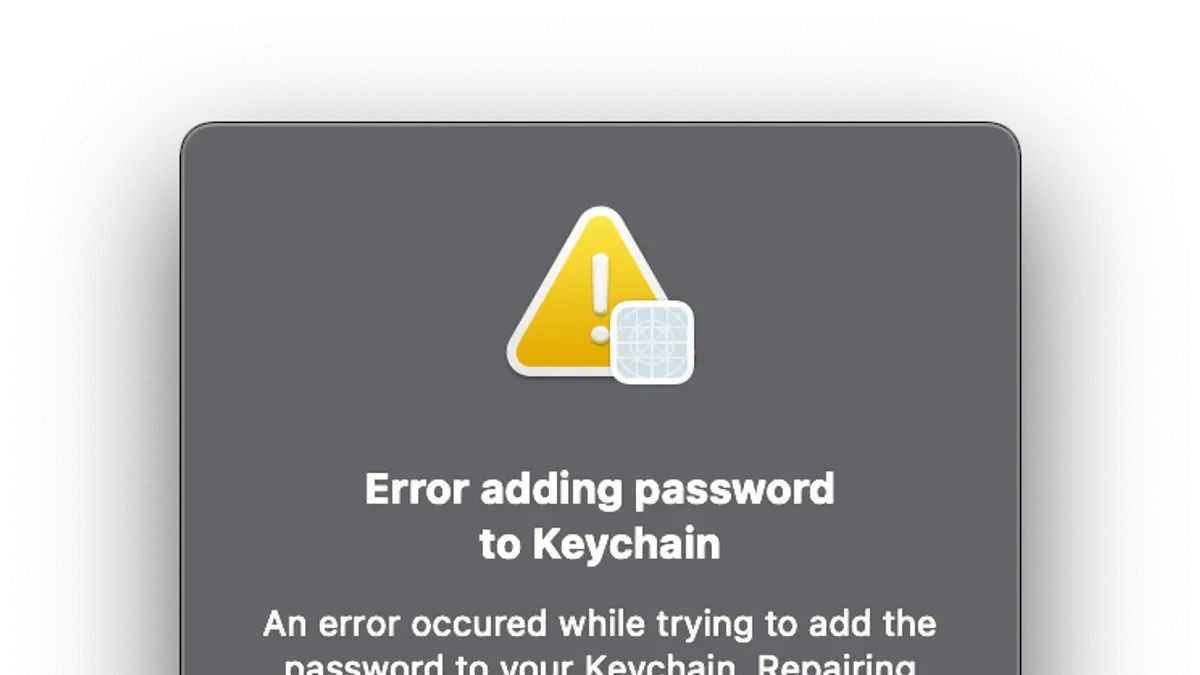
Repeated Keychain password popups can indicate corruption in your keychain. Signs include frequent error messages like "The keychain cannot be unlocked" or "The system was unable to access the keychain." To confirm corruption, observe if these errors persist despite updating passwords and managing app permissions.
Apple's previous tool, Keychain First Aid, offered automated repair but is no longer included in recent macOS versions. Instead, you can attempt manual repairs by verifying and repairing disk permissions using Disk Utility or by resetting the keychain entirely if repair is ineffective.
Resetting the keychain involves backing up your current keychain data to prevent loss, then creating a new default keychain to stop popups permanently. This process may cause loss of stored passwords and certificates, so carefully consider this step and export essential items first.
- Open Finder, go to ~/Library/Keychains/, and copy the folder with a long UUID name to a safe backup location. You should see your keychain files copied.
- Open Keychain Access, then select Preferences > Reset My Default Keychain. If this option is unavailable, manually delete the keychain files in ~/Library/Keychains/ after backing up, then restart your Mac. Upon reboot, your system creates a new empty keychain.
- Sign back into your accounts and re-enter passwords as needed. Successful reset is indicated by no further password popups and error messages disappearing.
Repair attempts may fix minor corruption with moderate success, but resetting is more reliable for persistent issues. Because reset deletes stored passwords, consider professional help if critical access depends on the keychain or if you are uncomfortable with these steps.
Adjust system settings to prevent unnecessary popups
Configuring your macOS system settings can significantly reduce the frequency of Keychain password popups. One effective setting to adjust is the keychain lock timeout, which controls how long your keychain remains unlocked after inactivity. By increasing this timeout, you allow longer sessions without repeated password prompts, balancing convenience with security.
- Open the Keychain Access app from the Utilities folder in Applications.
- In the sidebar, right-click your login keychain and select Change Settings for Keychain "login". You should see a dialog with timeout options.
- Check Lock after and set the timeout to a longer period, such as 1 hour, instead of the default 5 minutes.
- Optionally, uncheck Lock when sleeping if you prefer fewer interruptions but understand this reduces security when your Mac sleeps.
- Click Save to apply the changes. You should notice significantly fewer popups during regular use.
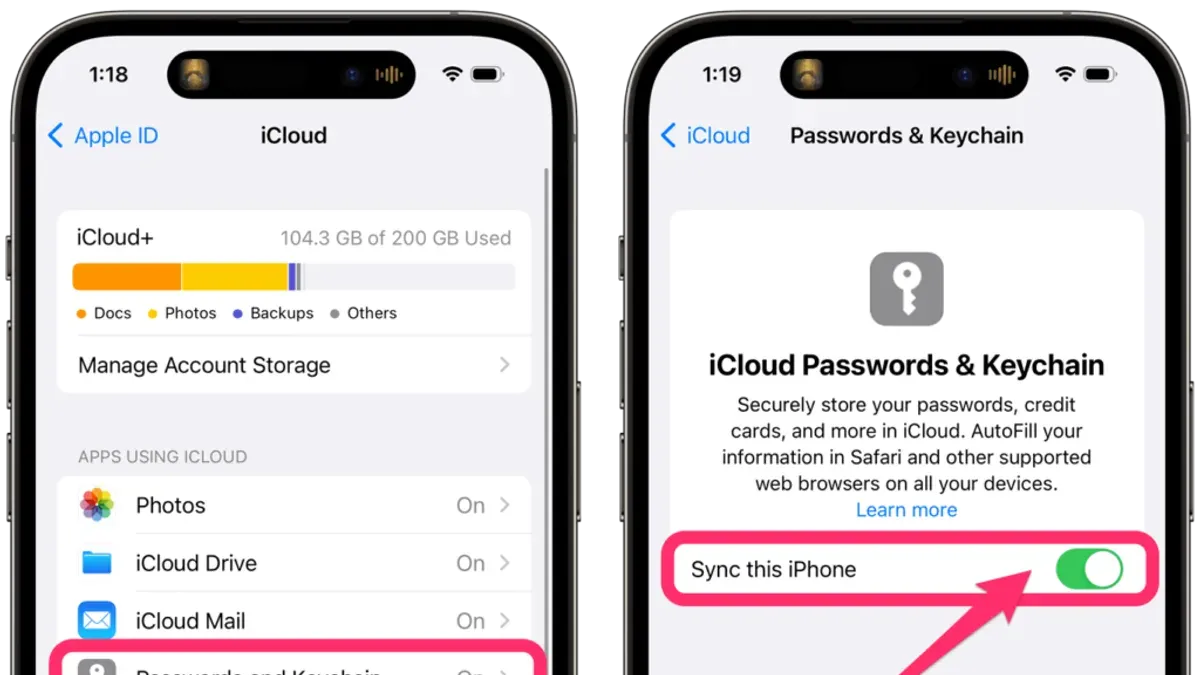
Another factor is iCloud Keychain synchronization. If you experience repeated popups tied to syncing across devices, temporarily disabling iCloud Keychain in System Settings under your Apple ID can help identify if syncing triggers the issue. You can re-enable it once the problem is resolved.
Managing auto-fill and password-saving settings in Safari and other apps also impacts popups. In Safari, go to Preferences > Passwords and adjust settings like AutoFill user names and passwords. Disabling auto-fill can prevent apps from requesting keychain access unnecessarily, though it may reduce convenience.
Keep in mind that tightening security settings, such as shorter keychain timeouts or disabling auto-fill, increases security but may lead to more frequent password requests. Adjust these settings thoughtfully to find a balance that fits your workflow and security needs.
Troubleshoot common failure points and advanced fixes
If you continue to experience persistent Keychain password popups despite applying basic solutions, there are advanced steps that can help resolve deeper issues. One common cause is conflicts arising from multiple or old keychains. Removing or consolidating outdated keychains in Keychain Access can eliminate confusion and repeated prompts.
Network-related authentication prompts often stem from services trying to access credentials over Wi-Fi or VPN connections. Ensure your network settings and passwords are up to date, and temporarily disconnect from networks to identify if the problem persists.
Resetting the System Management Controller (SMC) or NVRAM can resolve hardware-level or system configuration issues affecting Keychain behavior. This is especially relevant if popups started after hardware changes or macOS updates.
Using Terminal commands to reset keychain permissions or clear caches offers precise control for stubborn issues. For example, running sudo chmod -R 700 ~/Library/Keychains resets permissions, and killall -KILL cfprefsd clears preference caches, often stopping unexpected popups.
- Open Keychain Access and review all listed keychains. Select and delete any old or unused keychains. Successful removal reduces duplicate prompts.
- Disconnect from Wi-Fi and VPN networks, then observe if Keychain popups continue. If they stop, update network passwords and reconnect one by one.
- Reset the SMC: shut down your Mac, then press and hold Shift-Control-Option and the power button for 10 seconds, release, and restart. You should notice improved system responsiveness and fewer popups.
- Reset the NVRAM by restarting your Mac and holding Option-Command-P-R keys for about 20 seconds until the system restarts again. This clears hardware-related settings that might trigger popups.
- Open Terminal and enter sudo chmod -R 700 ~/Library/Keychains, then killall -KILL cfprefsd. This resets keychain folder permissions and clears caches. Afterward, Keychain Access prompts should diminish.
Applying these advanced fixes often resolves complex issues causing repeated Keychain password requests, restoring a smoother Mac experience.
Frequently asked questions
Why does Keychain Access keep asking for my password repeatedly?
Repeated password prompts often indicate that the keychain password is out of sync with your user account password. This can happen after a password change that didn't update the keychain. Another common cause is app requests for access to keychain items without proper permissions or corrupted keychain files causing authentication failures.
Can I stop Keychain Access from asking for my password without compromising security?
Yes, by addressing the root cause such as updating stored passwords or adjusting app permissions, you can minimize prompts without lowering security. Avoid disabling keychain features or saving passwords insecurely. Using Keychain Access to repair or reset your keychain can resolve issues while maintaining encryption and protection.
What happens if I reset or delete my login keychain?
Resetting or deleting your login keychain removes all stored passwords, certificates, and secure notes within it. You will need to re-enter passwords and reauthorize apps that use the keychain. This action can fix corruption but causes temporary inconvenience and loss of saved credentials.
How do I know which app is causing the password popups?
To identify the app triggering popups, open Keychain Access and look for the repeated access requests under the Access Control tab for specific items. You can also check the system's Console app for logs that mention the requesting process. Temporarily quitting or disabling recently installed apps can help isolate the culprit.
What This Advice Does Not Cover
This advice is intended for individual Mac users managing their own devices. It does not cover enterprise-managed Macs where keychain behavior may be controlled by IT policies or centralized management tools. If your Mac is part of a corporate environment with managed profiles or security restrictions, keychain password popups might be influenced by those settings, and you should consult your IT department for assistance. Additionally, this guide does not address hardware-related issues such as failing storage that could cause keychain corruption.
To best prevent recurring keychain password popups, focus on identifying the root cause among password mismatches, app permissions, or keychain corruption as described. The single most useful next step is to carefully check for any stored passwords that no longer match your current login credentials or app passwords by opening Keychain Access, searching for relevant items, and updating or deleting outdated entries. This targeted action often stops popups immediately and prevents them from returning.
See also: How to Delete a Keychain Entry in Keychain Access: Step-by-Step Guide · How to Find Saved Wi-Fi Passwords in Keychain Access