How to Turn Off App Notifications on Mac: A Clear Step-by-Step Guide
Discover how to turn off app notifications on Mac to minimize distractions and customize alerts for better focus.
Notifications can quickly pile up on your Mac, interrupting your workflow or distracting you when you need focus. You might also notice alerts from your iPhone appearing on your Mac, adding to the noise.
This article explains how to turn off app notifications on Mac, guiding you through System Settings, Notification Center, and options for managing iPhone alerts on your Mac. You'll learn how to customize notifications for specific apps, control alerts on the lock screen, and troubleshoot common issues.
Key takeaways
- Use System Settings > Notifications to disable or customize alerts globally or per app.
- Manage notifications from the Notification Center by swiping or clicking the clear button.
- Stop iPhone notifications on your Mac by adjusting FaceTime and Messages settings.
- Turn off push notifications on any Mac model through consistent settings.
- Control lock screen notifications separately to limit distractions when your Mac is locked.
Before you start: What you need to know about Mac notifications
macOS uses a centralized notification system to deliver alerts from both the system and installed apps. These notifications appear in the Notification Center, accessible by clicking the icon at the top-right of your screen or swiping left with two fingers on the trackpad.
To manage notifications, your Mac must be running macOS Big Sur or later, as this introduced the current System Settings layout where notification preferences are found. Older versions use System Preferences with slightly different navigation.
There are three main types of notifications you should be aware of: system notifications generated by macOS (like software updates), app notifications from individual applications, and notifications synced from your iPhone if you use the same Apple ID and have features like Handoff enabled.
Notifications can be helpful but may interrupt your workflow or distract you when multitasking. Customizing or turning off notifications allows you to control when and how alerts appear, helping maintain focus without missing important updates.
How to turn off notifications on MacBook using System Settings
System Settings on your MacBook provide comprehensive controls to manage notifications globally or on an app-by-app basis. This allows you to tailor alerts to minimize distractions while keeping essential notifications active.
- Open the Apple menu by clicking the Apple logo in the top-left corner of your screen.
- Select System Settings from the dropdown menu. A window with various system options will appear.
- In the sidebar, click Notifications. You will see a list of apps that can send notifications.
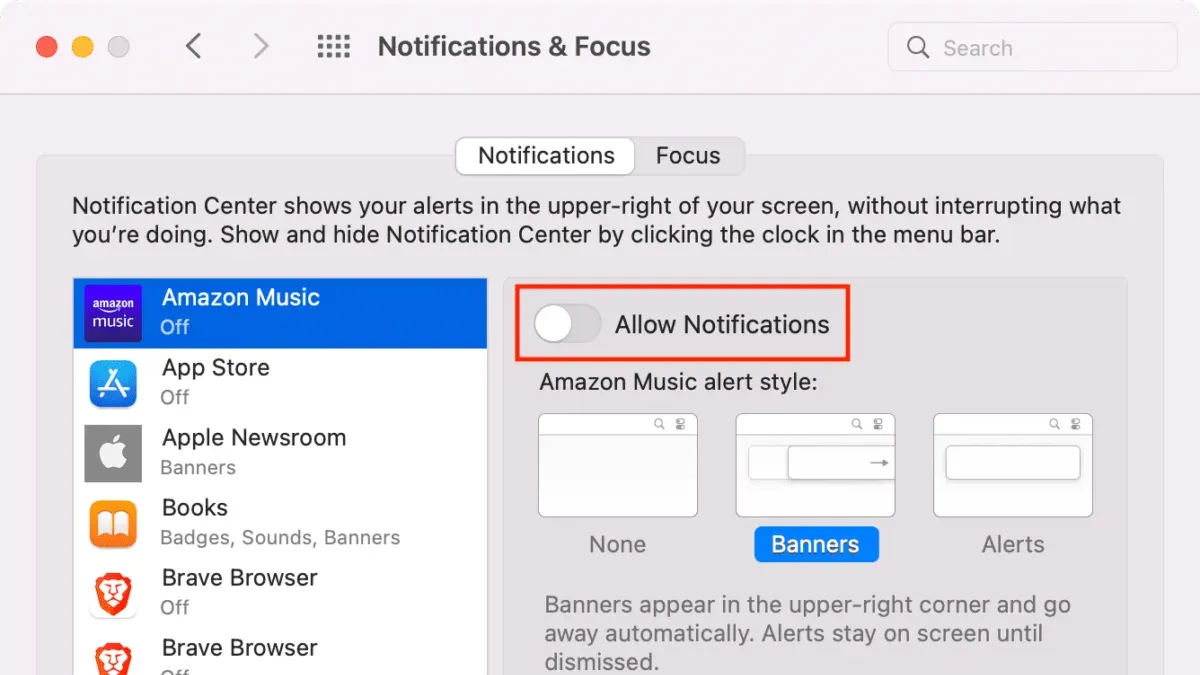
- To disable all notifications globally, toggle off the Allow Notifications switch at the top if available. This will stop all app alerts immediately.
- To disable notifications for specific apps, scroll through the list and select the app you want to adjust.
- Within the app’s notification settings, toggle off Allow Notifications to stop all alerts from that app.
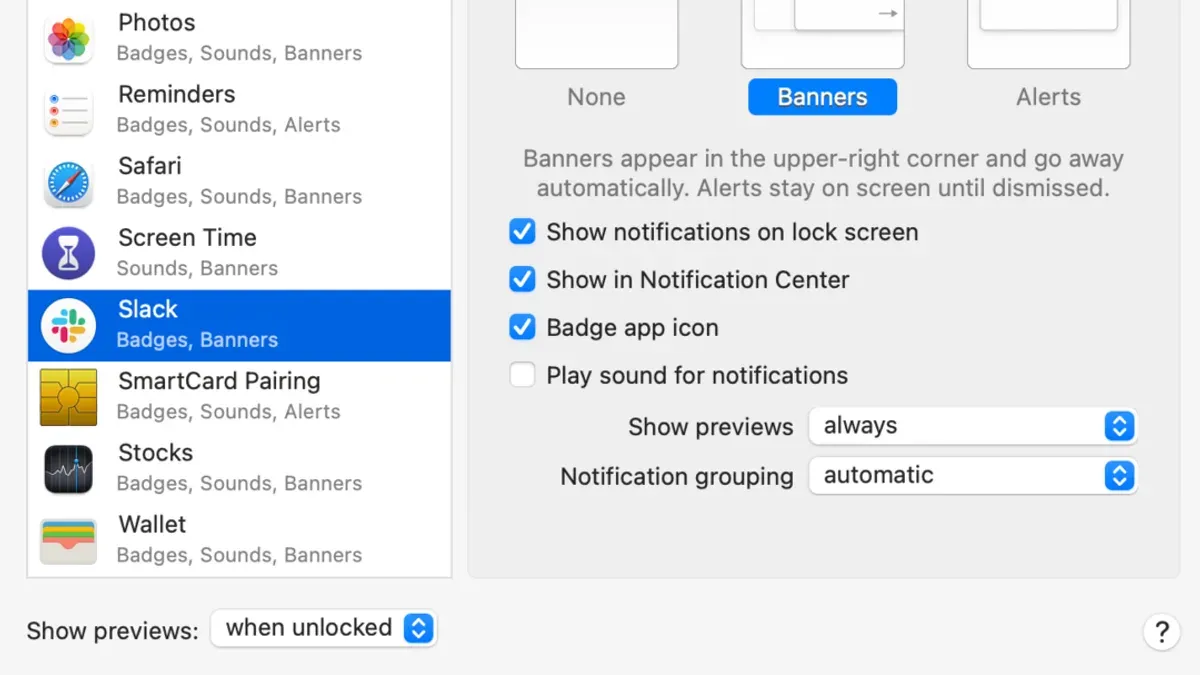
- Alternatively, customize the alert style by selecting None, Banners, or Alerts to control how notifications appear.
- Use additional options to disable sounds, badges on app icons, or notification previews according to your preference.
- Close System Settings when finished; your changes save automatically.
This method provides precise control over how and when you receive notifications, helping you stay focused without losing track of important updates.
How to turn off app notifications on MacBook from the Notification Center
The Notification Center offers a quick way to manage notifications without opening System Settings. You can mute, turn off, or snooze notifications for specific apps directly from the alerts themselves.
- Click the date and time in the menu bar at the top-right corner of your screen to open the Notification Center. You should see recent notifications grouped by app.
- Find a notification from the app you want to silence—for example, a messaging app that frequently interrupts your work.
- Hover over the notification and click the Options button (it appears as three dots or a gear icon on some macOS versions). A menu will appear.
- Select Turn Off to stop notifications from that app entirely. You will immediately stop seeing new alerts from this app in Notification Center.
- Alternatively, choose Snooze to temporarily pause notifications for one hour, or until the end of the day, depending on your macOS version. This is useful if you want a break without disabling notifications permanently.
- Close the Notification Center by clicking outside of it or pressing the Escape key.
For example, if a social media app constantly distracts you, use this method to quickly silence its notifications during focused work sessions without changing your broader notification settings.
How to stop iPhone notifications on MacBook
iPhone notifications appear on your MacBook primarily due to Apple's Continuity features, including Handoff, which sync alerts across devices signed into the same Apple ID. This can be helpful for seamless multitasking but may cause distractions if you prefer to separate notifications.
To stop iPhone notifications on your Mac, you can adjust settings on both devices using Focus modes and app-specific preferences.
- On your iPhone, open Settings and select Focus.
- Choose an existing Focus mode or create a new one by tapping the plus icon.
- Tap Devices and disable the option Share Across Devices to prevent notifications from syncing to your Mac. You should no longer see iPhone alerts on your Mac after this.
- Alternatively, on your Mac, open System Settings and navigate to Notifications.
- Find Messages and FaceTime in the app list and toggle off their notifications to stop receiving these iPhone alerts on your Mac.
- Disabling these notifications on the Mac keeps them active on your iPhone only, maintaining communication on the phone without cross-device interruptions.
With Continuity features enabled, notifications appear on all devices, enabling quick responses but increasing alert volume on your Mac. Turning off these settings confines notifications to their original device, reducing multitasking distractions but limiting seamless handoff.
How to turn off push notifications on MacBook Air and other Mac models
Push notifications on macOS are alerts sent by apps to keep you informed even when the app is not open. These notifications appear as banners, alerts, or badges and can interrupt your workflow if not managed properly.
The process to turn off push notifications is the same across MacBook Air, MacBook Pro, and other Mac models, as macOS uses a unified notification system regardless of hardware differences.
- Open System Settings on your Mac by clicking the Apple menu and selecting System Settings. You will see a sidebar with various options.
- Scroll down and click Notifications. This opens the notification preferences for all installed apps.
- In the list of apps, select the app for which you want to disable push notifications. You will see options to customize alerts.
- Toggle off Allow Notifications to stop all push notifications from that app. When disabled, you will no longer receive banners, sounds, or badges from this app.
- Repeat these steps for any other apps you want to silence.
This approach works identically on MacBook Air and other Mac models, including MacBook Pro and Mac mini. The main difference you might notice is the screen size or resolution, but the interface and settings remain consistent.
By managing push notifications this way, you control which apps can interrupt you, helping maintain focus without missing critical alerts.
How to turn off notifications for specific apps on Mac
You can customize notifications for individual apps to reduce distractions without disabling alerts entirely. This selective approach lets you mute less important apps while keeping essential ones active.
- Open System Settings from the Apple menu. You should see the main settings categories.
- Click Notifications in the sidebar to view a list of apps with notification permissions.
- Select the app you want to adjust, for example, a social media app like Twitter. The app’s notification options will appear.
- Toggle off Allow Notifications to completely disable notifications for that app, or selectively disable Sounds, Banners, Badges, or Show notifications on lock screen to tailor the alerts. Each toggle change updates instantly.
- To keep email notifications active while disabling social media alerts, ensure the Mail app’s notification settings remain enabled with your preferred alert types selected.
- Consider using Focus modes (found in System Settings under Notifications & Focus) to dynamically manage app notifications based on your activity. For instance, create a Focus mode that silences social media during work hours but allows email alerts.
This process helps you control distractions by prioritizing which apps can interrupt you, balancing productivity with staying informed.
How to turn off app notifications on the lock screen
Controlling notifications on your Mac's lock screen helps protect your privacy and reduce distractions while maintaining convenient access to essential alerts. You can choose to disable all notifications from appearing on the lock screen or limit the visibility by turning off notification previews.
- Open System Settings and go to Notifications & Focus. You should see a list of apps with notification options.
- Click Options next to any app to customize how its notifications appear.
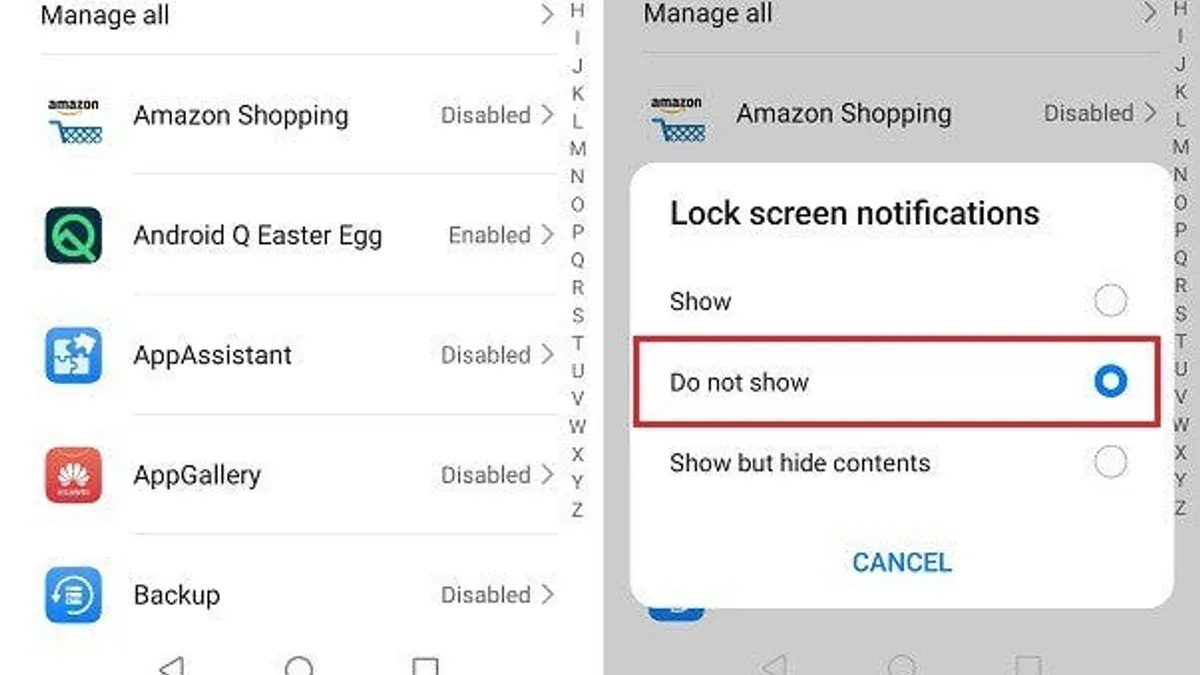
- To prevent notifications from appearing on the lock screen entirely, toggle off Show on Lock Screen. The app’s notifications will no longer show when your Mac is locked.
- Alternatively, to keep notifications visible but hide their content, toggle off Show Previews. This setting replaces detailed alerts with a generic message like "Notification" on the lock screen, protecting sensitive information.
- Repeat this for each app you want to adjust. You can also use the global setting under Notifications & Focus > Notification Preferences to turn off previews for all apps.
Turning off lock screen notifications increases privacy by preventing others from seeing app alerts without unlocking your Mac. However, it may reduce your ability to glance at important updates quickly. Balancing these settings allows you to tailor notification visibility to your multitasking and security preferences.
| Setting | Lock Screen Appearance |
|---|---|
| Show on Lock Screen: On Show Previews: On | Full notifications with content visible |
| Show on Lock Screen: On Show Previews: Off | Notifications appear, but content is hidden (e.g., "Notification") |
| Show on Lock Screen: Off | No notifications shown on the lock screen |
Troubleshooting common issues when turning off Mac notifications
Sometimes notifications continue to appear even after you disable them. This often happens because certain apps have overrides or profiles that reset notification settings.
- Open System Settings and navigate to Notifications. Check if the app in question still shows enabled alerts. If it does, toggle notifications off again and confirm changes.
- Restart the System Settings app to ensure changes are applied. Close it completely, then reopen and verify notification settings remain off.
- Restart your Mac. A full reboot often resolves lingering notification issues by refreshing system processes.
- Check if any Focus modes are active by opening Control Center and reviewing Focus status. Focus modes can interfere with notification visibility, sometimes causing unexpected alerts or hiding others.
- Look for app-specific notification profiles or permission settings within the app itself. Some apps manage notifications internally and may override system settings.
Users frequently report receiving alerts from messaging apps despite disabling notifications. This is commonly due to Focus mode conflicts or app-level overrides. Following these steps should help restore expected notification behavior.
Frequently asked questions
How to turn off iphone app notifications on macbook?
To stop iPhone app notifications from appearing on your MacBook, you need to disable the feature called "iPhone Cellular Calls" and "Text Message Forwarding". Go to your iPhone's Settings > Phone > Calls on Other Devices and turn off your MacBook. For messages, open your iPhone Settings > Messages > Text Message Forwarding and disable your MacBook. This will prevent calls and messages from your iPhone showing up on your Mac.
How to turn off notifications on MacBook?
Open System Settings on your MacBook, then click on Notifications. You can toggle off "Allow Notifications" for all apps to stop notifications entirely. Alternatively, you can use the Focus mode feature to silence notifications temporarily during specific times or activities.
How to turn off notifications from apps on Mac?
Within System Settings, navigate to Notifications, then select the specific app you want to silence. Disable "Allow Notifications" for that app to stop its alerts. You can also customize alert styles and disable sounds or badges without turning off all notifications from the app.
How to turn off iPhone app notifications on MacBook?
This is controlled through your Apple ID and Handoff settings. On your Mac, open System Settings > General > AirDrop & Handoff and turn off "Allow Handoff between this Mac and your iCloud devices." Additionally, on your iPhone, disable forwarding options in Settings > Phone and Settings > Messages as described earlier.
How to turn off message notifications on Mac?
Open System Settings, then go to Notifications and select Messages. Toggle off "Allow Notifications" to stop message alerts. You can also customize the alert style, sounds, or disable notifications only on the lock screen while keeping them available when actively using your Mac.
What this guide does not cover
This guide does not cover third-party utilities that manage notifications outside of macOS native controls. If you use specialized apps for notification management or automation, consult their specific documentation for settings.
Users relying on notifications for critical alerts, such as medical reminders or security warnings, should consider carefully before disabling notifications entirely. Instead, customizing alerts to minimize distractions while keeping essential notifications active is recommended.
For enterprise environments with managed devices, some notification settings may be restricted by your IT department and require administrative assistance.
The most useful next step is to explore the System Settings > Notifications panel to tailor alerts app-by-app. Adjusting settings like alert style, badge icons, and notification sounds lets you balance focus with staying informed, reducing unnecessary interruptions without losing important messages.