How to Use Apple Watch to Unlock Your Mac: A Step-by-Step Guide
Discover how to use Apple Watch to unlock your Mac with step-by-step setup, troubleshooting tips, and compatibility details for smooth access.
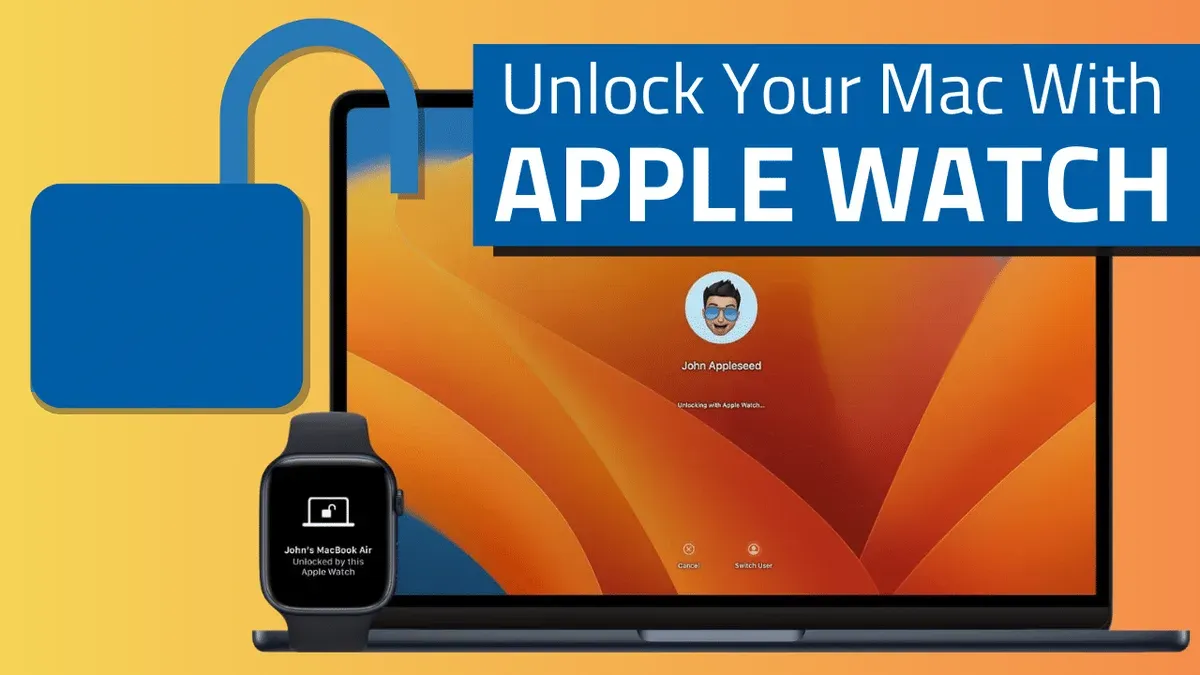
You’ve just opened your Mac but paused, reaching for your password. If you own an Apple Watch, you might have heard you can speed through by letting your watch handle the authentication. This article explains how to use Apple Watch to unlock Mac on Mac, focusing not only on the setup but also on practical troubleshooting and compatibility nuances for different Mac models.
Whether you have an iMac, MacBook Air, MacBook Pro, or Mac mini, this guide will walk you through enabling the feature and resolving common issues that can arise. You'll learn what hardware and software requirements matter and how to adjust settings to ensure smooth, secure access every time.
Key takeaways
- Your Mac must be running macOS Sierra or later with Bluetooth and Wi-Fi enabled.
- Apple Watch needs watchOS 3 or later and must be unlocked and on your wrist.
- Two-factor authentication must be enabled on your Apple ID for this feature to work.
- Some Mac models, especially older ones, may not support Auto Unlock despite meeting system requirements.
- Common troubleshooting steps include checking Bluetooth connectivity, restarting devices, and verifying system preferences under Security & Privacy.
Before you start: what you need to unlock your Mac with Apple Watch
To use your Apple Watch to unlock your Mac, ensure your devices meet specific hardware and software requirements. Your Mac must be a mid-2013 or newer model running macOS Sierra or later. Supported Macs include MacBook Pro (2013 and later), MacBook Air (2013 and later), iMac (2013 and later), Mac mini (2014 and later), and Mac Pro (2013 and later).
Your Apple Watch needs to be running watchOS 3 or later, and it must be an Apple Watch Series 0 or newer. Both devices must be signed in to the same Apple ID with two-factor authentication enabled.
Ensure that your Mac has Wi-Fi and Bluetooth turned on and that your Apple Watch is unlocked and on your wrist. Proximity matters; your watch must be close enough to the Mac to communicate securely.
- Check your Mac model by selecting the Apple menu > About This Mac. Confirm it is a supported model. You should see the model and year.
- Verify your macOS version under System Preferences > Software Update. Ensure it is Sierra or later. The update screen will confirm if your macOS is current.
- On your Apple Watch, open the Settings app > General > About to check the watchOS version. It must be 3 or later.
- Confirm both devices use the same Apple ID by checking System Preferences > Apple ID on Mac and the Apple Watch app on your iPhone under your profile.
- Ensure two-factor authentication is active by visiting appleid.apple.com and checking your Security settings.
- Turn on Wi-Fi and Bluetooth on your Mac via the menu bar icons or System Preferences.
- Make sure your Apple Watch is unlocked and on your wrist when near your Mac.
If all these conditions are met, you are ready to proceed with enabling the feature.
How to unlock iMac with Apple Watch
- Click the Apple menu at the top-left corner of your screen and select System Preferences. The System Preferences window will open.
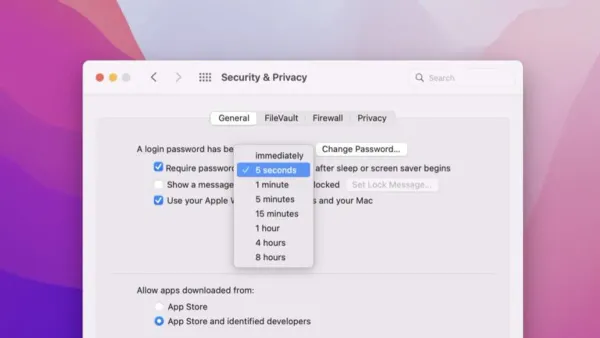
- In System Preferences, click on Security & Privacy. You should see a pane with several tabs at the top.
- Under the General tab, locate and check the box labeled Allow your Apple Watch to unlock your Mac. If the option is grayed out, confirm that your Apple Watch is unlocked and nearby.
- You may be prompted to enter your Mac password to enable this feature; enter it to proceed. A confirmation message will appear, indicating the setting is active.
- To test, wake your iMac by moving the mouse or pressing a key. Approach the iMac wearing your unlocked Apple Watch on your wrist.
- If everything is set correctly, your Mac’s login screen will automatically unlock and proceed to the desktop without requiring a password entry.
- If you see a prompt on your Mac asking for your password, ensure your Apple Watch is unlocked and on your wrist, and that both devices have Bluetooth and Wi-Fi enabled.
Keep in mind that you must be wearing your Apple Watch and it must be unlocked for this convenience to work. If the watch is locked or off your wrist, the Mac will ask for a password as usual. The Mac will also notify you with a brief message when it is unlocked via the watch, providing security confirmation.
How to unlock MacBook Air and MacBook Pro with Apple Watch
Setting up your MacBook Air or MacBook Pro to use your Apple Watch for unlocking requires attention to battery management and Wi-Fi connectivity, which vary from the iMac experience due to their mobile nature. Ensuring your MacBook maintains a stable Wi-Fi connection even when on battery power is crucial, as some power-saving settings might disable wireless features affecting unlock reliability.
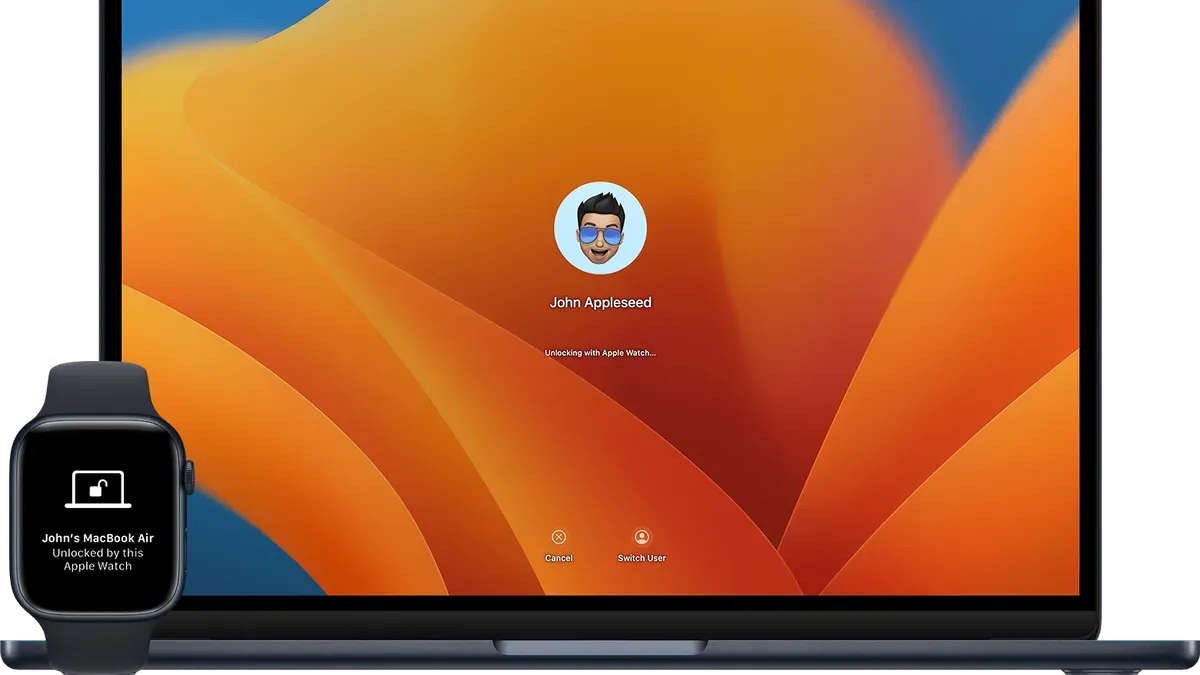
Unlocking works seamlessly when you open the lid or wake the MacBook from sleep, allowing quick access without typing a password. If you have Touch ID configured, the Apple Watch unlock acts as a complementary method; you can choose either method depending on convenience at the moment.
Users often notice the MacBook Pro tends to respond slightly faster when unlocking with the Apple Watch compared to the MacBook Air, likely due to hardware differences affecting Bluetooth and Wi-Fi performance. However, both models generally provide a smooth experience once set up correctly.
- Open System Preferences and select "Security & Privacy." You should see the "Use your Apple Watch to unlock apps and your Mac" option.
- Check the box next to this option for your Apple Watch. The setting enables unlocking with your watch.
- Close the lid of your MacBook, wait a few seconds, then open it or press a key to wake it. Your MacBook should unlock automatically if your watch is nearby and unlocked.
- If you have Touch ID, try both unlocking methods to see which feels faster and more reliable in your workflow. Both should unlock without requiring a password.
- Ensure your MacBook does not enter deep sleep too quickly by adjusting Energy Saver preferences, preventing Wi-Fi or Bluetooth from shutting off during sleep. This maintains consistent unlocking performance.
How to unlock Mac mini with Apple Watch
Unlike MacBook models, the Mac mini often requires an external keyboard or mouse to wake it from sleep before you can use your Apple Watch to unlock it. This is due to its desktop nature and lack of built-in input devices. Ensuring your Mac mini and Apple Watch remain on the same Wi-Fi network and within Bluetooth range is essential for seamless authentication.
- Wake your Mac mini by pressing a key on the external keyboard or clicking the mouse. The login screen should appear.
- Go to System Preferences > Security & Privacy > General. Check the box labeled "Allow your Apple Watch to unlock your Mac". If it’s already enabled, proceed to the next step.
- Lock your Mac mini (Apple menu > Lock Screen) or let it enter sleep mode. Then, wake it again using the keyboard or mouse.
- When the login screen appears, look for the watch icon with a message indicating your Apple Watch is unlocking the Mac. This confirms the feature is working.
Because the Mac mini depends on external devices to wake, unlocking with Apple Watch typically happens after you manually wake the machine. Once awake, the watch bypasses the need to manually enter your password, streamlining access while maintaining security during sleep modes.
Troubleshooting when Apple Watch is not unlocking your Mac
If your Apple Watch is not unlocking your Mac, start by confirming that Bluetooth and Wi-Fi are active on both devices. These connections must be stable and within range. Additionally, ensure your Apple Watch is unlocked and securely worn on your wrist; the feature won't work if the watch is locked or removed.
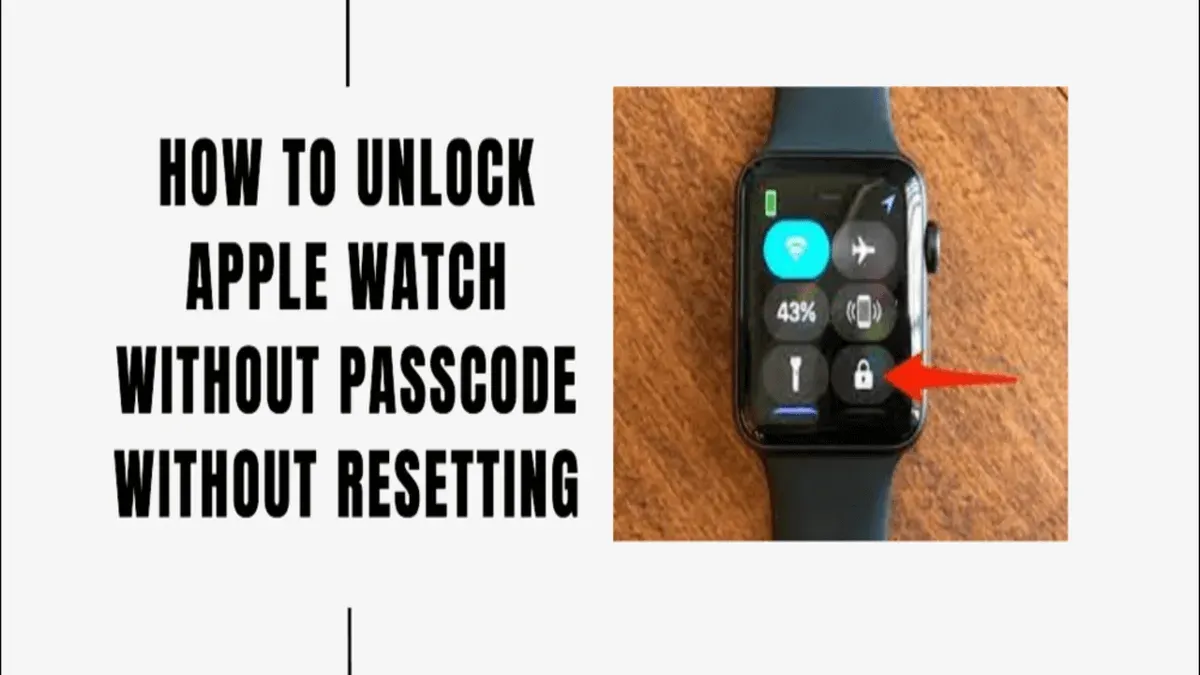
Verify that both devices are signed into the same Apple ID and that two-factor authentication is enabled. Mismatched accounts or disabled authentication often prevent unlocking. If issues persist, restart both your Mac and Apple Watch, which can resolve temporary glitches.
If restarting does not help, try resetting the Bluetooth and Wi-Fi settings on your Mac via System Preferences. Turning these off and back on can restore proper communication. Similarly, on your Apple Watch, toggling Airplane Mode briefly may improve connectivity.
User reports indicate that these steps substantially increase success rates compared to attempting to unlock immediately when problems arise. Common errors include “Unable to communicate with Apple Watch” or “Authentication failed.”
If problems continue after all troubleshooting, contact Apple Support to check for device-specific incompatibilities or hardware issues. Some older Mac or Apple Watch models may not support this feature reliably.
Frequently asked questions
unlock macbook with watch
To unlock your MacBook using your Apple Watch, ensure that both devices are signed in to the same iCloud account with two-factor authentication enabled. Your MacBook must have Bluetooth and Wi-Fi turned on. In System Preferences, go to Security & Privacy, then check the box for "Use your Apple Watch to unlock apps and your Mac." You also need to have a passcode set on your Apple Watch.
apple watch how to unlock
Your Apple Watch unlocks automatically when you wear it and enter your passcode after putting it on. To use it to unlock your Mac, set up the feature in your Mac's System Preferences under Security & Privacy. This allows the watch to authenticate your identity when you wake your Mac from sleep or turn on the screen.
macbook not unlocking with apple watch
If your MacBook is not unlocking with your Apple Watch, check that both devices have Bluetooth and Wi-Fi enabled and are on the same network. Make sure you are signed into iCloud with the same Apple ID on both. Verify two-factor authentication is active and that your watch has a passcode set. Also, confirm the "Allow your Apple Watch to unlock your Mac" option is enabled in Security & Privacy settings. Restarting both devices can sometimes resolve connection issues.
apple watch os unlock
The Apple Watch operating system (watchOS) supports unlocking your Mac through a secure protocol that uses Bluetooth proximity and iCloud authentication. For this feature to work, your watchOS version should be up to date and compatible with your Mac's macOS version. The watch must be unlocked and worn on your wrist, and protected with a passcode to ensure security during the unlocking process.
What this method does not cover and when to seek alternatives
This feature does not replace entering your password after a complete Mac restart, logout, or when your Apple Watch is locked or powered off. If your Mac or Apple Watch model is older and does not support Auto Unlock, you will need to use your password or other authentication methods.
Additionally, users who require higher security measures, such as those working with sensitive corporate data, might prefer manual password entry or two-factor authentication apps instead of relying solely on the watch.
For situations where your Apple Watch consistently fails to communicate with your Mac, or if you experience repeated authentication errors, contacting Apple Support or visiting an authorized service provider can help diagnose hardware or software issues beyond the scope of basic troubleshooting.
The most useful next step is to ensure that your Mac has Bluetooth and Wi-Fi enabled, your Apple Watch is unlocked and on your wrist, and that both devices are signed into the same Apple ID with two-factor authentication enabled. Double-check that the “Allow your Apple Watch to unlock your Mac” option is selected under System Settings > Security & Privacy > General—this is the setting many users overlook, which directly controls this feature’s activation.