How to Set Auto Login on Mac: A Step-by-Step Guide
This guide explains how to enable and manage auto login on Mac, balancing convenience with security considerations.
You open your Mac and want to get straight to work without typing your password every time. At the same time, you wonder if bypassing login steps might expose your data to risks. This article explains how to set auto login on Mac, guiding you through the process while highlighting both convenience and security considerations.
You will learn how to enable and disable automatic login, tailor settings for different Mac models like MacBook Air and MacBook Pro, and manage multiple user accounts. Additionally, we cover how to access your Mac with a different user without auto login and troubleshoot common issues related to this feature.
Key takeaways
- Automatic login is configured in System Settings under Users & Groups by selecting your account and enabling auto login.
- Enabling auto login saves time but can compromise security, especially on shared or portable Macs.
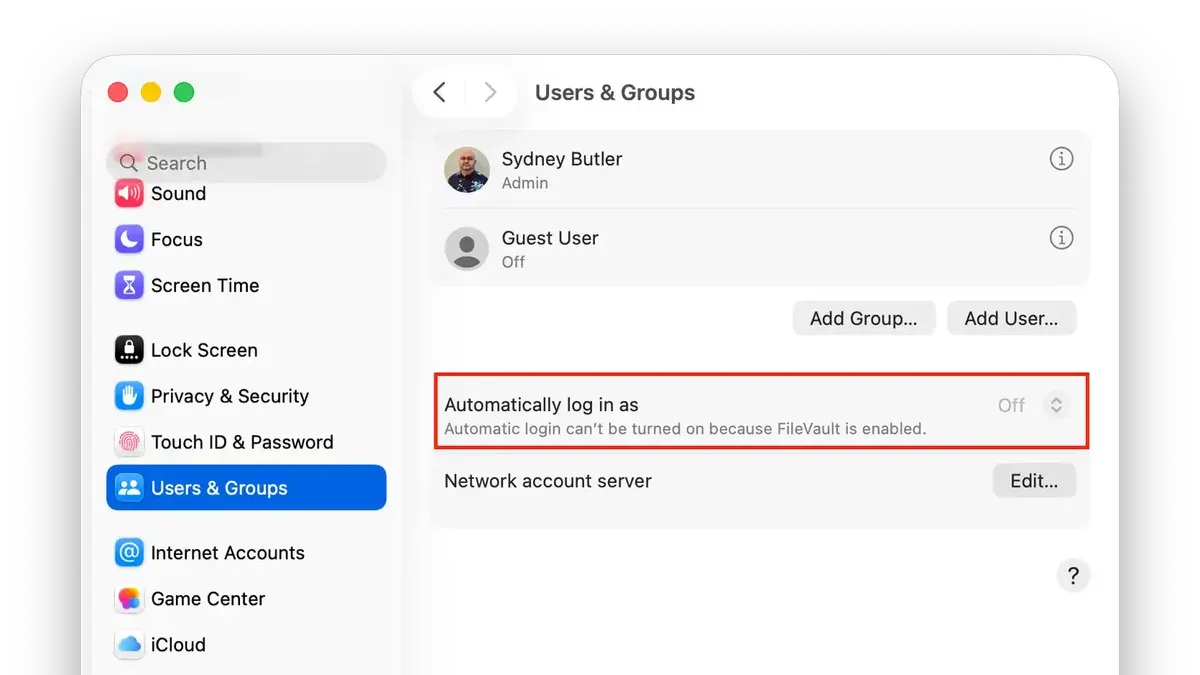
- Some Macs require disabling FileVault encryption before auto login can be enabled.
- Managing auto login for multiple users or admin accounts requires careful account selection and password input.
- You can bypass auto login by using the login window’s user switch or restarting in safe mode.
Before you start: What you need to know about auto login on Mac
Auto login on a Mac allows you to bypass the password prompt during startup, providing faster access to your desktop. However, this convenience comes with trade-offs in security. When enabled, anyone with physical access to your Mac can open your account without needing a password, increasing the risk of unauthorized access.
To change auto login settings, you must have administrator privileges on your Mac. Additionally, auto login works only with local user accounts; accounts that rely solely on iCloud or network authentication cannot use this feature.
Some built-in security features affect auto login availability. For example, if FileVault disk encryption is enabled, auto login is typically disabled or requires extra steps because the system needs a password to decrypt the startup disk before loading the user account.
This guide focuses exclusively on macOS’s built-in auto login settings accessed through System Preferences or System Settings. It does not cover third-party software solutions that might offer similar functionality.
In terms of performance, auto login can reduce the time from powering on your Mac to reaching the desktop by several seconds, but this speed gain should be weighed against the security risks, especially if your device contains sensitive information or is used in shared environments.
How to turn on automatic login on Mac
Enabling automatic login allows your Mac to start up and log in to a chosen user account without requiring a password each time. Follow these steps carefully to set it up.
- Open System Settings from the Apple menu. You should see a window with various system preferences.
- Navigate to Users & Groups. This section manages accounts on your Mac.
- Click the lock icon in the lower-left corner to make changes. Enter your administrator password when prompted to unlock the settings.
- Select Login Options at the bottom of the user list. This reveals options related to how users log in.
- Find the Automatic login dropdown menu. Click it and choose the user account you want to enable auto login for—typically a standard user or admin account.
- Enter the password for the selected user account to confirm your choice. This step secures the auto login setting.
- After confirming, close System Settings to save changes automatically.
- Restart your Mac to test the setting. Your Mac should boot directly into the selected user account without asking for a password.
For example, if you select a standard user account named "JohnDoe," after restart, your Mac will log in as JohnDoe automatically. Remember, this convenience comes with security trade-offs, so consider your environment before enabling it.
How to disable automatic login on Mac
Disabling automatic login restores the security of your Mac by requiring a password at startup. This helps protect your data if your device is lost or accessed by others. Follow these steps to turn off auto login.
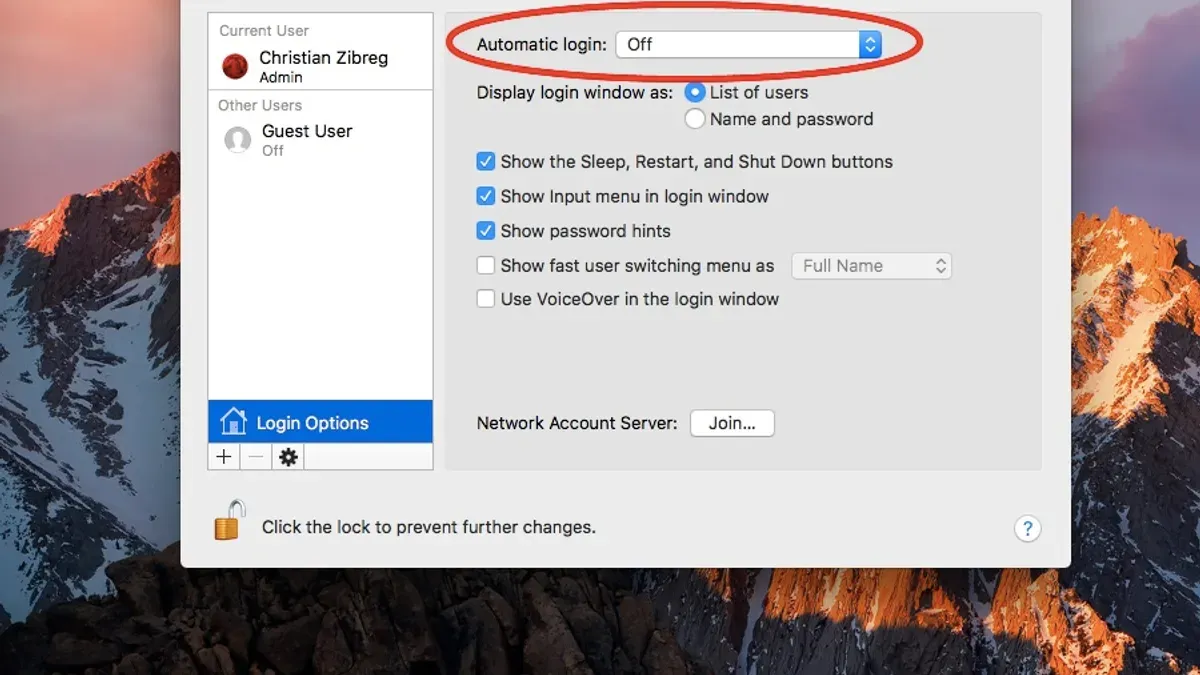
- Open System Settings from the Apple menu and select Users & Groups. You should see a list of user accounts on your Mac.
- Click the lock icon at the bottom left and enter your administrator username and password to make changes. Once unlocked, settings will become editable.
- Locate the Automatic Login option. Click the dropdown menu and select Off or None. This disables the automatic login feature for all users.
- Close System Settings and restart your Mac. When it boots up, you will see the login screen prompting for a password instead of logging in automatically.
Before disabling auto login, your Mac bypassed the login screen and went directly to the desktop. After, the login window appears, requiring you to enter a password or use another authentication method. Many users disable auto login to enhance security, especially on portable Macs or devices used in shared environments. It also helps troubleshoot login issues caused by corrupted credentials or security settings.
How to set up auto login on different Mac models, including MacBook Air and MacBook Pro
The process for enabling auto login on MacBook Air and MacBook Pro models is generally consistent across devices, but hardware security features and macOS versions can affect availability and steps.
| Mac Model | macOS Version Compatibility | Security Hardware | Impact on Auto Login |
|---|---|---|---|
| MacBook Air (Intel-based) | macOS Catalina and later | Apple T2 Security Chip (2018 and later) | T2 chip disables auto login if FileVault is enabled |
| MacBook Pro (Intel-based) | macOS Mojave and later | Apple T2 Security Chip (2018 and later) | Same as above; FileVault and Secure Enclave restrict auto login |
| MacBook Air (Apple Silicon) | macOS Big Sur and later | Secure Enclave (integrated) | Auto login is generally disabled to maintain security |
| MacBook Pro (Apple Silicon) | macOS Big Sur and later | Secure Enclave (integrated) | Same as above; auto login usually unavailable |
Because of these hardware security features, the auto login option may be grayed out or unavailable if FileVault disk encryption is active or if your Mac uses Secure Enclave.
- Open System Settings from the Apple menu. On macOS Ventura and later, navigate to Users & Groups. On earlier versions, look under System Preferences.
- Select your user account on the left panel to access login options. You should see an Automatic login dropdown if your Mac supports it.
- Choose the account you want to enable for automatic login. If the dropdown is disabled, check if FileVault is enabled or if your Mac has a T2 chip or Apple Silicon with Secure Enclave.
- Enter your password when prompted to confirm the change. Successful setup will remove the login prompt on startup for that account.
- Restart your Mac to verify that it logs in automatically as configured.
If you encounter restrictions, consider temporarily disabling FileVault or using other user switching options to balance convenience and security.
How to set computer to auto login for multiple users or admin accounts
macOS only permits one user account to be set for automatic login at a time. This means you cannot configure your Mac to auto login multiple users simultaneously. When you select an account for auto login, it will bypass the login screen only for that user, requiring others to log in manually.
Auto login for administrator accounts is generally discouraged due to significant security risks. Admin accounts have elevated privileges, and enabling auto login can expose your system to unauthorized changes if someone gains physical access. There have been documented cases where attackers exploited unattended Macs with auto login enabled on admin accounts to install malware or steal sensitive data.
If multiple users want quick access without typing passwords each time, consider these alternatives:
- Enable Fast User Switching, which allows users to switch accounts without logging out fully.
- Use Touch ID or Apple Watch unlocking on compatible Macs to speed up login securely.
- Set up standard user accounts with auto login, while keeping admin accounts protected by passwords.
Note that guest user accounts and mobile accounts function differently. Guest accounts typically do not support auto login and are designed for temporary sessions. Mobile accounts, often used in enterprise environments, require network authentication and cannot use auto login due to syncing and security constraints.
How to login to Mac account as a different user without auto login
Switching between user accounts on your Mac without enabling auto login helps maintain security while allowing multiple people to use the same device conveniently. macOS offers Fast User Switching and manual login at the lock screen as safe methods to access different accounts without sacrificing password protection.
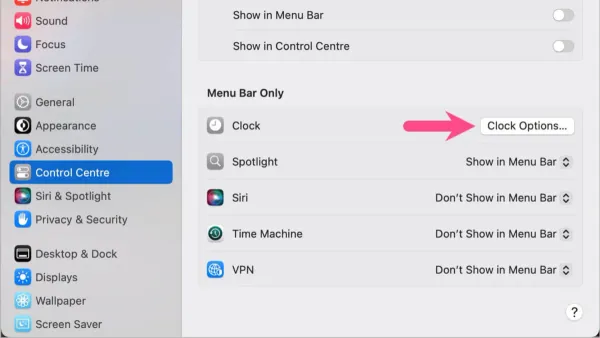
- Enable Fast User Switching by opening System Settings, navigating to Control Center, then under Menu Bar Only, turn on Show Fast User Switching menu as and select either the user name or icon. Once enabled, you will see the user switching icon in the menu bar.
- To switch users using Fast User Switching, click the user name or icon in the menu bar and select the other user account from the dropdown list. The screen will prompt for that user's password, showing the login window for the selected account.
- Alternatively, press Control + Command + Q or select Lock Screen from the Apple menu. At the lock screen, click Switch User or the Other option if the desired user is not listed, then enter the credentials for the different account.
These methods keep each user's session secure by requiring passwords and prevent unauthorized access that auto login might allow. For example, in a shared household, parents and children can quickly switch between accounts while maintaining data privacy.
Compared to auto login, which automatically opens a single account at startup without a password prompt, manual user switching balances convenience and security. It avoids the risk of exposing sensitive data if the Mac is lost or stolen and supports multiple users without compromising access controls.
Troubleshooting common issues with Mac auto login
When the auto login option is greyed out or disabled, FileVault encryption is often the cause. FileVault secures your disk by requiring a password at startup, which conflicts with automatic login. To check, go to System Preferences > Security & Privacy > FileVault. If FileVault is enabled, disabling it will re-enable auto login but reduces disk encryption protection.
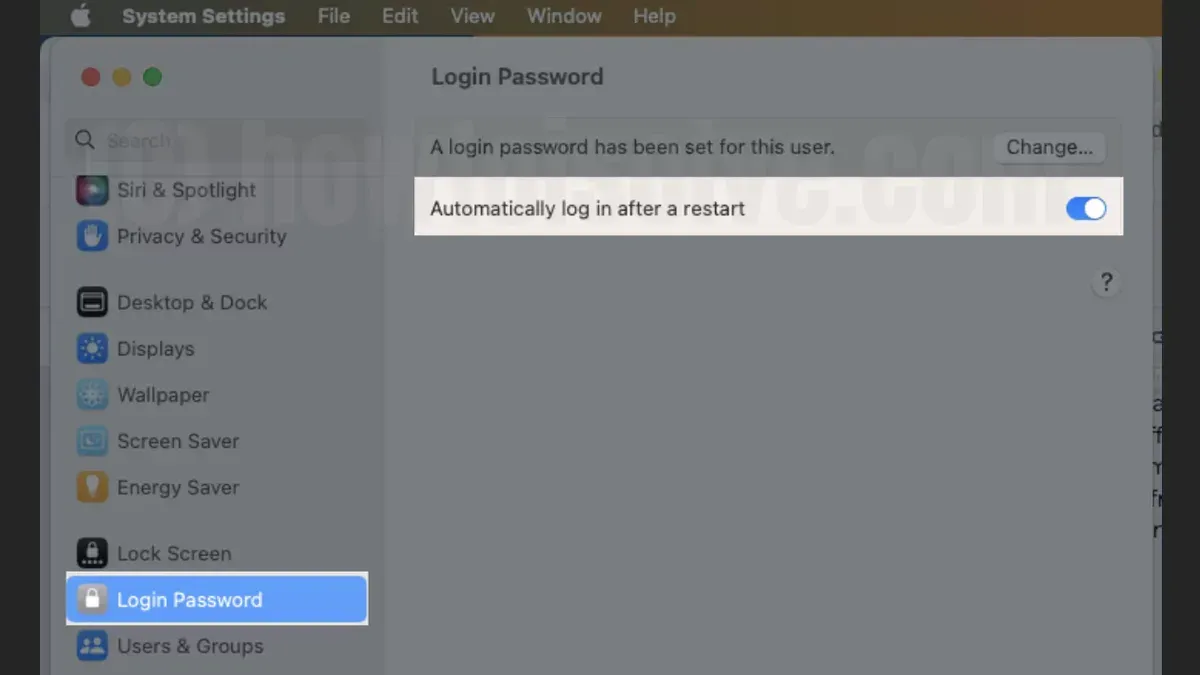
If your password is not accepted during auto login setup, verify that you are entering the correct current account password. Also ensure you have administrator privileges, as only admins can enable or disable auto login. Non-admin accounts will not be able to complete this setup step.
When auto login does not work after a restart, first confirm your settings under System Preferences > Users & Groups > Login Options. If the configured user is correct and the option is enabled, check for macOS updates. Occasionally, system updates resolve login-related bugs or conflicts.
Corporate or managed Macs often have security profiles that block auto login to maintain device security standards. If you see this restriction, contact your IT administrator for assistance.
If login settings appear corrupted or inconsistent, resetting them can help:
- Open Terminal from Applications > Utilities.
- Type
sudo defaults delete /Library/Preferences/com.apple.loginwindow autoLoginUserand press Enter. Enter your admin password when prompted. - Restart your Mac and revisit System Preferences > Users & Groups > Login Options to set up auto login again.
This process clears any saved auto login user and often resolves issues where settings fail to apply.
Frequently asked questions
How to set auto login?
To set auto login on your Mac, open System Preferences and go to Users & Groups. Click the lock icon and enter your administrator password to make changes. Then select Login Options and choose the user account from the “Automatic login” dropdown menu. Note this option may be disabled if FileVault is enabled for disk encryption.
How to set up auto log in?
Setting up auto login involves navigating to System Preferences > Users & Groups, unlocking the settings with your admin password, and selecting your user under Login Options for automatic login. Make sure your user account has a password set, or the option won’t appear. Remember that enabling auto login reduces security by bypassing the password prompt at startup.
How to turn on auto login?
Turn on auto login by opening System Preferences, selecting Users & Groups, then clicking Login Options. Unlock the pane with your administrator password, and under Automatic login, pick the user account you want to log in automatically. If the option is greyed out, check if FileVault or certain security settings are enabled, as they disable auto login.
How to set windows to auto login?
To set Windows for automatic login, type "netplwiz" in the Run dialog (Win + R), select your user account, and uncheck "Users must enter a user name and password to use this computer." Then enter your password when prompted to confirm. This bypasses the login screen but lowers your device’s security.
How to disable auto login on mac?
Disable auto login by going to System Preferences > Users & Groups and selecting Login Options. Click the lock to make changes, then change the Automatic login dropdown to “Off.” This will require users to enter their password at startup, improving your Mac’s security.
What this advice does not cover and when to seek alternatives
Auto login reduces security by bypassing password entry, so it is not recommended for shared or sensitive environments where unauthorized access could lead to data breaches. It may also fail to function if FileVault disk encryption is enabled or if your Mac is managed by corporate security profiles that restrict automatic login settings. This guide does not include instructions for third-party tools or scripts that could enable auto login, nor does it address network accounts or mobile accounts that require special handling.
For enhanced security, especially if you handle sensitive information or share your Mac, consider using strong passwords and locking your screen when not in use. The most useful next step is to review your Mac’s Users & Groups pane under System Preferences and carefully evaluate whether enabling auto login aligns with your security needs and usage patterns before making changes.