How to Show Seconds in the Menu Bar Clock on Mac
Discover how to enable seconds in your Mac's menu bar clock using system settings or third-party apps for precise time tracking.
You glance at your Mac's menu bar clock and realize it's missing something important—the seconds. Whether timing tasks or simply preferring a more precise display, you might be wondering how to show seconds in menu bar clock on Mac.
This article guides you through enabling seconds using built-in macOS settings and explores third-party apps for enhanced accuracy and customization. You'll also find a comparison with Windows taskbar clocks and tips for troubleshooting common issues.
Key takeaways
- You can enable seconds in the menu bar clock via System Settings under Date & Time > Clock by toggling "Show seconds".
- Third-party apps like iStat Menus offer more customization but may impact system resources.
- Windows allows seconds in the taskbar clock using registry edits, unlike native macOS without tweaks.
- Some macOS versions may require enabling seconds via Terminal commands.
- Common issues include clock not updating seconds or display glitches, often fixed by restarting the system or app.
Before you start: what you need to show seconds on your Mac clock
Displaying seconds on your Mac's menu bar clock is straightforward if your system supports it. Native support for showing seconds was introduced starting with macOS Big Sur (version 11) and continues in all later versions. If your Mac runs macOS Catalina (version 10.15) or earlier, native options to show seconds in the menu bar clock are unavailable.
You should be familiar with navigating System Settings (previously known as System Preferences) to access the Date & Time or Clock settings. This basic familiarity will help you enable or disable seconds efficiently.
If your macOS version does not support native seconds display or if you want more customization and accuracy, third-party applications can fill the gap. These apps often offer enhanced features such as different time formats, color options, or synchronization precision, but may require installation and sometimes payment.
| Aspect | Native macOS Clock | Third-Party Apps |
|---|---|---|
| macOS Version Requirement | Big Sur (11) and later | Any, but compatibility varies |
| Customization Options | Limited to seconds on/off | Advanced formats, colors, and behaviors |
| Installation | None (built-in) | Required |
| Accuracy and Sync | Standard system clock | Some offer network time syncing |
- Check your macOS version by clicking the Apple menu > About This Mac. You should see your version number; ensure it is Big Sur (11) or later for native seconds display.
- Open System Settings from the Apple menu to prepare for clock adjustments. You should see the main settings window.
- If your macOS version is older or you want extra features, research third-party apps compatible with your Mac model and version before proceeding.
How to show seconds on Mac clock using native macOS settings
- Open System Settings from the Apple menu () in the top-left corner of your screen. You should see a window with various system preferences.
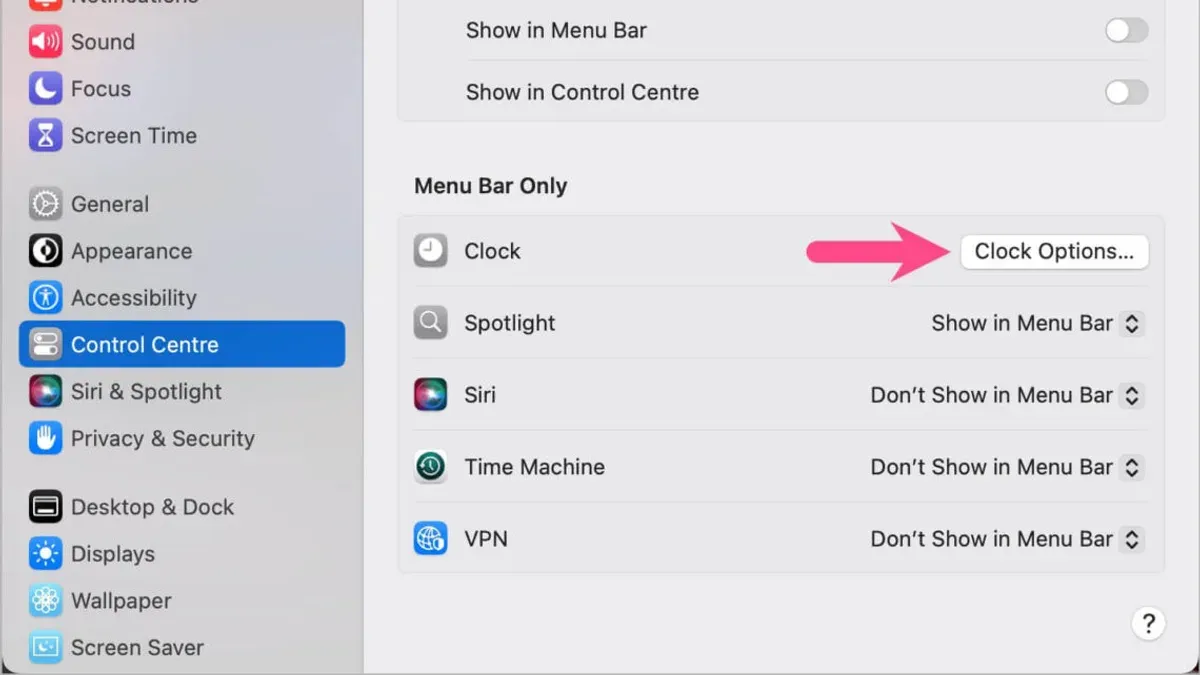
- Scroll down and select Control Center. Within this pane, locate and click on Clock to access clock-specific options.
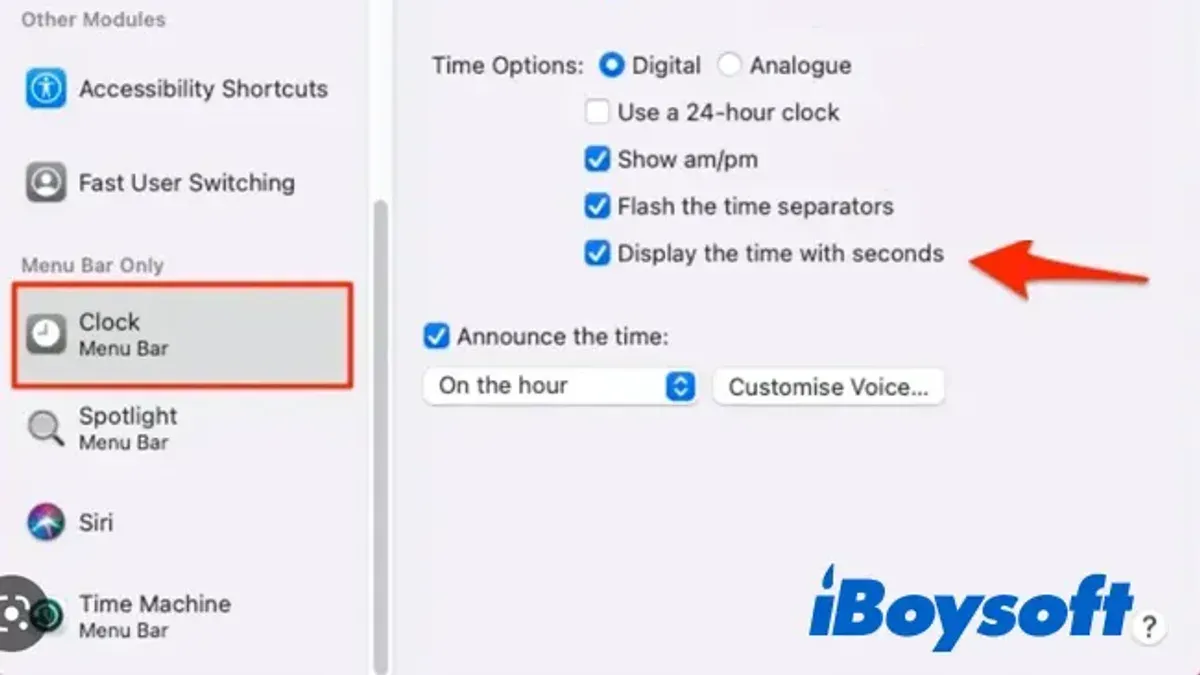
- Find the option labeled Show seconds in menu bar and toggle it on. This enables the seconds to display alongside the hours and minutes in the menu bar clock.
- Close System Settings and check the menu bar clock at the top-right of your screen. You should now see the seconds updating every second.
- Note that enabling seconds display may slightly increase CPU usage, as the system updates the clock more frequently. While this is generally minimal on modern Macs, it can be noticeable on older models or when many apps are running.
The native seconds display is straightforward but offers limited customization, such as font style or color changes. Additionally, the update frequency is fixed to one second, without options for finer control.
How to show seconds on Mac clock using third-party apps
If your macOS version lacks native support for seconds in the menu bar clock or you want more customization, third-party apps like iStat Menus and Itsycal offer reliable alternatives. These apps provide enhanced options such as color changes, font adjustments, and varied time formats.
- Download your chosen app from its official website or the Mac App Store. For example, visit iStat Menus or Itsycal. After downloading, open the installer and follow on-screen instructions. When installed, launch the app to proceed.
- Access the app’s preferences or settings panel. In iStat Menus, navigate to the Menus tab and select "Clock." Enable the option to display seconds. In Itsycal, go to Preferences > Time and check "Show seconds." The menu bar clock will now show seconds.
- Customize the clock appearance as desired. iStat Menus allows you to change font style, size, and color, while Itsycal offers simpler customization mainly focused on format. Adjust these to suit your preferences.
- Be aware that iStat Menus is a paid app with a free trial period, while Itsycal is free and open-source. Consider security by downloading only from official sources and verifying app permissions during installation.
Below is a comparison table summarizing key features and costs:
| App | Show Seconds | Customization Options | Cost | Notes |
|---|---|---|---|---|
| iStat Menus | Yes | Font, color, format, additional system stats | Paid with free trial | Comprehensive monitoring suite |
| Itsycal | Yes | Time format, simple styling | Free | Lightweight calendar and clock |
How to show seconds on taskbar clock on Windows compared to Mac
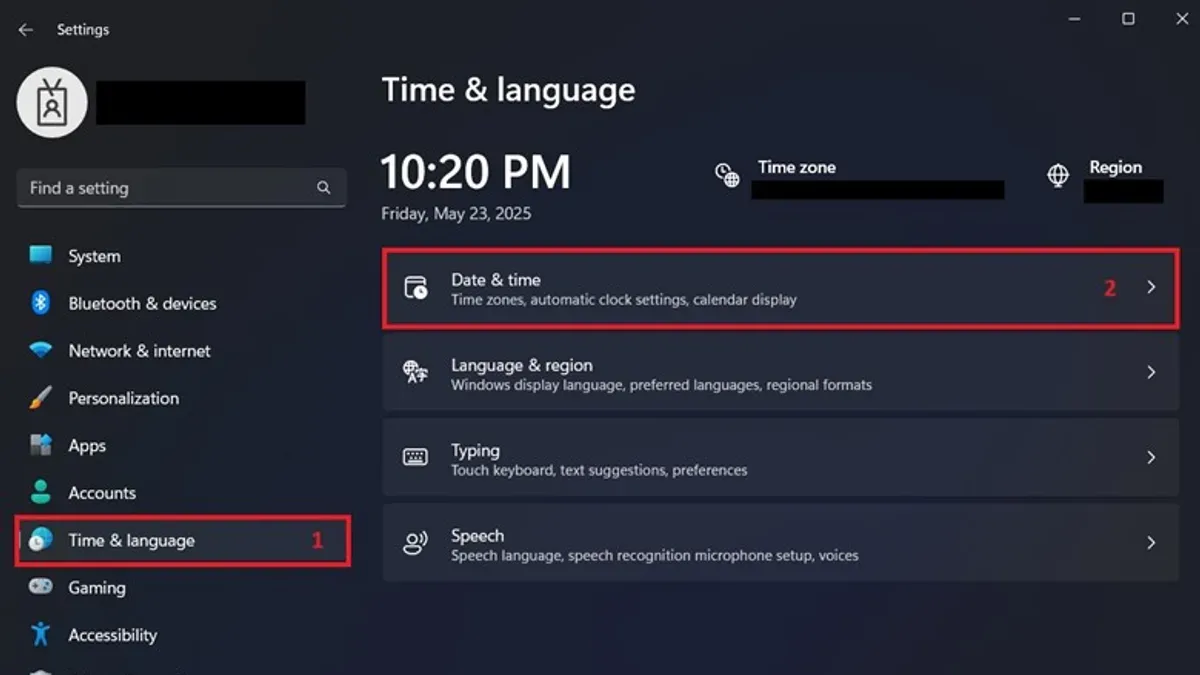
Windows 10 and 11 allow you to display seconds on the taskbar clock through a simple registry edit, as there is no direct toggle in the Settings app. This contrasts with macOS, where native support for seconds requires macOS Big Sur or later and is enabled via System Settings.
- Press Windows + R to open the Run dialog.
- Type regedit and press Enter to open the Registry Editor.
- Navigate to
HKEY_CURRENT_USER\Software\Microsoft\Windows\CurrentVersion\Explorer\Advanced. - Right-click in the right pane, select New > DWORD (32-bit) Value, and name it
ShowSecondsInSystemClock. - Double-click the new entry and set its value to
1, then click OK. - Close the Registry Editor and restart File Explorer or reboot your PC to apply changes. You should now see seconds displayed on the taskbar clock.
While Windows requires a manual registry tweak for this feature, it offers a straightforward way to enable seconds without third-party apps. macOS’s native option is more user-friendly but less customizable, which is why some Mac users turn to third-party tools for enhanced appearance and additional features.
In summary, Windows users gain seconds display through a registry adjustment, whereas Mac users rely on system settings or third-party apps, reflecting differing approaches to customization and native support across platforms.
Troubleshooting common issues when showing seconds on Mac clock
If seconds do not appear after enabling them in System Settings > Control Center > Clock, first try toggling the 'Show seconds in menu bar' option off and on again. Restarting your Mac can also resolve temporary glitches. Users have reported that logging out and back in or restarting the Dock process helps refresh the menu bar display.
High CPU usage or accelerated battery drain can occur because updating seconds every second requires more system resources. If you notice significant performance issues, consider disabling seconds display or using a third-party app optimized for efficiency.
Conflicts or crashes with third-party clock apps often arise from software incompatibility or outdated versions. Ensure you have the latest updates installed. If problems persist, quit the app, uninstall it, and reinstall a fresh copy.
Resetting clock preferences can fix persistent display problems. To do this, open Finder, press Command+Shift+G, enter '~/Library/Preferences/', locate 'com.apple.menuextra.clock.plist', and move it to the Trash. Restart your Mac to generate a new preference file.
Following these steps addresses most common issues, aligning with Apple support guidance and user experiences.
- How to Use and Customize the 24 Hour Clock on Your Mac
- How to Change the Time Zone on Mac: A Step-by-Step Guide
- How to Set and Customize a Screen Saver on Your Mac
Frequently asked questions
How to display seconds in taskbar clock?
On Windows, you can show seconds in the taskbar clock by editing the registry or using third-party apps, as the default settings do not support it. For macOS, enabling seconds requires either native system preferences on supported versions or third-party applications, as the menu bar clock does not display seconds by default.
How to show seconds on desktop clock?
Macs do not have a built-in desktop clock that displays seconds. To get a desktop clock with seconds, you need to install third-party widgets or apps designed for that purpose. These apps often offer customization but may use additional system resources.
How to show seconds on computer clock?
Showing seconds on your computer clock depends on your operating system. On macOS, you can enable seconds in the menu bar clock through the Date & Time preferences if supported or use third-party apps. On Windows, native support for seconds in the taskbar clock is limited, requiring registry tweaks or third-party tools.
How to show seconds on Mac menu bar clock if my macOS version doesn't support it?
If your macOS version lacks native support to show seconds in the menu bar clock, you can use third-party applications like iStat Menus or Clockify. These apps integrate with the menu bar and provide seconds display along with additional customization options.
Can I show seconds on the desktop clock of my Mac?
Mac does not provide a native desktop clock with seconds display. To have seconds visible on the desktop, you must use third-party apps or widgets designed to place a clock on your desktop, as the system menu bar clock is the primary time display feature.
Limits of showing seconds on your Mac menu bar clock
Native macOS support for displaying seconds in the menu bar clock is available only on macOS Big Sur and later versions. If you are running an older macOS version, this option won’t appear in System Preferences, so you will need to rely on third-party apps. Keep in mind that third-party apps may introduce performance overhead or security risks, especially if they require accessibility permissions or run persistent background processes.
Additionally, the native seconds display option is relatively basic and does not offer customization beyond turning seconds on or off. For users who want more advanced features like custom formats, colors, or additional time zones, third-party apps remain the primary solution.
The single most useful next step is to check your macOS version under About This Mac and then navigate to System Preferences > Dock & Menu Bar > Clock. Enable Show seconds if available to achieve the simplest and most secure way to see seconds on your menu bar clock.