Master Safari Tab Groups for Efficient Browsing
Discover how to use Tab Groups in Safari to organize your browsing by projects, tasks, or contexts for better focus and productivity.
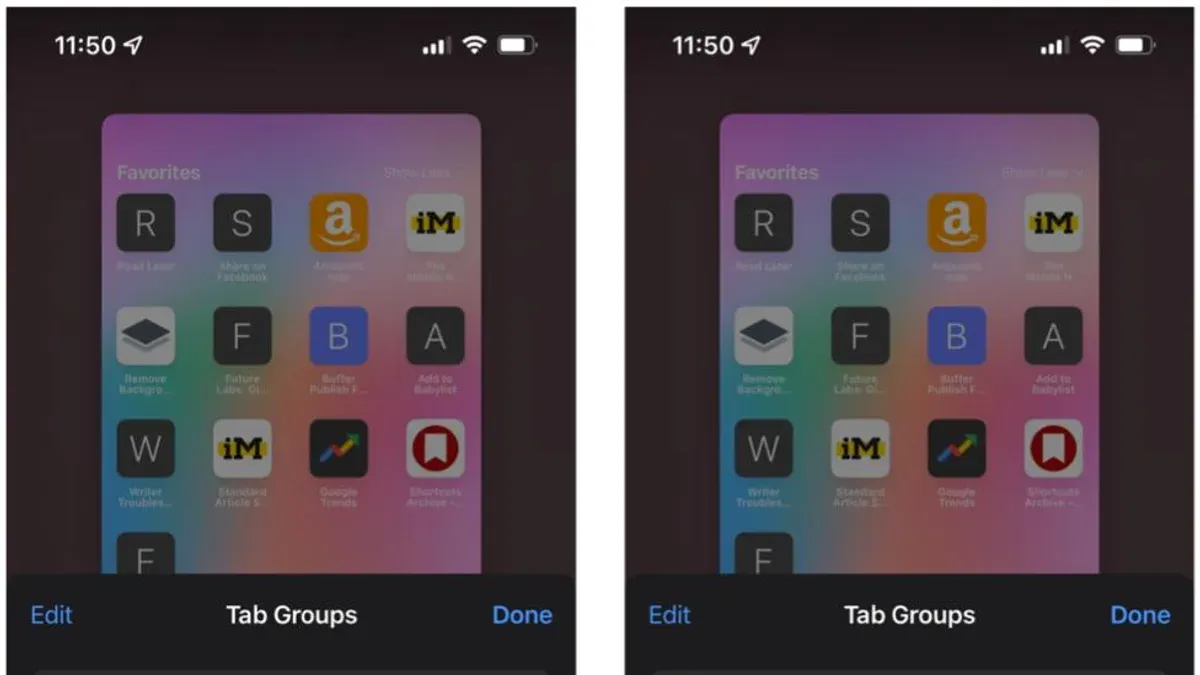
Safari users on Mac and iPhone can organize their browsing with Tab Groups. This feature groups tabs by projects, tasks, or contexts, making it easier to switch focus and stay productive. Knowing how to use Tab Groups in Safari can improve your browsing workflow.
Understanding Safari Tab Groups: What They Are and Why They Matter
Tab Groups are collections of tabs you save, name, and switch between, replacing the traditional method of managing many open tabs in one window. Unlike bookmarks, which save pages for later but close them, Tab Groups maintain multiple distinct browsing sessions simultaneously.
For example, instead of juggling 30 tabs in one window, you can split them into three Tab Groups with 10 tabs each. This reduces clutter and improves focus. Tab Groups are useful for:
- Project research: Keep all tabs related to a specific work or school project in one group.
- Personal vs work browsing: Separate professional tabs from personal interests.
- Task-based sessions: Organize tabs by tasks like shopping or reading.
| Browsing Setup | Tab Count | Organization |
|---|---|---|
| Single window | 30 tabs | All tabs mixed |
| Tab Groups | 3 groups of 10 tabs | Separated by topic or task |
For students managing multiple subjects, Tab Groups keep research and resources for each class isolated, making study sessions more efficient.
Step-by-Step Guide to Creating and Managing Tab Groups on Mac and iPhone
Creating and managing Tab Groups is straightforward on macOS and iOS. Follow these steps:
- Create a new Tab Group:
- From open tabs: Open all tabs you want to group, then click the tab overview icon (two overlapping squares) on Mac or tap the tabs icon on iPhone. Select "New Empty Tab Group with X Tabs" to save the open tabs into a new group.
- Empty group: In the Tab Groups sidebar on Mac or the Tab Groups menu on iPhone, tap "New Empty Tab Group" and add tabs later.
- Rename, delete, or merge Tab Groups:
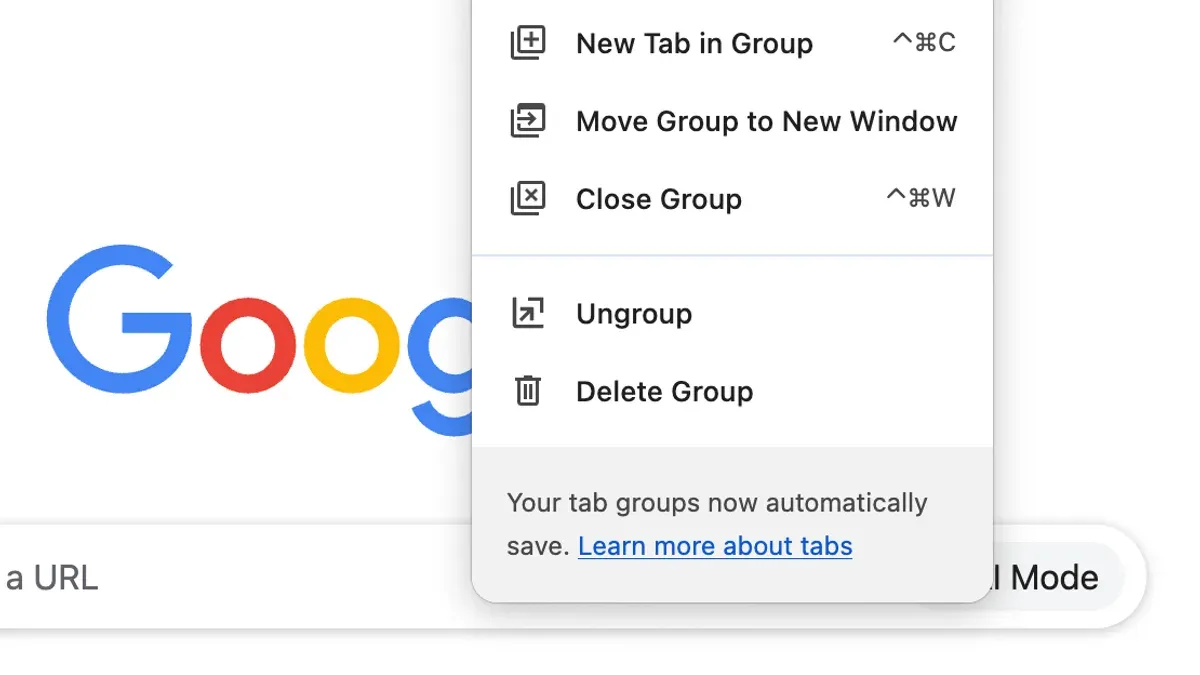
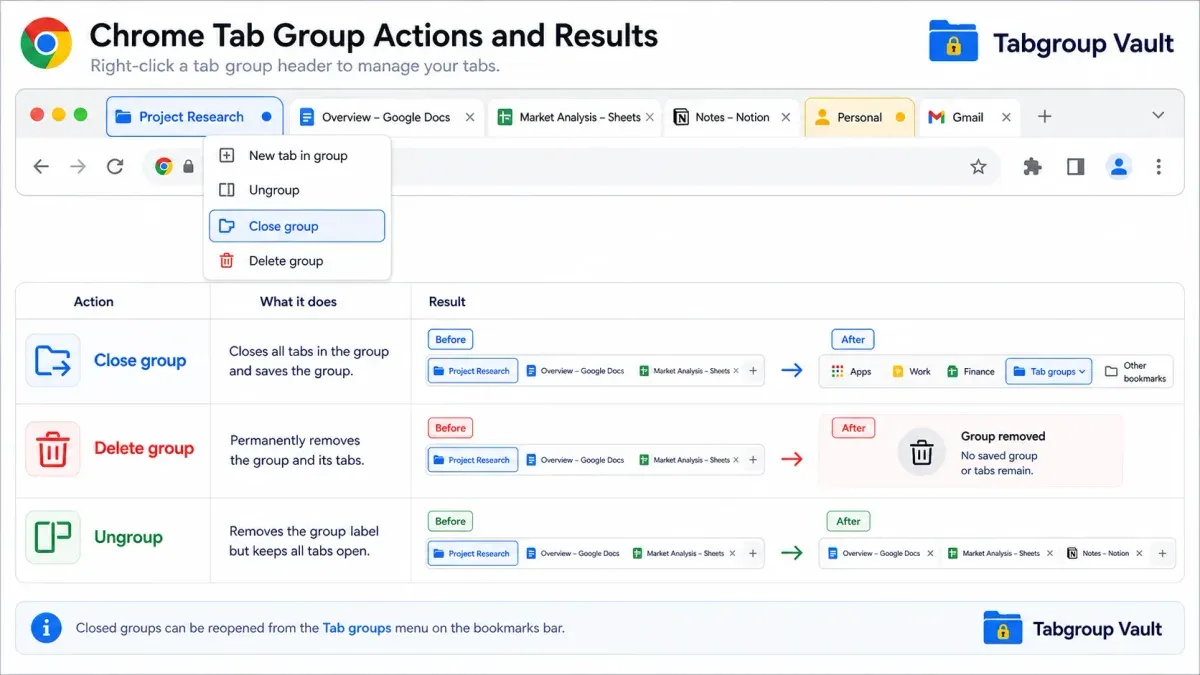
- Right-click (Mac) or long-press (iPhone) a Tab Group name to rename or delete it.
- Merging groups requires manually opening tabs from one group and adding them to another, as Safari lacks a direct merge feature.
- Switch between Tab Groups efficiently:
- On Mac, open the Sidebar and click a Tab Group or use the Tab Groups dropdown next to the Smart Search field.
- On iPhone, tap the Tabs icon, then the Tab Groups menu at the bottom to switch groups.
- Sync across devices: Tab Groups sync via iCloud when signed in with the same Apple ID, keeping groups consistent on Mac and iPhone. Note that iCloud sync may require enabling Safari in iCloud settings (System Preferences > Apple ID > iCloud > Safari on Mac).
For example, to create a Tab Group from 10 open tabs on Mac: open all 10 tabs, click the tab overview icon, then choose "New Empty Tab Group with 10 Tabs." Name the group clearly, such as "Client Research," and access it anytime through the sidebar.
Choosing the Right Tab Group Strategy for Your Needs
How you organize Tab Groups depends on your browsing habits and goals. Common strategies include:
- By task or project: Group tabs by work assignments or research topics. Useful for freelancers or students.
- By time of day or context: Use groups for morning reading, afternoon work, or evening leisure browsing.
- Focused work sessions: Create distraction-free groups containing only tabs needed for deep focus.
Consider these examples:
- Freelancer managing clients: Keeps separate Tab Groups for each client project, typically 8 to 12 tabs per group, to track progress and resources without overlap.
- Student organizing research: Maintains subject-specific groups with 15–20 tabs each, switching between them based on study schedules.
- Casual user: Separates shopping tabs from social media and news browsing, reducing clutter and making tasks easier to resume after breaks.
Tips and Tricks to Maximize Safari Tab Groups Efficiency
To get more from Tab Groups, try these tips:
- Keyboard shortcuts: Use
Control + Command + Right/Left Arrowon Mac to cycle through Tab Groups without opening the sidebar. - Gestures on iPhone: Swipe up on the Tabs icon to access Tab Groups faster.
- Using with Safari extensions: Some extensions can interact with Tab Groups to save or restore tabs, enhancing workflow.
- Reading List integration: Save articles from Tab Groups to Reading List for offline access without clutter.
- Automating creation: Use the Shortcuts app on iOS and macOS to automate Tab Group creation for recurring tasks, such as opening daily news tabs each morning.
Example shortcut workflow: A Shortcut that opens a predefined set of URLs and saves them as a new Tab Group named "Daily Briefing," triggered each morning.
When Tab Groups Might Not Be the Best Solution
Tab Groups improve organization but have limits:
- Tab count limits: Very large Tab Groups with dozens of tabs may slow Safari and increase memory use.
- Performance impact: Multiple Tab Groups open simultaneously can consume system resources, especially on older devices.
- Alternatives: For managing hundreds of tabs or collaboration, bookmarks or third-party tab managers may be more effective.
Safari handles moderate tab counts well, but beyond about 50 tabs in a group, users may notice lag or battery drain. Third-party apps offer features like tab suspending or sharing not available in Safari’s Tab Groups.
Caveats
This article focuses on Safari’s built-in Tab Groups feature. It does not cover third-party tab management tools or other Safari features like extensions or privacy settings.
Frequently asked questions
Can I share Safari Tab Groups with other users?
No. Tab Groups sync only across your devices linked to the same Apple ID via iCloud. Sharing groups with others is not supported.
Will Tab Groups work offline or without iCloud sync?
Yes. You can use and switch between Tab Groups offline on a single device. However, syncing across devices requires iCloud and Safari enabled in iCloud settings.
How do Tab Groups affect Safari’s memory and battery usage?
Larger Tab Groups with many open tabs consume more system resources, potentially impacting battery life and responsiveness, especially on mobile devices.
Can I recover a deleted Tab Group or accidentally closed tabs within a group?
Safari does not provide direct recovery for deleted Tab Groups. You can reopen recently closed tabs individually. Regularly bookmarking important tabs is recommended.