
How to Allow Pop-Ups for One Website in Safari
This guide shows how to allow pop-ups for one website in Safari to balance usability and security effectively.
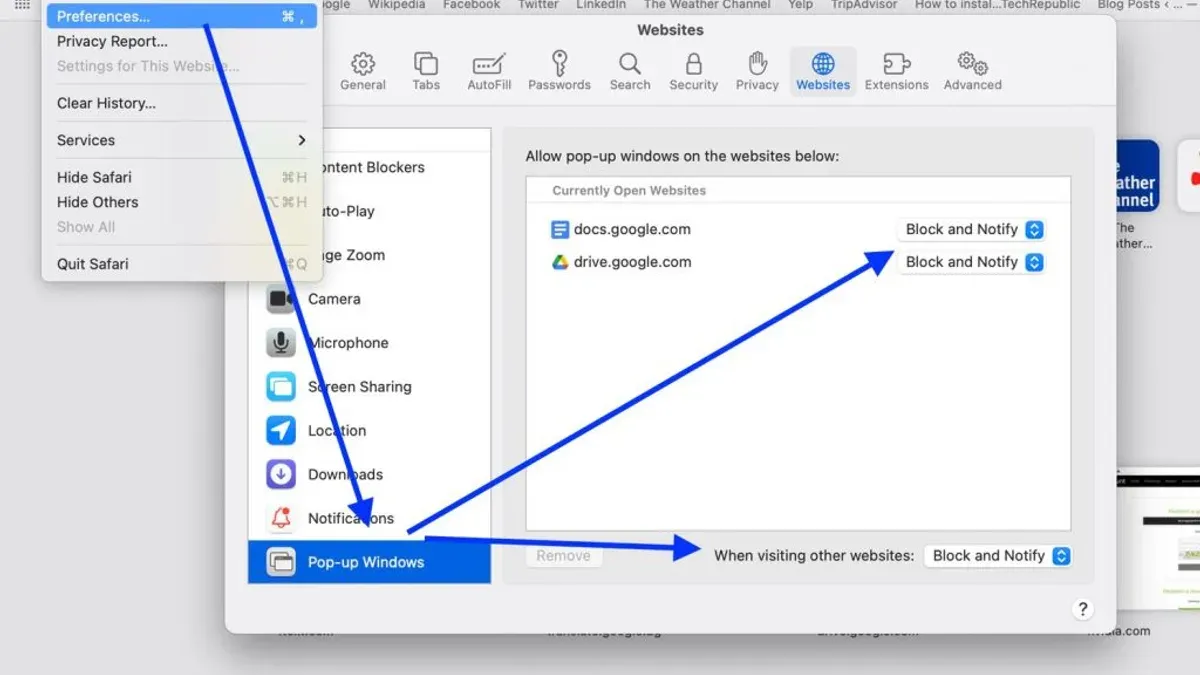
Safari blocks pop-ups by default to protect users from unwanted ads and potential security threats. However, some websites require pop-ups to function correctly. This guide explains how to allow pop-ups for one website in Safari without compromising overall browsing security.
Understanding Safari’s Pop-Up Blocking and Why Selective Allowance Matters
Safari’s default setting blocks pop-up windows to prevent intrusive advertisements and reduce the risk of malicious content. Pop-ups can be used for phishing or to deliver unwanted ads, so the browser limits them globally. However, some trusted websites rely on pop-ups for essential tasks, such as banking portals opening login windows or transaction confirmations, educational platforms displaying quizzes, or business tools launching document previews or chat windows.
Allowing pop-ups for all sites increases exposure to ads and malware. Selectively enabling pop-ups only for trusted sites balances usability with safety, ensuring necessary site features work without exposing the browser to unwanted interruptions.
Step-by-Step: How to Allow Pop-Ups for One Website on Safari for macOS
Safari on macOS lets you enable pop-ups for individual websites. Follow these steps carefully, noting that the site must be open in a tab for it to appear in the settings list:
- Open Safari and navigate to the website for which you want to allow pop-ups.
- Go to the Safari menu and select Preferences.
- Click the Websites tab.
- In the sidebar, select Pop-up Windows.
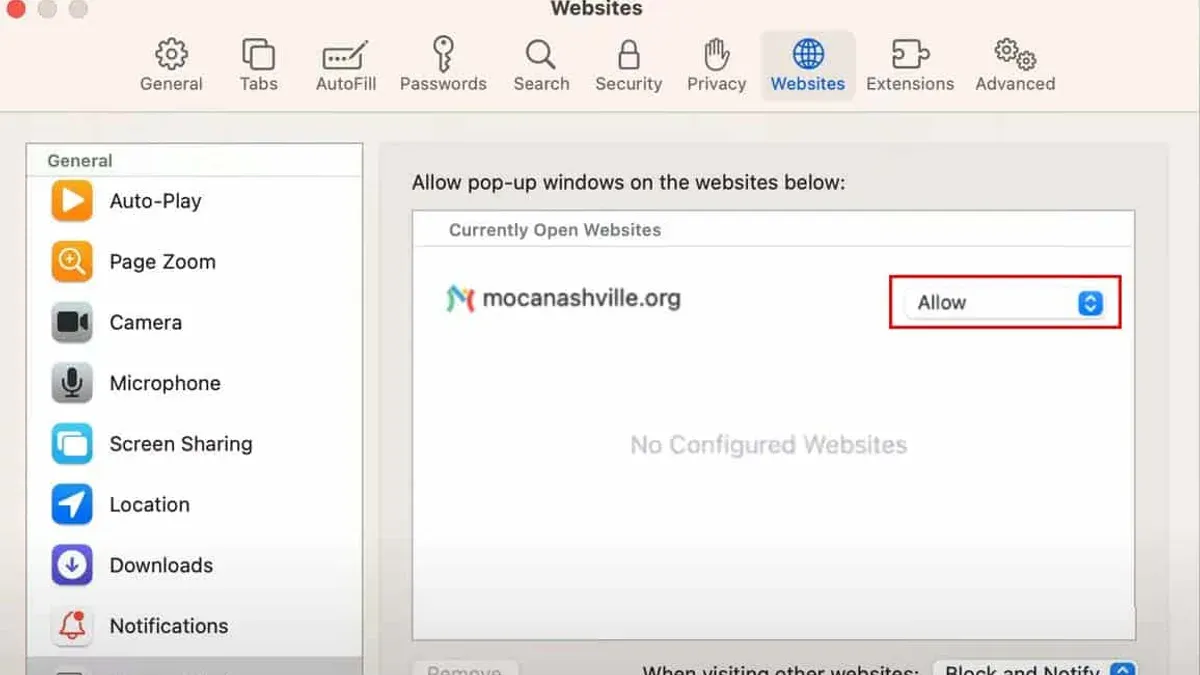
- Find the website in the list. If it’s not listed, open a new tab and visit the site again to add it.
- Next to the website’s name, click the dropdown menu and select Allow.
- Close Preferences and refresh the website tab to test if pop-ups are working.
Note: If the website uses pop-ups that open automatically on page load, some pop-ups may still be blocked if Safari detects them as unwanted. Also, changes take effect only after refreshing the page or reopening the tab.
How to Allow Pop-Ups for One Website on Safari for iOS (iPhone and iPad)
Safari on iOS does not support per-website pop-up permissions. The Block Pop-ups toggle in Settings applies globally:
- Open the Settings app.
- Scroll down and tap Safari.
- Find the Block Pop-ups toggle. Turning it off allows pop-ups on all sites.
- To minimize exposure, consider using third-party content blockers available in the App Store to manage unwanted pop-ups selectively.
Because iOS Safari lacks granular pop-up controls, some users open pop-up content manually in new tabs if the site provides that option or use alternative browsers that offer more control.
| Feature | macOS Safari | iOS Safari |
|---|---|---|
| Selective Pop-Up Allowance | Yes, per website | No, global only |
| Content Blockers Support | Yes | Yes |
| Manual Pop-Up Control | Available | Limited |
Common Issues and Troubleshooting When Allowing Pop-Ups for One Site
If pop-ups remain blocked despite changing settings, try these steps:
- Clear Safari’s cache: Go to Preferences > Privacy > Manage Website Data, then remove data related to the site. This resets stored settings that may cause conflicts.
- Restart Safari: Close and reopen Safari to ensure settings apply.
- Check for content blockers: Third-party ad blockers or antivirus software can block pop-ups even if Safari allows them. Temporarily disable these to test.
- Confirm pop-up necessity: Some sites use pop-ups unnecessarily, or network restrictions may block them.
After changes, test pop-ups again. If issues persist, consult the site’s help resources or support to verify if pop-ups are essential.
Balancing Security and Functionality: When Not to Allow Pop-Ups Even for Trusted Sites
Allowing pop-ups should be cautious, even for trusted websites. Risks include:
- Phishing attacks: Malicious pop-ups may mimic login dialogs or security warnings.
- Intrusive ads: Some sites display aggressive pop-up ads that disrupt browsing.
- Compromised sites: A trusted site could be hacked and used to deliver harmful pop-ups.
If pop-ups seem suspicious or excessive, avoid enabling them. Instead, seek alternative access methods like direct links or official mobile apps. Keeping pop-ups blocked by default reduces risk while allowing manual access when necessary.
Important Caveats
- This article applies to Safari versions current and does not cover older versions or other browsers.
- iOS Safari lacks per-website pop-up permissions; workarounds or alternative browsers may be needed.
- Allowing pop-ups assumes trust in the website; it does not eliminate risks from compromised or malicious sites.
Frequently Asked Questions
Can I allow pop-ups for a website temporarily and then block them again automatically?
Safari does not have a feature to automatically revert pop-up permissions after a set time. You must manually change the setting back to "Block" in Preferences.
What should I do if Safari does not remember my pop-up settings for a website?
Clearing Safari’s cache and website data can help. Also, ensure Safari is up to date and no third-party software interferes with settings.
Are there Safari extensions that help manage pop-ups more effectively?
Some Safari extensions and content blockers offer more granular control over pop-ups and ads. Their effectiveness varies, and they should be installed only from trusted sources.
Does allowing pop-ups on one site affect Safari’s performance or battery life?
Allowing pop-ups for a single trusted site has minimal impact on performance or battery life. Issues usually occur if multiple sites load many pop-ups or ads simultaneously.



