
How to Block Pop-Ups in Safari on macOS Ventura and Later
This guide shows how to block pop-ups in Safari on macOS Ventura and later, using built-in tools and trusted extensions for safer browsing.
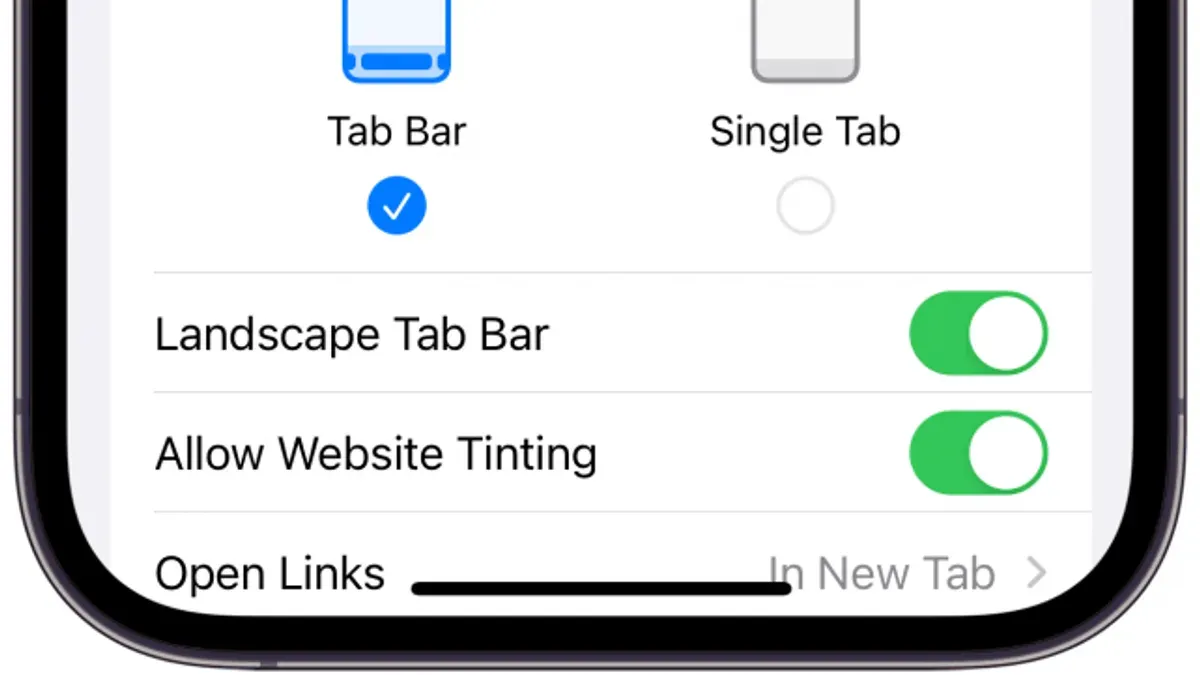
Pop-ups are a common nuisance for Mac users browsing with Safari. This guide explains how to block pop-ups in Safari effectively, combining built-in tools with trusted third-party extensions and practical troubleshooting steps on macOS Ventura and later.
Understanding Pop-Ups and Why Blocking Them Matters in Safari
Pop-ups are browser windows or tabs that open automatically, often without user interaction. They appear in several forms:
- Advertising pop-ups: Typically unwanted ads that disrupt browsing.
- Phishing attempts: Malicious pop-ups designed to steal personal data.
- Legitimate alerts: Such as login prompts or payment confirmations.
Pop-ups can pose risks beyond annoyance. They may invade privacy by tracking behavior, deliver malware, or degrade user experience by cluttering the screen. Safari’s pop-up blocker is part of Apple’s broader privacy and security approach, aiming to minimize unsolicited interruptions and protect users from web-based threats.
Step-by-Step Guide to Using Safari’s Native Pop-Up Blocker in macOS Ventura and Later
Safari includes a native pop-up blocker enabled by default, but users can customize settings for better control.
- Open Safari and click Safari in the menu bar, then select Settings.
- Navigate to the Websites tab and select Pop-up Windows from the sidebar.
- At the bottom right, the global setting controls pop-up behavior. The default is usually Block and Notify, which blocks pop-ups but notifies you when one is blocked.
- Use the dropdown next to individual websites to allow or block pop-ups on a per-site basis. This is useful because some sites require pop-ups for legitimate functions like login or payment windows.
- Safari indicates blocked pop-ups with a small icon in the address bar. Clicking this icon lets you manage permissions for that site quickly.
Note that if you disable blocking globally, pop-ups will appear from all sites, increasing risk and annoyance. The granular site-specific controls help balance usability and security.
Enhancing Pop-Up Blocking with Trusted Third-Party Extensions
Safari’s native blocker handles most pop-ups, but third-party extensions can offer enhanced filtering and privacy features.
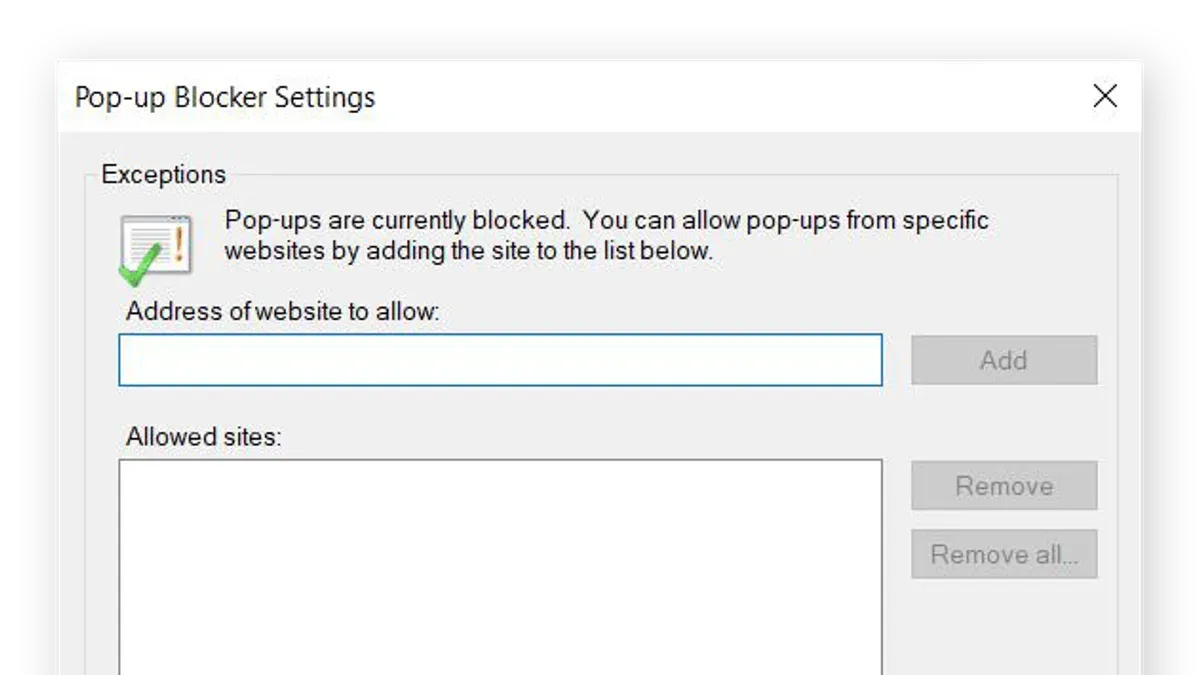
- AdGuard: Provides comprehensive ad and pop-up blocking with customizable filters.
- 1Blocker: Offers advanced blocking rules and performance optimization for Safari.
- Ghostery Lite: Focuses on tracking and pop-up prevention alongside privacy protection.
To install these extensions:
- Open the App Store on your Mac and search for the extension.
- Download and install the extension.
- Open Safari’s Settings > Extensions and enable the installed extension.
- Configure the extension's settings according to your preferences.
Extensions often provide more aggressive filtering and can block embedded pop-ups or scripts that the native blocker misses. However, they may increase resource usage or cause compatibility issues with some websites.
For example, enabling AdGuard’s advanced pop-up filters can reduce pop-ups further but might require occasional whitelisting of sites with legitimate pop-ups to avoid disruption.
Troubleshooting Pop-Up Blocking Issues in Safari
Pop-ups may bypass blocking despite settings being enabled. Common causes include:
- Whitelist settings allowing certain sites to show pop-ups.
- Pop-ups embedded within page content using scripts that evade basic blocking.
- Cached site data or cookies retaining permissions that permit pop-ups.
To address these issues:
- Check Safari’s Settings > Websites > Pop-up Windows and ensure no unintended sites are set to Allow.
- Clear Safari’s cache and cookies by going to Settings > Privacy & Security > Manage Website Data and removing data from problematic sites.
- Temporarily disable extensions to identify if any are causing conflicts.
- Keep Safari and macOS updated to the latest versions, as updates include security fixes that improve blocker performance.
Most persistent pop-ups should be prevented effectively after these steps.
When Blocking Pop-Ups Isn’t Enough: Additional Privacy and Security Measures
Pop-up blockers are a valuable tool but not a complete solution against all online threats.
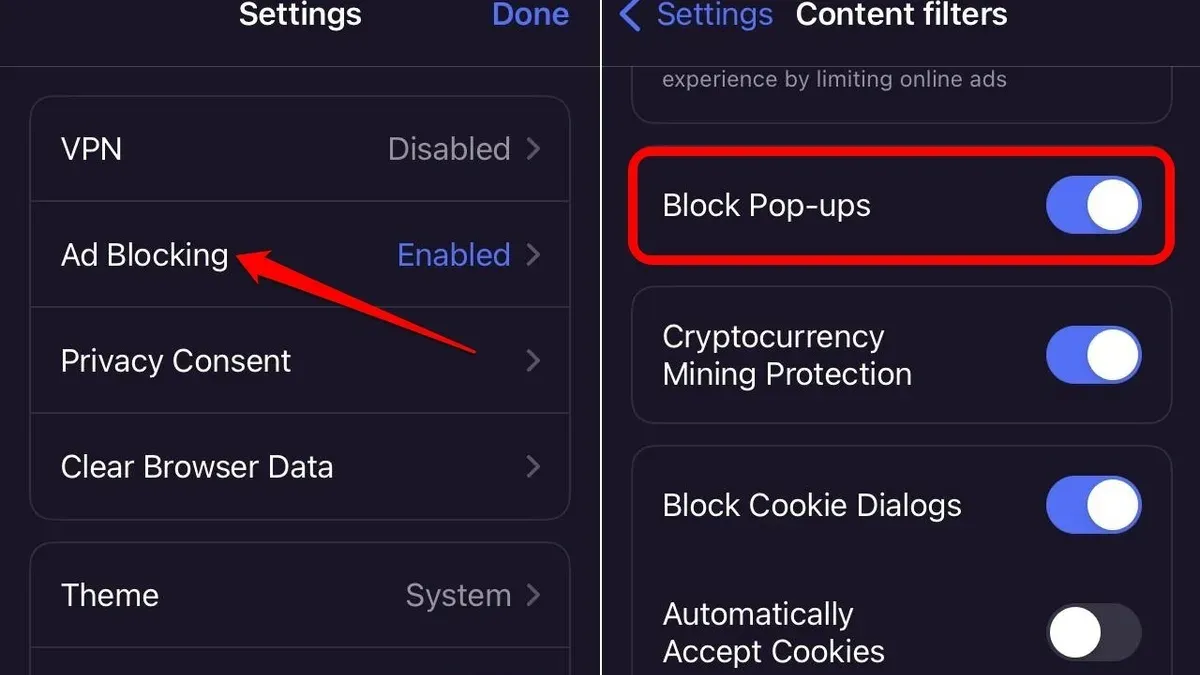
- Some sophisticated tracking scripts and phishing sites bypass blockers by using embedded content or social engineering.
- Content blockers complement pop-up blockers by filtering trackers and ads more broadly.
- Using a VPN can enhance privacy by masking your IP and encrypting traffic.
- Practicing safe browsing habits—such as avoiding suspicious links and verifying site legitimacy—is essential.
- If you encounter repeated or complex security issues, consulting a cybersecurity professional is advisable.
Combining these strategies offers a more comprehensive defense beyond blocking pop-ups alone.
Caveats and Limitations
This guide focuses on Safari’s pop-up blocking on macOS Ventura and later. Older macOS versions may present different interface options or lack some features described.
Blocking pop-ups does not guarantee full protection from all online threats or intrusive advertisements. It should be part of a broader security and privacy approach.
Some websites rely on pop-ups for legitimate functions such as login windows or payment processing. Blocking all pop-ups universally might disrupt your experience on those sites.
Frequently Asked Questions
Can I allow pop-ups only from trusted websites in Safari?
Yes. Safari lets you set site-specific permissions under Settings > Websites > Pop-up Windows, allowing pop-ups on trusted sites while blocking others.
Why do some pop-ups appear even when blocking is enabled?
Pop-ups may bypass blocking due to whitelist settings, embedded scripts, or cached permissions. Clearing cache and reviewing site settings can help.
Are third-party pop-up blockers safe to use with Safari?
Trusted extensions from reputable developers are generally safe and enhance blocking. Always install from the App Store and review permissions carefully.
How do I reset Safari’s pop-up blocker settings to default?
Go to Settings > Websites > Pop-up Windows and remove any site-specific permissions. Clearing website data and disabling extensions temporarily can also reset behavior.
Related reading
- How to Connect to a Server in Finder: A Practical Guide for Mac UsersThis guide explains how to connect to various server types in Finder, troubleshoot issues, and optimize your Mac workflow.
- Automate Trash Emptying After 30 Days in Finder on macOSThis guide shows how to empty Trash automatically after 30 days in Finder using macOS features and automation tools to manage disk space efficiently.
- Restore Files from Trash in Finder: Essential Guide for Mac UsersDiscover how to put back a file from Trash in Finder to restore deleted Mac files quickly and safely.



