How to Connect to a Server in Finder: A Practical Guide for Mac Users
This guide explains how to connect to various server types in Finder, troubleshoot issues, and optimize your Mac workflow.
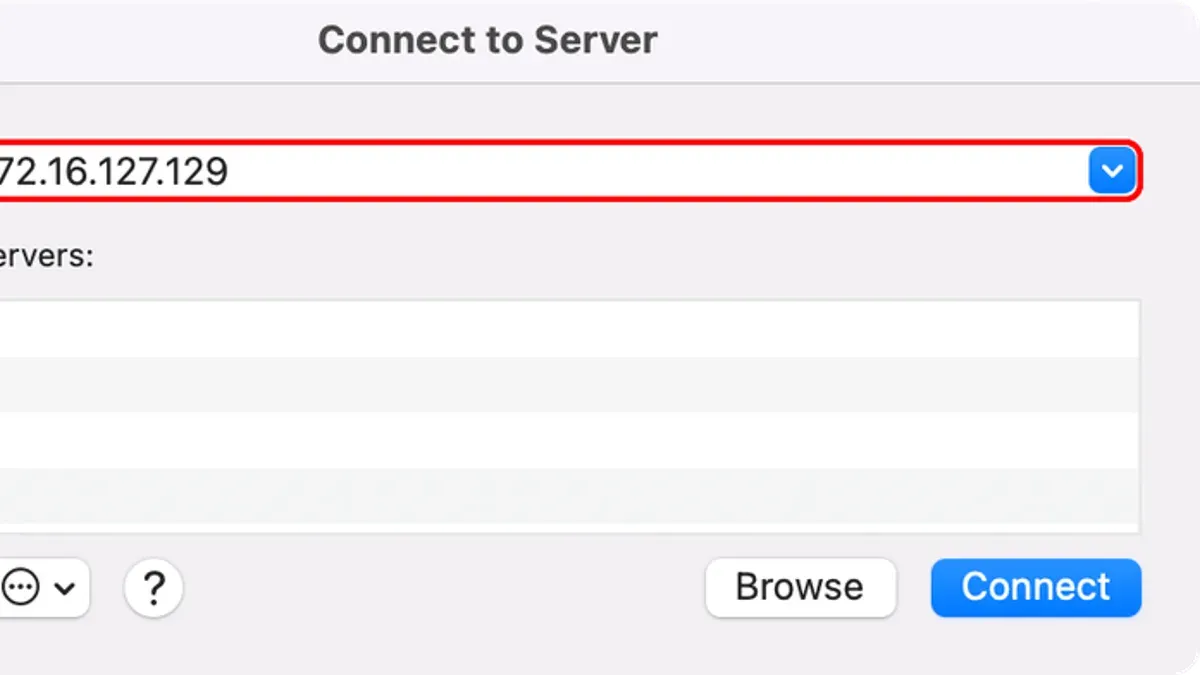
Connecting to a server in Finder is a common task for Mac users who need access to files on remote machines. Whether working with SMB, AFP, NFS, or FTP servers, understanding the protocols and correct connection methods ensures reliable access. This guide explains how to connect to various server types in Finder, troubleshoot common issues, and optimize your workflow.
Understanding Different Server Types Compatible with Finder
Finder supports several protocols for connecting to servers. The choice depends on your network environment and the server's operating system.
- SMB (Server Message Block): The primary protocol for Windows file sharing, also supported by macOS. It balances speed, security, and compatibility.
- AFP (Apple Filing Protocol): Apple’s legacy protocol optimized for Mac-to-Mac file sharing but deprecated in favor of SMB.
- NFS (Network File System): Common in Unix/Linux environments, suitable for high-performance shared storage but requires manual configuration on macOS.
- FTP (File Transfer Protocol): Mainly for transferring files rather than persistent mounts; lacks encryption and deep Finder integration.
Each protocol differs in security, speed, and macOS compatibility. For example, SMB supports encryption and broad compatibility, while AFP offers better performance on older Macs but lacks modern security features.
| Protocol | Typical Use Case | Security | macOS Compatibility |
|---|---|---|---|
| SMB | Windows/Mac file sharing, mixed environments | Supports encryption and authentication | Fully supported (default since macOS 10.9) |
| AFP | Mac-to-Mac legacy file sharing | Limited security features | Supported but deprecated |
| NFS | Unix/Linux shared storage | Depends on server setup | Supported but requires manual setup |
| FTP | File transfers, not persistent mounts | Unencrypted by default | Supported for browsing only |
Choose SMB for Windows or mixed environments, AFP for older Mac-only setups, NFS for Unix/Linux shares needing performance, and FTP only when necessary for file transfers.
Step-by-Step Guide to Connecting to a Server in Finder
Use Finder’s "Connect to Server" feature as follows:
- Open Finder.
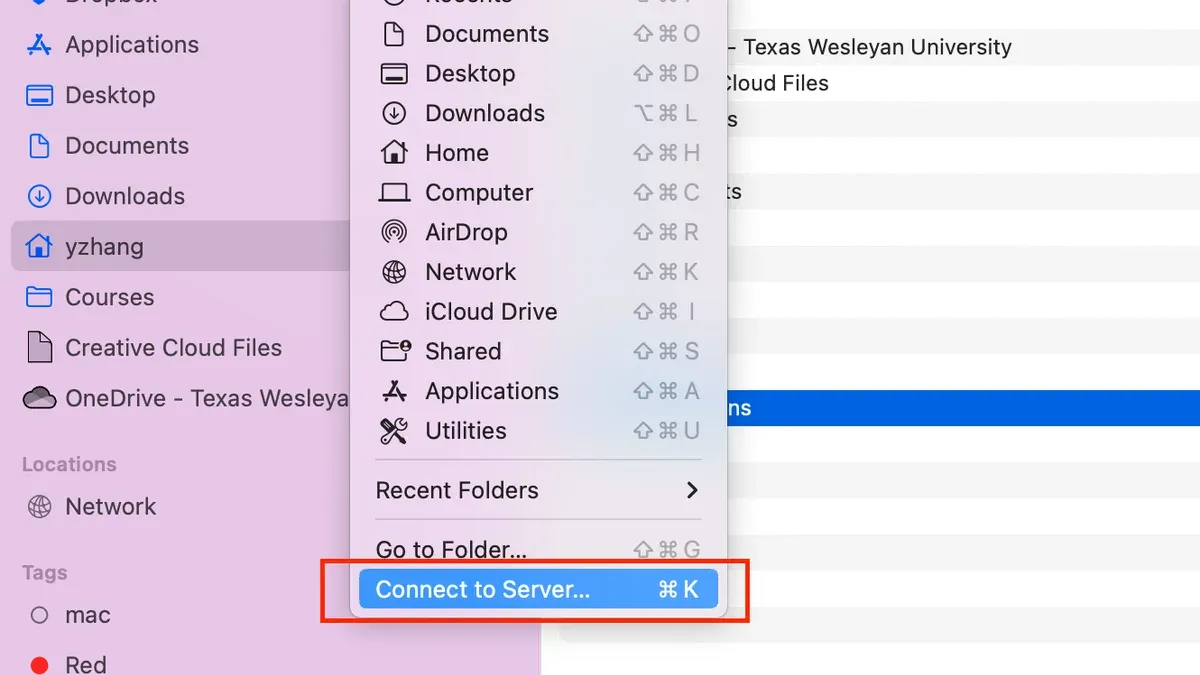
- Access the dialog: Click Go > Connect to Server or press
Command + K. - Enter the server address: Include the protocol prefix.
smb://server-address/share-namefor SMBafp://server-address/share-namefor AFPnfs://server-address/pathfor NFSftp://server-addressfor FTP
- Click Connect.
- Enter credentials: Provide username and password when prompted. To avoid connection issues, ensure the username format matches the server's requirements (e.g., including domain or workgroup for SMB). You can save the password in the Keychain for convenience, but avoid on shared devices.
- Access the mounted server: It appears under Locations in Finder’s sidebar.
- Save server to favorites: Click the + button in the Connect to Server dialog to add it to favorites for quick access.
Example: To connect to an SMB server named "fileserver" with a shared folder "documents", enter smb://fileserver/documents and authenticate as required.
Troubleshooting Common Connection Problems in Finder
Connection issues often stem from network or permission problems. Troubleshoot with these steps:

- Server not appearing or connection times out:
- Ping the server via Terminal:
ping server-addressto verify reachability. - Confirm your Mac is on the correct network and subnet.
- Ensure the server is powered on and sharing services are active.
- Ping the server via Terminal:
- Firewall or permissions issues:
- Temporarily disable macOS firewall via
System Preferences > Security & Privacy > Firewallto test connectivity. - Verify the server firewall allows incoming connections on required ports (e.g., port 445 for SMB).
- Check user permissions on the server for the shared folder.
- Temporarily disable macOS firewall via
- Authentication errors:
- Confirm username and password accuracy; some servers require domain or workgroup prefixes.
- Clear cached credentials in Keychain Access if repeated failures occur.
Diagnostic checklist example:
- Run
ping fileserverin Terminal to check network reachability. - Use
smbutil statshares -ato list active SMB shares and verify connection status. - Note Finder error messages like "Connection timed out" or "Authentication failed" and address accordingly.
Advanced Tips: Automating Server Connections and Managing Multiple Servers
Streamline frequent server access with these methods:
- Add servers to Finder sidebar: After mounting, drag the server icon from desktop or Finder window to the sidebar for quick access.
- Auto-mount at login: Add mounted servers to System Preferences > Users & Groups > Login Items to connect automatically on login.
- Automate with Automator or AppleScript: Create workflows or scripts to mount servers on demand or at startup.
Example Automator steps:- Open Automator and create a new Application.
- Add "Get Specified Servers" and "Connect to Servers" actions.
- Save and run to mount servers automatically.
- Organize multiple connections: Use consistent naming and groups in sidebar favorites to keep servers organized.
- Security considerations: Avoid saving passwords on shared machines. Use strong passwords stored securely in macOS Keychain.
When Finder Isn’t Enough: Alternatives for Complex Server Connections
Finder covers most typical scenarios but has limitations:
- Protocol limitations: Finder does not support encrypted SFTP or advanced FTP features.
- Complex authentication: Enterprise environments may require VPNs, multi-factor authentication, or Kerberos tickets, which Finder cannot handle directly.
- Third-party apps: Tools like Cyberduck and Transmit offer enhanced protocol support, encryption, and scripting capabilities.
For advanced needs or persistent issues, dedicated clients or IT support are recommended.
| Feature | Finder | Cyberduck/Transmit |
|---|---|---|
| Supported protocols | SMB, AFP, NFS, FTP (basic) | FTP, SFTP, WebDAV, Amazon S3, and more |
| Encryption | Limited (SMB 3.x) | Full support for SSH/SFTP and TLS |
| Automation | Basic AppleScript/Automator support | Advanced scripting and batch transfers |
Frequently asked questions
Can I connect to Windows servers from Finder?
Yes. Use the SMB protocol (e.g., smb://servername/share) to connect to Windows servers. Finder fully supports SMB connections.
How do I save my server credentials securely in Finder?
When prompted, save passwords in the macOS Keychain. Avoid saving credentials on shared or public Macs for security.
What should I do if Finder keeps disconnecting from my server?
Check your network stability, ensure the server is online, and review firewall settings. Clearing cached credentials and remounting the share often resolves disconnections.
Is it possible to connect to FTP servers using Finder?
Finder supports basic FTP connections for browsing and downloading files only. It does not support persistent mounts or secure FTP variants like SFTP.
Caveats
This guide focuses on Finder’s native capabilities and does not cover server setup or configuration. For advanced server setup or enterprise security, consult IT professionals.
Related reading
- How to Create and Use Finder Aliases to Streamline Your Mac WorkflowFinder aliases let you create shortcuts to files, folders, and apps on your Mac, keeping links intact even if items move within the same volume.
- Show Full File Path in Finder Title Bar on macOSThis guide explains how to show the full path in the title bar in Finder on macOS, enhancing navigation clarity and file management efficiency.
- Open Folders in New Windows Instead of Tabs in FinderDiscover how to open folders in new windows instead of tabs in Finder to better organize your macOS workspace.