Open Finder Directly in a Specific Folder on macOS
Opening Finder directly in a specific folder streamlines your workflow by reducing navigation time and speeding up access on macOS.
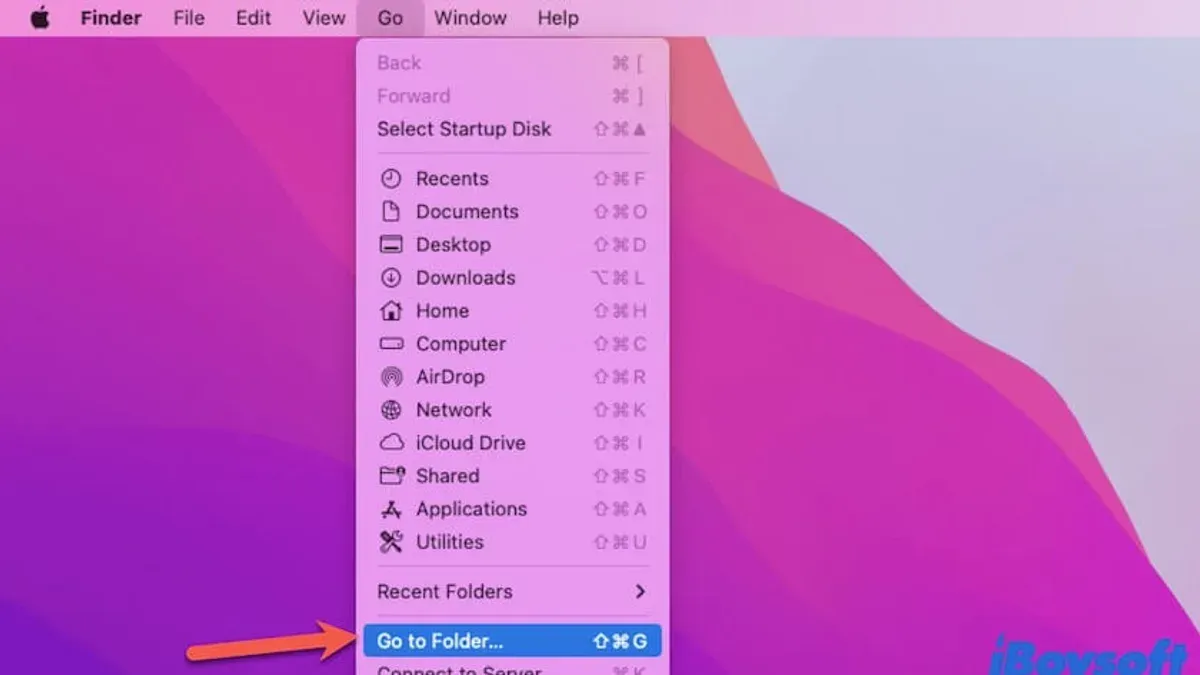
Opening Finder directly in a specific folder streamlines your workflow by reducing navigation time. For Mac users who frequently access certain directories, customizing Finder’s startup location saves repeated clicks and speeds up access.
Why Open Finder in a Specific Folder?
Many users regularly access folders like project directories, Downloads, or shared network drives. Opening Finder directly to these locations avoids repetitive navigation steps. Instead of clicking through multiple folder layers, Finder can launch immediately where you need it.
- Quick access to project files accelerates coding and editing tasks.
- Immediate view of Downloads or shared drives reduces search time.
- Default Finder windows typically open to Recents or the user’s home folder, which may not align with your workflow.
Setting a specific startup folder reduces navigation clicks and saves seconds each session. Over time, this improves productivity, especially when working across multiple projects or file systems.
Method 1: Set the Default Folder Using Finder Preferences
The simplest way to open Finder in a specific folder is by adjusting its preferences:
- Open Finder.
- Go to Finder > Preferences from the menu bar.
- In the General tab, locate the dropdown labeled New Finder windows show:
- Click the dropdown and select Other...
- Browse to and select your desired folder (e.g.,
/Users/username/Documents), then click Choose.
This sets the default location for new Finder windows opened via File > New Finder Window or Command + N.
Important detail: This setting applies only to new windows opened within Finder itself. Clicking the Finder icon in the Dock or opening Finder after a reboot may open the last accessed folder or Recents, depending on macOS behavior.
For example, setting the Documents folder as default means pressing Command + N in Finder opens a window there immediately, but clicking the Dock icon might not.
Method 2: Create a Custom Finder Shortcut with Automator
To open Finder directly at a chosen folder from the Dock or via a keyboard shortcut, create a custom app using Automator:
- Launch Automator (found in
/Applications). - Select Application as the document type.
- In the search bar, type Run AppleScript and drag the action into the workflow pane.
- Replace the default script with this, modifying the path as needed:on run {input, parameters}
tell application "Finder"
activate
open POSIX file "/Users/username/Projects/MyProject"
end tell
return input
end run - Save the Automator app with a clear name (e.g., Open MyProject Finder) in
/Applicationsor another convenient location. - Drag the saved app to your Dock for quick access or assign a keyboard shortcut via System Preferences > Keyboard > Shortcuts > App Shortcuts.
Launching this app opens a Finder window directly at the specified folder.
Note: Assigning keyboard shortcuts to Automator apps requires creating a menu item for the app or using third-party tools, as macOS does not natively support global shortcuts for arbitrary apps.
Method 3: Use Terminal Commands and Scripts for Advanced Control
Users comfortable with the command line can open Finder windows at specific folders using the open command:
open /path/to/folder
For example:
open ~/Documents/Reports
This opens a new Finder window at ~/Documents/Reports.
To streamline this, create shell scripts or aliases in your ~/.zshrc or ~/.bash_profile:
alias openproj='open ~/Projects/MyProject'
alias openlogs='open ~/Library/Logs'
Running openproj opens Finder at the project folder.
You can also script opening multiple Finder windows at once:
#!/bin/bash
open ~/Documents
open ~/Downloads
open ~/Projects/MyProject
Save the script, make it executable with chmod +x, and run it to open all listed folders simultaneously.
This approach offers flexibility and integrates well into larger automation workflows.
Troubleshooting Common Issues and Limitations
Finder may ignore default folder settings due to:
- macOS Updates or Restarts: System updates can reset Finder preferences, requiring reconfiguration.
- Permissions Issues: Restricted folder permissions may cause Finder to revert to Recents or another default.
- Invalid Folder Paths: If the selected folder is missing or inaccessible, Finder defaults to Recents.
Solutions:
- Check folder permissions via
Get Infoand adjust access as needed. - Confirm the folder path is valid and accessible.
- Reset Finder preferences by deleting
~/Library/Preferences/com.apple.finder.plistand restarting Finder (killall Finderin Terminal). - Use Automator apps or Terminal scripts as alternatives if preferences do not persist.
Bonus: Combine Finder Folder Startup with Other Productivity Hacks
For an optimized workflow, combine customized Finder startup folders with macOS features and third-party tools:
- Spaces: Assign Finder windows to specific desktops to organize projects visually.
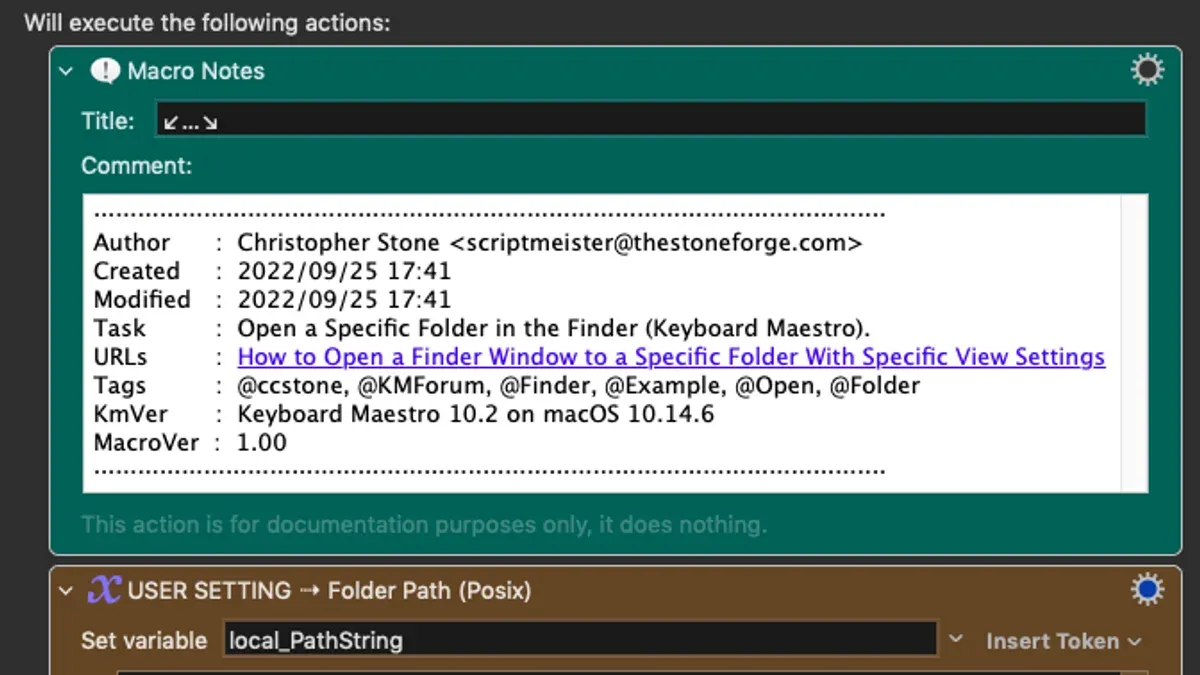
- Keyboard Shortcuts and Launchers: Use tools like Alfred or Keyboard Maestro to trigger custom Finder apps or scripts instantly.
- Login Automation: Configure your shell scripts or Automator apps to run at login, opening essential project folders automatically.
These integrations reduce setup time and keep your workspace organized efficiently.
Caveats
These methods do not change the folder shown when clicking the Finder icon in the Dock by default unless you use custom shortcuts or apps. Also, macOS updates may reset or override your settings, requiring reconfiguration.
Frequently asked questions
Can I make Finder always open to a specific folder when clicking its Dock icon?
By default, clicking the Finder icon opens the last opened window or Recents. To open a specific folder, you can create a custom Automator app or script and place it in the Dock instead.
Why does Finder sometimes ignore my default folder setting?
This can happen after macOS updates, permission changes, or if the selected folder is unavailable. Resetting Finder preferences or using custom scripts can help.
Is there a way to assign a global keyboard shortcut to open Finder in a specific folder?
macOS does not natively support global shortcuts for arbitrary folders, but you can create Automator apps and assign shortcuts via third-party tools like Alfred or Keyboard Maestro.