How to Calculate Folder Size in Finder on macOS Accurately
Discover accurate ways to calculate folder size in Finder on macOS, helping you manage disk space with ease and precision.
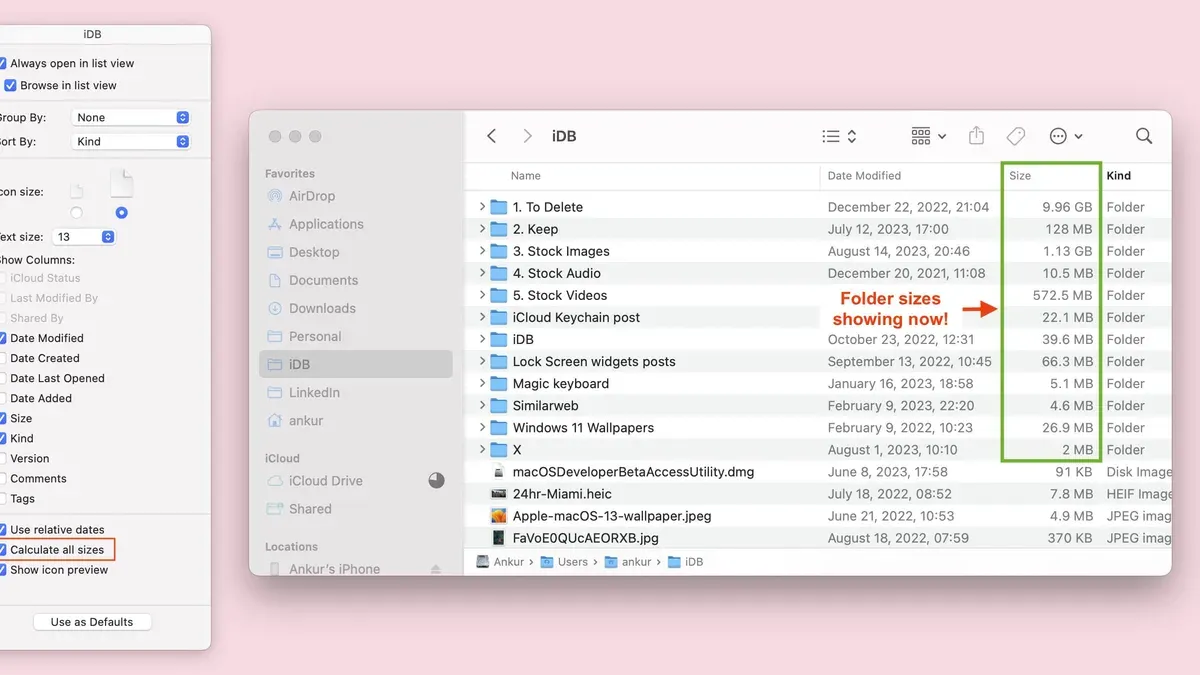
Calculating folder size in Finder is a common task for Mac users managing disk space. However, Finder's folder size reporting can be misleading due to hidden system files, symbolic links, and caching effects. Understanding these nuances is essential for accurate disk management.
Understanding How Finder Calculates Folder Size
Finder estimates folder size by summing the sizes of files contained within, but several factors affect this process:
- Hidden and system files: By default, Finder includes visible files but may exclude or inconsistently count hidden or system files depending on the view and settings. For example, enabling “Calculate All Sizes” in List View includes most files but may still miss some system caches.
- ‘Get Info’ vs ‘Calculate All Sizes’: The “Get Info” window recalculates the size each time it’s opened, providing an accurate size for a single folder but no batch processing. “Calculate All Sizes” in List View displays sizes for multiple folders simultaneously but can be slower and less precise for large directories.
- Symbolic links (aliases): Finder treats aliases as small pointers. However, if a symbolic link points inside the folder, Finder may count the linked content’s size as part of the folder, inflating the reported size. This often leads to overestimation.
For example, a folder containing a symbolic link to a large subfolder elsewhere on the disk may show a size larger than its actual contents. Comparing “Get Info” and List View with “Calculate All Sizes” enabled can reveal these discrepancies.
Step-by-Step Methods to Calculate Folder Size in Finder
Here are practical ways to view folder sizes using Finder and alternatives:
- Using ‘Get Info’ for individual folders:
- Right-click the folder.
- Select “Get Info” or press Command + I.
- Wait for Finder to calculate and display the folder size. Note that this recalculates each time and does not support batch operations.
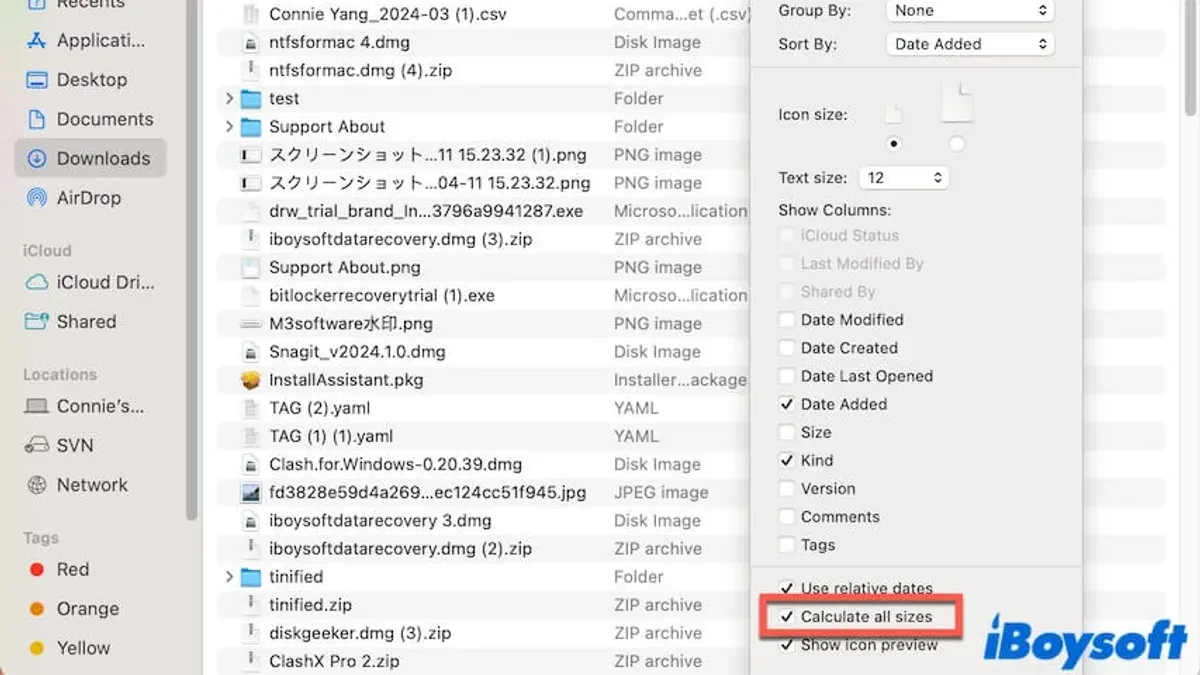
- Enabling ‘Calculate All Sizes’ in List View:
- Open a Finder window and switch to List View (Command + 2).
- From the View menu, select “Show View Options” or press Command + J.
- Check “Calculate All Sizes”.
- The Size column will display sizes for folders alongside files, but this can slow down Finder with many or large folders.
- Using the Preview pane:
- In Finder’s View menu, enable “Show Preview” (Option + Command + P).
- Select a folder to see its size and other metadata displayed in the Preview pane. This method is faster but less detailed.
- Using Terminal commands as a Finder alternative:
- Open Terminal.
- Type
du -sh /path/to/folderto get the folder’s disk usage in human-readable form. - This command reflects actual disk space used, including hidden files and accounting for hard links, providing more precise measurements than Finder.
The following table summarizes these methods:
| Method | Accuracy | Speed | Notes |
|---|---|---|---|
| Get Info | High for single folders | Moderate | Recalculates each time; no batch processing |
| Calculate All Sizes (List View) | Medium | Slower with many folders | May lag; symbolic links can inflate size |
| Preview Pane | Medium | Fast | Good for quick checks |
| Terminal (du) | High | Fast | Reflects actual disk usage; requires command line |
Common Pitfalls and How to Avoid Misleading Folder Size Readings
Several factors can cause Finder’s folder size readings to be inaccurate or confusing:
- Hidden files and system caches: Some caches and hidden files may not be fully included or may be double-counted depending on Finder’s view and settings.
- Hard links and symbolic links: Hard links point to the same data on disk and are typically counted once by Finder. Symbolic links, however, can cause folder sizes to count remote data multiple times if the linked content lies within the folder.
- Cloud syncing services: Services like iCloud Drive and Dropbox may show files as present but optimize storage by offloading actual data to the cloud. Finder may report the placeholder size, not the real disk usage.
- Folder size vs. disk space used: Finder sums file sizes, but actual disk space used may differ due to file system block sizes, compression, and sparse files.
For instance, a folder optimized by iCloud Drive might appear large in Finder, but Terminal’s du command often shows less disk space consumed locally. This discrepancy can mislead users about the true space usage.
Best Practices to Accurately Manage Disk Space Using Finder
To use Finder’s folder size information effectively, consider these guidelines:
- Regularly empty the Trash and clear system caches to remove hidden disk usage that Finder may not immediately reflect.
- Check folder sizes before and after syncing or backup operations to detect discrepancies caused by cloud optimization.
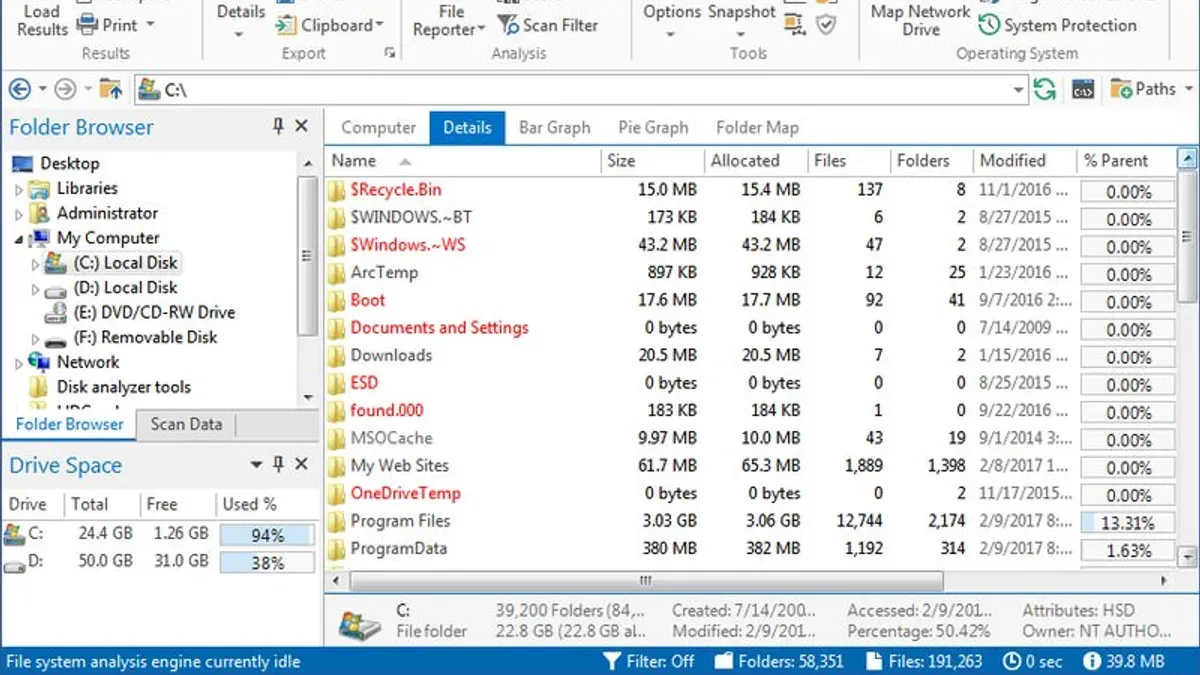
- Use third-party disk analysis tools when detailed insight is necessary; these often show real disk usage and hidden files more clearly.
- Verify critical folder sizes with Terminal commands like
duto confirm disk space before deleting or backing up.
For example, clearing caches and emptying Trash before measuring folder size can reveal the true space consumed by user files. Relying solely on Finder sizes without these steps might cause deleting essential files unnecessarily.
Limitations of Finder’s Folder Size Calculations
Finder’s folder size calculations do not always reflect actual disk space usage due to factors like hard links, symbolic links, and cloud storage optimizations. For precise disk management, combining Finder with Terminal commands or third-party tools is recommended. This combined approach helps avoid mistakes caused by misinterpretation of Finder’s size estimates.
Frequently Asked Questions
Why does Finder sometimes show a folder size of zero?
Finder may show zero if the folder contains only placeholders for cloud-optimized files or if size calculation is disabled. It can also occur if the folder is empty or if permissions restrict access.
Can Finder’s folder size calculation be trusted for backup planning?
Finder provides a useful estimate but may not account for hidden files, symbolic links, or cloud optimizations. It’s best to verify important backups using Terminal commands or dedicated tools.
How do symbolic links and aliases affect folder size in Finder?
Symbolic links can inflate folder size if Finder counts the linked content as part of the folder. Aliases, being small pointer files, usually do not add significant size, but their targets might if counted.
Is there a faster way to calculate sizes for many folders at once?
Enabling “Calculate All Sizes” in Finder’s List View allows batch size calculation, but it can be slow for many folders. Terminal commands like du -sh * in the folder directory offer faster and more accurate batch size calculations.
Related reading
- How to Pin a Folder to the Sidebar in Finder: Quick Access TipsThis guide explains how to pin a folder to the sidebar in Finder on macOS 2026 for quick and easy access to your important directories.
- Show Full File Path in Finder Title Bar on macOSThis guide explains how to show the full path in the title bar in Finder on macOS, enhancing navigation clarity and file management efficiency.
- How to Find Duplicate Files in Finder on MacDiscover how to find duplicate files in Finder on your Mac to free up storage and keep your system organized.
- How to Merge Two Folders in Finder on macOS SafelyThis guide explains how to merge two folders in Finder on macOS safely, avoiding data loss and handling file conflicts effectively.