Show Full File Path in Finder Title Bar on macOS
This guide explains how to show the full path in the title bar in Finder on macOS, enhancing navigation clarity and file management efficiency.
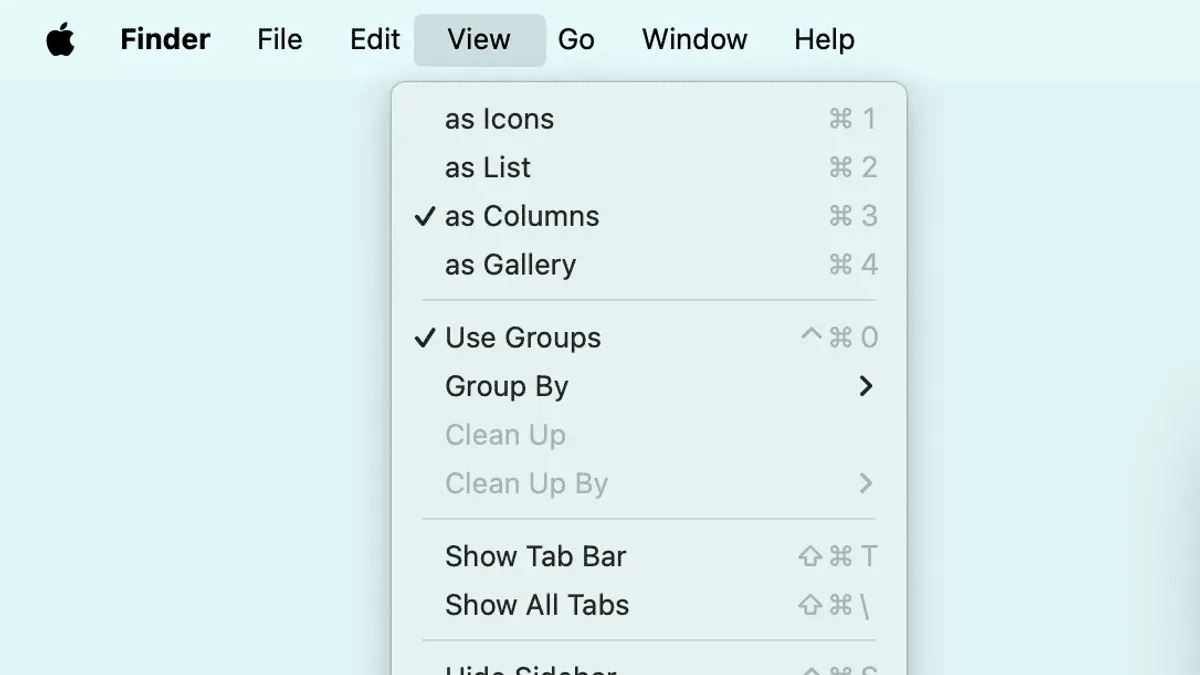
Finding the exact location of files can be cumbersome when working with deeply nested folders. This guide explains how to show the full path in the title bar in Finder on macOS, including terminal commands and scripting methods that go beyond the standard interface options. These approaches help improve navigation clarity and file management efficiency.
Why Showing the Full Path in Finder’s Title Bar Matters
When working within complex folder hierarchies, it’s easy to lose track of your current location. Displaying the full file path in Finder’s title bar helps in several ways:
- Navigation Clarity: Deeply nested folders often have similar names, making it difficult to confirm the current directory without seeing the full path.
- File Management: Knowing the exact location reduces errors when moving or copying files, especially in automated workflows.
- Workflow Efficiency: Having the full path visible reduces guesswork and speeds up context switching.
Standard Methods to Show File Path in Finder
macOS provides built-in ways to view file paths, though these do not display the full path directly in the title bar:
- Enable the Path Bar: In Finder, select View > Show Path Bar. This displays the full folder hierarchy at the bottom of Finder windows.
- Get Info Window: Select a file or folder and press Command+I to open the info pane, which shows the full path under "Where."
- Title Bar Dropdown: Click the folder icon next to the Finder window’s title to reveal the folder hierarchy up to the root.
These options provide quick path visibility but require extra clicks or occupy screen space outside the title bar.
| Method | Location of Path | Details Visible |
|---|---|---|
| Path Bar | Bottom of Finder window | Full folder hierarchy |
| Get Info | Separate window | Exact parent folder path |
| Title Bar Dropdown | Finder title bar dropdown | Folder ancestors |
How to Display the Full File Path Directly in the Finder Title Bar
By default, Finder’s title bar shows only the folder or file name, not the full path. To display the full path, use the following terminal command:

Terminal Command to Show Full Path
Open Terminal and enter:
defaults write com.apple.finder _FXShowPosixPathInTitle -bool true
killall Finder
This command configures Finder to replace the folder name in the title bar with its full absolute POSIX path (starting with "/"). The killall Finder command restarts Finder to apply the change immediately.
Note: This setting affects all Finder windows and may make the title bar longer, which can be a trade-off if you prefer a cleaner interface.
Creating an AppleScript for Dynamic Path Display
If you prefer not to modify Finder’s title bar, you can use AppleScript to display or copy the full path of the current Finder window on demand. For example:
tell application "Finder"
  set currentFolder to (folder of the front window) as alias
  set posixPath to POSIX path of currentFolder
  display dialog posixPath with title "Current Folder Path"
end tell
Save this script as an application or run it in Script Editor. This method does not change the title bar but provides quick access to the full path.
Third-Party Utilities
Several third-party tools extend Finder’s capabilities, including enhanced path display options. Utilities like Path Finder or XtraFinder offer configurable interfaces that can show full paths in title bars or additional toolbars. Always download such software from reputable sources and verify compatibility with your macOS version.
Customizing and Troubleshooting Full Path Display
After enabling full path display, you may want to customize the format or address common issues.
Adjusting Path Format
- Absolute vs. Tilde Shortcut: The terminal command shows the absolute path starting from root (e.g.,
/Users/username/Documents). To shorten this, scripts can replace the home directory with a tilde (~), improving readability. - Custom Scripts: AppleScript or Automator workflows can modify the path string before display, allowing custom delimiters or styles.
Common Pitfalls
- Permissions: Paths for folders without proper access permissions may not display correctly. Ensure you have the necessary rights to view the folder.
- macOS Updates: System updates can reset Finder preferences, requiring you to reapply the terminal command if the full path disappears.
Reverting Changes
To restore Finder’s default title bar behavior, run:
defaults delete com.apple.finder _FXShowPosixPathInTitle
killall Finder
Alternatives When Full Path in Title Bar Isn’t Feasible
If modifying the title bar is not desirable or possible, consider these alternatives:
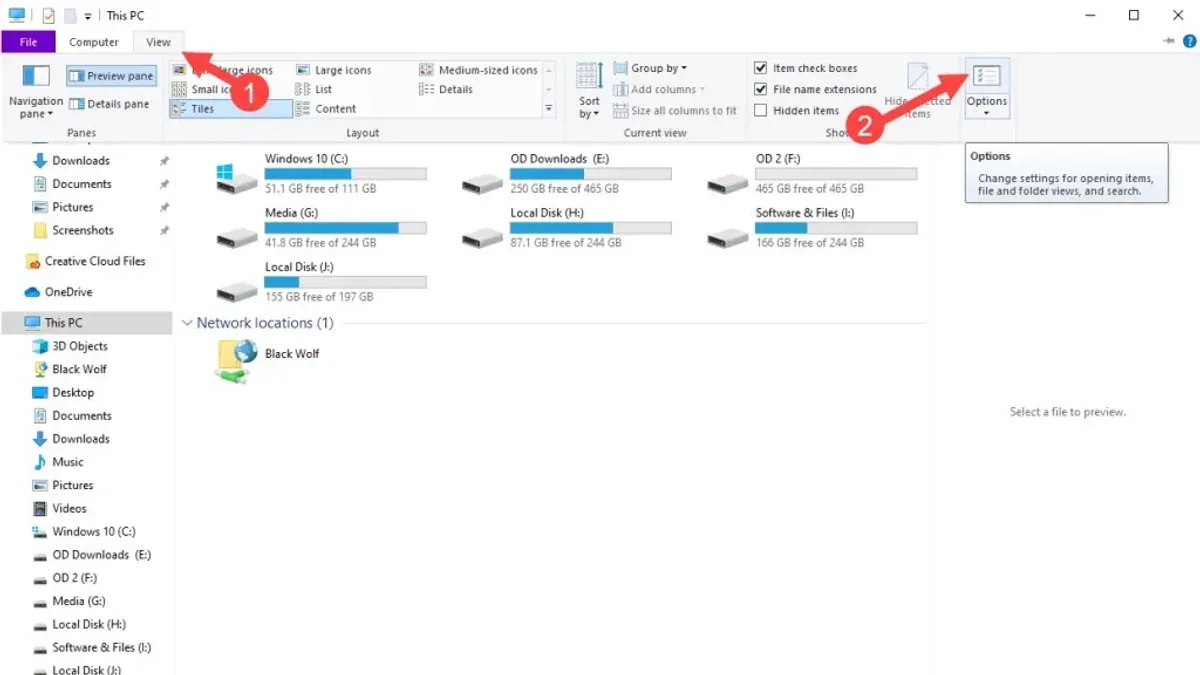
- Path Bar: Enable via View > Show Path Bar to display the full folder hierarchy at the bottom of Finder windows.
- Finder Sidebar and Tabs: Add frequently used folders to the sidebar or name tabs with folder paths to maintain context.
- Spotlight and Third-Party File Managers: Use Spotlight search to quickly locate files or third-party apps like Path Finder or ForkLift, which offer enhanced path visibility and additional features.
| Approach | Visibility | Ease of Use | Customization |
|---|---|---|---|
| Path Bar | Visible at window bottom | Built-in, simple | Limited |
| Sidebar Tabs | Contextual, user-defined | Moderate | Moderate |
| Third-Party Apps | Highly visible, configurable | Requires installation | High |
Frequently Asked Questions
Can I show the full file path in Finder’s title bar without using Terminal?
Not natively. Finder does not provide a direct graphical option to show the full path in the title bar. Terminal commands or third-party tools are needed.
Will these tweaks affect my Mac’s stability or security?
Using the official defaults write command and reputable scripts is generally safe and does not compromise system stability. Avoid unverified utilities or modifying system files beyond user-level settings.
Does macOS Ventura or later support full path display natively?
As of macOS 2026, including Ventura and later, Finder does not natively display the full path in the title bar without user-applied tweaks.
Are there keyboard shortcuts to quickly copy the full file path from Finder?
Yes. Select a file or folder and press Option + Command + C to copy its full path to the clipboard.
Caveats
This article covers user-level commands and scripts for showing full paths. More advanced customization may require developer tools or third-party apps, which can introduce additional complexity and risks.
Related reading
- How to Show the Path Bar in Finder for Precise File NavigationLearn how to enable and use the path bar in Finder for precise file navigation and better folder management on macOS 2026.
- How to Show File Extensions in Finder on Your MacDiscover how to show file extensions in Finder on your Mac to improve file identification and security.
- How to Create and Use Finder Aliases to Streamline Your Mac WorkflowFinder aliases let you create shortcuts to files, folders, and apps on your Mac, keeping links intact even if items move within the same volume.
- How to Change the Default Folder View in Finder on macOSThis guide explains how to change the default folder view in Finder, helping you tailor views for better file management on macOS.