How to Show File Extensions in Finder on Your Mac
Discover how to show file extensions in Finder on your Mac to improve file identification and security.
Understanding how to show file extensions in Finder is essential for Mac users who want precise file identification and enhanced security. File extensions reveal the file type, helping avoid confusion and potential risks.
Why Showing File Extensions in Finder Matters
File extensions are suffixes at the end of file names, such as .pdf, .jpg, or .docx. They indicate the file format and help you quickly identify the content type.
- Differentiating similar file names: Two files named
Reportcould beReport.pdfandReport.docx. Without extensions, it's difficult to distinguish them. - Security benefits: Malware often hides extensions or uses deceptive names. Recognizing file extensions helps avoid opening unsafe files.
- Improved workflow: Users managing multiple file types find extensions useful for sorting, searching, and organizing files efficiently.
For example, a file named Invoice might be a harmless Invoice.pdf or an executable Invoice.app. Without visible extensions, the risk of opening malicious files rises. Many malware infections exploit hidden extensions to masquerade as safe documents.
How to Show File Extensions for All Files in Finder
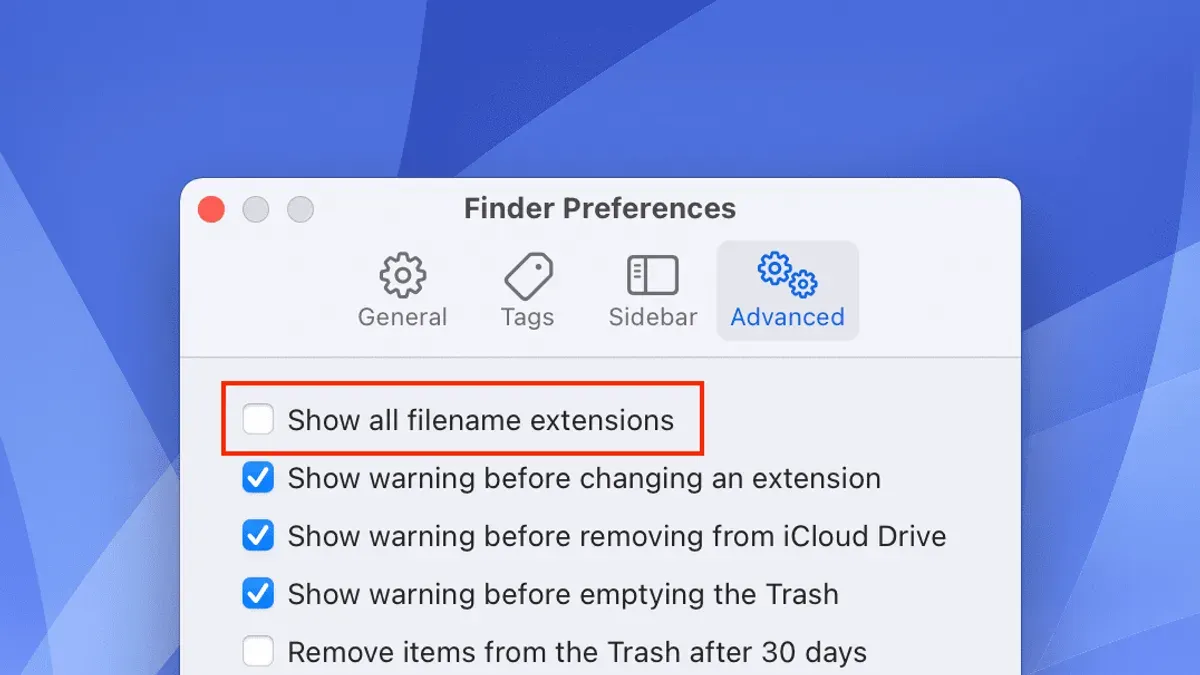
To enable file extensions globally in Finder, follow these steps:
- Open Finder by clicking its icon in the Dock or pressing
Command + Spaceand typing "Finder". - From the menu bar, select Finder > Preferences.
- In the Preferences window, click the Advanced tab.
- Check the box labeled Show all filename extensions. This setting forces Finder to display extensions for all files, overriding individual file settings.
- Close the Preferences window.
Note that some users miss step 4 or confuse it with other settings like "Show warning before changing an extension." Ensuring the correct box is checked is crucial.
To verify, view your files in Finder. Extensions should appear after every file name, such as Picture.jpg or Document.txt.
How to Show or Hide Extensions for Individual Files
You can override the global setting for specific files when needed:
- Right-click (or Control-click) the file in Finder.
- Select Get Info from the context menu.
- In the Info window, find the Name & Extension section.
- Check or uncheck the Hide extension box to show or hide the extension for that file.
- Close the Info window.
This is useful when most extensions are visible but you prefer certain files to appear cleaner, such as application shortcuts or frequently used documents where the extension is obvious.
For example, with "Show all filename extensions" enabled, a file named Presentation.pptx will display its extension. You can hide the extension on just that file by checking "Hide extension" in its Info window.
Common Issues and Troubleshooting When File Extensions Don’t Show
If extensions remain hidden despite enabling the setting, try these steps:
- Restart Finder: Hold the
Optionkey, right-click the Finder icon in the Dock, and select Relaunch. This refreshes Finder and applies settings changes. - Restart your Mac: Some system updates or glitches require a reboot to finalize changes.
- Check for conflicting apps: Third-party utilities or file managers might override Finder’s display settings.
- Verify file permissions: Insufficient permissions can prevent extensions from displaying correctly.
After these steps, extensions should appear as expected. If problems persist, consider checking for macOS updates or consulting Apple support.
When Not to Show File Extensions: Considerations and Exceptions
Showing file extensions is generally beneficial but not always necessary. Consider these cases:
- Casual users: Many rely on icons and may prefer hiding extensions to reduce clutter.
- Applications managing extensions internally: Some apps handle file types without requiring visible extensions.
- Balancing visibility and simplicity: Displaying extensions improves transparency but can overwhelm less technical users.
User feedback often shows a preference for hiding extensions to maintain a clean interface, especially for documents and images where icons suffice.
Limitations and Caveats
This guide focuses on macOS Finder and does not cover third-party file managers or non-Mac systems. Cloud storage apps may show different behaviors regarding file extensions due to syncing or app-specific settings.
Frequently Asked Questions
How do I show file extensions for all files in Finder?
Open Finder preferences, go to the Advanced tab, and check "Show all filename extensions." This forces Finder to display extensions for every file.
Can I show extensions for some files but hide them for others?
Yes. Use the Get Info window on individual files to toggle the "Hide extension" checkbox, overriding the global setting for that file.
Why do some files still not show extensions after enabling the setting?
This can result from needing to relaunch Finder, restart your Mac, conflicts with third-party apps, or file permission issues.
Does showing file extensions improve security on Mac?
Yes. Visible extensions help identify potentially harmful files disguised as safe documents, reducing the risk of opening malware.
Related reading
- How to Change the Default Folder View in Finder on macOSThis guide explains how to change the default folder view in Finder, helping you tailor views for better file management on macOS.