How to Change the Default Folder View in Finder on macOS
This guide explains how to change the default folder view in Finder, helping you tailor views for better file management on macOS.
Customizing folder views in Finder streamlines file management. This guide explains how to change the default folder view in Finder, tailoring views to your workflow for better efficiency.
Understanding Finder Views: Icon, List, Column, and Gallery
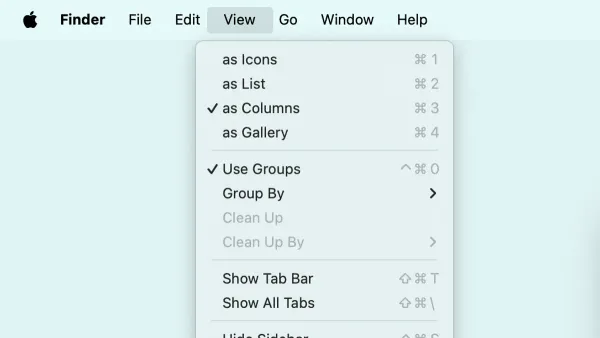
Finder offers four primary views to display folder contents: Icon, List, Column, and Gallery. Each suits different tasks and file types.
- Icon View: Displays files and folders as icons arranged in a grid. Best for quick visual identification, especially with images or design files.
- List View: Shows items in a detailed list with sortable columns like Date Modified, Size, and Kind. Ideal for managing many files where sorting and metadata matter.
- Column View: Presents a hierarchical, side-by-side column layout reflecting folder structure. Useful for navigating deep folder trees without opening new windows.
- Gallery View: Displays a large preview of the selected file above a filmstrip of other items. Suitable for browsing photos, PDFs, and media with visual previews.
Icon and Gallery views emphasize visual recognition, while List and Column views focus on metadata sorting and folder path navigation.
| Finder View | Best Use Case | Benefits |
|---|---|---|
| Icon | Visual browsing of images, design files | Quick previews via icons, easy drag-and-drop |
| List | Managing many files with metadata needs | Sorting by date, size, kind; detailed info visible |
| Column | Exploring deep folder hierarchies | Fast navigation, clear folder path context |
| Gallery | Media preview and selection | Large previews, quick file scanning |
How to Set a Default View for All Folders in Finder
To set a default view across all folders on macOS Ventura and later, follow these steps:
- Open a Finder window.
- Select your preferred view type (Icon, List, Column, or Gallery) from the toolbar or the View menu.
- Open Show View Options via View > Show View Options or press Command + J.
- Customize settings such as icon size, text size, and sorting order.
- Click Use as Defaults at the bottom of the View Options panel to apply these settings to all folders without custom views.
Note: This default applies only to folders without specific view settings saved. Folders with custom views retain their individual configurations.
Customizing Default Views for Individual Folders
Finder allows setting folder-specific views that override the system default. To customize a folder:
- Open the folder.
- Choose the desired view type from the toolbar or View menu.
- Open Show View Options (Command + J).
- Adjust settings like icon size, text size, and sorting.
- Check Always open in [selected view] and Browse in [selected view] if available.
- Close the View Options panel; Finder saves these settings for this folder.
For example, you might set your Documents folder to List view for sorting by date and your Photos folder to Gallery view for browsing images. These folder-specific views persist even if the system default changes.
Troubleshooting: When Default Folder Views Don’t Stick
If your view changes don’t persist, consider these common causes and fixes:
- Corrupted Finder preferences: Quit Finder by Option + right-clicking the Finder icon and selecting Relaunch. Then, delete the preferences file by running
rm ~/Library/Preferences/com.apple.finder.plistin Terminal, and relaunch Finder. - Permission issues: Verify you have read/write access to the folder, especially on external or network drives.
- iCloud or network drives: These may override local settings or sync folder views, causing resets.
Note: Deleting Finder preferences resets all Finder customizations, not just view settings.
When Changing Default Folder Views Might Not Be Ideal
Changing default folder views is not always beneficial. Consider these scenarios:
- Shared Macs: Different users may prefer distinct workflows; a single default view can cause confusion.
- Cloud-synced folders: Services like iCloud Drive may override local view settings to maintain consistency across devices.
- New Finder users: Default views are designed for general usability; customizing might complicate navigation.
Assess your needs and user context before changing default views to ensure it improves productivity.
Frequently Asked Questions
Can I set a different default view for external drives in Finder?
Yes. External drives store their own view preferences in hidden .DS_Store files. To set defaults, customize folder views directly on the external drive. System-wide defaults mainly apply to internal drives.
How do I reset Finder to its original default view settings?
Open Terminal and run rm ~/Library/Preferences/com.apple.finder.plist to delete Finder preferences, then restart Finder. This resets all Finder customizations, including view settings.
Will changing the default folder view affect all user accounts on my Mac?
No. Finder preferences are stored per user account. Changing defaults affects only the current user.
Does macOS update affect saved default Finder views?
System updates can occasionally reset or alter Finder settings, but saved default views usually persist through routine updates.
Caveats
This guide does not cover third-party Finder replacements or plugins, which may manage folder views differently or offer additional customization options.