
How to Install and Set Up PlayStation Remote Play on Mac
Discover how to install and set up PlayStation Remote Play on your Mac with easy steps and tips for smooth gaming performance.
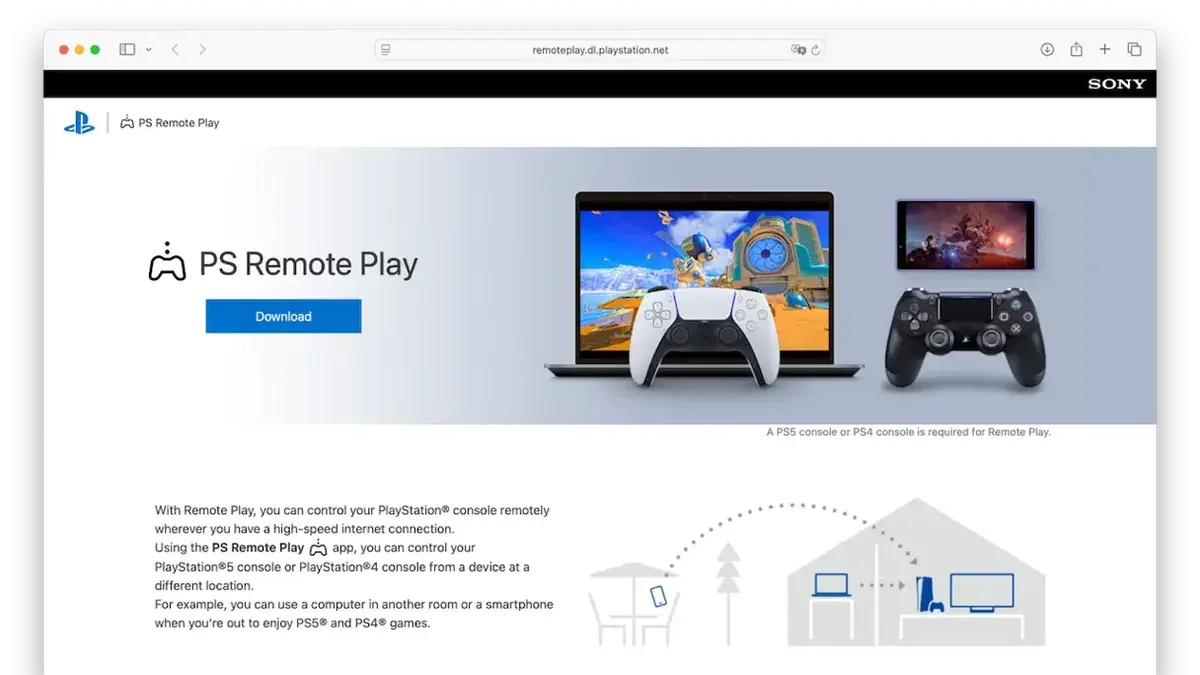
Essential requirements for PlayStation Remote Play on Mac
Your Mac must run macOS Big Sur, Monterey, Ventura, Sonoma, or Sequoia and have either Apple Silicon or an Intel processor. A minimum of 2 GB RAM is recommended for smooth streaming. Your PlayStation 4 or PlayStation 5 console needs updated system software, with PS4 firmware at 7.00 or higher and PS5 on the latest version.
For controls, a DualSense or DualShock 4 controller connected via USB or Bluetooth to your Mac is necessary.
Downloading and installing the Remote Play app on Mac
- If the app is blocked, open System Settings > Privacy & Security > General and click "Allow" next to the message about Remote Play.
Connecting your Mac to your PlayStation console
- Make sure your PlayStation console is powered on and connected to the same Wi-Fi network as your Mac if connecting locally. For remote connections, enable Remote Play in the console’s settings and ensure it stays connected to the internet in rest mode.
- Enter the registration code from your console into the Remote Play app to pair the devices.
- Pair your controller with your Mac via Bluetooth: open System Settings > Bluetooth, hold the Share and PS buttons on your controller until the light flashes, then select it in the Bluetooth list to connect.
- Adjust video quality in the Remote Play app’s settings between "Standard" and "High" depending on your network speed to balance latency and image quality.
Getting the most from PlayStation Remote Play on Mac
Customize control mappings under Settings > Controller Settings in the app to suit your preferences. Adjust video quality to find the best balance between visual clarity and lag.
To switch back to local play on your console, stop Remote Play by closing the app or selecting "Stop Remote Play."
- Connect your controller or prepare keyboard and mouse input and verify the app recognizes them.
- Remap controller buttons if desired under Settings > Controller Settings and test changes in a game.
- Choose a video quality setting under Settings > Video Quality for Remote Play and observe performance.
- Use windowed mode to multitask and monitor any input or video lag.
- Exit Remote Play by closing the app or selecting "Stop Remote Play" when finished.
Differences between Remote Play on Mac and PC
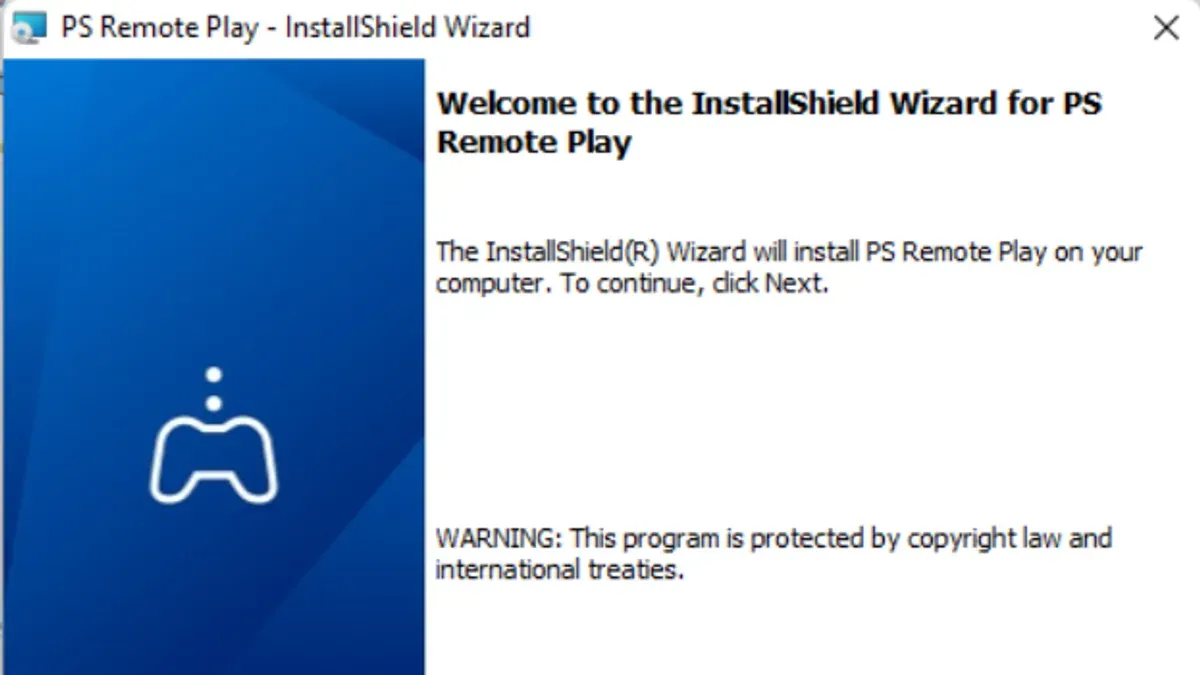
Mac installations involve dragging a.dmg file into Applications and granting permissions in System Settings, whereas PC users run a.exe installer with User Account Control prompts.
Mac users must grant screen recording and accessibility permissions to the app. Windows supports keyboard and mouse input for Remote Play; Mac does not. Mac hardware, especially Apple Silicon, delivers smooth performance but may have higher latency compared to Windows PCs with dedicated GPUs.
Mac’s firewall rarely blocks Remote Play, while Windows users sometimes face firewall issues. Updates on Mac can be streamlined through the App Store if installed there, whereas PC updates are manual downloads.
Resolving common issues with Remote Play on Mac
Restarting your router, console, and app often resolves these.
Closing other demanding apps helps stabilize performance.
Using a certified USB cable helps for wired connections, and checking the USB device list in System Information confirms recognition.
Using Ethernet or 5 GHz Wi-Fi reduces lag and buffering. Close background apps using internet bandwidth, prioritize your console in router Quality of Service settings, and avoid VPNs or proxies during sessions.
Managing security and privacy for Remote Play on Mac
Grant only necessary permissions and watch for unexpected prompts.
The app streams video, audio, and controller input between your Mac and console. Use secure, password-protected networks or wired connections to prevent interception. Enable your Mac’s firewall and add Remote Play as an allowed app to maintain connectivity without exposing your system.
Ensure your antivirus software recognizes Remote Play as safe to avoid blocking or scanning delays.
- In System Settings > Privacy & Security > Screen Recording, confirm Remote Play is enabled.
- Verify microphone access is granted to Remote Play.
- Turn on the firewall and add Remote Play as an allowed incoming connection under Firewall Options.
- Use trusted Wi-Fi or Ethernet connections rather than open networks for streaming.
Optimizing your Mac for smoother Remote Play
- Close unnecessary apps using Activity Monitor to free CPU and memory resources.
- Adjust Energy Saver or Battery settings to prevent your Mac from sleeping during Remote Play and enable "Wake for network access."
- Prefer a wired Ethernet connection over Wi-Fi to reduce latency and improve stability.
- If using an external monitor, set its resolution to match your Mac’s native resolution or use 720p or 1080p to avoid scaling delays.
- Configure audio output in System Settings > Sound to ensure consistent sound during gameplay.
- How to Install Microsoft Remote Desktop on Mac: A Step-by-Step Guide
- How to Install and Use Chrome Remote Desktop on Mac
- How to Install and Set Up Xbox Cloud Gaming on Mac
- How to Install and Set Up OpenVPN on Your Mac Step-by-Step
Frequently asked questions
How do I install PS Remote Play on Mac?
Download the official Remote Play app from the PlayStation website, open the.dmg installer, and drag the app into your Applications folder. If macOS blocks the app, allow it in Privacy & Security settings under the General tab.
Is the installation process different on a MacBook?
The process is identical on any Mac, including MacBooks. Ensure your macOS version meets the minimum requirement and follow the same installation steps.
How do I set up PS Remote Play on Mac?
Open the Remote Play app, sign in with your PlayStation Network account, and enable Remote Play on your console under Settings > System > Remote Play. Then pair your devices by entering the registration code from your console into the app.
Can I use PS Remote Play on Mac with a controller?
Yes, connect a DualSense or DualShock 4 controller via USB or Bluetooth. You can customize button mappings in the app’s controller settings for better gameplay.
What should I do if Remote Play does not connect?
Check that your console is on and connected to the same network, confirm Remote Play is enabled on the console, and restart your router, console, and app. Verify permissions on your Mac and re-pair your controller if needed.
Are there differences between Remote Play on Mac and PC?
Mac requires macOS Big Sur or later, while PC needs Windows 10 or newer. Mac apps need explicit permission granting for screen recording. PC supports keyboard and mouse input; Mac does not. Performance and update methods differ slightly between platforms.



