How to Install and Use Chrome Remote Desktop on Mac
Step-by-step guide to install and use Chrome Remote Desktop on Mac for secure and easy remote access.
Accessing your Mac remotely can be essential when you're away from your desk or troubleshooting issues for someone else. However, setting up remote access software on macOS can be tricky without clear guidance, especially given the system’s security features. If you’re wondering how to install Chrome Remote Desktop on Mac, this article walks you through the process step-by-step.
You'll learn what prerequisites you need before installation, how to configure the app properly for remote connections, and practical tips to overcome common setup problems related to macOS permissions. Additionally, we explore how to use the software effectively and remove it if necessary, along with understanding its limitations on Mac.
Key takeaways
- Enable Screen Recording and Accessibility permissions in System Preferences to allow remote control.
- Install Google Chrome and the Chrome Remote Desktop extension before the desktop app.
- Use a Google account to sign in and generate a unique access code for secure connections.
- Check firewall and security settings if the app fails to connect or install.
- Chrome Remote Desktop offers straightforward remote access but has limited file transfer capabilities on Mac.
Before you start: what you need to install Chrome Remote Desktop on Mac
To install Chrome Remote Desktop smoothly on your Mac, you need a few key components ready. First, your Mac must run a supported macOS version. Chrome Remote Desktop supports macOS 10.12 (Sierra) and later. Ensure your device has a stable internet connection for downloading software and maintaining remote sessions.
Next, install the Google Chrome browser if it’s not already on your Mac. Use the official Google Chrome website to download the latest version, as outdated versions can cause compatibility issues. Keep Chrome updated to avoid installation errors.
You also need a Google account to sign in and enable remote access. If you don’t have one, create it before starting the setup.
Because macOS enforces strict security and privacy settings, you should have a basic understanding of granting permissions. Chrome Remote Desktop requires access to Screen Recording, Accessibility, and Full Disk Access under System Preferences > Security & Privacy > Privacy. You will be prompted for these during installation.
Optionally, prepare a second device such as another Mac, Windows PC, Android, or iOS device. This device will be used to connect remotely to your Mac once the setup is complete.
For optimal performance, your Mac should have at least 4 GB of RAM and a broadband internet connection with speeds higher than 5 Mbps upload and download. Lower specs or slower connections may cause lag or connection drops.
- Check your macOS version by clicking the Apple menu > About This Mac. Confirm it is 10.12 or newer.
- Open Google Chrome and verify it’s updated by going to Chrome menu > About Google Chrome.
- Ensure you have your Google account credentials ready for sign-in.
- Review your Mac’s Security & Privacy settings to familiarize yourself with permission areas Chrome Remote Desktop will request.
- Optionally, have your second device nearby for testing remote connection after setup.
How to install Chrome Remote Desktop on macOS
- Open Google Chrome on your Mac and go to the Chrome Web Store by entering chrome.google.com/webstore in the address bar. You should see the Chrome Web Store homepage.
- In the search bar at the top left, type "Chrome Remote Desktop" and press Enter. Look for the official extension published by Google LLC, typically labeled "Chrome Remote Desktop."
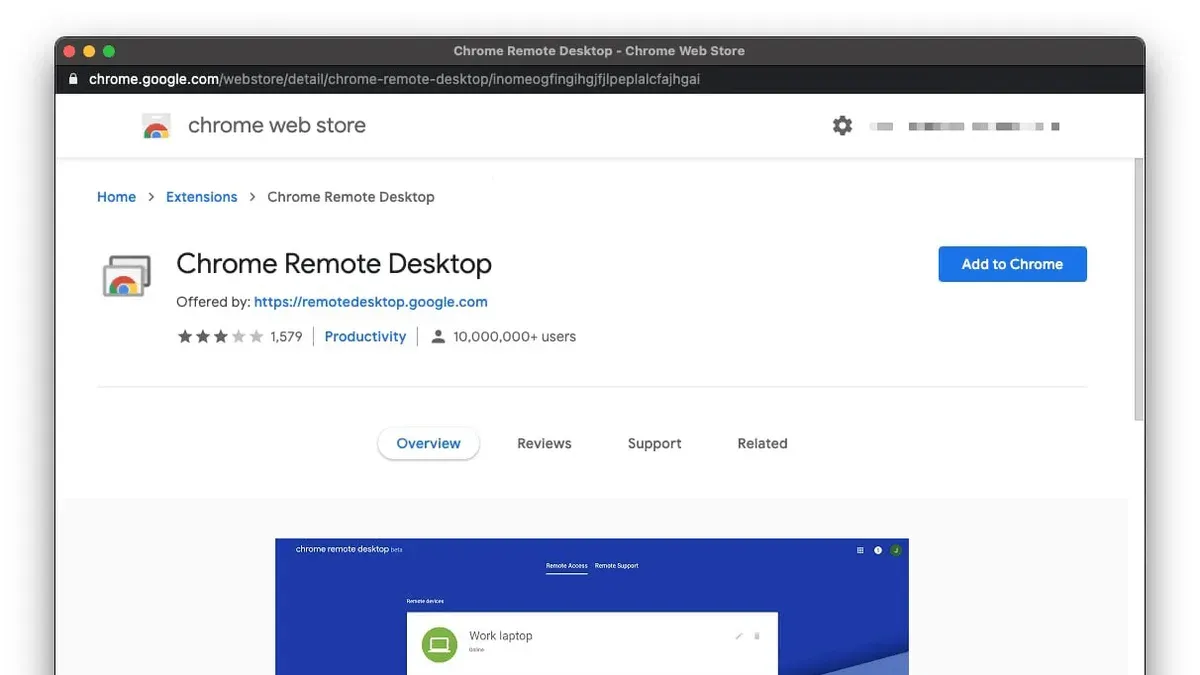
- Click the "Add to Chrome" button next to the Chrome Remote Desktop extension. A confirmation dialog will appear; click "Add extension." You should see a notification that the extension has been added successfully.
- After adding the extension, open a new tab and visit remotedesktop.google.com/access. You will be prompted to download the Chrome Remote Desktop Host installer for macOS. Click the download link to begin.
- Locate the downloaded installer file (usually in your Downloads folder) named something like "chromeremotedesktop.dmg" and double-click it to mount the disk image. A window should open showing the installer package.
- Double-click the installer package inside the mounted disk image to start the installation. You will see a standard macOS installation window; click "Continue" and follow the prompts.
- During installation, macOS will request you to grant permissions for screen recording, accessibility, and input monitoring. Open System Preferences when prompted, go to Security & Privacy > Privacy tab, and check the boxes next to Chrome Remote Desktop under the relevant categories. You may need to click the lock icon and enter your Mac password to make changes.
- Once permissions are granted, return to the installer and complete the installation. You should see a message indicating that Chrome Remote Desktop was installed successfully.
- Go back to Google Chrome and refresh the remotedesktop.google.com/access page. You will now be able to sign in with your Google account and see your Mac listed as a remote device, confirming the installation worked.
How to set up Chrome Remote Desktop on Mac for remote access
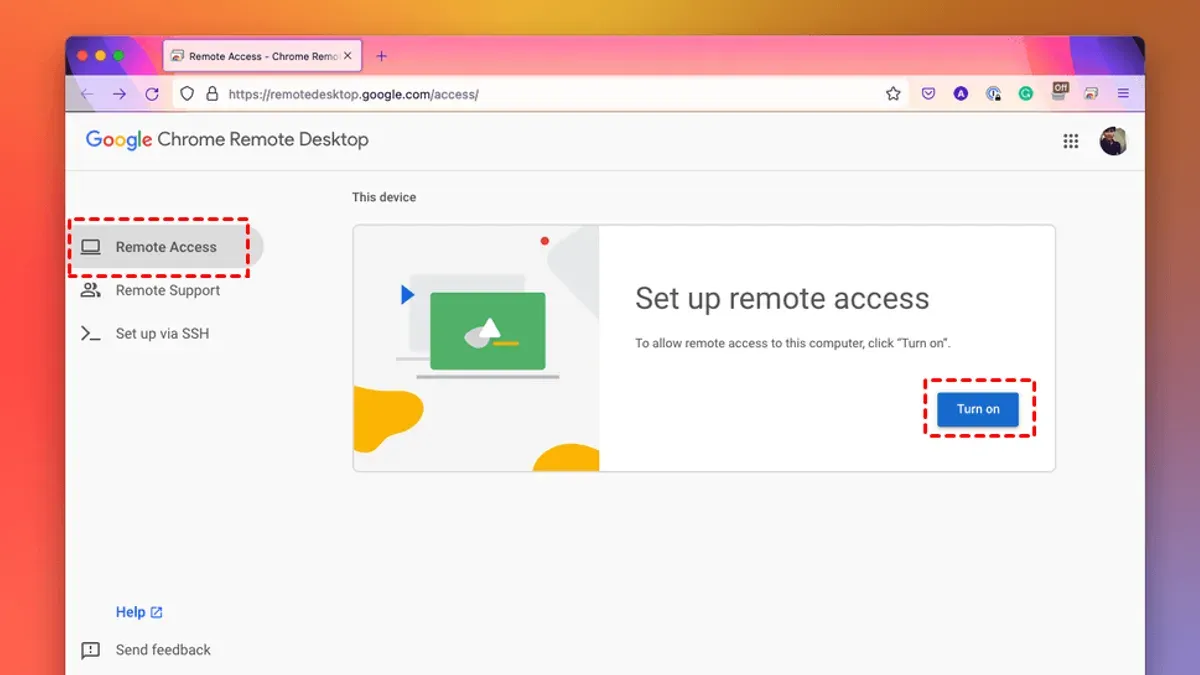
- Open the Chrome Remote Desktop web app at remotedesktop.google.com/access. You should see an option to set up remote access if your Mac is properly prepared. This confirms you have the necessary permissions and software installed.
- Click on "Set up remote access" and enter a recognizable name for your Mac, such as "John's MacBook" or "Office iMac." This name will help you identify the device when connecting remotely.
- Create a PIN consisting of at least six digits. This PIN will authenticate your remote sessions. Choose a number that is secure but memorable, avoiding easily guessed sequences like "123456." The PIN requirement balances security and convenience.
- Confirm your PIN by entering it a second time. Then click "Start" or "Enable" to activate remote connections. The system will prompt you to approve permissions if necessary, ensuring remote access is securely enabled.
- After enabling, test the connection by accessing your Mac from another device using the same Google account. Verify responsiveness by moving the cursor and opening a few apps. Typical connection speeds should feel responsive for basic tasks, though complex graphical operations may show slight delays depending on network speed.
How to use Chrome Remote Desktop on Mac
To access your Mac remotely, you first need to use another device such as an iPhone or a Windows PC. Open the Chrome Remote Desktop app on that device or visit remotedesktop.google.com/access in a browser.
- Log in using the same Google account you used to set up Chrome Remote Desktop on your Mac. When successful, you will see a list of available devices linked to your account.
- Select your Mac from the list of devices. You will be prompted to enter the PIN you created during setup.
- Enter the PIN to establish a secure remote connection. Once connected, your Mac’s desktop appears, and you can control it as if you were in front of it.
- Use features like clipboard sharing to copy text or files between your devices seamlessly. This enhances productivity when transferring data during sessions.
- Adjust the screen size through the app’s display options to fit your remote display or improve visibility. This is particularly useful when connecting from smaller devices like smartphones.
- When finished, terminate the session by clicking the disconnect button in the Chrome Remote Desktop interface. This immediately ends remote access and secures your Mac.
Connecting from an iPhone provides a compact yet functional experience, with touch gestures replacing mouse input. On a Windows PC, the interface feels more like a native desktop app and supports keyboard shortcuts efficiently. Compared to alternative remote desktop apps, Chrome Remote Desktop offers straightforward setup and cross-platform compatibility but lacks some advanced features like file transfer dialogs or multi-monitor support.
How to remove Chrome Remote Desktop on Mac
Removing Chrome Remote Desktop from your Mac involves uninstalling both the Chrome extension and the host application, as well as revoking any remaining permissions if you want to fully disable remote access. Follow these steps for a complete removal.
- Open Google Chrome and click the three-dot menu in the upper right corner. Select More tools > Extensions. Find Chrome Remote Desktop in the list and click Remove. Confirm by clicking Remove again. The extension will disappear, indicating successful removal.
- Open Finder and go to the Applications folder. Locate Chrome Remote Desktop Host or similar named app. Drag it to the Trash or right-click and select Move to Trash. This removes the host software from your Mac.
- To ensure no background processes remain, open System Preferences > Security & Privacy > Privacy tab. Select Accessibility and Screen Recording from the sidebar, then uncheck any permissions granted to Chrome Remote Desktop or Google Chrome.
- If you want to revoke remote access entirely, visit your Google Account Security page. Under Third-party apps with account access, find and remove Chrome Remote Desktop permissions.
- Restart your Mac to finalize removal and clear any temporary files or processes that may have been running.
Note: Some preference files may remain in your user Library folders (~/Library/Application Support/Chrome Remote Desktop), but these do not affect system performance and can be deleted manually if desired.
Following these steps fully removes Chrome Remote Desktop and its components from your Mac.
Troubleshooting common installation issues on Mac
When installing Chrome Remote Desktop on Mac, you may encounter errors such as “unable to install” or permission denials related to macOS security prompts. These issues often stem from macOS privacy settings blocking required permissions or conflicts with other remote desktop software.
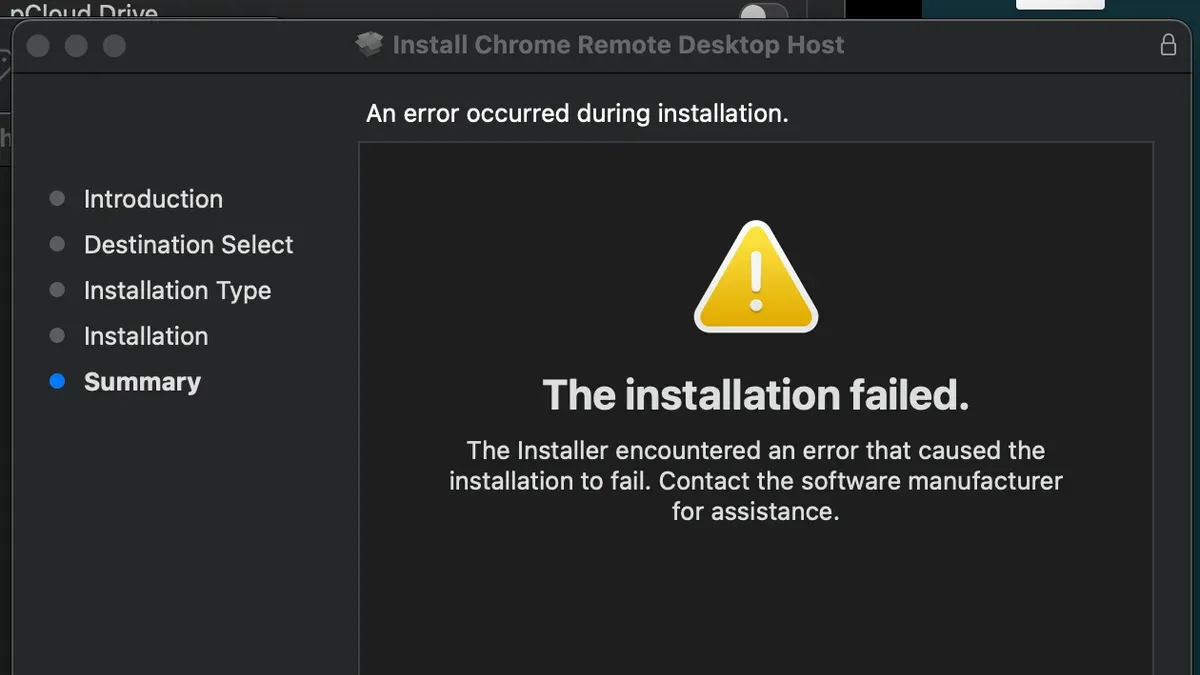
If the installation fails, begin by checking macOS security prompts. Navigate to System Preferences > Security & Privacy > Privacy, then review and enable permissions for Screen Recording, Accessibility, and Full Disk Access for Chrome Remote Desktop and Google Chrome. Without these, macOS will block the host software from functioning properly.
Another common cause is interference from other remote desktop applications such as TeamViewer or AnyDesk. These can create conflicts that prevent Chrome Remote Desktop from establishing connections. Temporarily disable or uninstall conflicting software and retry the installation.
Network and firewall settings can also block remote connections. Ensure your Mac’s firewall allows incoming connections for Google Chrome and Chrome Remote Desktop Host. On System Preferences > Security & Privacy > Firewall, check Firewall Options and add exceptions if necessary.
Here is a step-by-step procedure to resolve installation failures:
- Open System Preferences > Security & Privacy > Privacy tab; unlock settings by clicking the lock icon and entering your password.
- In Accessibility, Screen Recording, and Full Disk Access, check the boxes next to Chrome Remote Desktop and Chrome. You should see these apps listed; if not, add them using the + button.
- Restart your Mac to apply changes. After reboot, attempt the installation again. Success means the installer proceeds without permission errors.
- If the error persists, quit or uninstall other remote desktop software. Then retry installation.
- Check your firewall settings under System Preferences > Security & Privacy > Firewall. Click Firewall Options and ensure Chrome and Chrome Remote Desktop have access permissions.
- Test network connectivity by opening a browser and visiting a website. If network issues exist, resolve them with your router or ISP.
Common error messages include “Installation failed due to insufficient permissions” or “Cannot connect to remote host.” These usually indicate missing macOS permissions or firewall blocks. Adjusting privacy settings and firewall rules as described typically resolves these problems.
Understanding Chrome Remote Desktop’s limitations on Mac
Chrome Remote Desktop offers a straightforward, no-cost solution for accessing your Mac remotely, but it has several limitations compared to native and paid alternatives. Users should set realistic expectations regarding performance, features, and compatibility.
Performance and Latency
While Chrome Remote Desktop provides adequate responsiveness for basic tasks, latency can be noticeable, especially over slower internet connections. Native Mac tools like Apple Remote Desktop or third-party apps such as TeamViewer generally deliver smoother performance and lower input lag, which is crucial for graphics-intensive or real-time applications.
Feature Set
Chrome Remote Desktop lacks advanced functionalities found in paid software, including file transfer capabilities beyond clipboard sharing, remote printing, multi-monitor support, and detailed session logging. For users requiring robust enterprise features like granular access controls or integration with directory services, alternatives like Microsoft Remote Desktop or Jump Desktop are more suitable.
Security and Privacy
The service uses Google’s infrastructure, which means your connection and data pass through Google servers. While connections are encrypted, some organizations may have concerns about data privacy or compliance requirements. Evaluate your security policies before relying solely on Chrome Remote Desktop.
Compatibility Issues
Certain macOS versions or hardware configurations may experience compatibility quirks, such as permission request loops or screen resolution mismatches. These issues sometimes require manual adjustments in System Preferences under Security & Privacy > Accessibility and Screen Recording.
Comparison Table
| Feature | Chrome Remote Desktop | Apple Remote Desktop | TeamViewer |
|---|---|---|---|
| Cost | Free | Paid | Free & Paid tiers |
| Latency | Moderate | Low | Low |
| File Transfer | Clipboard only | Full support | Full support |
| Multi-monitor | No | Yes | Yes |
| Enterprise Features | Limited | Strong | Strong |
User Feedback Highlights
- Some users report delays during screen redraws and input lag, especially on slower networks.
- Installation and permission granting can be confusing, leading to incomplete setup.
- Lack of advanced features frustrates users needing file management or multi-monitor handling.
- Positive notes include ease of use and seamless integration with Google accounts.
If you need high-performance remote access or advanced enterprise features, explore dedicated remote desktop tools designed specifically for macOS environments.
- How to Install AnyDesk on Mac: A Clear Step-by-Step Guide
- How to Install TeamViewer on Mac: A Complete Step-by-Step Guide
Frequently asked questions
Does chrome remote desktop work on mac?
Yes, Chrome Remote Desktop works on Mac computers. It allows you to access your Mac remotely through the Chrome browser or compatible devices. However, you must grant necessary permissions in System Preferences for screen recording, accessibility, and input monitoring to enable full functionality.
How to install google remote desktop on mac?
To install Google Remote Desktop on Mac, start by downloading the Chrome browser if you don’t have it. Then, visit the Chrome Remote Desktop web app, click on “Remote Access,” and follow prompts to add the Chrome Remote Desktop extension. You will also need to download and install the Chrome Remote Desktop Host Installer and grant required macOS permissions.
How to install remote desktop on mac?
Installing Remote Desktop on Mac generally refers to setting up Chrome Remote Desktop or Microsoft Remote Desktop. For Chrome Remote Desktop, follow the extension and host installer steps. For Microsoft Remote Desktop, you can download the official Microsoft Remote Desktop app from the Mac App Store and configure it with your Windows PC credentials.
Can't install chrome remote desktop?
If you can't install Chrome Remote Desktop, common causes include outdated macOS versions, missing Chrome browser updates, or insufficient permissions. Check System Preferences under Security & Privacy to ensure Chrome Remote Desktop has permission for Accessibility, Screen Recording, and Input Monitoring. Also, confirm your internet connection is stable and try reinstalling the host installer.
Can t install chrome remote desktop on mac?
When Chrome Remote Desktop installation fails on Mac, verify you’ve allowed all security prompts, especially in System Preferences > Security & Privacy > Privacy tab. Sometimes restarting your Mac after granting permissions resolves the issue. If problems persist, check for conflicting software like firewalls or antivirus that may block installation.
Limits of Chrome Remote Desktop for Mac users
This guide does not cover remote desktop solutions requiring enterprise-level security or specialized configuration beyond Chrome Remote Desktop’s scope. If your needs include advanced network setups, multi-factor authentication beyond Google accounts, or compliance with strict corporate IT policies, consider dedicated enterprise software like Microsoft Remote Desktop with managed IT support.
Chrome Remote Desktop works best for straightforward, personal, or small-business remote access scenarios. It relies on a Google account and internet connectivity, and some macOS security permissions can be challenging to configure correctly without administrator access.
For the most reliable experience, ensure you keep Chrome updated and regularly review macOS privacy settings under System Settings > Privacy & Security, especially Accessibility and Screen Recording permissions, to avoid disruptions.
The single most useful next step is to open System Settings > Privacy & Security and verify that Chrome Remote Desktop has all required permissions enabled. This step often resolves connection failures and installation issues that can otherwise be confusing.